
Role Templates
Creating a role can take time when you need to configure many restrictions. A role template lets you save those settings once and reuse them whenever you create a similar role.
You can find templates under .
What a template contains — and what it does not
A template carries |
A template never carries |
|---|---|
Record Permissions |
People (assigned users) |
Domain Access (record filters + rights) |
Odoo groups |
Hide & Lock Fields |
Companies |
Filter Field Values |
Implied roles |
Hide Buttons & Options |
Hidden menus |
Conditional Rules |
Login limits (block login, business hours) |
The global Block Everywhere switches |
The reason for the split: rules are policy and travel well between databases; people, companies, and login windows are local facts and belong on the concrete role.
Note
Templates store their target record types by technical name, which is what makes them portable. Applying a template on a database where one of those apps is missing simply skips that rule and reports which ones were skipped — everything else is still applied.
Ready-made templates
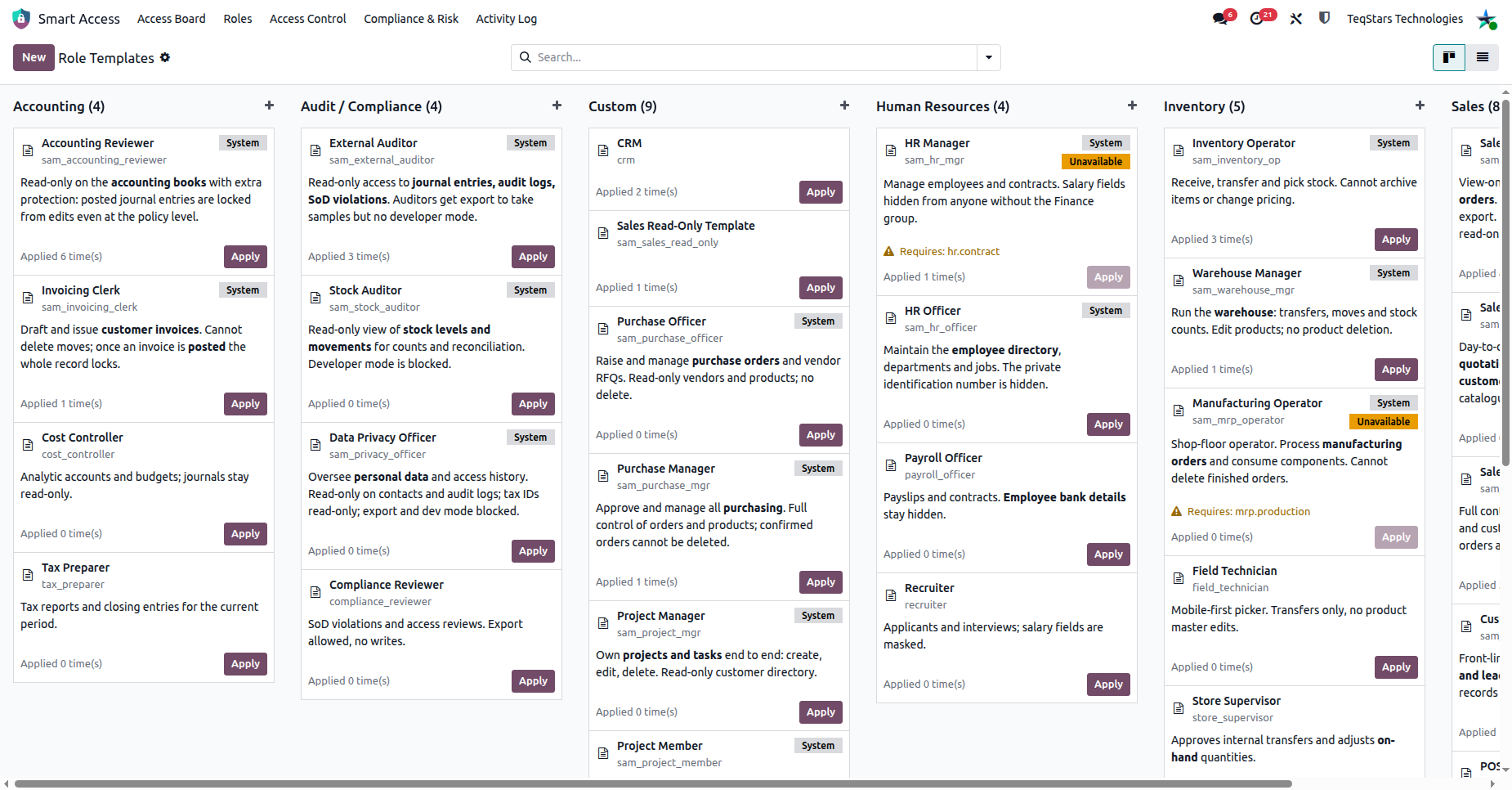
20 templates ship with Smart Access Manager, marked System:
Category |
Templates |
|---|---|
Sales |
Sales Read-Only, Salesperson, Sales Manager, Customer Support Agent, POS Cashier, Marketing User |
Accounting |
Accounting Reviewer, Invoicing Clerk |
Human Resources |
HR Manager, HR Officer |
Inventory |
Inventory Operator, Warehouse Manager, Manufacturing Operator |
Audit / Compliance |
External Auditor, Stock Auditor, Data Privacy Officer |
Custom |
Purchase Officer, Purchase Manager, Project Manager, Project Member |
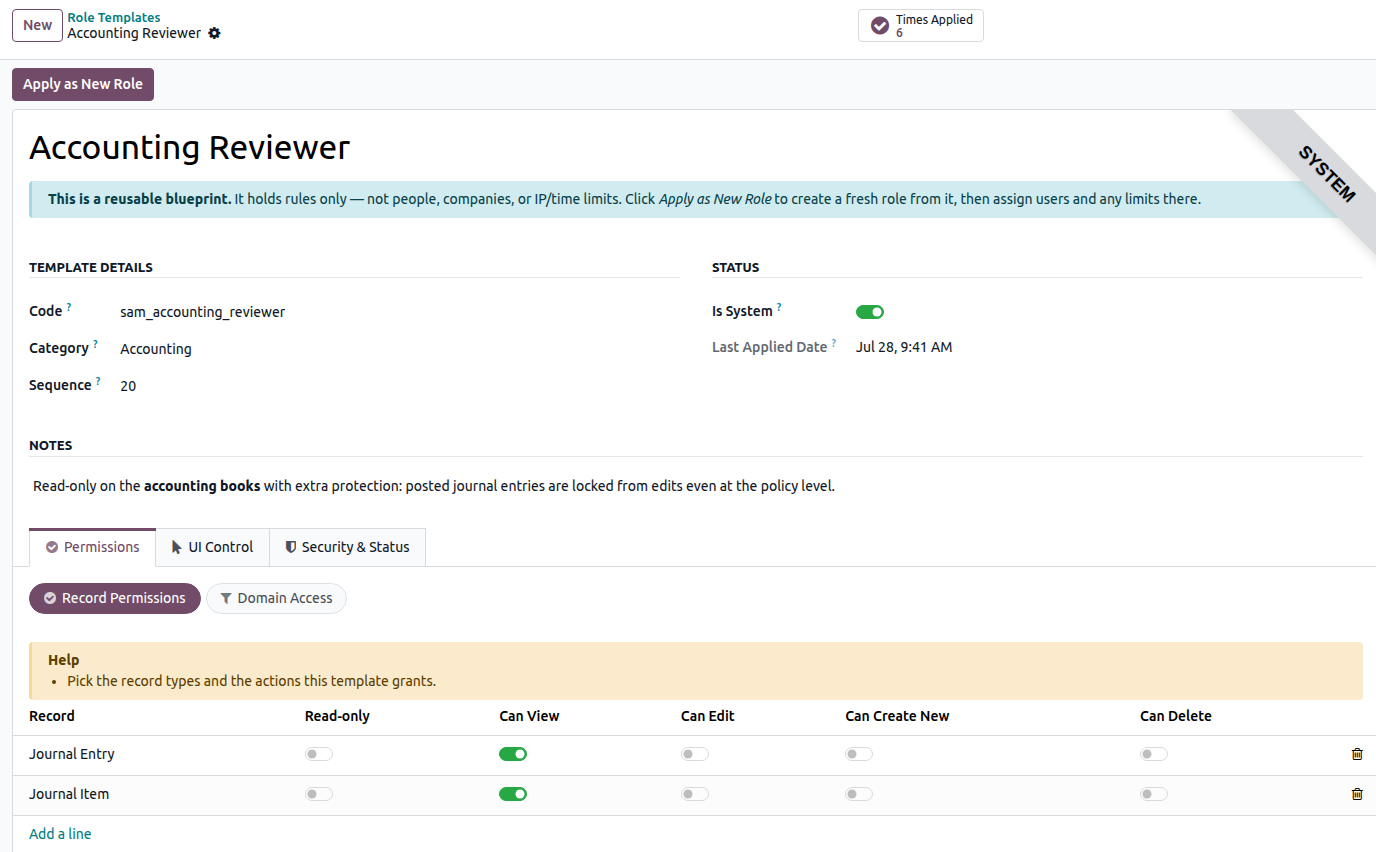
Each template opens with a description of the job it models and the restrictions it applies.
Tip
Templates that target an app you have not installed are hidden by default, so the list always reflects your own database. Remove the Available filter to see them all; the Missing Models field then tells you exactly which app is absent.
System templates are protected: only a Security Officer can edit them, delete them, or mark a template as System. Anyone with Manager rights can freely create and edit their own templates.
Apply a template
Open a template and click Apply Template.
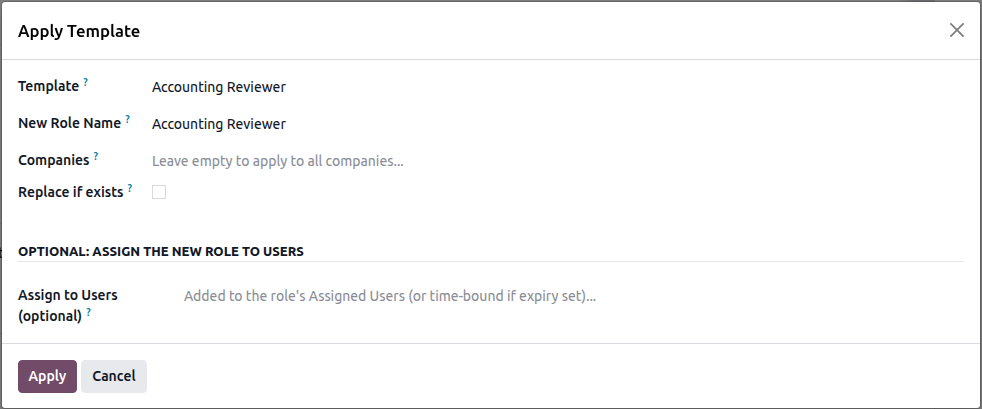
New Role Name |
Name of the role to create. Use your own vocabulary — “Branch Salesperson (Lyon)” rather than the template name. |
Companies |
Restrict the new role to certain companies. Empty = all. |
Assign to Users |
Optional. The chosen users are added to the new role straight away. |
Assignment Expiry |
Optional. If set, those users also receive a time-bound grant that ends automatically on this date. |
Replace if exists |
If a role with the same name already exists, rebuild its rules from the template instead of refusing. |
Create a Role from a Template
When you create a role from a template, Smart Access Manager applies the template’s rules to the new role. The wizard shows a summary of what was applied, including any rules that were skipped because the related app is not installed or a required field could not be found.
After the process is complete, the new role opens automatically so you can review and customize it.
Warning
Replace if exists removes the existing role’s configured rules before applying the template again. This includes Record Permissions, field rules, record filters, UI rules, and conditional rules.
The role’s users, groups, and companies are kept.
Use Replace if exists when you want to re-sync a role with its template. It should not be used to combine the existing role’s rules with the template’s rules.
Combine Several Templates
You can combine multiple templates into a single role.
From the Role Templates list, select two or more templates and click Create One Role from Selected.
Smart Access Manager creates one role containing the rules from all selected templates. Duplicate or overlapping rules are merged instead of being added multiple times. Rules related to apps that are not installed are skipped.
For example, you can combine Invoicing Clerk and Stock Auditor to create a role for an accountant who also needs to manage inventory.
Add a Template to an Existing Role
You can add templates to an existing role using the Applied Templates field.
When you add a template, its rules are immediately added to the role.
This process is add-only:
Rules that already exist on the role are skipped.
Removing the template later does not remove the rules that were added from it.
This allows you to add a template to an existing role without losing your customized rules.
Save Your Role as a Template
You can create a template from one or more existing roles.
From one role — Click Save as Template on the role form. If you save the same role again, its existing template is updated instead of creating a duplicate.
From multiple roles — Select the roles from the Roles list and click Save as Template. Their rules are combined into a single template.
Only the role’s rules are copied. Users, groups, companies, and other role-specific settings are not included.
Track Template Usage
Each template keeps track of how often it has been used through Times Applied and records the date it was last applied.
This helps you identify which templates are actively being used and which templates have not yet been used.
See also