
Update Products From Odoo
With Update Products, you can update your existing products on TikTok Shop from Odoo, including product details, images, pricing and inventory. Only what you choose is sent; everything else stays as it is on TikTok Shop, including the settings this connector does not manage. You can proceed to update products from Odoo to TikTok Shop in two different ways:
Method - 1: From The Operation Popup
Go to the menu in Odoo.
Click on the
Operationsbutton from the instance record.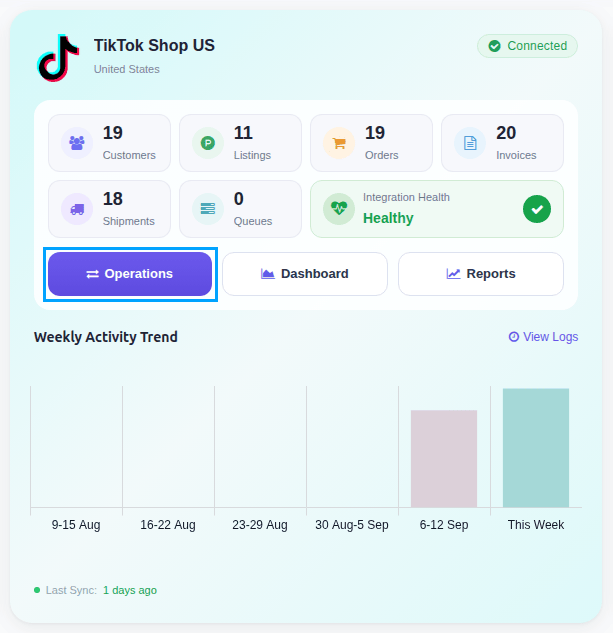
Select Export Operation and then select Update Listings option.
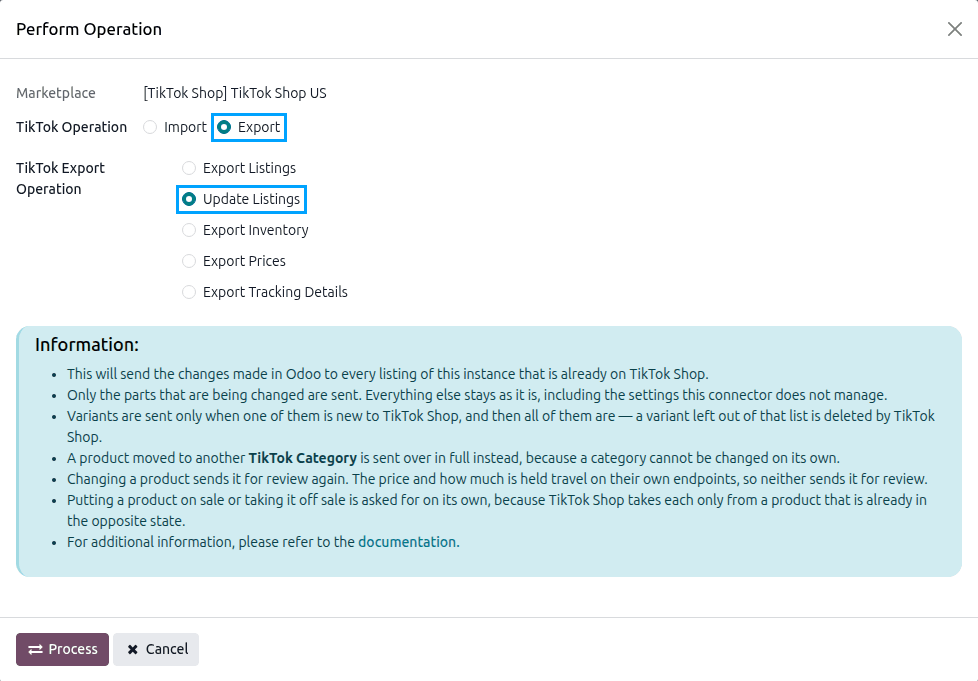
Press
PROCESSbutton to update every listing of the instance that is already on TikTok Shop. This sends the product details only. To send images, price or quantity, use Method 2.
Method - 2: From The Listing View
Go to and select the listings you want to update.
Click Export/Update to Marketplace.

A pop-up window will appear, presenting you with the update options. Select the data you want to update on TikTok Shop and press Update Listing.
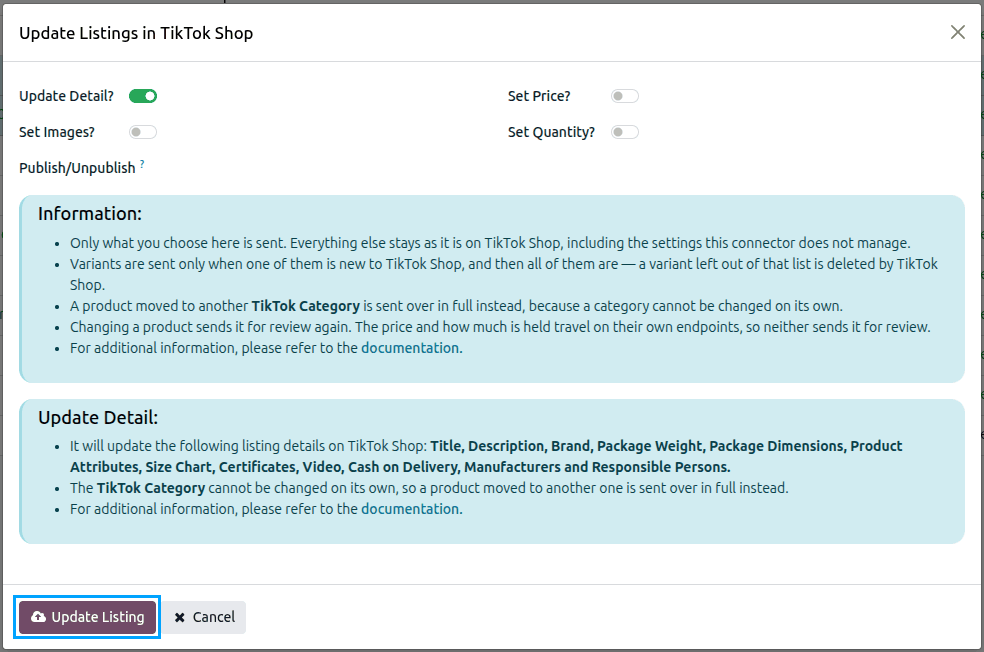
Update Detail?: sends the product itself: Title, Description, Brand, Package Weight, Package Dimensions, Product Attributes, Size Chart, Certificates, Video, Cash on Delivery, Manufacturers and Responsible Persons.
Set Images?: sends the pictures with it.
Set Price? and Set Quantity?: send what each variant is priced at and how much is held.
Publish/Unpublish: puts the selected products back on sale or takes them off sale instead of changing what they hold. See Manage Product Status.
Tip
The update popup shows an info message listing the fields that will be updated based on your selections. Review this before processing.
How The Update Is Sent
A product is changed a part at a time, so only what is being changed is sent.
Variants are sent only when one of them is new to TikTok Shop, and then all of them are. A variant left out of that list is deleted by TikTok Shop.
A product moved to another TikTok Category is sent over in full instead, because a category cannot be changed on its own.
Changing the product itself sends it for review again. The price and the inventory travel on their own, so neither sends it for review.
A listing whose requirements are not met is reported and its product changes are skipped, so the rest of the selection still goes. Its price and stock, when chosen, are still sent, because they travel on their own.
A product already live stays Live while TikTok Shop reviews the change; the change’s progress shows as its Review Status.
Note
Listing changes are sent when you run Update Listings or press Update Listing. The Sync Listing Review Status scheduled action reads the review results back. See Manage Product Status.
After Update
The review verdict of a changed product is read back and shown on the listing as its Review Status.
If the update fails, check the error logs at .