
Knowledge Layer Configuration
The Knowledge Layer lets the AI answer questions from
your uploaded files — contracts, policies, vendor docs,
employee handbooks, support attachments. Behind the scenes
it indexes every ir.attachment in Odoo into searchable
chunks.
This page covers the one-time configuration screen. The ongoing day-to-day operation is covered in Indexed Sources & Chunks and Knowledge Search Modes.
Where to find it
.
The page is a singleton — there is only one configuration record per tenant.
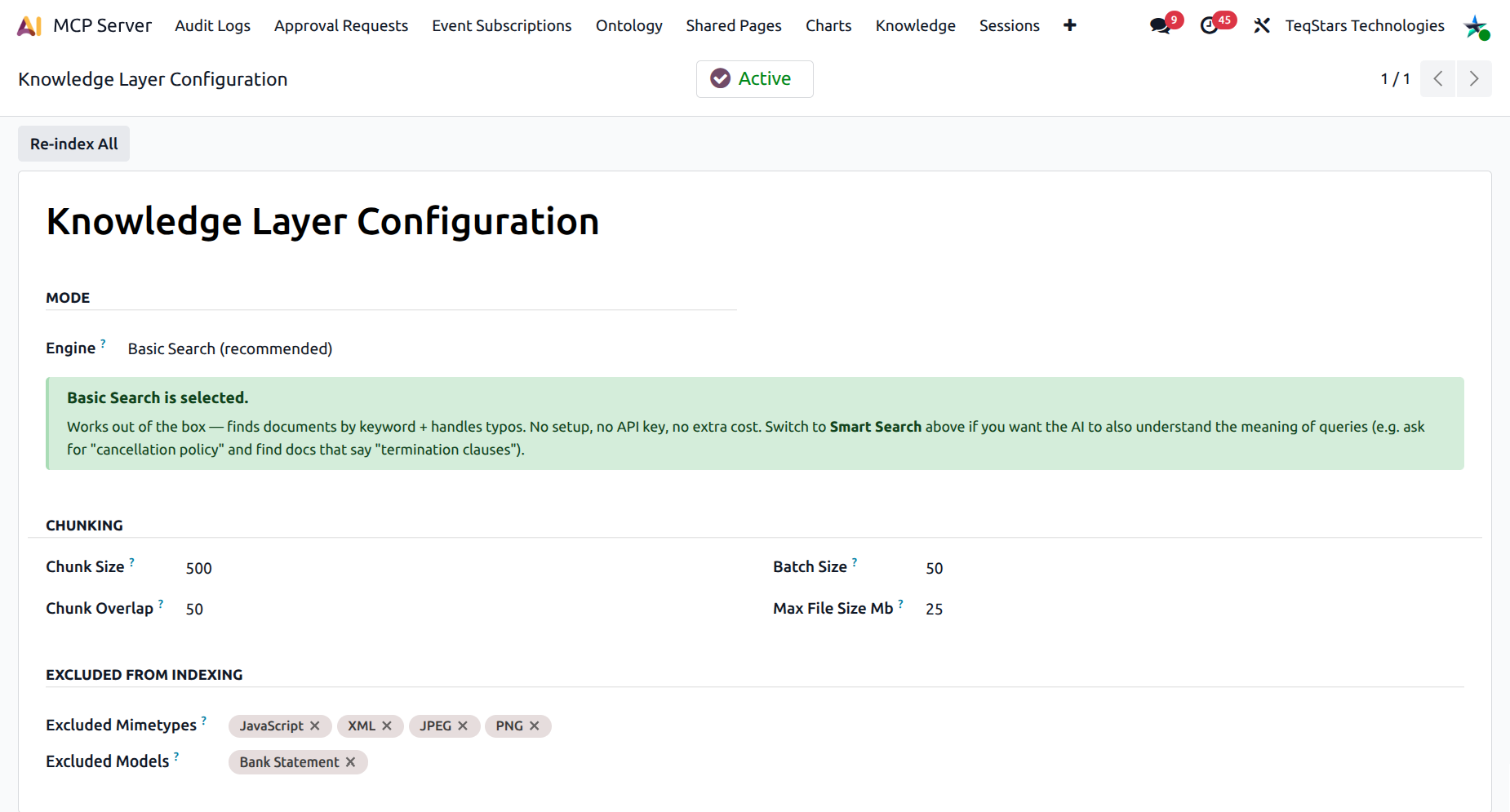
Step 1 — Pick the search engine
The first decision is whether to run Basic Search or Smart Search.
Basic Search (default)
Engine
fulltext.Uses PostgreSQL’s
tsvector+ trigram fuzzy match.Works out of the box — no API key, no extra cost, no external dependency.
Handles typos and word stems.
Recommended for most installs.
Smart Search
Engine
hybrid.Blends BM25-style keyword match with semantic vector similarity via Reciprocal Rank Fusion.
Understands meaning — e.g. asking for “cancellation policy” finds docs that say “termination clauses”.
Requires an embedding provider (OpenAI is the easiest) and an API key.
Best for tenants with lots of long documents where exact wording differs from the user’s questions.
You can switch back and forth at any time. Re-indexing is required when the existing chunks don’t match the new provider — the banner described below tells you so.
Step 2 — Configure Smart Search (optional)
If you picked Hybrid, the Smart Search — Quick Setup group becomes visible:
Embedding Provider — pick one. OpenAI is the easiest; the provider’s URL, model name, and vector dimensions are auto-filled. None effectively reverts to Basic.
API Key — paste your provider key. Stored password-style on the form.
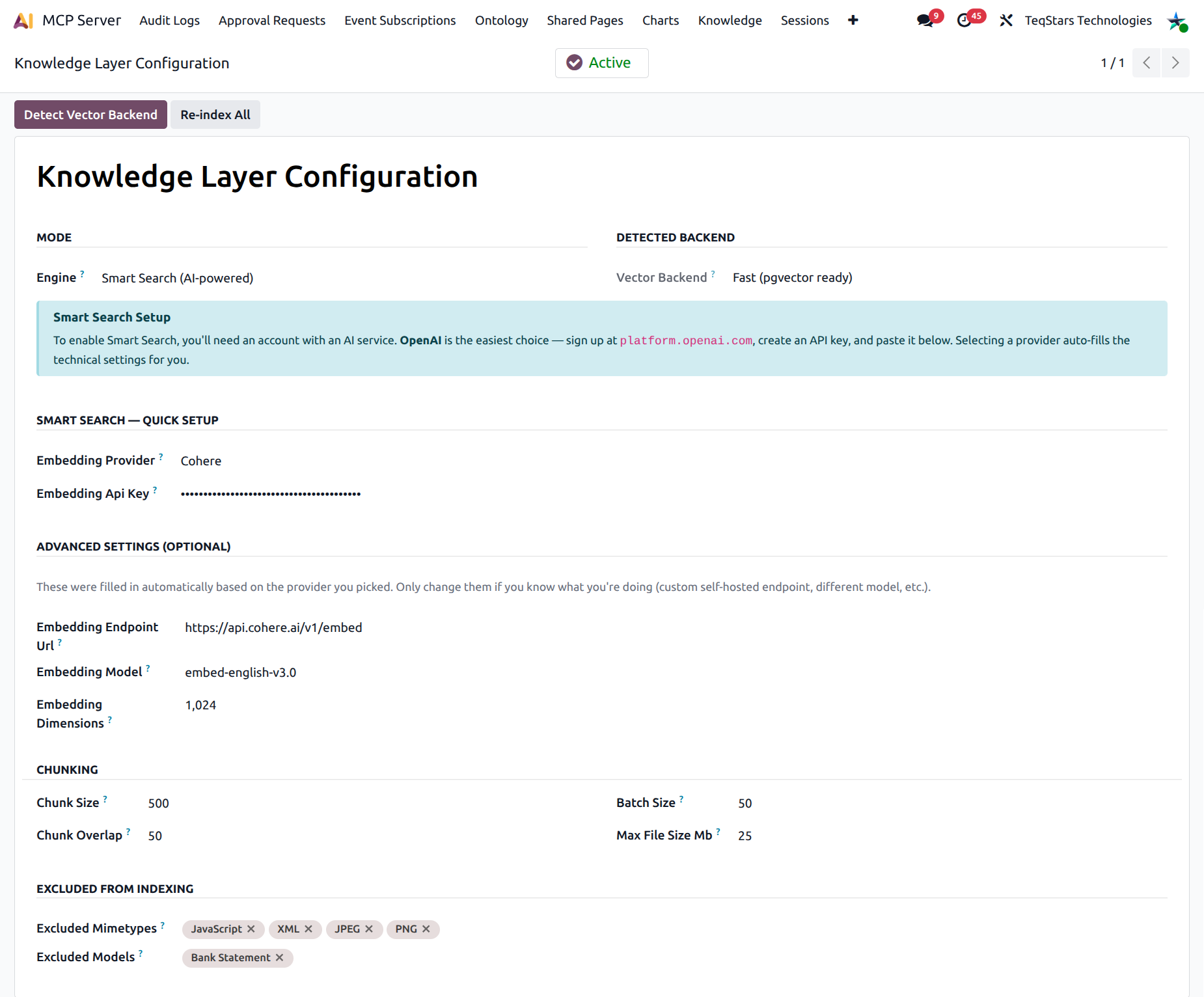
For self-hosted alternatives, expand Advanced Settings and override:
Endpoint URL — your private embedding endpoint.
Embedding Model — name passed to the provider.
Embedding Dimensions — dimensions of the returned vector.
Tip
Don’t change Advanced Settings unless you really know what you’re doing — the defaults are correct for the public OpenAI endpoint.
Vector Backend (Smart Search storage)
When you pick Smart Search, the Detected backend group appears next to Mode and shows the Vector Backend field. This is how vectors are stored in PostgreSQL — it has nothing to do with which embedding provider you use, and it affects only the speed of similarity search:
Fast (pgvector ready) — the database has the
pgvectorextension installed and the MCP Server is using it. The best setup for large knowledge bases.Standard (can be upgraded for speed) — pgvector is not installed, so the MCP Server falls back to a generic
float8[]array column. Works fine for small to medium corpora (up to ~10k documents); slower beyond that.Not configured — Smart Search is unavailable (engine is still Basic).
The field is auto-detected at module install and is read-only — you can’t edit it by hand.
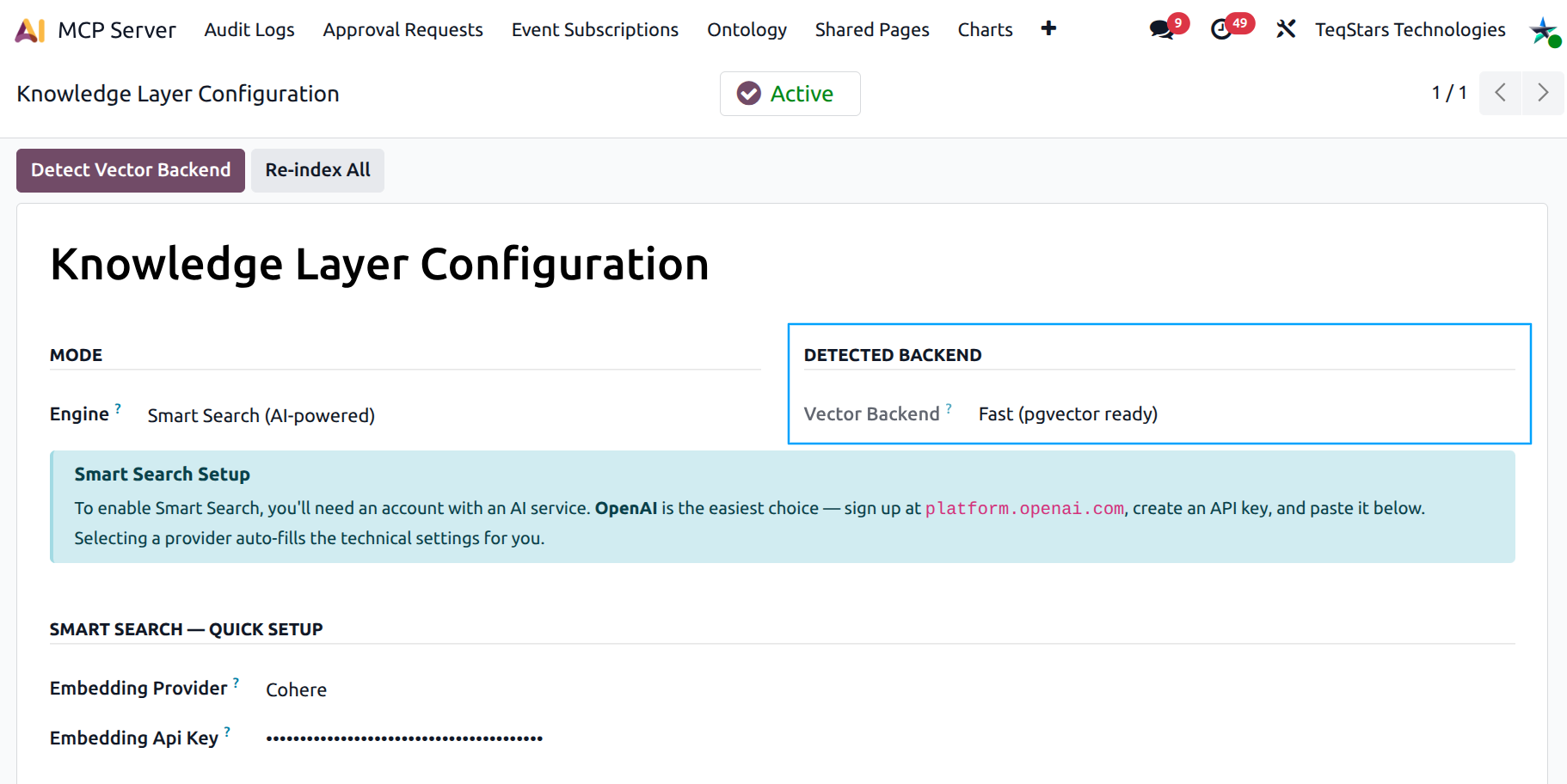
Detect Vector Backend
When the engine is Smart Search, a Detect Vector Backend button appears in the header. Click it any time the database has changed (typically right after the DBA enables pgvector). The MCP Server re-probes PostgreSQL and updates the field in place. Possible outcomes:
Green “pgvector is active” / “pgvector now active” — the extension was found. If it was just enabled, a follow-up note confirms “Existing chunks still work — no re-indexing needed.”
Yellow “Using slower fallback” — pgvector is not available. The notification includes the exact SQL command to run on your database (
CREATE EXTENSION vector;) plus the database name, so a DBA can copy-paste it directly. After running it, click Detect Vector Backend again.
Tip
For most installs the Standard fallback is good enough. Push to Fast once your knowledge base grows past a few thousand chunks or you start to feel query latency. Upgrading is a one-time DB-side step — no re-index of the knowledge layer is required.
Note
Switching the engine from Smart Search back to Basic Search resets Vector Backend to Standard automatically. The next time you flip back to Smart Search, click Detect Vector Backend again so the field reflects the current database state.
Step 3 — Enable the master switch
The big smart button at the top of the sheet flips between Paused (default after install) and Active:
Paused — no new indexing. The MCP: Knowledge Layer Indexing cron is also paused.
Active — the cron picks up new
ir.attachmentrows every 15 minutes and processes pending sources in batches.
Flipping the switch automatically syncs the cron’s active flag — you never have to touch .
Re-indexing
If you change the embedding provider, model, or dimensions on a Smart Search install, existing chunks become stale — their vectors are incompatible with new queries. A yellow banner appears on the page:
Your existing chunks were indexed with a different embedding provider — or they’re missing embeddings because Smart Search was just enabled. Smart Search will return wrong results (or none) until you click Re-index All in the header.
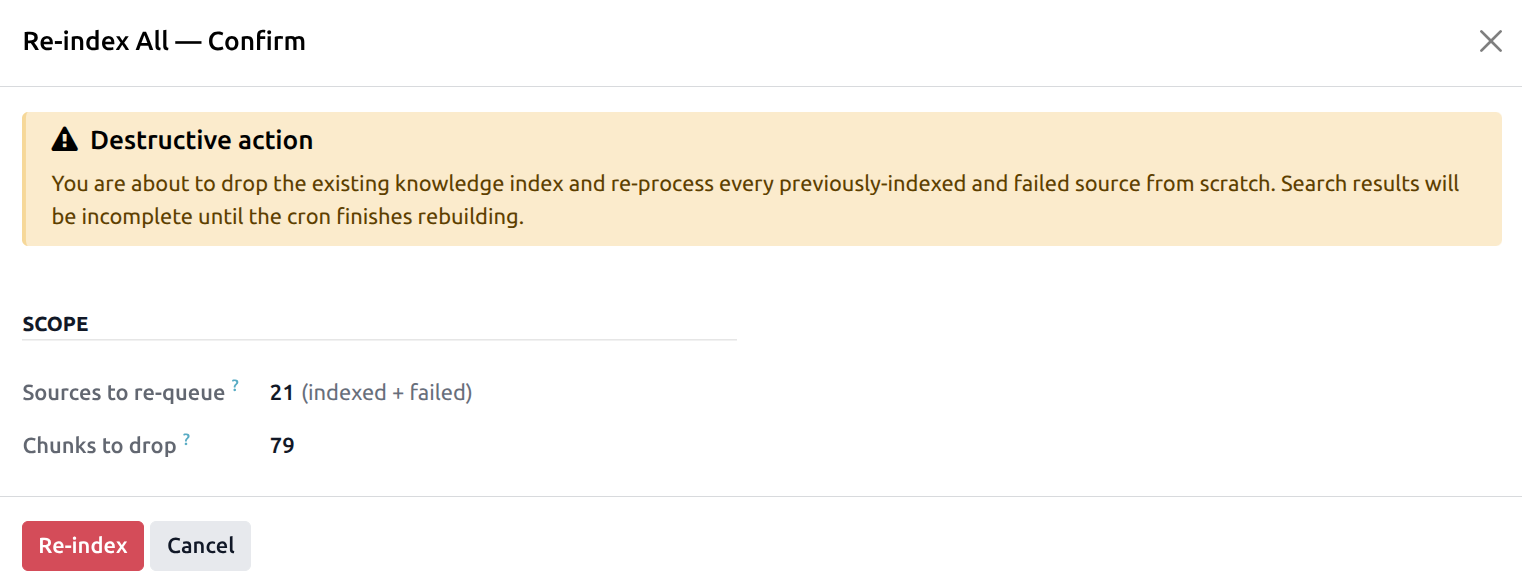
Click Re-index All. A confirmation wizard tells you how many sources will be re-queued and how many chunks will be dropped. Confirm to enqueue the rebuild — it runs in the cron, not inline.
Step 4 — Chunking and exclusions
The Chunking group controls how documents are split:
Chunk Size — target token size of each chunk (default 500 tokens). Smaller = more precise, more rows.
Chunk Overlap — token overlap between consecutive chunks. Higher = better context at the boundary.
Batch Size — how many sources the cron processes per tick.
Max File Size (MB) — files above this are skipped.
The Excluded from Indexing group keeps junk out:
Excluded Mimetypes — multi-tag picker against the Mimetype Catalog (e.g.
image/*,video/*).Excluded Models — multi-tag picker against
ir.model; attachments on these models are skipped (e.g.ir.attachment,mail.message).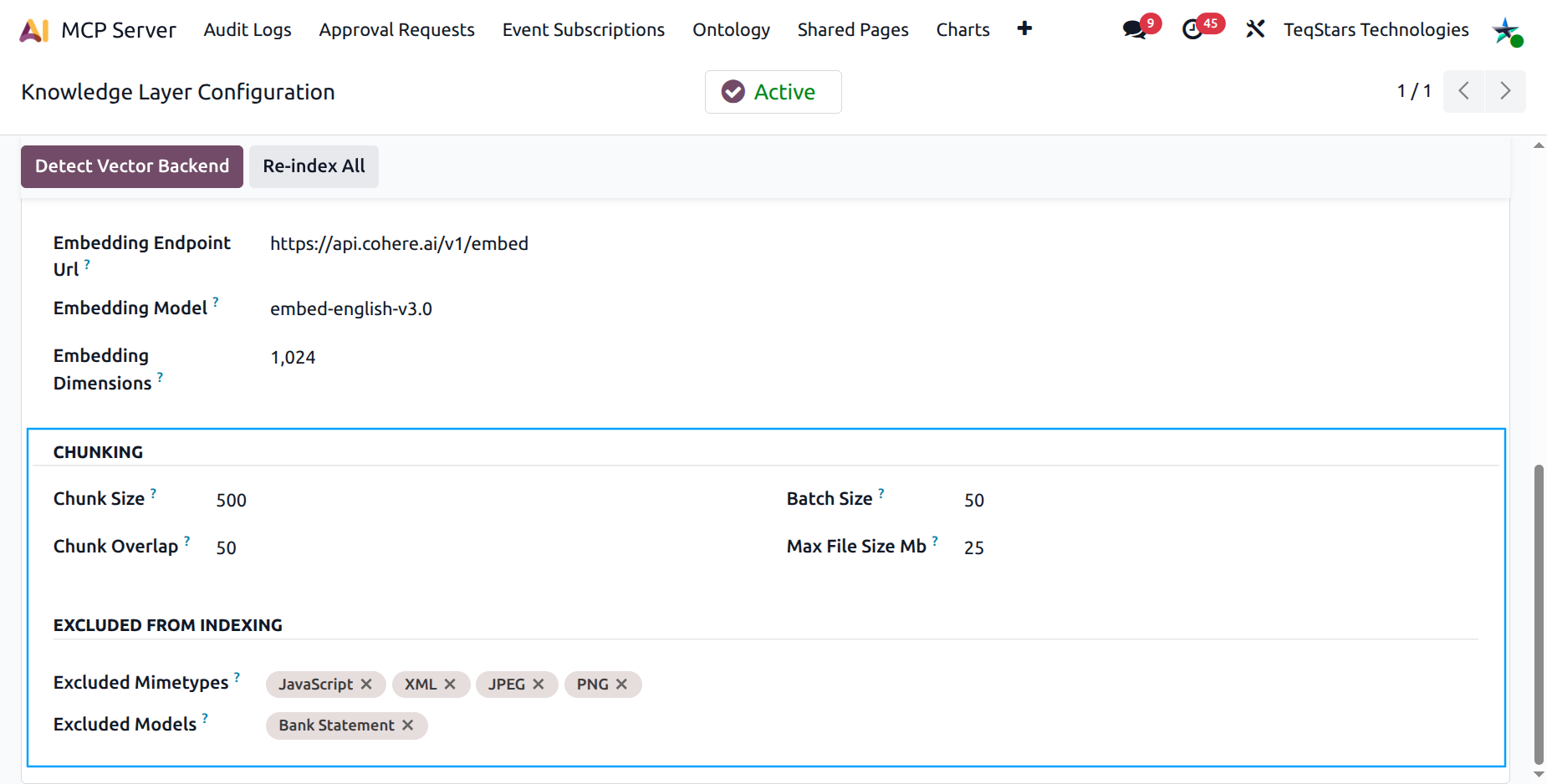
Mimetype Catalog
exposes the seeded list of common formats (application/pdf, image/png, audio/mpeg, application/zip, etc.) grouped by category. You can add custom rows for niche mimetypes you want to exclude.
The catalog supports a trailing * wildcard (e.g.
image/*) so a single row covers an entire family.