
Human-in-the-Loop Approvals
Approvals are the safety net for risky AI actions. With approvals configured, the AI cannot just call a sensitive tool — it has to file a request that a human reviews in Odoo, approves or rejects in plain English, and then watches Odoo execute under the original requester’s permissions.
When to use approvals
Typical candidates for approvals on a write-capable connection:
delete_record,batch_delete— irreversible deletion.execute_method— full power to call any public method.send_test_email_template,stage_mass_mailing_from_template— anything customer-facing.transition_state— moving an order to “confirmed” or an invoice to “posted”.
Configure approvals per connection
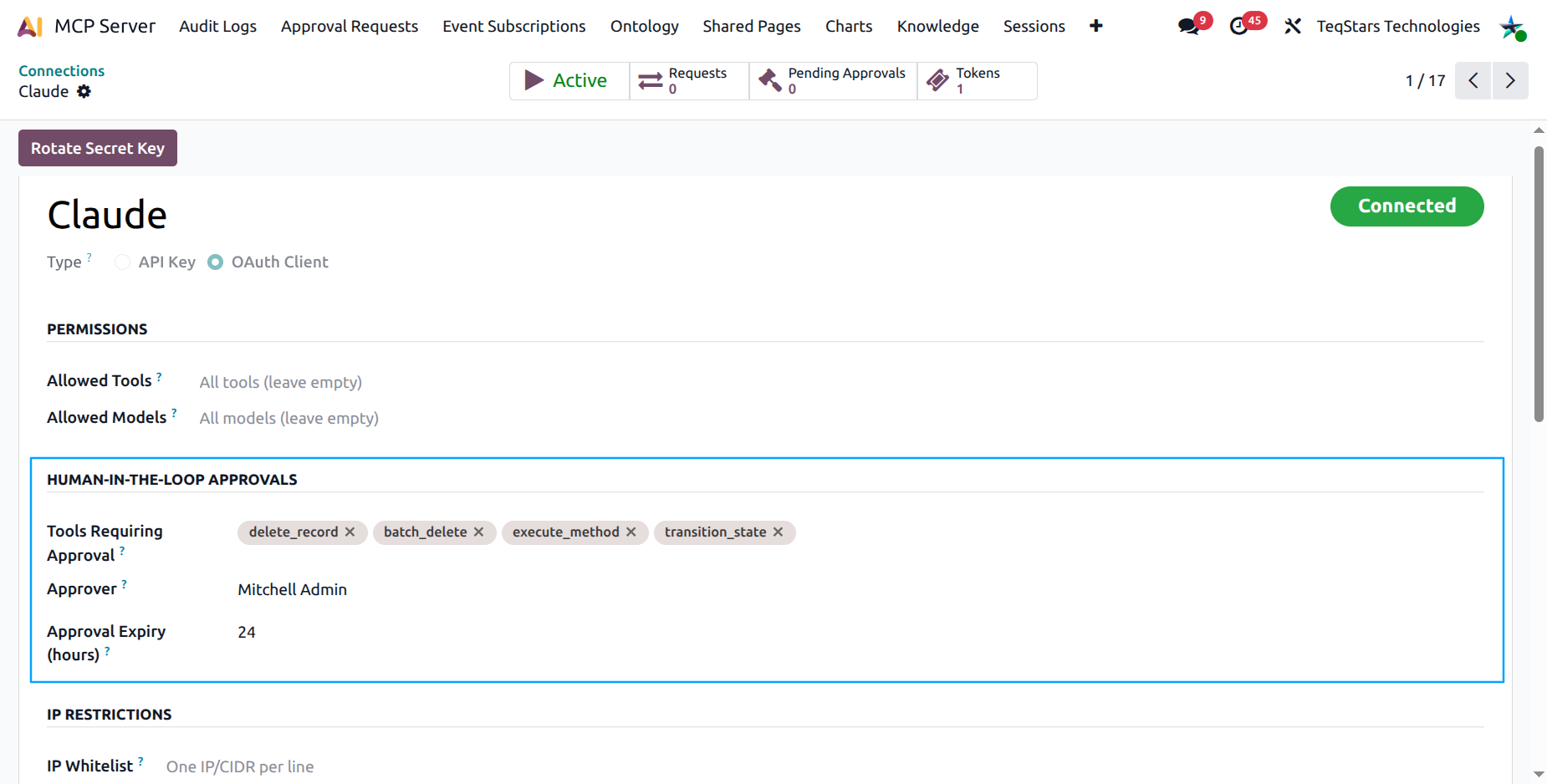
Open the Connection form ().
Scroll to the Human-in-the-loop Approvals group.
Add tools to the Tools that need approval field.
Pick an Approver — the Odoo user who reviews requests for this connection. Defaults to nobody, in which case any MCP Administrator can act.
Set Approval Expiry (hours) — pending requests older than this are automatically expired by the cron.
The approval workflow
Step 1 — The AI tries a risky action
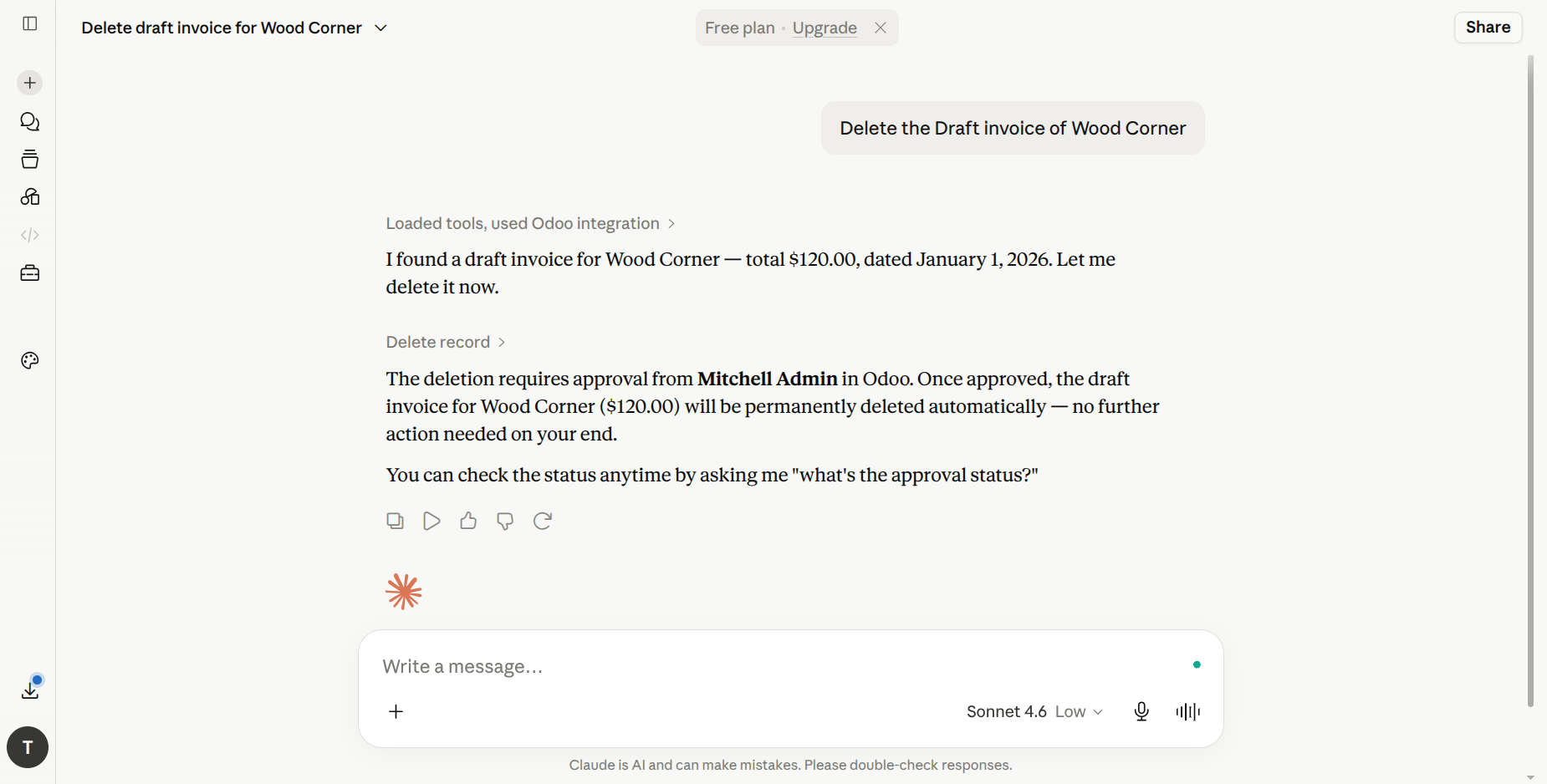
A user asks the AI to do something the connection has gated behind approval. The AI calls the tool as usual, but instead of executing, the MCP Server:
Creates an
mcp.approval.request.tsrecord.Computes a plain-English summary (e.g. “Permanently delete 12 quotations on sale.order.”).
Stores the tool name, arguments, requester, assigned approver, and expiry.
Sends an Odoo activity to the approver.
Returns a
pending_approvalresponse to the AI with the newrequest_id.
The AI tells the user that the action is awaiting approval.
Step 2 — The approver reviews the request
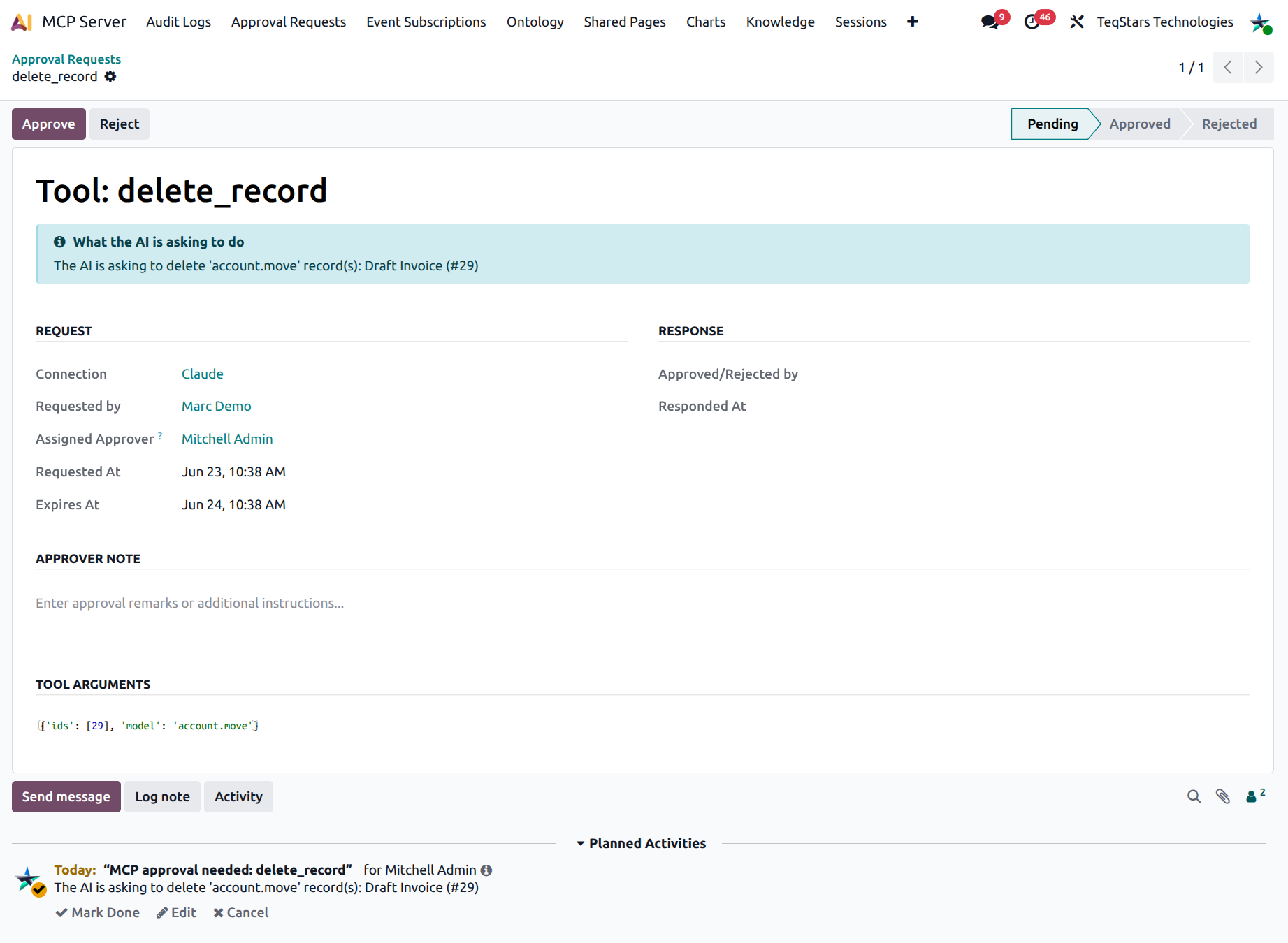
The approver navigates to . Pending requests are highlighted yellow and pre-filtered to show.
Opening the request shows:
What the AI is asking to do — the plain-English summary.
The Request group — connection, requester, assigned approver, requested-at, expiry.
The Tool Arguments group — the raw arguments as JSON, for technical auditing.
Buttons Approve and Reject in the header.
An Approver Note field for any free-text remarks.
Note
The requester never sees Approve / Reject — those buttons are visible only to the assigned approver or an MCP Administrator. This is enforced both in the UI and server-side, so the requester cannot self-approve their own AI’s request.
Step 3 — Approve or reject
Click Approve:
The request status flips to Approved.
Odoo auto-executes the deferred tool call server-side under the original requester’s ACL (not the approver’s).
The result is cached on the approval request row.
Click Reject:
The request status flips to Rejected.
The deferred tool call is dropped.
The AI later sees an explanatory message.
Step 4 — The AI surfaces the result
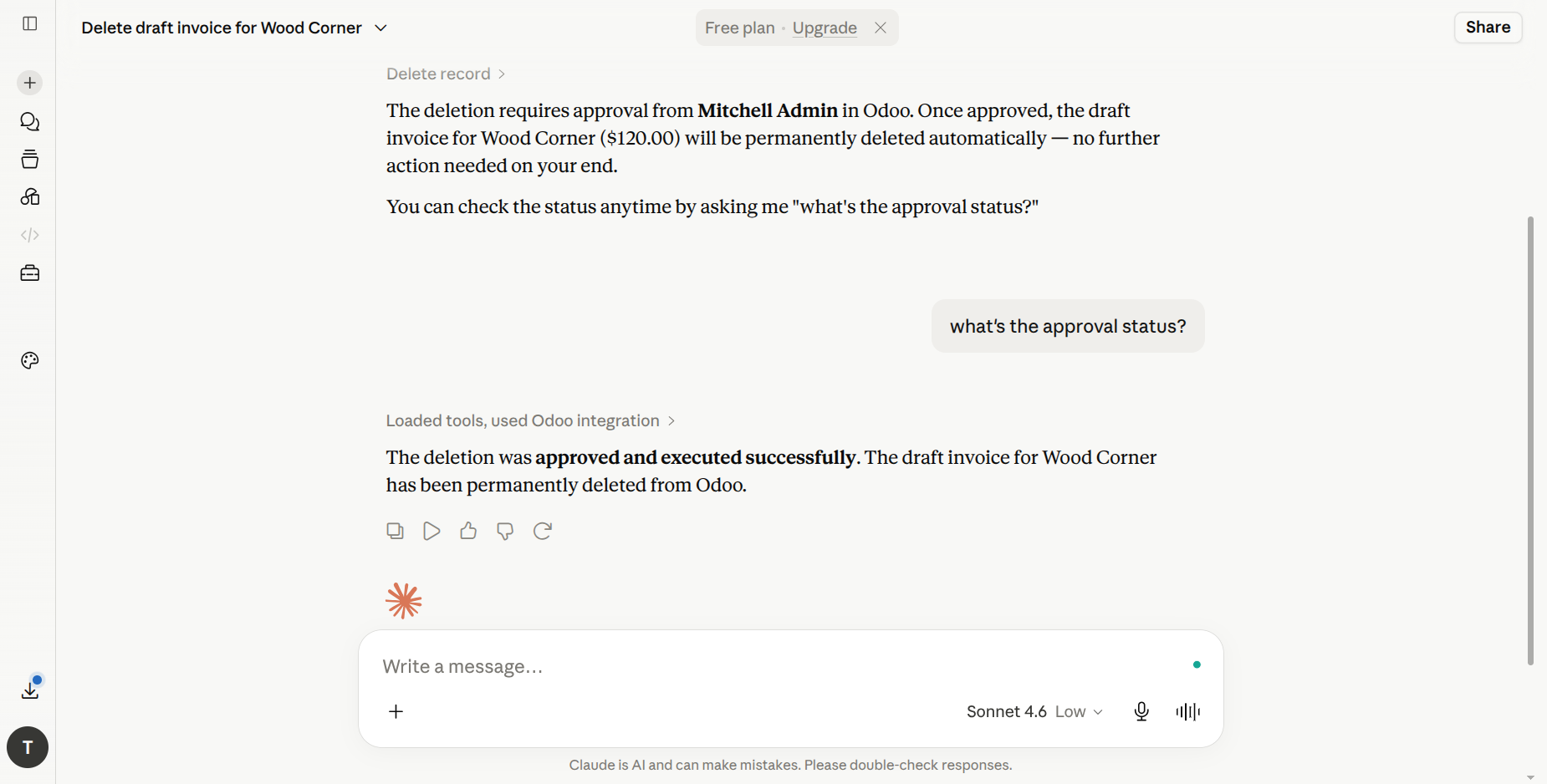
The AI calls check_approval_status (typically when the
user asks “what happened?” or “approved”). The server returns:
status— pending / approved / rejected / expired.execution_status— pending / success / error.result— the cached tool output when approved + executed.error— the failure reason if auto-execution failed.
If the request was approved and executed successfully, the AI surfaces the cached result to the user — it does not retry the original tool, which would create a duplicate action.
Approval lifecycle
Status |
When |
Visible to |
|---|---|---|
Pending |
The AI just filed the request |
Requester + Approver + Admin |
Approved |
Approver clicked Approve |
All of the above |
Rejected |
Approver clicked Reject |
All of the above |
Expired |
No response before Approval Expiry hours; cron expired it |
All of the above |
Cron behaviour
The MCP: Expire Pending Approval Requests cron runs every
30 minutes and flips any pending request past its
expires_at to Expired. Expired requests cannot be
acted on anymore — the AI can re-file a fresh request if the
user still wants to proceed.
Best practices
Pair high-risk tools (
delete_record,execute_method,send_test_email_template) with a real human approver.Use a shared mailbox or team as the approver if a single person becomes a bottleneck — any MCP Administrator can also approve.
Keep the Approval Expiry hours short (1–4 hours) so the request list never grows stale.
Use the Approver Note field to record context — “Approved after confirming with finance” — for the audit trail.