
Import ShipStation Stores
ShipStation stores represent the sources that send orders into ShipStation: Amazon, eBay, Shopify, BigCommerce, manual, etc. Each store has its own identifier and is needed when configuring a delivery method or pushing an order.
The store list is the prerequisite for everything downstream. Every delivery method, sales order, and delivery order export is tied to a specific store.
Stores are imported automatically on first account confirmation. Use the manual flow below to refresh the list whenever you add, rename, or deactivate a store in ShipStation.
Note
The ShipStation V2 API does not provide an endpoint for store management, so store management always uses the ShipStation V1 API. A V2 account also needs V1 credentials for this.
How to Import Stores Manually
Go to .
Click the Operations button on the target account’s kanban card.
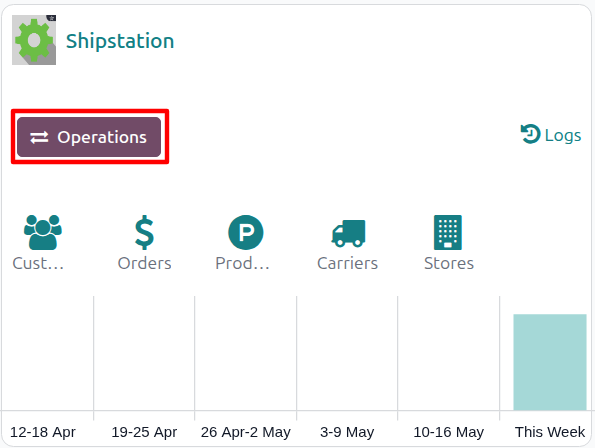
Choose Import as the operation type, then from Shipstation Import Operation select Import Stores.
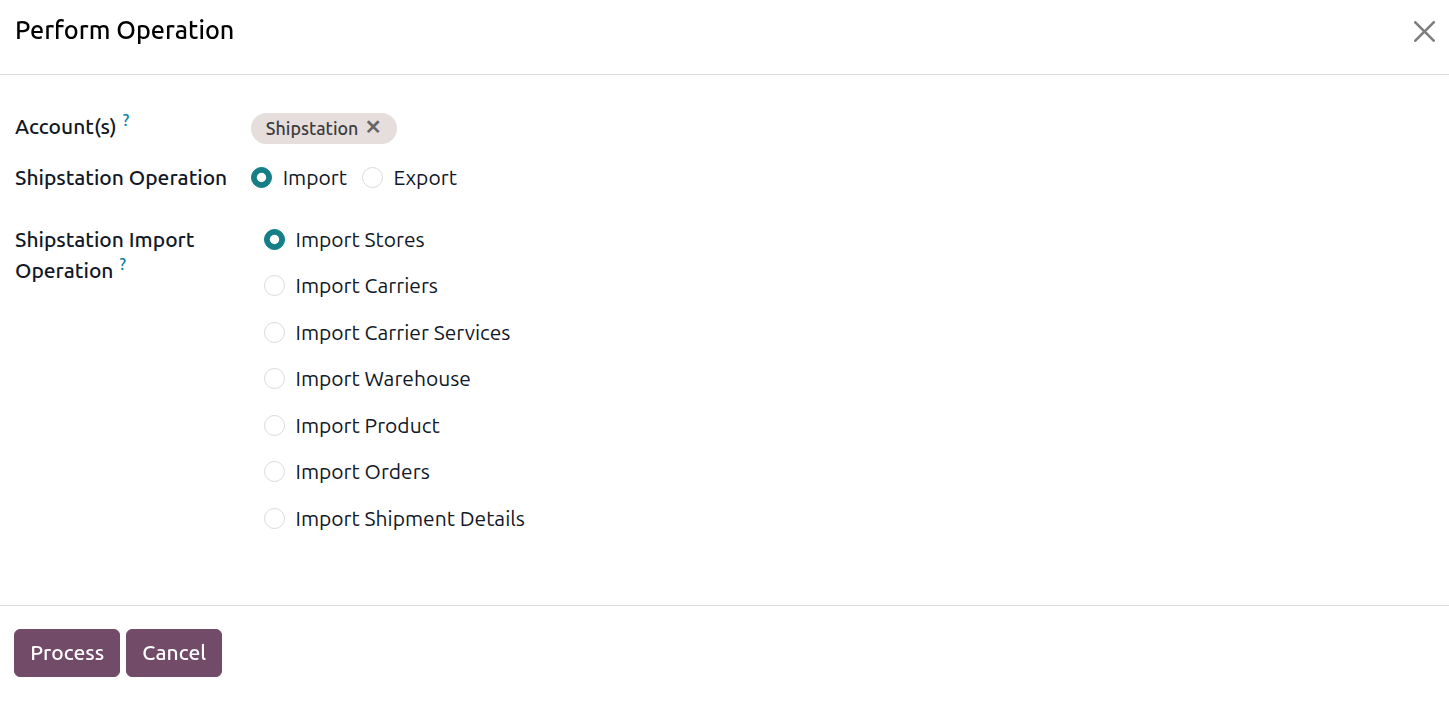
The wizard exposes the following options:
Account: the ShipStation account to run the operation on. Pre-filled from the kanban card you launched the wizard from.
Shipstation Operation: radio, Import or Export. Select Import for this flow.
Shipstation Import Operation: pick Import Stores.
Click Process.
The connector fetches every active and inactive ShipStation store and creates or updates one Odoo record per store with name, identifier, integration URL, e-mail, phone, website, company name, and active state.
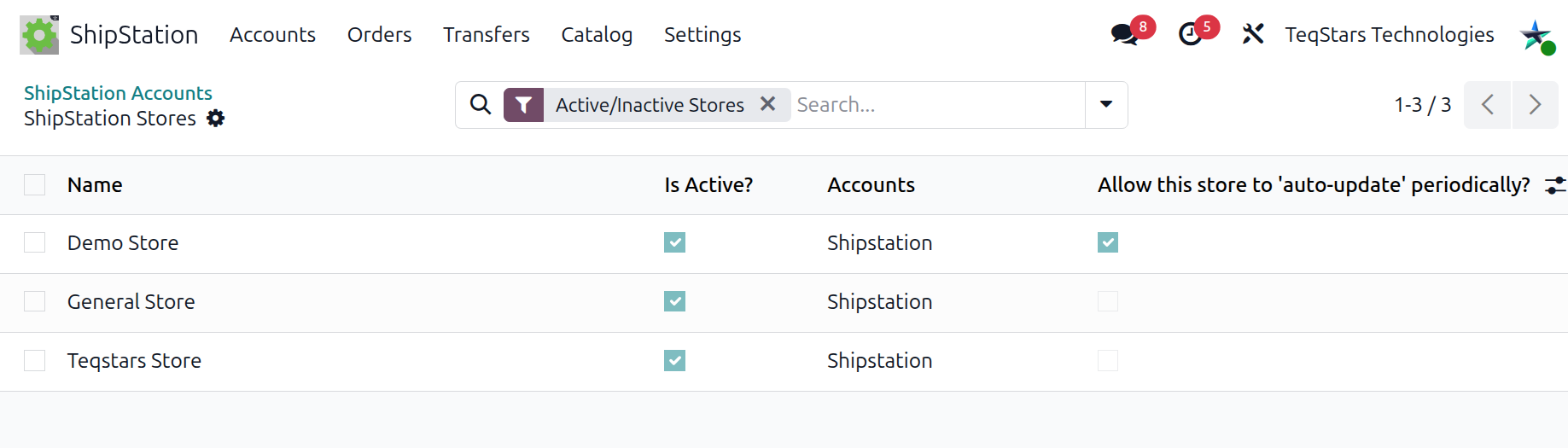
Where Stores Are Used
On a ShipStation delivery method the Store field decides which store is sent to ShipStation when the delivery is exported or labelled.
On imported sales orders the Store field records the store of origin so you can filter or report by store inside Odoo.
Reactivate / Deactivate Stores
Go to .
Open the store you want to update.
Click Reactivate In Shipstation or Deactive In Shipstation to toggle the store status in ShipStation directly, or click Update In Shipstation to push the Odoo store fields back to ShipStation.
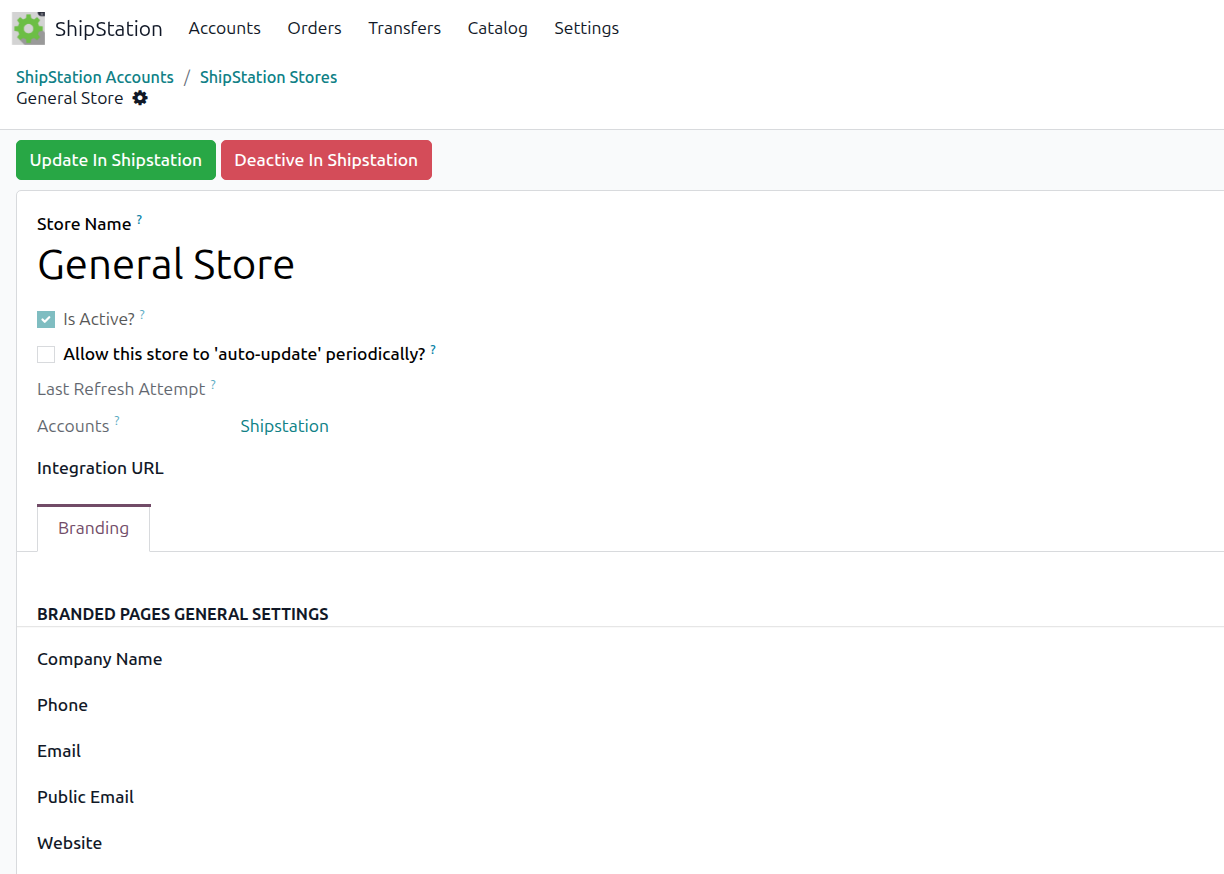
The store form exposes the following fields:
Store Name: the store name as it appears in ShipStation.
Is Active?: whether the store is currently active in ShipStation. Inactive stores stay in Odoo so historical orders that reference them still resolve.
Allow this store to ‘auto-update’ periodically?: when checked, ShipStation auto-refreshes orders from this store at its own cadence.
Last Refresh Attempt: timestamp of the last time ShipStation tried to refresh the store.
Accounts: the parent ShipStation account this store belongs to.
Integration URL: the back-end URL ShipStation uses to talk to the source storefront (Shopify admin URL, BigCommerce store URL, etc.).
Under the Branding tab:
Company Name: the company name registered on the store in ShipStation.
Phone: the contact phone number registered on the store.
Email: the operational e-mail address associated with the store in ShipStation.
Public Email: the public-facing e-mail address shown to customers.
Website: the public website URL of the store.
The header buttons act directly on ShipStation:
Update In Shipstation: pushes the editable Odoo fields (company name, e-mail, phone, website, etc.) back to ShipStation.
Reactivate In Shipstation: re-enables a store that is currently inactive in ShipStation. Visible only when the store is inactive.
Deactive In Shipstation: disables an active store in ShipStation. The store stays visible in Odoo (marked Inactive) so historical sales orders are still readable. Visible only when the store is active.
Important
Inactive stores are deliberately included in the import so historical orders that reference a now-deactivated store still resolve. Hide them in the list view with the search filter when needed.