
Import Offers From ManoMano
Read back the current price, stock and offer status of your listed products from ManoMano, for all products or for chosen SKUs.
Use it to check what is live on ManoMano. It is also the way to confirm the result after you send a new price or stock, because ManoMano processes those updates on its own time.
Prerequisites
A confirmed ManoMano instance with its API key. See Create a ManoMano instance in Odoo.
At least one seller contract on the instance, B2B or B2C. See ManoMano Seller Contracts.
Your ManoMano products already exist as listings in Odoo. This operation only refreshes listings that are already in Odoo, it does not create new ones. To bring your ManoMano catalog into Odoo first, see Import Products In Odoo.
Method - 1: Manual Offer Import
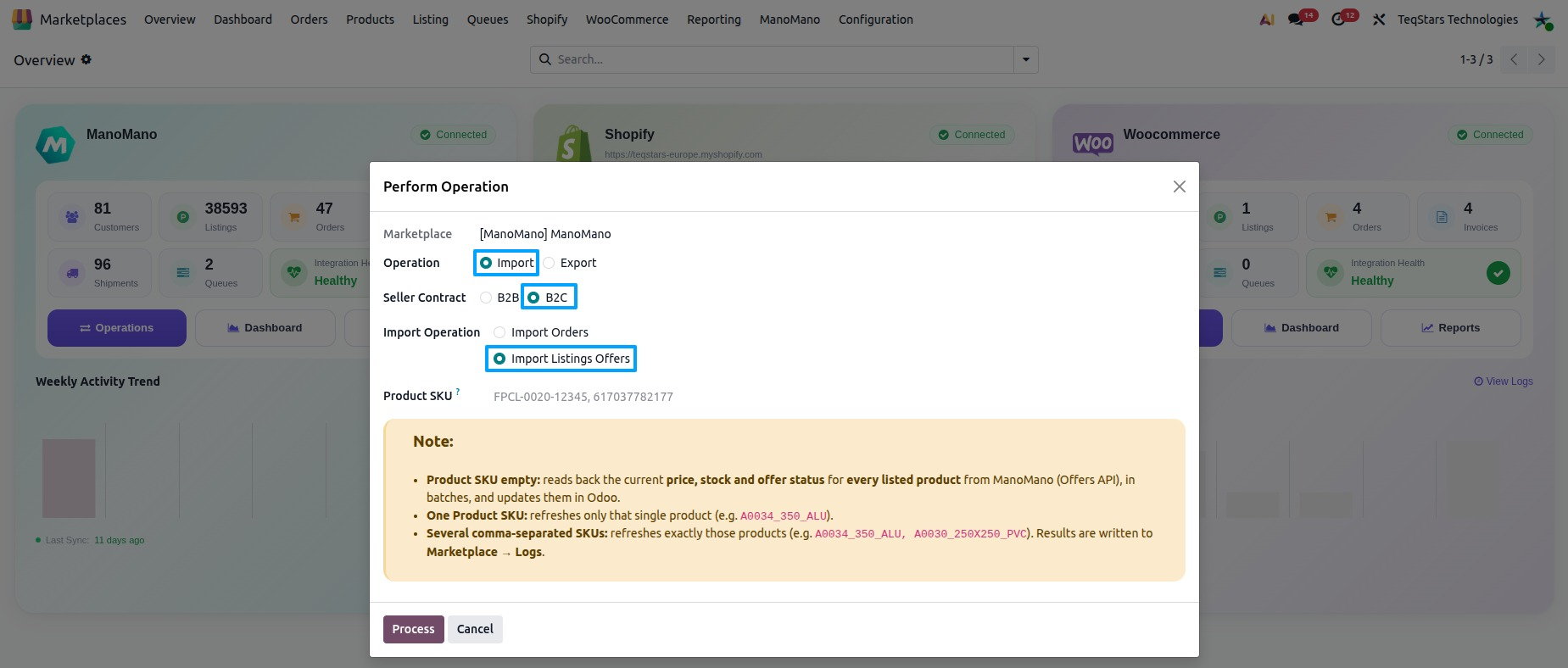
Go to and open the operations of your ManoMano instance.
In Operation, choose Import.
In Import Operation, select Import Listings Offers.
Fill in Product SKU if you only want some products. Leave it empty for all of them.
Click Process.
There is no scheduled job for this operation. You run it when you need it.
Import All Offers Or Chosen SKUs
The Product SKU field decides which offers are read back:
Product SKU empty: the app reads back the current price, stock and offer status of every listed product from ManoMano, in batches, and updates them in Odoo.
One Product SKU: only that single product is refreshed.
Several comma-separated SKUs: exactly those products are refreshed.
Products are matched by SKU (Internal Reference). This way no duplicates are created.
What Is Updated In Odoo
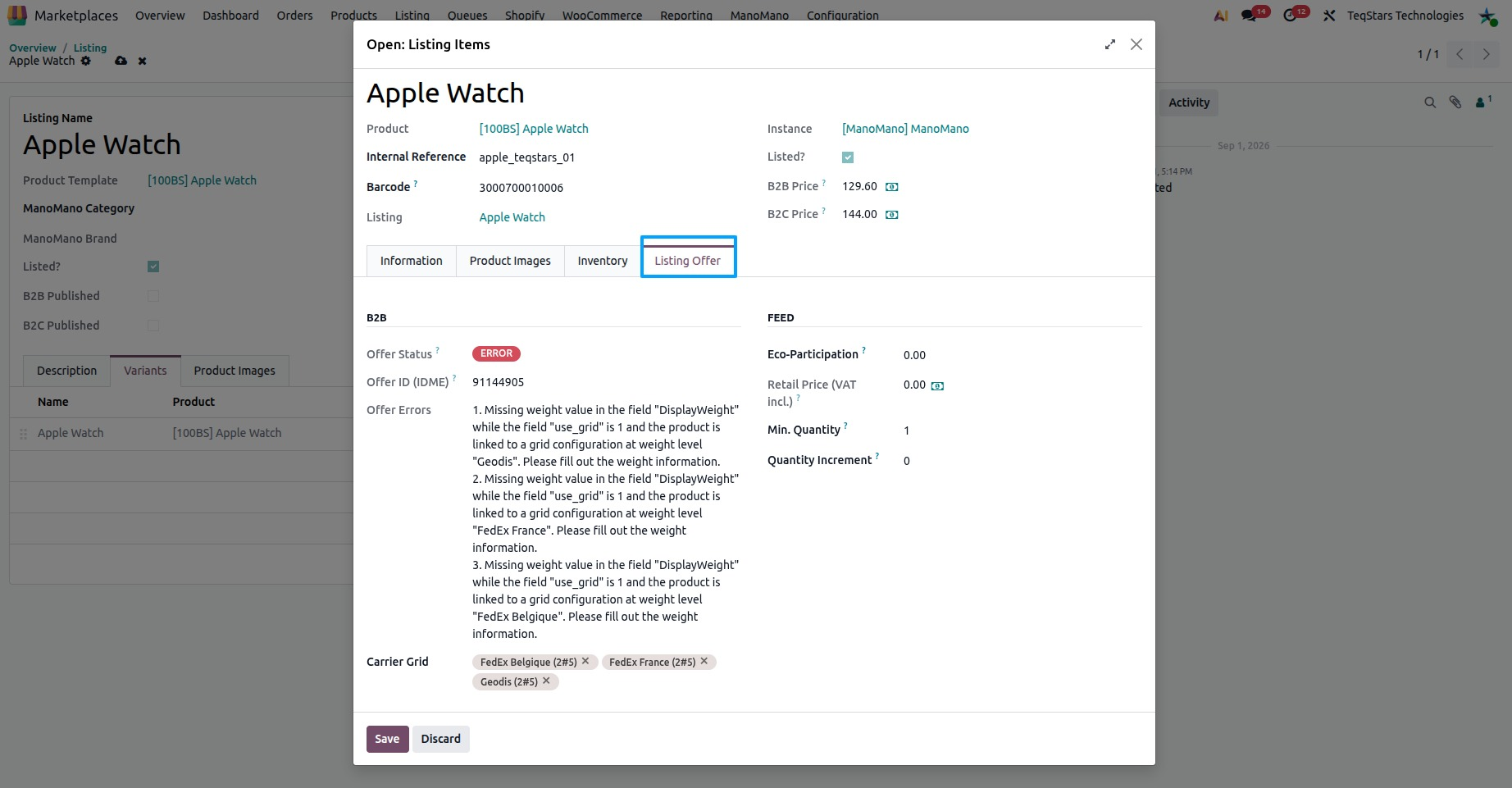
For each offer found on ManoMano, the app updates the listing item in Odoo. You see the result on the Listing Offer tab of the listing item, for B2B and for B2C:
Offer Status: the update status from ManoMano. IN PROGRESS means the offer is being updated, ERROR means it is in error, and COMPLETED means it is updated.
Offer ID (IDME): the ManoMano identifier of this offer or variant.
Offer Errors: what ManoMano reports when an offer is in error.
The price: prices read from ManoMano go into the pricelist of the matching seller contract, not directly onto the product. You see it in B2B Price and B2C Price.
The retail price: the struck-through price ManoMano returns for each offer goes into the retail pricelist of the contract.
To learn what each offer field means and how to fill them in, see Offer Details On A Listing.
Tip
After you send prices with Export Price From Odoo or stock with Export Inventory From Odoo, run Import Listings Offers to confirm that ManoMano applied the change.
Check The Result
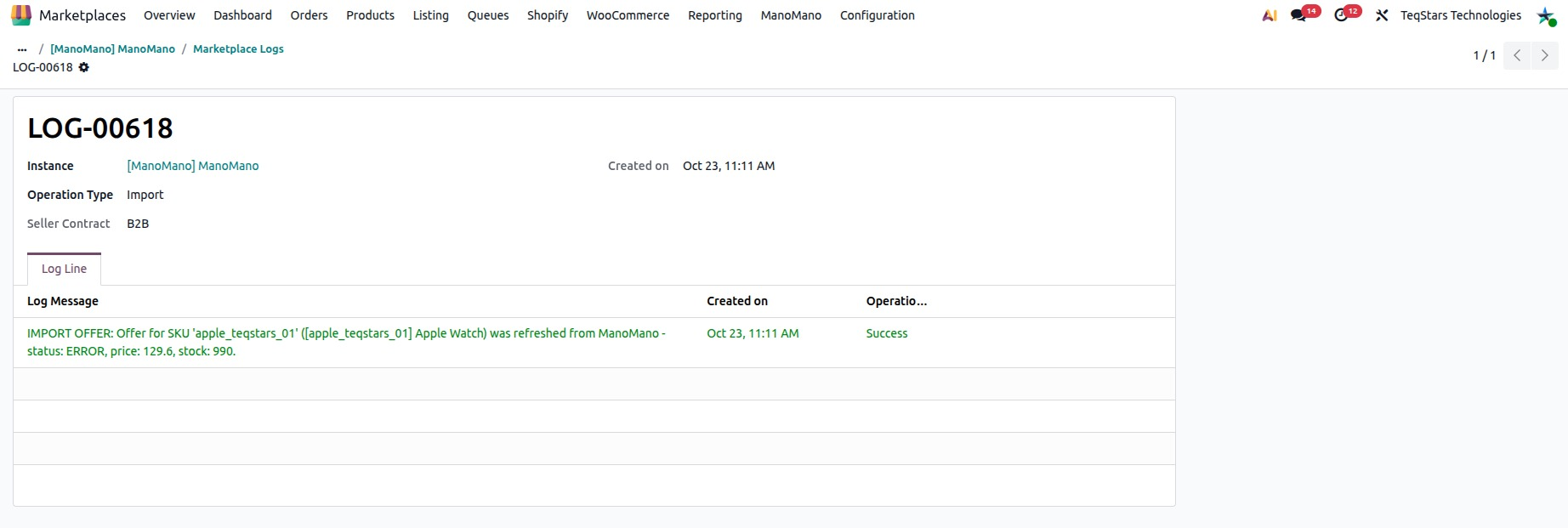
Results are written to . For each refreshed product, a line shows the SKU with its status, price and stock as read from ManoMano.
When it fails, check the message in the log:
No ManoMano listings in Odoo to read back yet: your products are not listings in Odoo yet. Import them first, then run the operation again.
No seller contract is set up on this instance: add at least one seller contract on the instance, then run it again.
Could not read offer information from ManoMano for contract …: check the connection with Test Connection on the instance and try again.
ManoMano is temporarily unavailable: wait a few minutes and try again.
ManoMano API Key is missing on instance …: enter the API key on the Credentials tab of the instance.