
Export Price From Odoo
Keep your Bol.com offer prices in sync with Odoo by exporting prices on demand or on a schedule.
Note
The connector exports prices from the Pricelist configured on the instance.
The price sent to Bol.com is always calculated from the pricelist. When Export Odoo Product’s Sale Price? in Product Configurations is enabled, the connector instead copies the product’s Sales Price into the pricelist (as a fixed price rule for the product variant, with the product’s customer taxes added) whenever the Sales Price is changed to a value above zero for a product that is listed on the instance, so that the change is picked up by the next price export.
Products with a zero price in the pricelist are skipped and not exported to Bol.com.
If the pricelist has multiple quantity-break rules for the same variant, all are exported as bundle prices to Bol.com (e.g. rules for qty 1, 5, 10 create three price tiers). Quantities are sent as whole numbers, and a rule that is based on another pricelist also contributes its quantity breaks.
All pricelist rule levels are supported for export: Product Variant, Product (template), Product Category, and Global. When multiple rules apply to the same product, priority is based on Odoo’s default price function.
Method - 1: Manual Export Price
Go to .
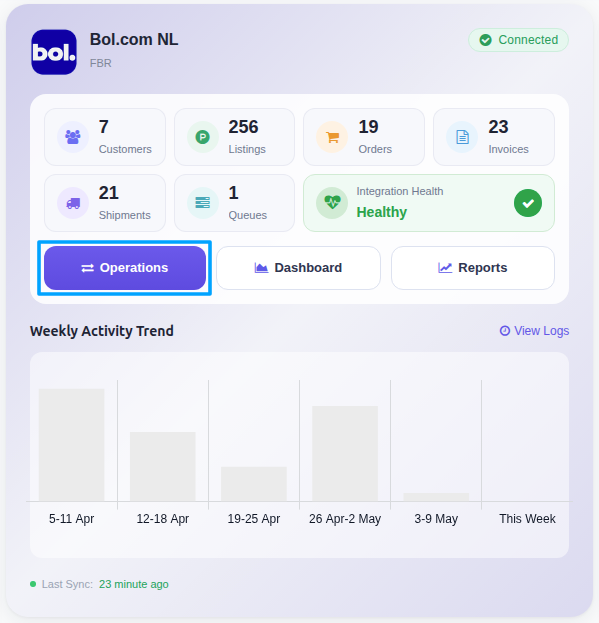
Click the Operations button on the instance record.
Select FBR & FBB Operation and then select Export Prices to Bol option.
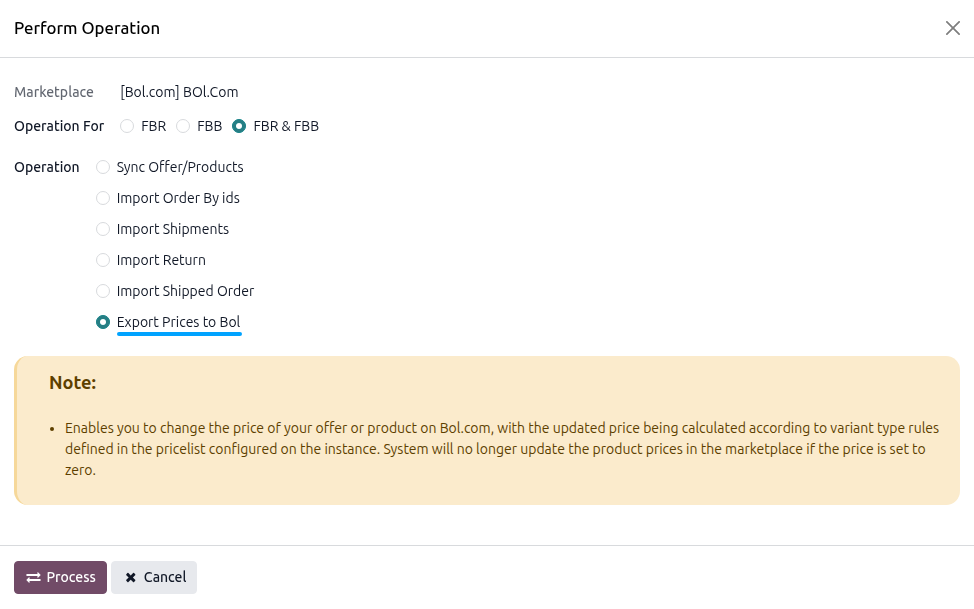
Click PROCESS.
The connector pushes the prices of the affected offers from Odoo to Bol.com and updates Last Listing’s Price Updated On on the instance. Successes and per-offer errors are written to a log that opens when the export finishes.
Note
Prices are exported incrementally. If Last Listing’s Price Updated On is set on the instance, only the listing items affected by pricelist rules that were changed since that date are exported. A rule is also considered changed when its start date has been reached or its end date has passed since then. Which items are affected depends on the rule level: a Product Variant rule affects that variant, a Product rule all its variants, a Product Category rule all products of that category (including sub-categories), and a Global rule all listed items of the instance.
If the field is empty, all rules of the pricelist are considered, so every listed offer that is covered by a rule (or all listed offers when a Global rule exists) is exported.
A change to a product’s price that is not made on a rule of the instance pricelist is not exported by this operation.
Method - 2: Automatic Export Price
Schedule price exports so Bol.com always reflects the latest Odoo prices, without manual action.
Go to .
Go to the Automatic Jobs tab.
Configure Export Product’s Price to Bol by setting the Interval Number (how often it should run), Interval Unit (such as minutes, hours, or days), and enable Active to turn on automatic price updates.
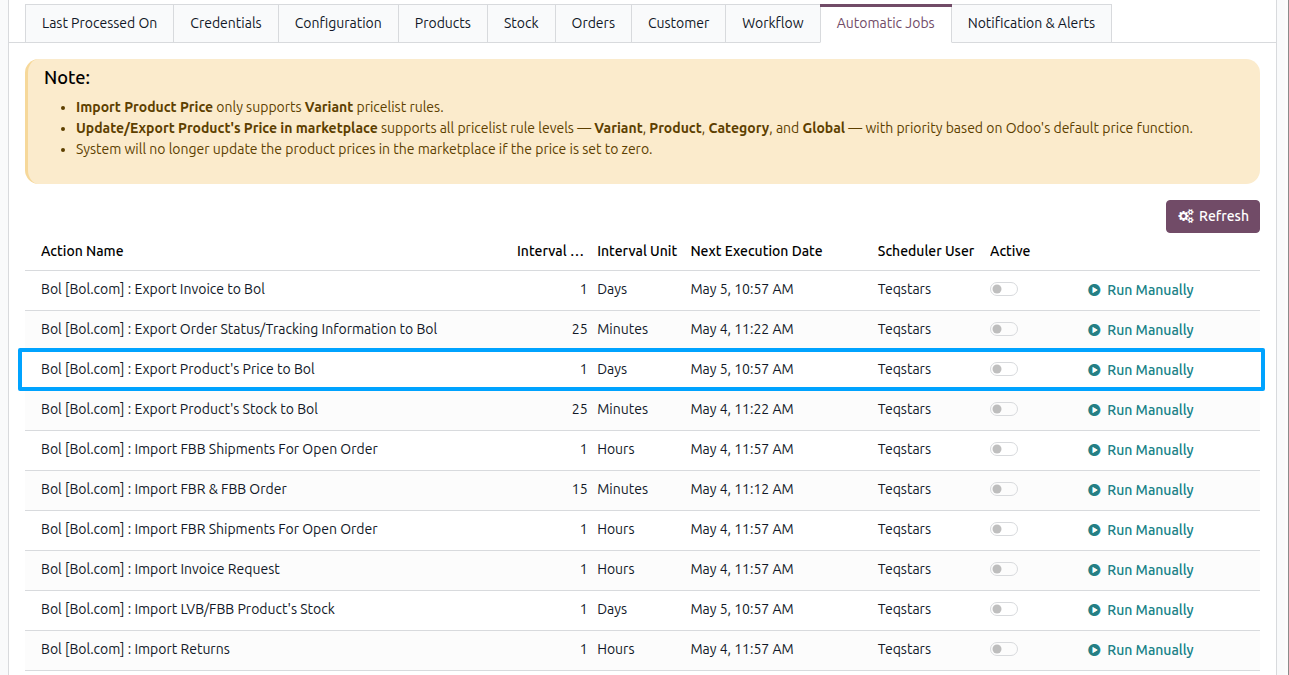
The job runs at the chosen interval (only for confirmed instances) and updates Last Listing’s Price Updated On after each run. By default the job is created inactive and runs once a day. The Automatic Jobs tab is only visible to users in the Administration: Settings group.
See also