Generate ShipStation API Credentials
The connector works with both the ShipStation API v1 and API v2. You pick the version per account and paste the matching credentials:
API v1: an API Key and an API Secret (endpoint
ssapi.shipstation.com).API v2: a single API v2 Key (endpoint
api.shipstation.com/v2).
Both are generated on the API Settings page of your ShipStation account.
Get Your Credentials From ShipStation
Follow ShipStation’s official guide. It walks you through verifying your e-mail, selecting the API version, choosing the expiration, and copying the credentials:
ShipStation API (ShipStation Help Center)
For a V1 account, generate and copy the API Key and API Secret.
For a V2 account, generate and copy the API v2 Key.
Important
Store synchronization always runs on the V1 API, since V2 has no endpoint for store sync. So if you want to use API v2 for your ShipStation account in Odoo, you also need V1 credentials (API Key + API Secret) for store-related flows. Generate both key sets when you plan to use V2.
Warning
The API Secret (V1) is shown only once. Copy and store it in a password manager before you navigate away from the API Settings page, otherwise you will need to generate a new key pair from scratch.
Open Your Account and Paste the Values
Go to .
Open the existing account record or click New to create a fresh one.
Set API Version to V1 or V2.
Paste the credentials that match the version:
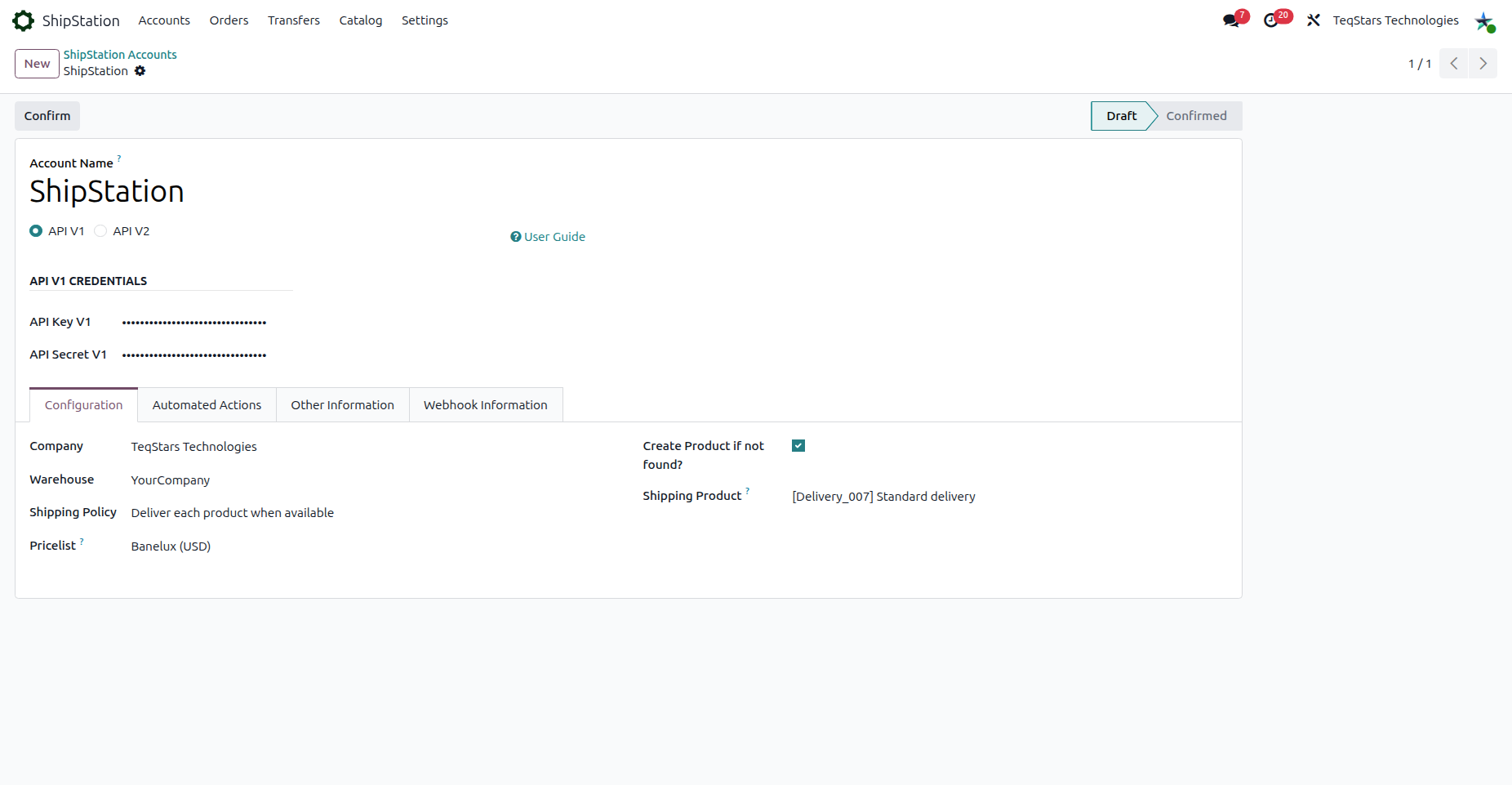
V1: paste into API Key V1 and API Secret V1.
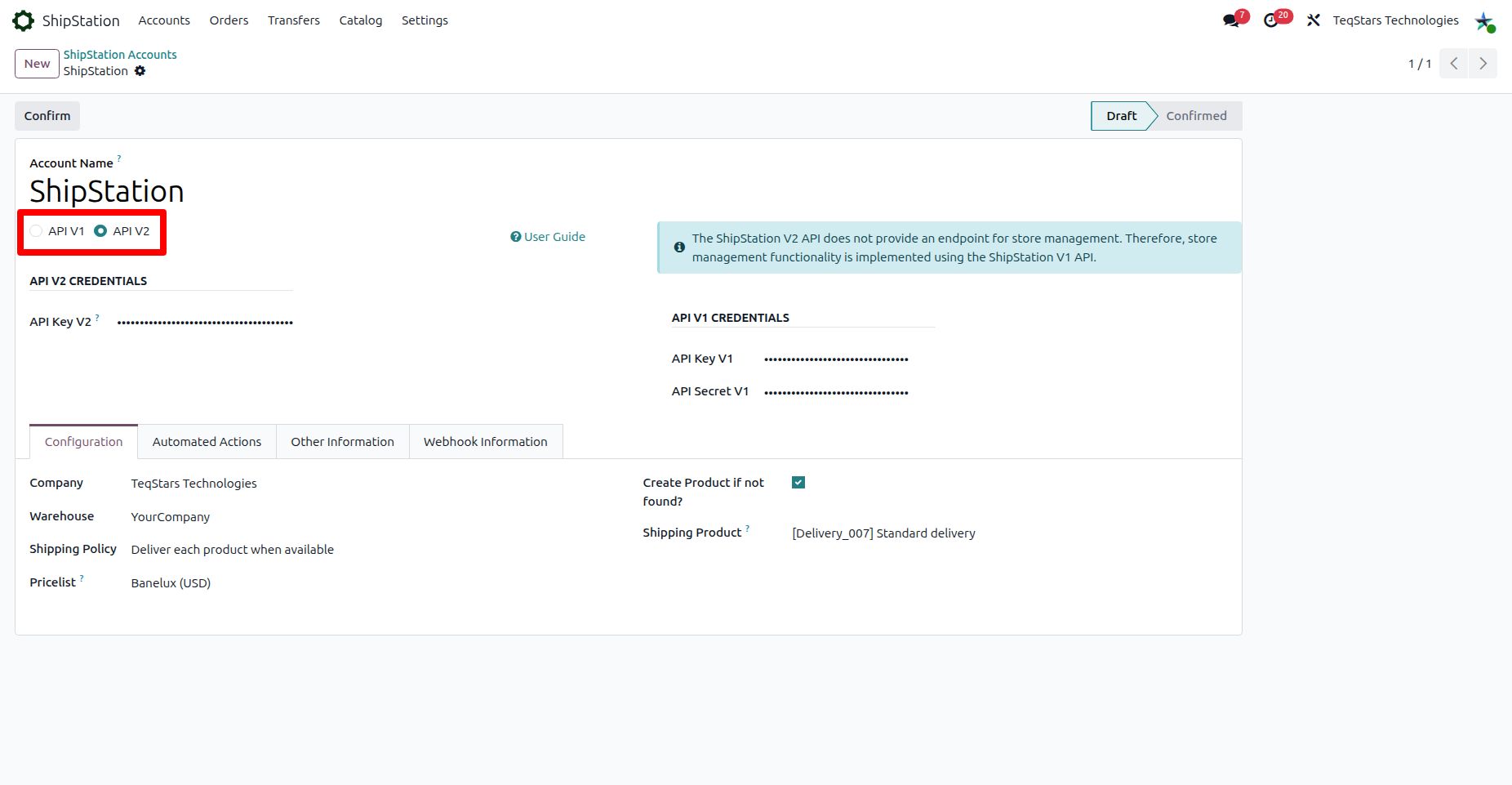
V2: paste into API Key V2, and also fill API Key V1 + API Secret V1 (used for store sync).
Click Save.
The account form shows the credential fields for the selected API version.
API v1: set API Version to V1 and paste the API Key V1 and API Secret V1:
API v2: set API Version to V2 and paste the API Key V2; also fill API Key V1 + API Secret V1, which store sync needs:
Confirm the Connection
Stay on the account form opened above.
Click Confirm in the header.
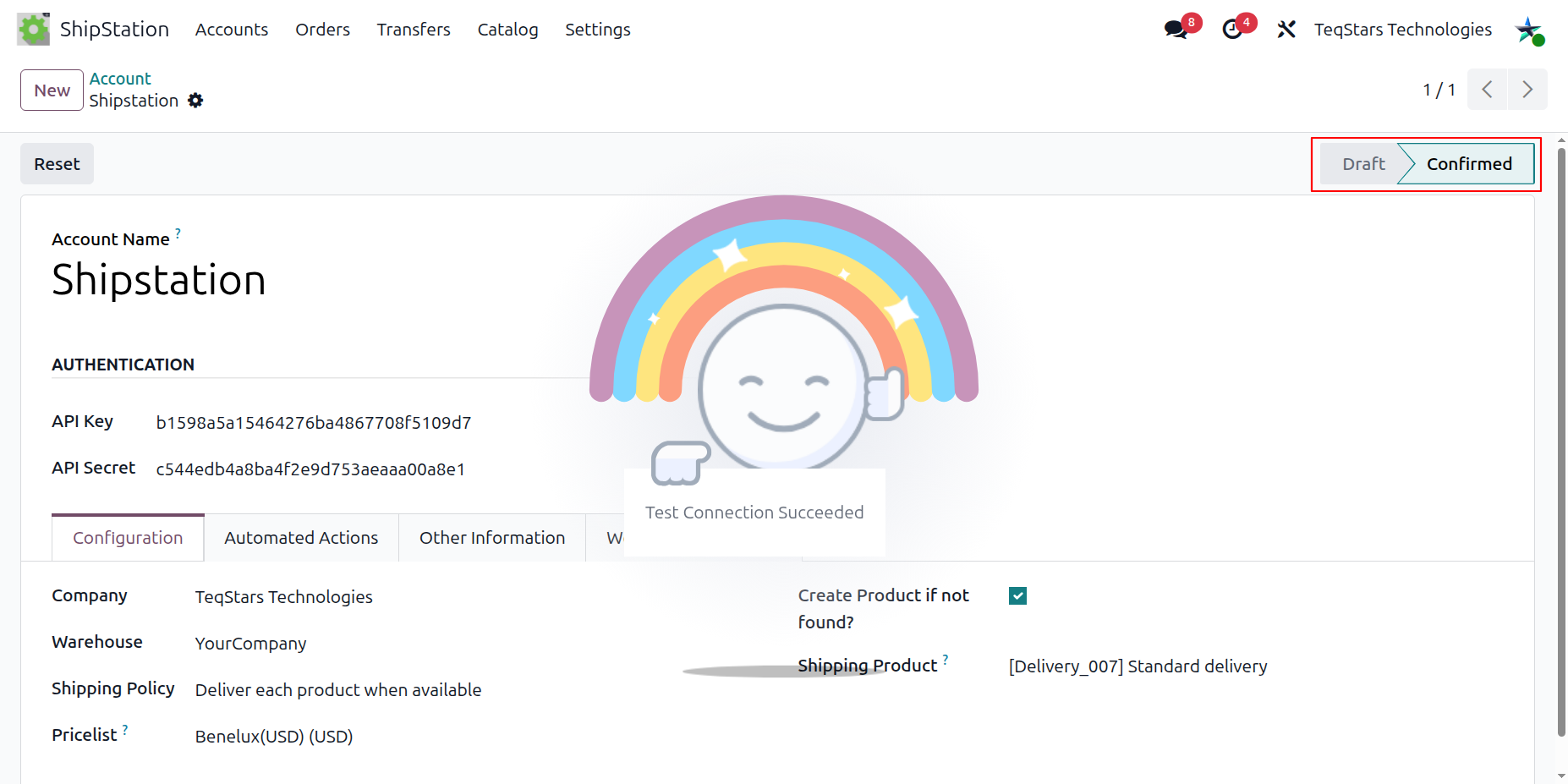
Odoo verifies the credentials against your ShipStation account; on success, the State badge in the header turns to Confirmed and the connector imports stores, carriers, services, packages, warehouses, and products in sequence.
Note
The API Version and credentials lock once the account is Confirmed. To change the version or the keys, click Reset to move the account back to Draft first.