
Upload Existing Attachments and the Upload Queue
When you turn on Real-Time Attachment Sync to Cloud? on a provider, only new attachments go to the cloud. Files you attached before stay in Odoo until you upload them. This page shows you how to send those existing attachments to the cloud through the upload queue, how the app slows down and retries, and how you retry failed uploads yourself.
Upload existing attachments
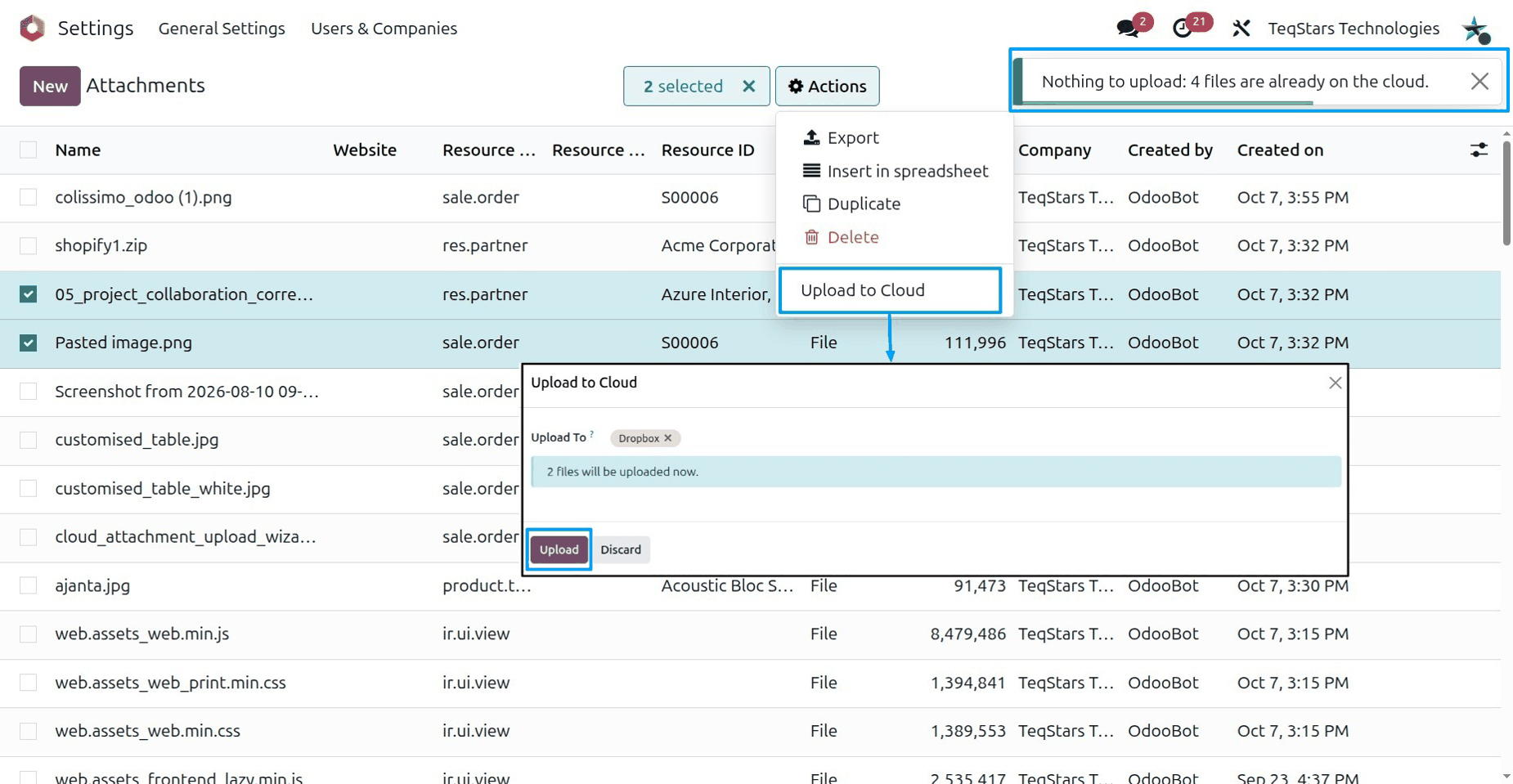
You upload existing attachments with a wizard. The app places the files in the upload queue, and the queue sends them in the background, so you can keep working.
Go to and open the provider you want to upload to. Make sure Backfill Allowed is enabled. Only a provider with Backfill Allowed can take existing attachments.
Go to and open Upload Existing Attachments.
In Upload To, pick the provider. Connected Providers shows the providers you can choose from.
Check the counts:
Eligible Files: the attachments that can go to the cloud.
Already on the Cloud: the attachments that are already there. The app does not send them again.
Files to Upload: the attachments the app adds to the queue.
Read the Summary and confirm the wizard. The files join the upload queue.
On the provider form, Not Yet Uploaded shows how many attachments still wait to go to the cloud.
Skipped files
Not every attachment goes to the cloud. The wizard lists the files it leaves out in Skipped. Read this list before you confirm, so you know which files stay in Odoo only.
The upload queue
Each file waiting to go to the cloud has a line in the upload queue. To see it, open .
Each line shows:
Attachment: the file to upload.
Provider: the cloud it goes to.
Status: where the upload stands.
Attempts: how many times the app has tried to upload the file.
Retry After: the earliest time the app tries this file again.
Last Error: the reason the last try failed.
Queued On: when the file joined the queue.

To see what happened with each upload, open . For more on logs, see Monitor Provider Health and Activity Logs.
Retry failed uploads
When an upload fails, the app tries again later and counts each try in Attempts. Read Last Error to see what went wrong, fix the cause, then retry.
To retry one file:
Open .
Select the line of the file.
Click Retry Upload.
To retry all failed uploads of a provider:
Go to and open the provider. Failed Documents shows how many uploads failed.
Click Retry Failed Uploads.