
Conflict Rules (Segregation of Duties)
Some responsibilities should never be assigned to the same person. For example, a user who creates a vendor should not also approve payments for that vendor, and a person who records stock should not also be responsible for auditing it.
Conflict Rules let you define these combinations once and automatically enforce them whenever access is assigned.
To manage Conflict Rules, go to .
Conflict Rules are managed by users in the Security Officer group.
Define a Conflict Rule
A Conflict Rule defines roles that should not be assigned to the same user.
Rule Name — Enter a clear name for the rule, such as Purchase and Payment Separation.
- Rule Type — Select Conflict of Duties for role combinations that must remain separate, or Custom for
other types of conflicts.
Description — Explain why the roles must be kept separate. This information can also help during audits.
- Conflicting Role Pairs — Add the role combinations that should not be assigned to the same user. A single rule
can contain multiple role pairs.
Each pair must contain two different roles.
What Happens When a Conflict Is Attempted
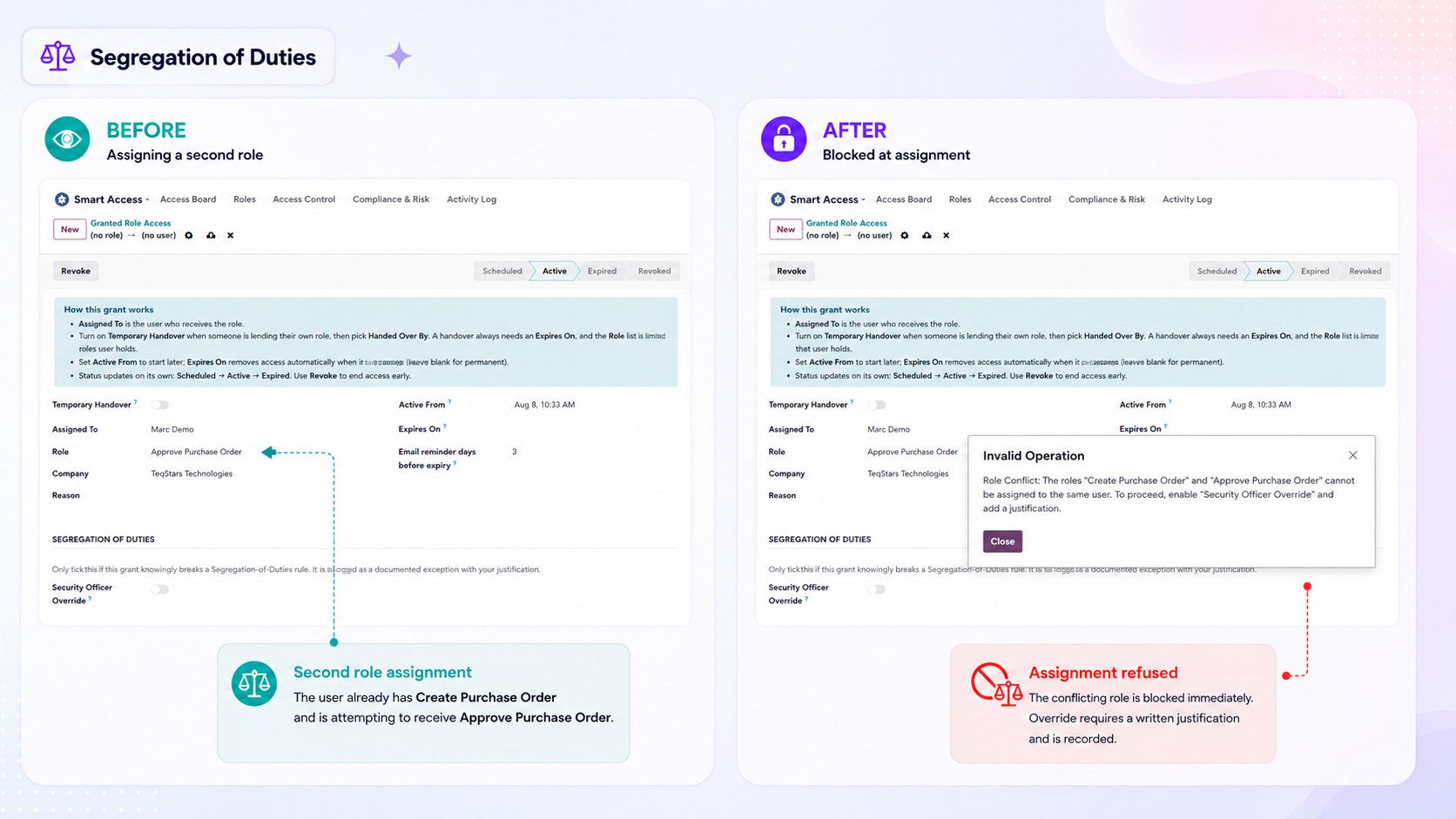
Smart Access Manager checks for conflicts whenever a role is assigned. This includes assignments made from the Role Form, Access Board, Time-Bound Assignment, or an approved Access Request.
If the new role conflicts with a role the user already has, the assignment is blocked.
The message identifies the two conflicting roles so the reason for the restriction is clear.
The check includes both regular role assignments and time-bound role assignments.
Existing conflicts that are unrelated to the new assignment are not blocked again. The check focuses on the access change being made.
Security Officer Override
In some situations, a business may need one person to perform two conflicting responsibilities. A Security Officer can allow this exception when there is a valid business reason.
To allow a conflict:
Open the user’s Time-Bound Assignment.
Enable Security Officer Override.
Enter an Override Justification explaining why the conflict is required.
The assignment is then allowed, and the exception is recorded with the justification, the approving person, and the approval date.
Important
The Security Officer Override is available only to Security Officers. A written Override Justification is required to approve the exception. The system will not allow an override without a reason.
Active Conflicts
A scheduled weekly check reviews users against the configured Conflict Rules. This also helps detect conflicts that existed before the rule was created.
To review conflicts, go to and use Active Conflicts on a rule.
Each conflict shows the user, the conflicting roles, and its current status:
Open — The conflict has been detected but has not been reviewed.
Acknowledged — The conflict has been reviewed and accepted, including documented Security Officer overrides.
Resolved — The conflicting access has been removed.
Open conflicts can also contribute to the user’s risk score and may trigger a security alert.