
Import Walmart Returns In Odoo
When a customer returns a Walmart order, the connector brings the return into Odoo so you can receive the goods back into stock and refund the customer, all from the same place.
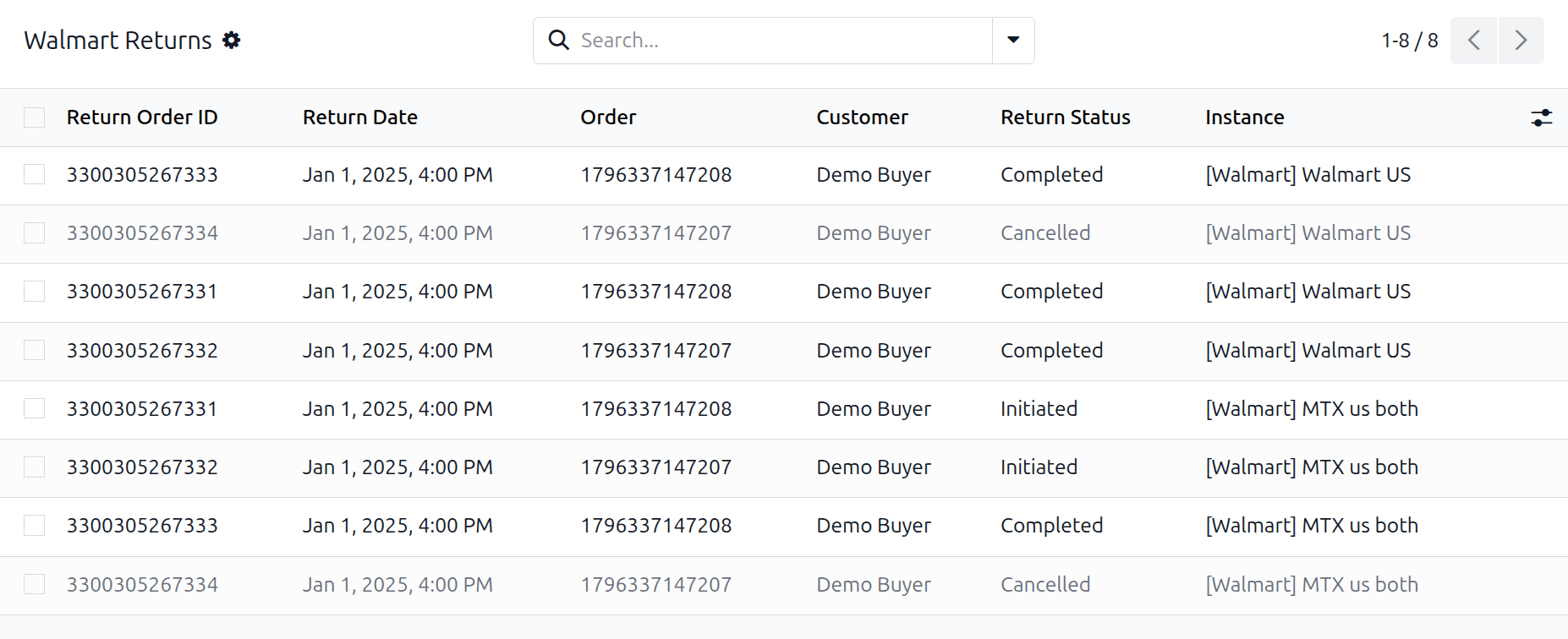
Find your returns under .
The Return Lifecycle
A return moves through four statuses:
Initiated: the return has been raised on Walmart.
Delivered: the returned item has arrived back.
Completed: the return has been refunded.
Cancelled: the return was cancelled.
If Walmart reports a status other than these four, the return arrives with its status left empty. It is still imported in full, and Resync from Walmart refreshes it.
Method - 1: Manual Return Import
Go to the menu in Odoo.
Click on the
Operationsbutton from the instance record.Select Import Operation and then select Import Returns option.
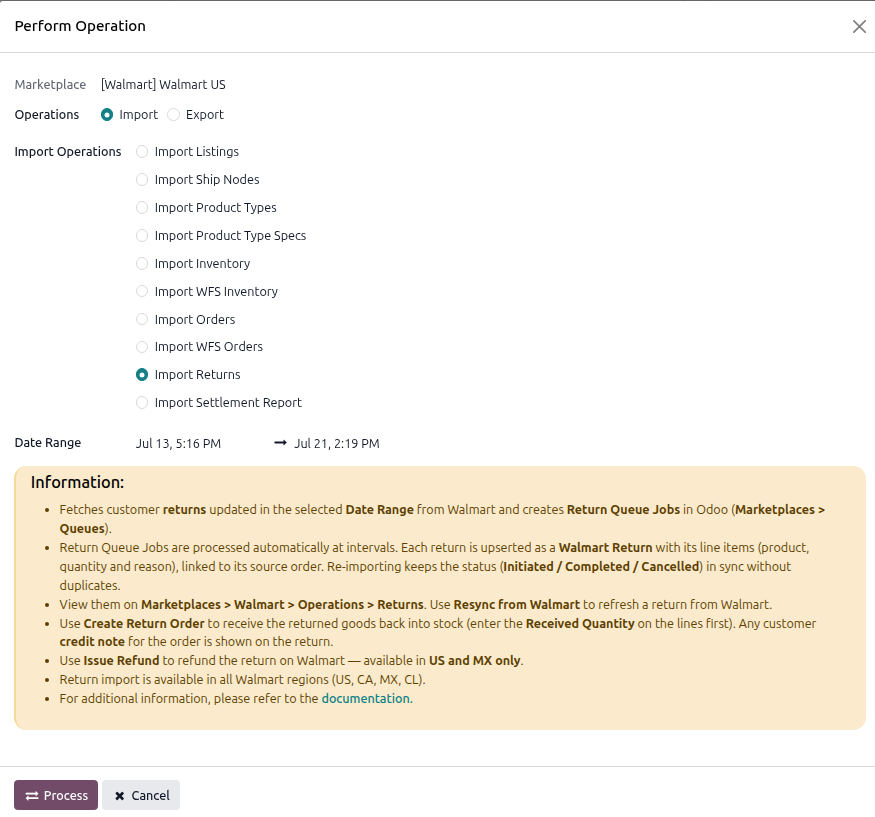
Adjust the Date Range if you want a specific period. The field is prefilled with a recent window, which you can widen or narrow.
Press
PROCESSbutton.
Method - 2: Automatic Return Import
Go to your Walmart instance setting by navigating to .
On the Automatic Jobs tab, configure the Import Returns job by setting Interval Number, Interval Unit, and then Active.
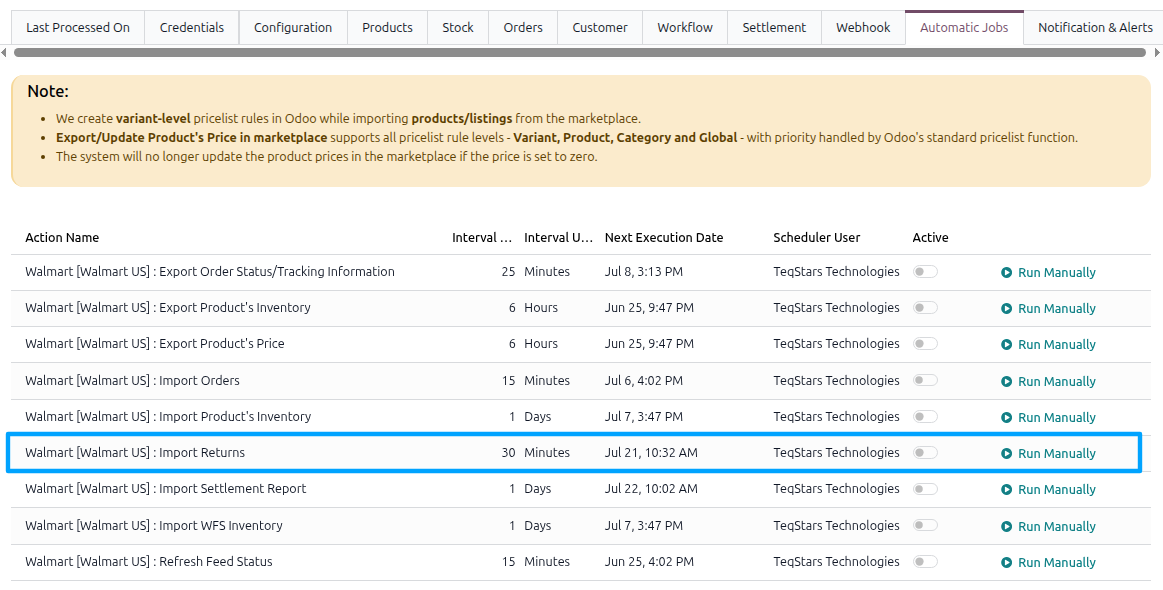
See Automatic Jobs.
What A Return Contains
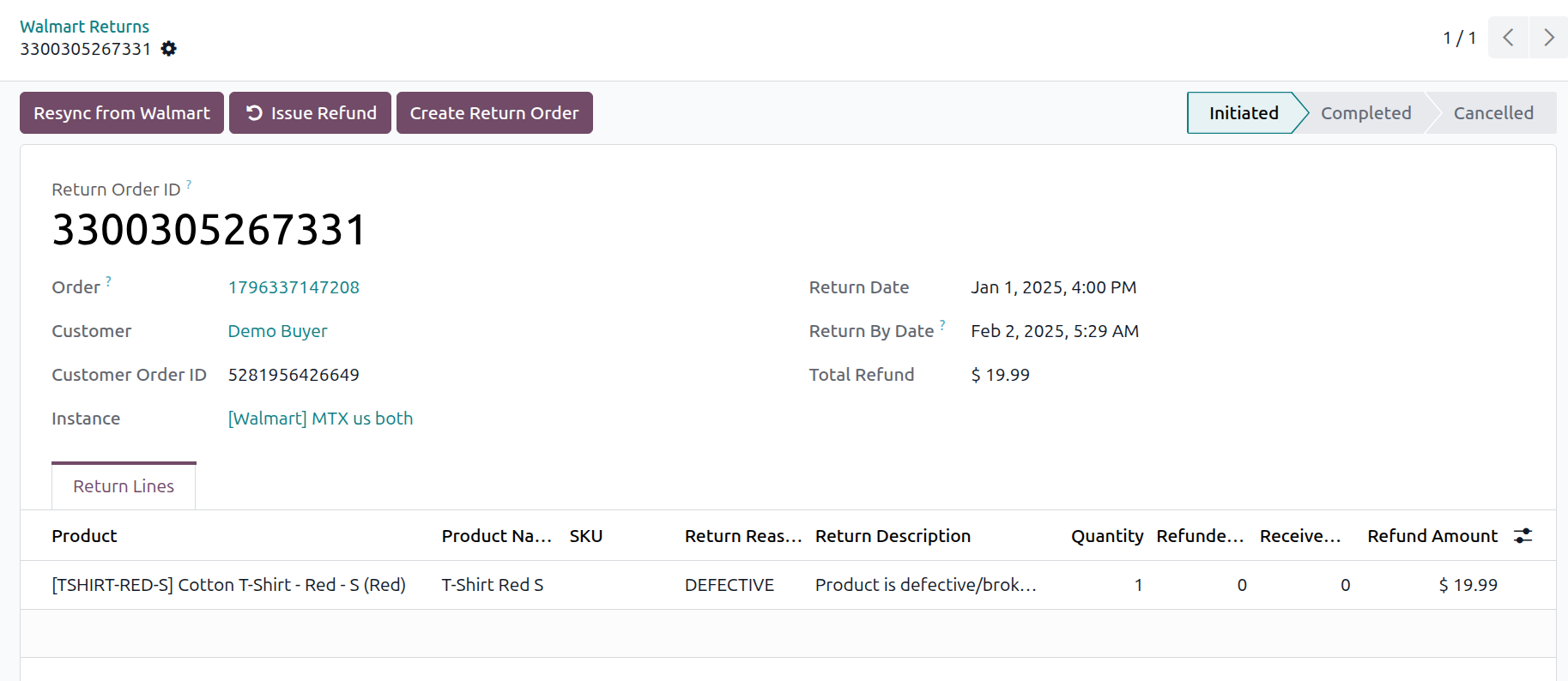
The header shows:
Return Order ID: Walmart’s identifier for the return.
Order: The Odoo sale order the return belongs to.
Customer and Customer Order ID.
Return Date and Return By Date: The date the return was created and the date by which the customer must ship the item back.
Return Status.
Total Refund: The amount Walmart expects to refund.
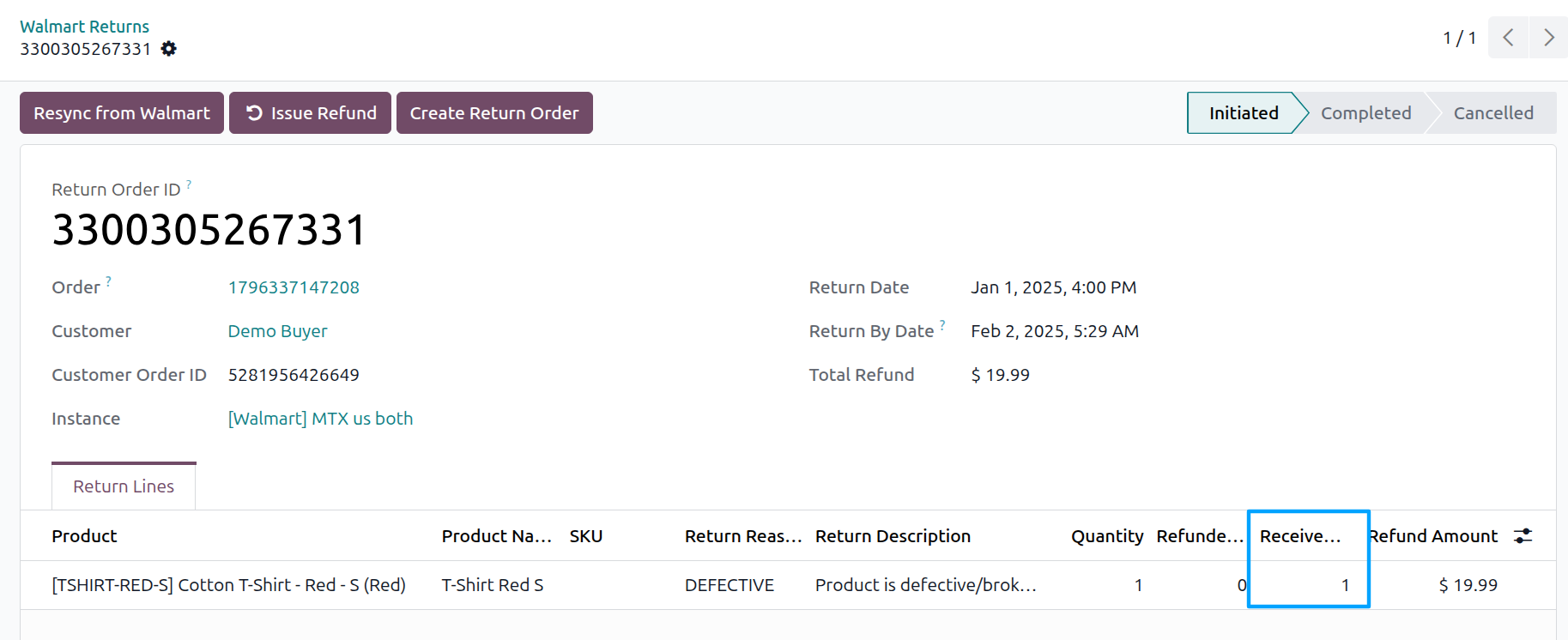
Each Return Line shows the product, its SKU, the Return Reason and Return Description provided by the customer, the Quantity being returned, the Refunded Quantity, and the Refund Amount.
Received Quantity is the only field you need to enter. See below.
How Returns Are Linked To Orders
The connector matches the return to its sale order using the Walmart purchase order number, falling back to the customer order number. Each return line is then matched to the corresponding order line.
Note
If no matching order is found, the return is not created, and the log records “IMPORT RETURN: Order not found for return … (Order: …)”. Import the order first, then re-run the return import. See Import Walmart Orders In Odoo.
Receiving The Goods Back Into Stock
Bringing returned goods back into stock takes two steps, so that you receive only what actually arrived.
Open the return and enter the quantity you physically received in Received Quantity on each line.
Click Create Return Order.
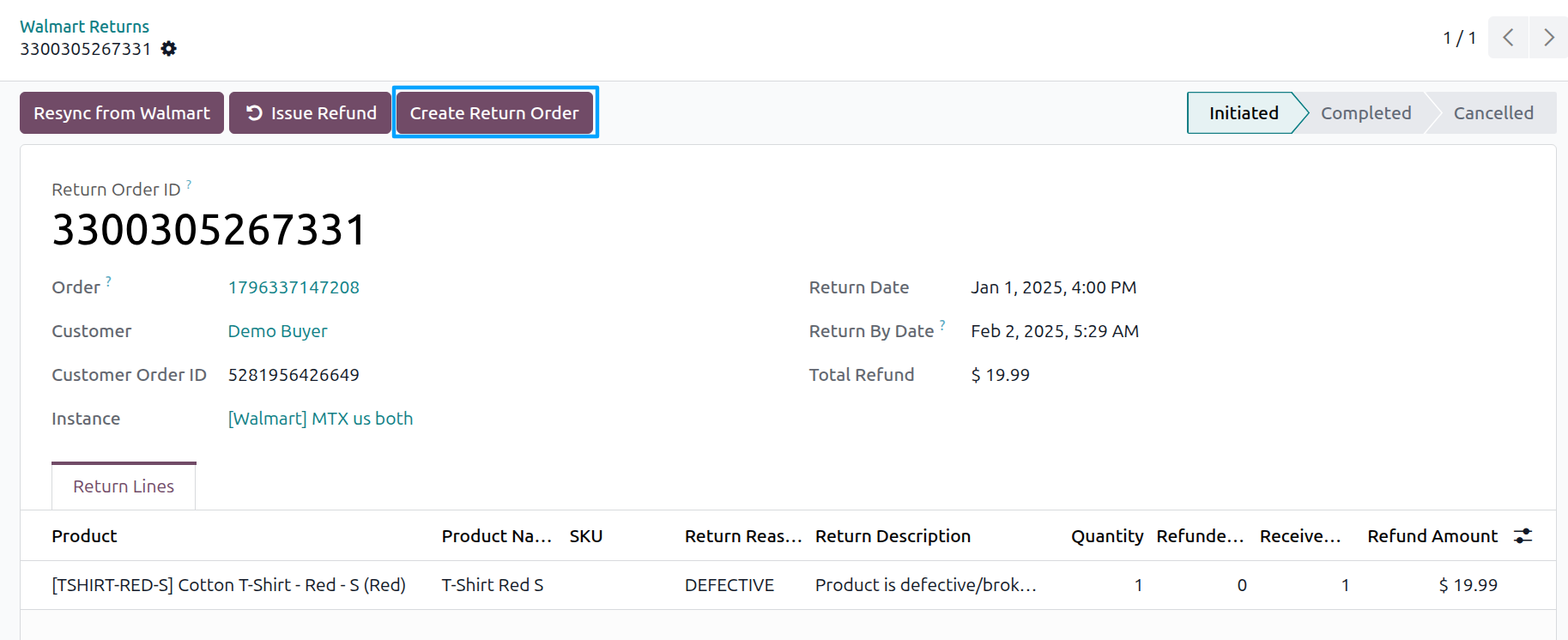
The connector creates an incoming transfer from the original delivery, bringing the goods back into the warehouse they were shipped from. Where the original order was shipped without a delivery order, the stock movement is recorded directly instead.
The new transfer and its stock moves are reachable from the Transfers and Return Moves stat buttons at the top of the return.
Important
Only lines with a Received Quantity greater than zero are returned to stock, and only if the line was matched to a line on the original order. If neither is true, Odoo stops with “Nothing to create return. Please enter received quantity before going for create return.”
The Sale Order Line column on the return lines shows whether the match was made. Switch it on with the optional-columns button if a line refuses to be received.
Note
The button is hidden once a transfer or return move already exists, so a return cannot be received into stock twice.
Other messages you may see:
“There isn’t any done delivery order found to create return.”: the original order was never delivered, so there is nothing to bring back.
“Cannot create return: no stock location found on the order’s warehouse.”: the warehouse on the original order has no stock location set.
“No products to return (only lines in Done state and not fully returned yet can be returned).”: the quantities have already been returned.
Refreshing A Return
Click Resync from Walmart to fetch the latest version of a single return. The header and lines are refreshed in place, and your Received Quantity entries are preserved.
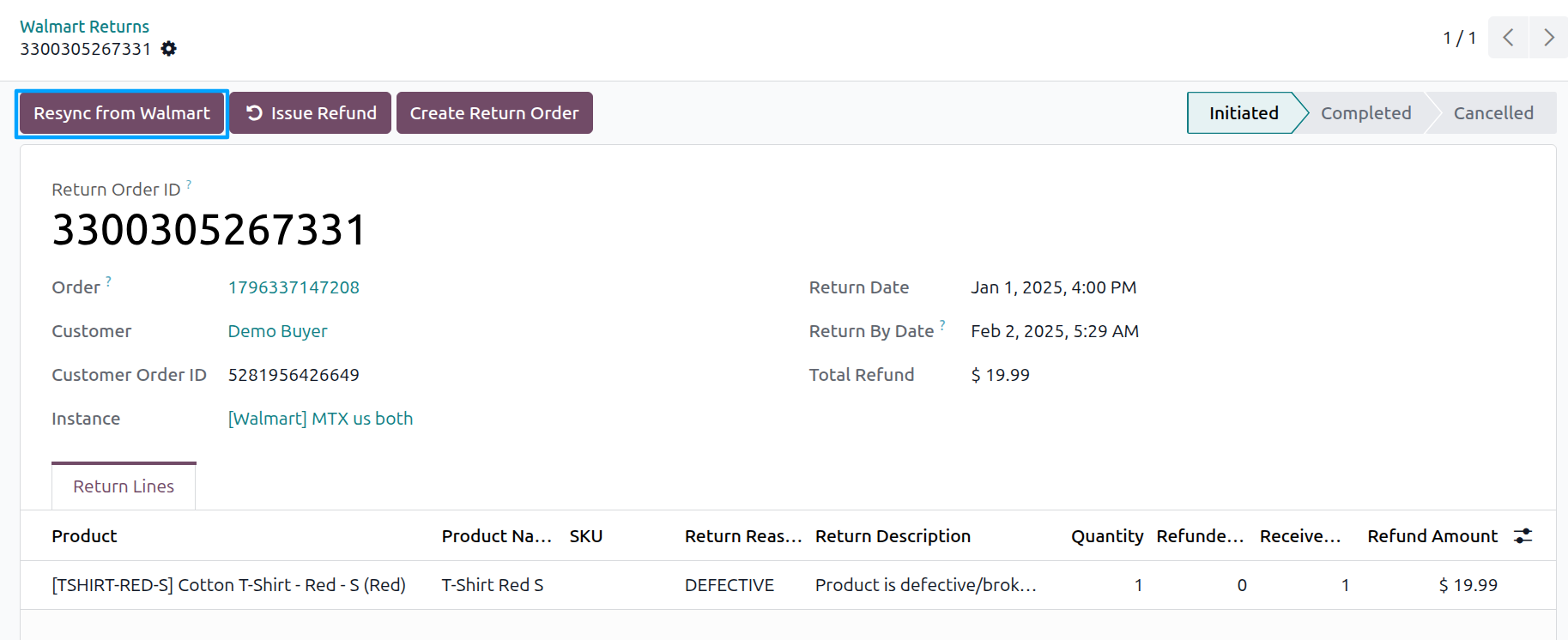
Use it when the return has changed on Walmart’s side and you do not want to wait for the next scheduled import.
Note
Resync can also report:
“Walmart returned no data for return …. It may no longer be accessible.”
“This return is not linked to a Walmart instance.”
“The Walmart instance ‘…’ is not confirmed.”
Refunding The Customer
Once the goods are back, refund the customer with the Issue Refund button. See Issue Walmart Refunds From Odoo.
Note
Returns for WFS orders are handled by Walmart, which receives and processes them in its own fulfillment centers. On an instance set to WFS only, the returns operation and the returns scheduled action are not offered at all. See Fulfillment Types.