
Export Etsy Listings From Odoo
With Export Listings, you can export your Odoo products to Etsy as new listings, including title, description, price, quantity, variants (with mapped attributes), images, category, tags, shipping profile, readiness state, Who Made, When Made, and Is Supply.
A new listing is created on Etsy in draft state, then its inventory (SKU, price, quantity, variant properties) is sent, then its images (when Set Images is on), and finally the listing is published when Published is selected. If a later step fails, the draft listing already exists on Etsy and the error is logged.
Prerequisites
Before exporting a product to Etsy, ensure the following are configured:
An Etsy Product Category is set on the product (required by Etsy).
A Shipping Profile is selected on the listing (Etsy Details tab). It is required; there is no instance-level default.
A Readiness State is selected on the listing (Etsy Details tab). It is optional in Odoo, but Etsy expects a processing profile for physical listings.
The Etsy listing attributes Who Made, When Made, and Is Supply are set on the listing (or defaulted from the instance; Who Made and When Made must have a value from one of the two).
The listing has a title and at least one variant. The price must be greater than zero (the lowest variant price is used for the draft); the quantity sent for the draft is the total stock, between 1 and 999, and the real per-variant quantity is sent with the inventory.
At least one product image is available when you intend to publish the listing - Etsy requires it.
Variants that carry attributes need the Odoo attribute and value mapped to an Etsy property and value (Product Attribute Mapping). Attributes without a mapping are left out of the variant properties without an error.
Steps to Export
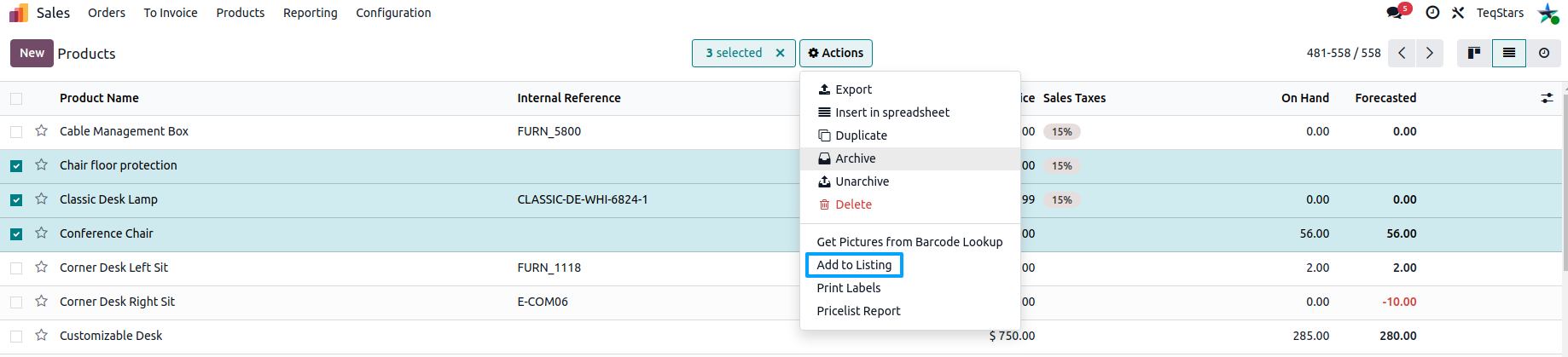
To begin exporting your products to Etsy, navigate to the menu. In the product list view, select the products you want to export and then, from the action dropdown, choose Add to Listings.
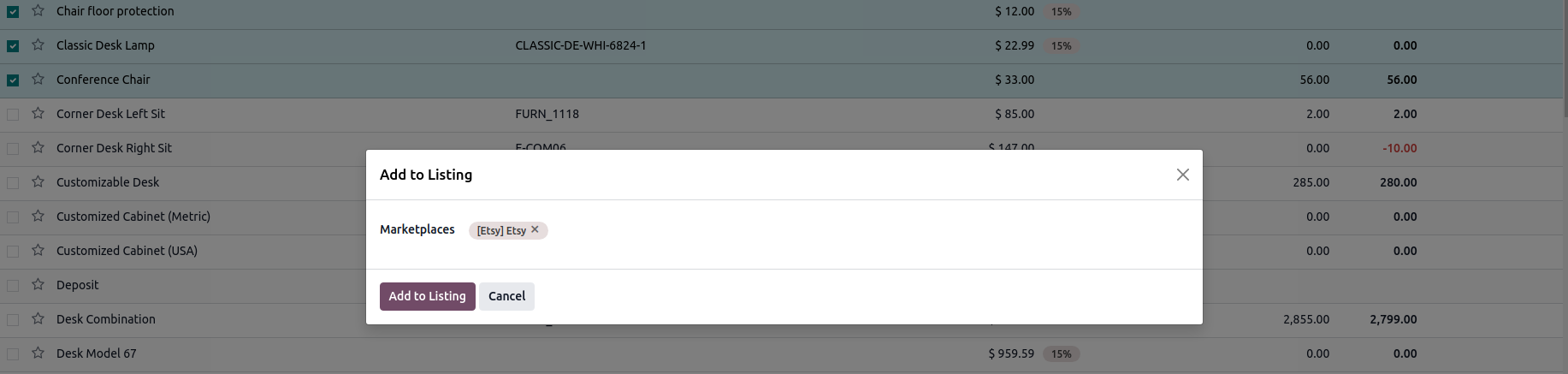
A popup will appear. In this window, select the Etsy instance where you wish to add your products. After making your selection, click the Add to Listings button.
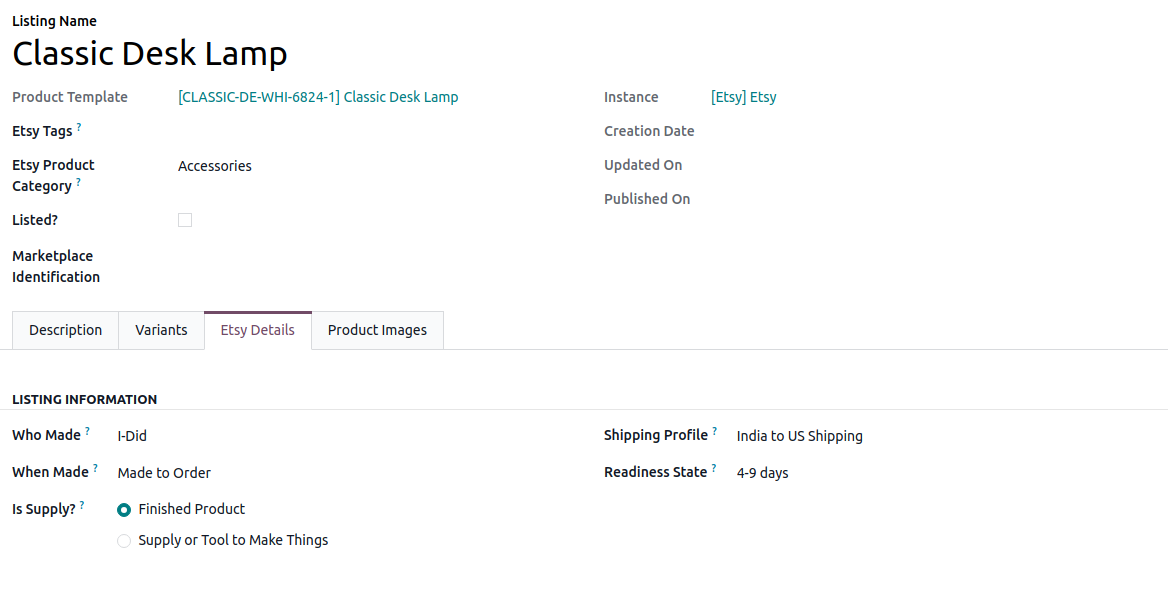
The selected products are now listed under the chosen Etsy instance in your Odoo Marketplace. From there, you can configure Etsy-specific details on each listing.
Configure the following Etsy-specific settings on each listing before export:
Etsy Category: Select the appropriate Etsy category for the product.
Tags: Add Etsy listing tags used for search and discovery.
Shipping Profile: Select the shipping profile to apply (see Shipping Profiles).
Readiness State: Select the processing-time definition (see Readiness State).
Who Made, When Made, Is Supply: Set the Etsy listing attributes.
Variant attributes (Color, Size, etc.) are taken from the Odoo variants through the attribute mappings; there is no separate attribute field on the listing.
Once the listing details are configured, you can export using one of the following methods:
Method - 1: From The Operation Popup
Go to the menu in Odoo.
Click on the Operations button from the instance record.
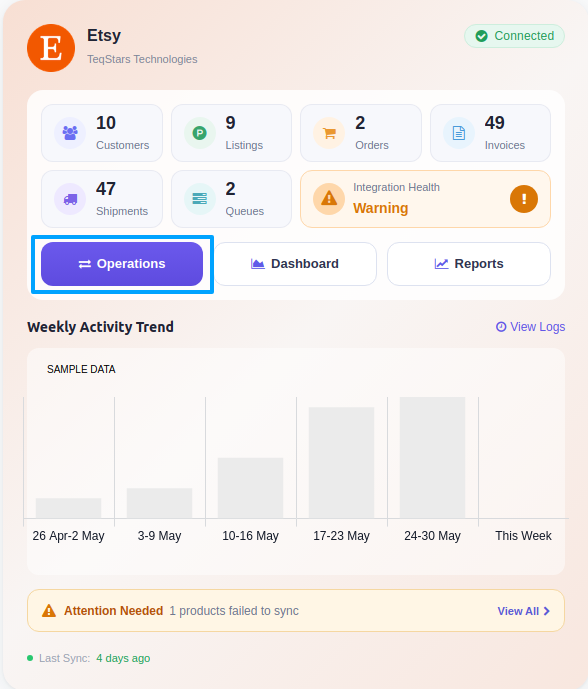
Select Export as the operation type and then choose Export Listings.
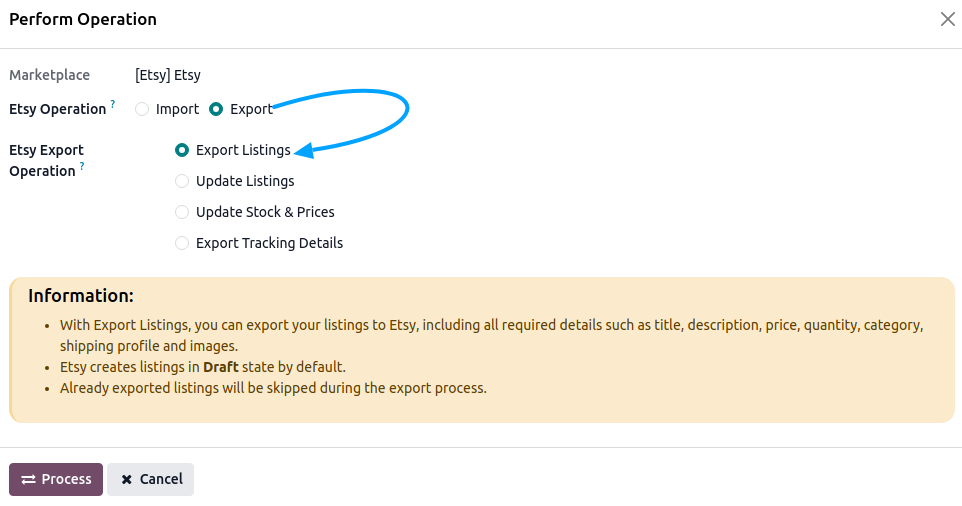
Press the Process button to export the listings to Etsy. This exports every listing of the instance that is not yet exported (at most 80 at a time; with more, use Method 2 and select the listings). The operation popup uses the default publish and image settings, so use Method 2 when you want to choose Publish In Etsy? and Set Images.
Method - 2: From The Listing View
Go to the menu in Odoo.
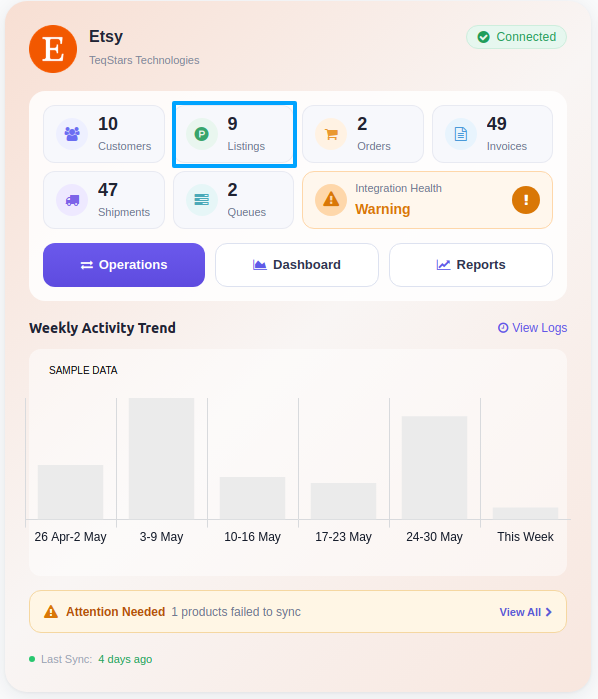
Click on the Listing button from the instance record to navigate to the marketplace listings view.
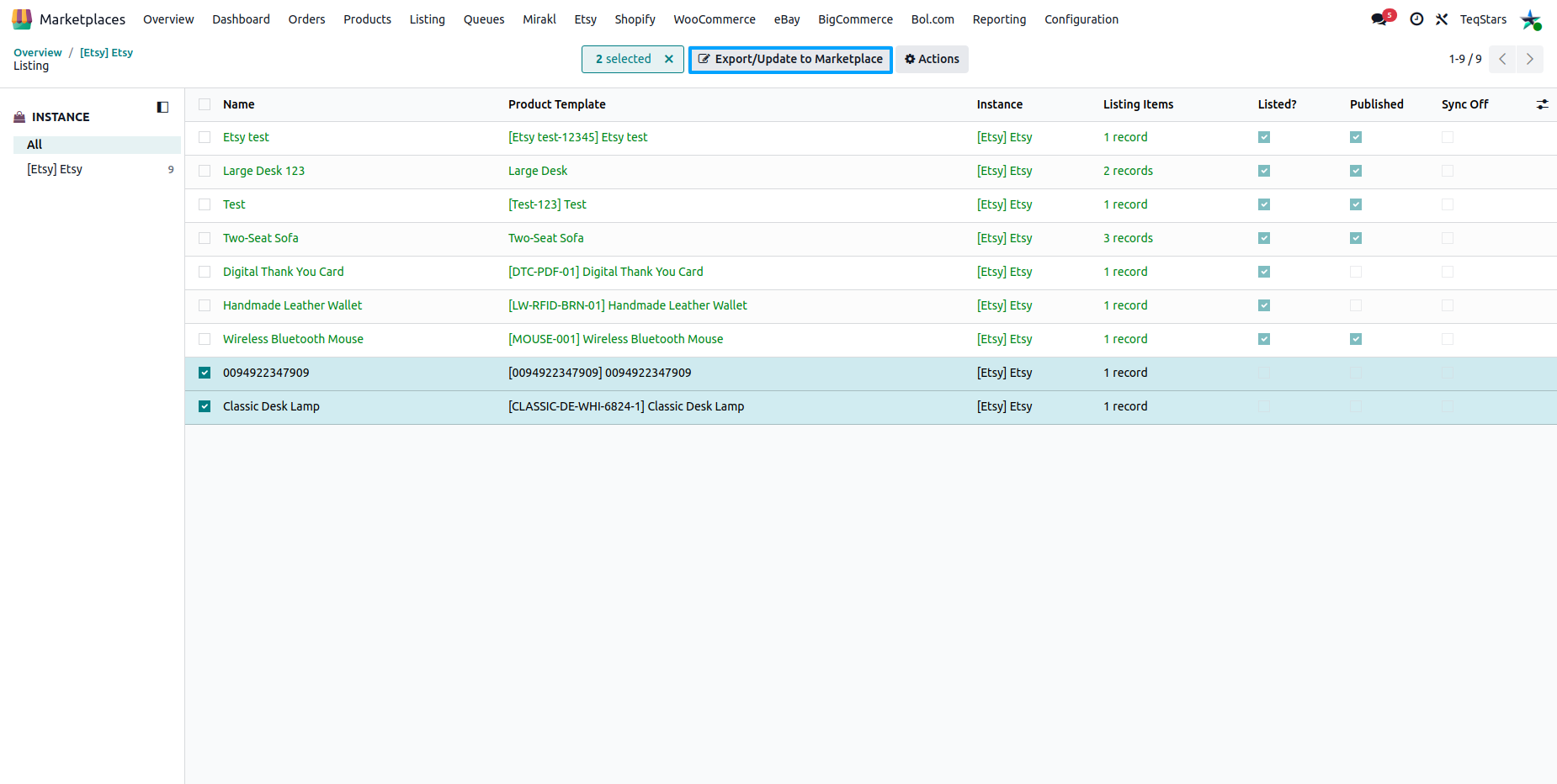
In the Listing menu, select the listings and click the Export New Listing button.
A pop-up window will appear with export options. Configure the settings and press the Export Listing button.
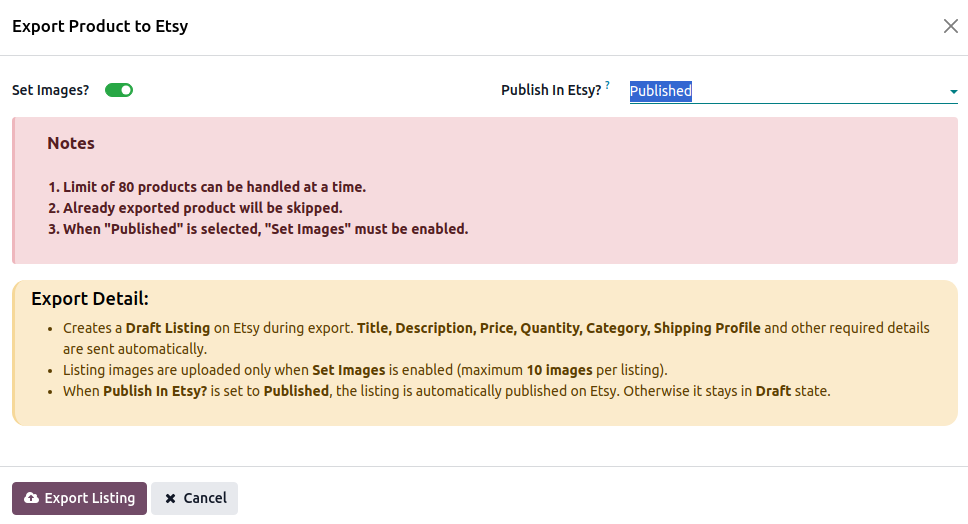
In the export wizard, configure:
Publish In Etsy?: Choose Published to make the listing live on Etsy, or Unpublished to create it as a draft.
Set Images: Must be enabled when publishing - Etsy requires at least one image to make a listing live. At most 10 images are uploaded per listing.
After Export
If the export fails, check the error logs at .
Up to 80 listings can be exported per run; select fewer if you hit the limit.
Listings that already have an Etsy listing ID are skipped by the export; use Update Listings for those.
Important
When Publish In Etsy is set to Published, the connector enforces that Set Images is enabled and that the product has at least one image. Without it, Etsy rejects the publish call.
See also