
Configure ShipEngine Connector
The ShipEngine Connector links your Odoo database to a ShipEngine account. From one integration you get live rates on sales orders and delivery orders, shipping labels, tracking numbers and customs forms, and you can cancel shipments from Odoo. You can connect more than one ShipEngine account to the same database.
Setup in ShipEngine
Before you start in Odoo, get an API key from ShipEngine.
Get Your API Key
Sign in to your ShipEngine account.
Copy your API key and keep it safe. You paste it into Odoo in the next section.
Note
Odoo needs an API key before it can import your carriers. If the API Key field is empty, Odoo shows A production key is required to get your ShipEngine carriers. Use your production key so the carriers and rates match your live account.
Setup in Odoo
Configure the Shipping Partner
Go to and click New.
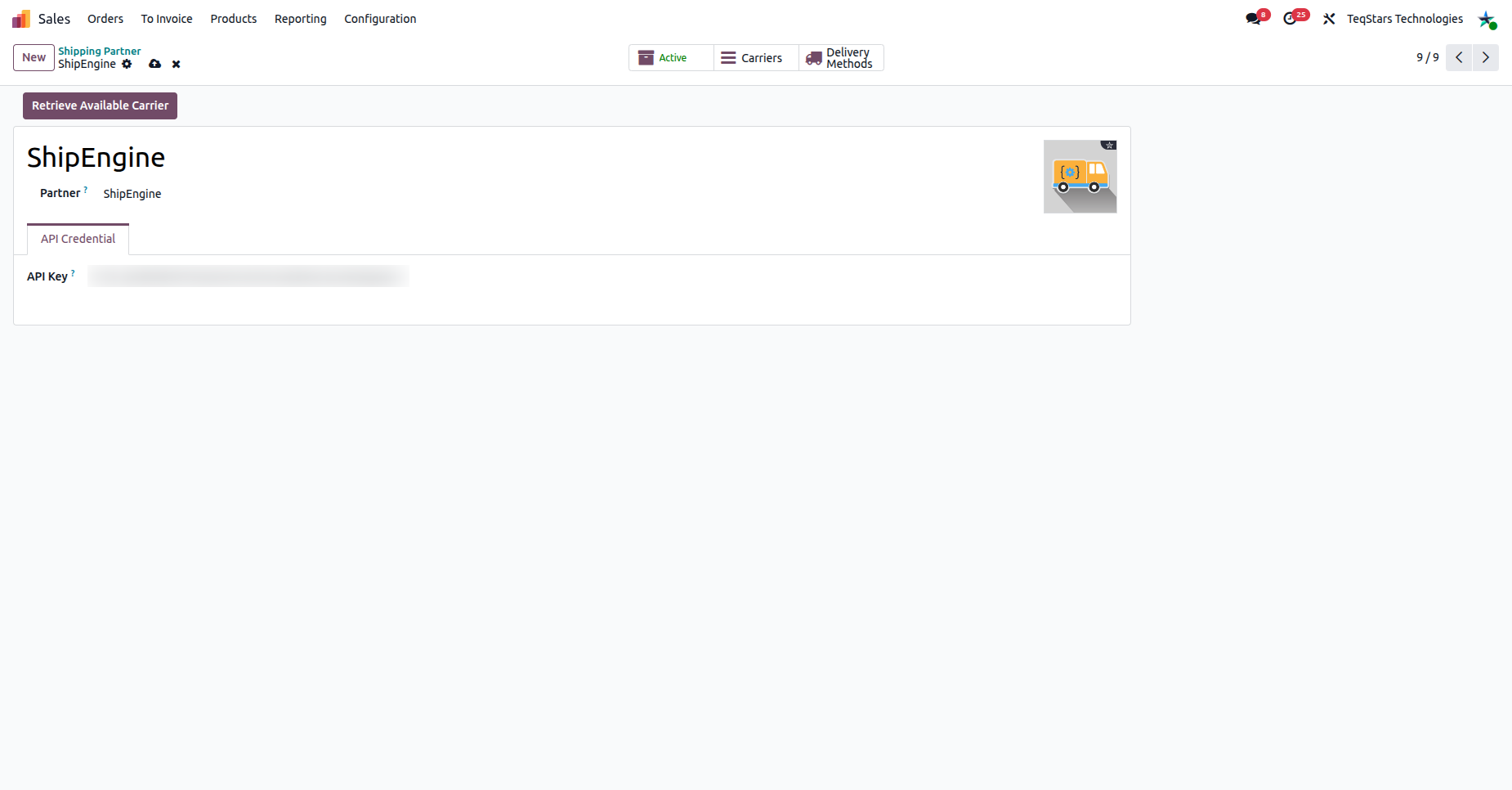
Name: Enter a name for this account, for example ShipEngine.
Partner: Select ShipEngine.
On the API Credential tab, paste your API key into API Key.
Save the record.
Tip
Create one shipping partner for each ShipEngine account you want to connect.
Import Carriers, Services and Packages
On the shipping partner, click Retrieve Available Carrier. Odoo imports every carrier connected to your ShipEngine account. Each carrier shows:
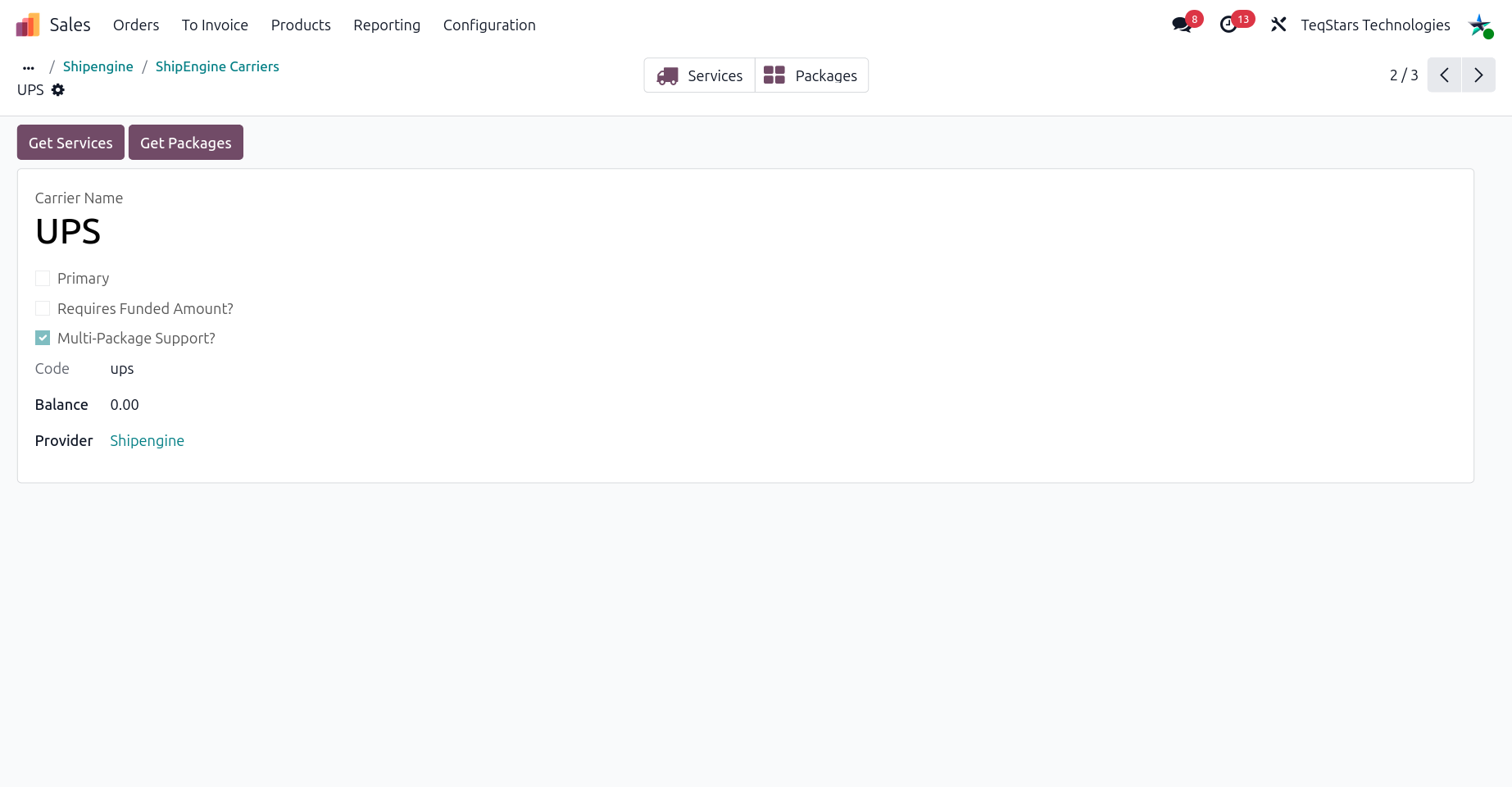
Name and Code: How ShipEngine identifies the carrier.
Primary: Shows whether ShipEngine marks this carrier as primary.
Requires Funded Amount?: Shows whether the carrier needs a funded balance.
Balance: The carrier balance.
Multi-Package Support?: Shows whether the carrier accepts several packages in one shipment.
Provider: The shipping partner the carrier belongs to.
Open a carrier to import its services and packages:
Click Get Services to import the carrier’s services.
Click Get Packages to import the carrier’s package types.
Click the Services or Packages button to see the imported records.
Each service shows Name, Service Code, Domestic ?, International ? and Multi package supported ?.
Each package shows Name, Package Code, Package Id and Description.
Configure the Delivery Method
Go to and click New.
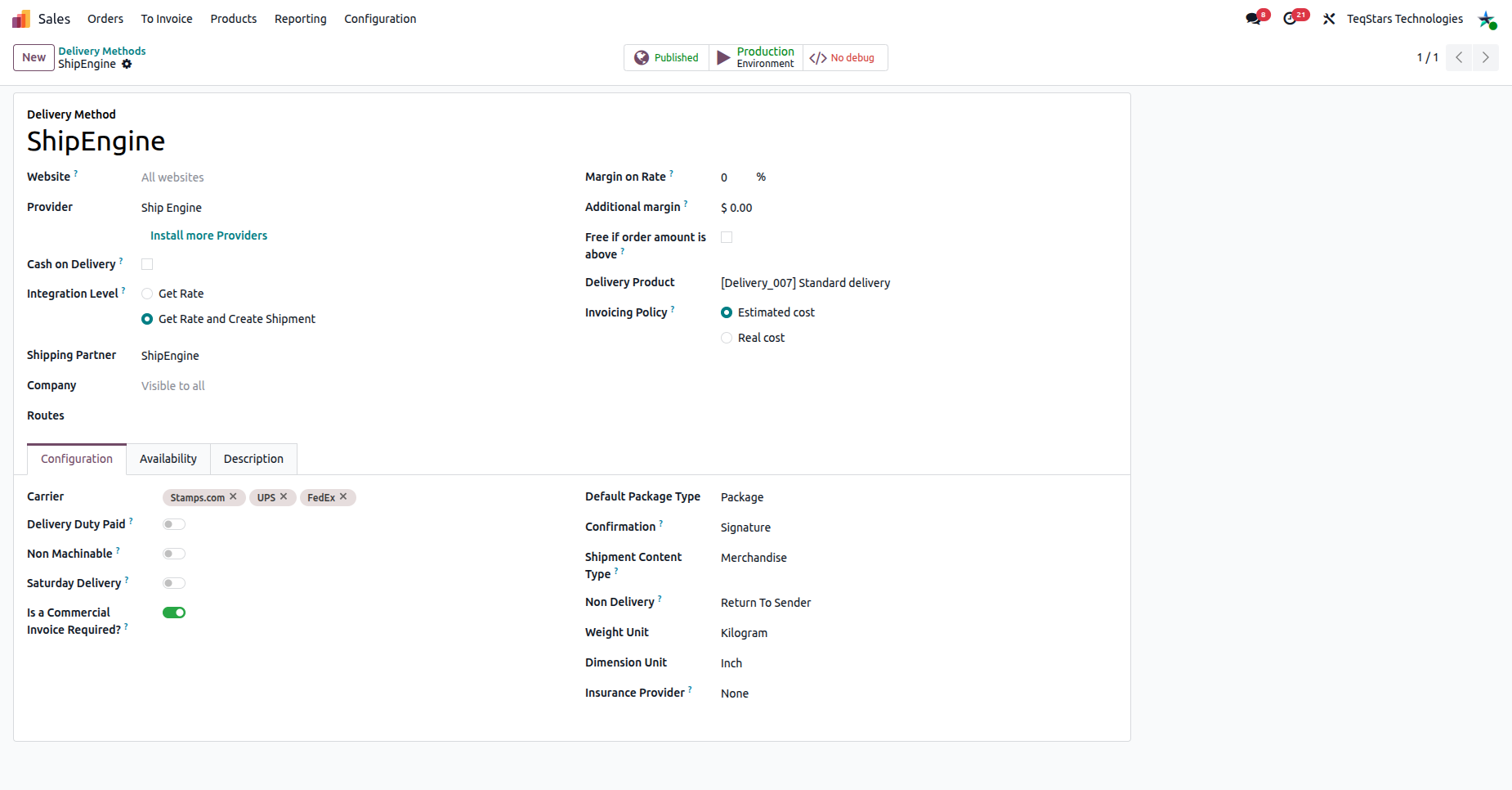
Provider: Select Ship Engine.
Shipping Partner: Select your ShipEngine shipping partner.
Open the Configuration tab and fill in the fields below.
Configuration
Carrier: Select one or more ShipEngine carriers. Rates are requested from all of them.
Default Package Type: The package type used when the delivery order has none. It is also used for rate calculation.
Weight Unit: Select Kilogram, Pound, Ounce or Gram. Odoo converts product weights to this unit.
Dimension Unit: Select Inch or Centi Meter (cm).
ShipEngine Options
Confirmation: The delivery confirmation required for the shipment. Choose None, Delivery, Signature, Adult Signature, Direct Signature, Delivery Mail or Verbal Communication.
Shipment Content Type: The type of contents. It can affect import duties. Choose Merchandise, Documents, Gift, Returned Goods or Sample.
Non Delivery: What to do if a package cannot be delivered. Choose Return To Sender or Treat As Abandoned.
Insurance Provider: The insurer for insured packages. Choose None, Shipsurance, Carrier or Third Party.
Saturday Delivery: Enables Saturday delivery, if the carrier supports it.
Non Machinable: Turn on for packages too large or irregularly shaped to process automatically. This mainly applies to USPS.
Delivery Duty Paid: Turn on when you pay the international duties. UPS, FedEx and DHL Express support this option.
Is a Commercial Invoice Required?: Turn on to attach the ShipEngine custom form (commercial invoice) to the delivery order with the label.
Get Rates on a Sales Order
Open the quotation and click Add shipping.
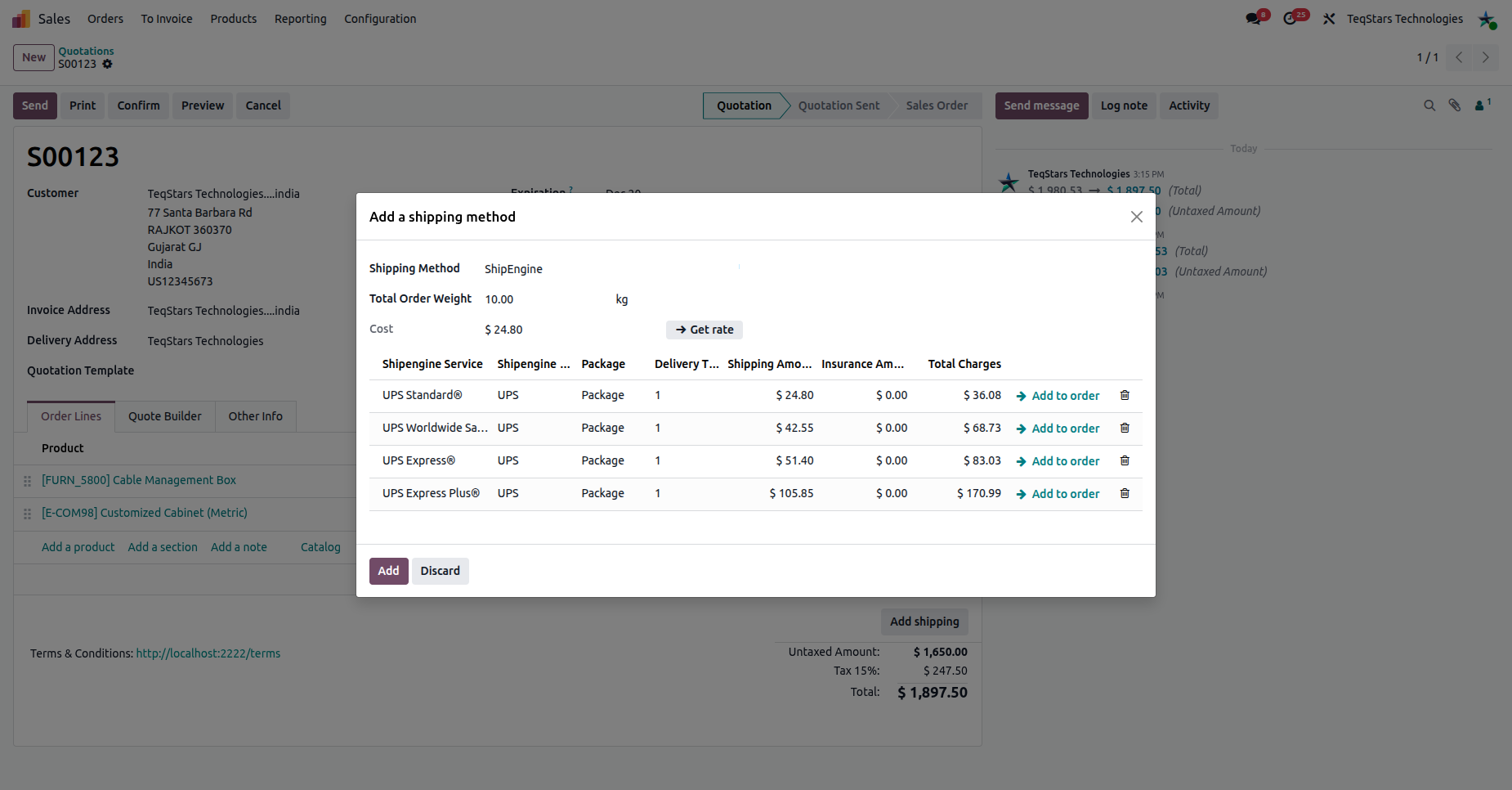
Shipping Method: Select your ShipEngine delivery method.
Click Get rate. Odoo lists the services returned by ShipEngine with Shipengine Service, Shipengine Carrier, Package, Delivery Time, Shipping Amount, Insurance Amount and Total Charges.
Click Add to order on the service you want. Its total charge becomes the shipping line.
Get Rates on a Delivery Order
Use this step to change the service after the order is confirmed, or to ship several packages.
Open the delivery order.
For several packages, select the products and click Put in Pack for each box. Do this before you get rates.
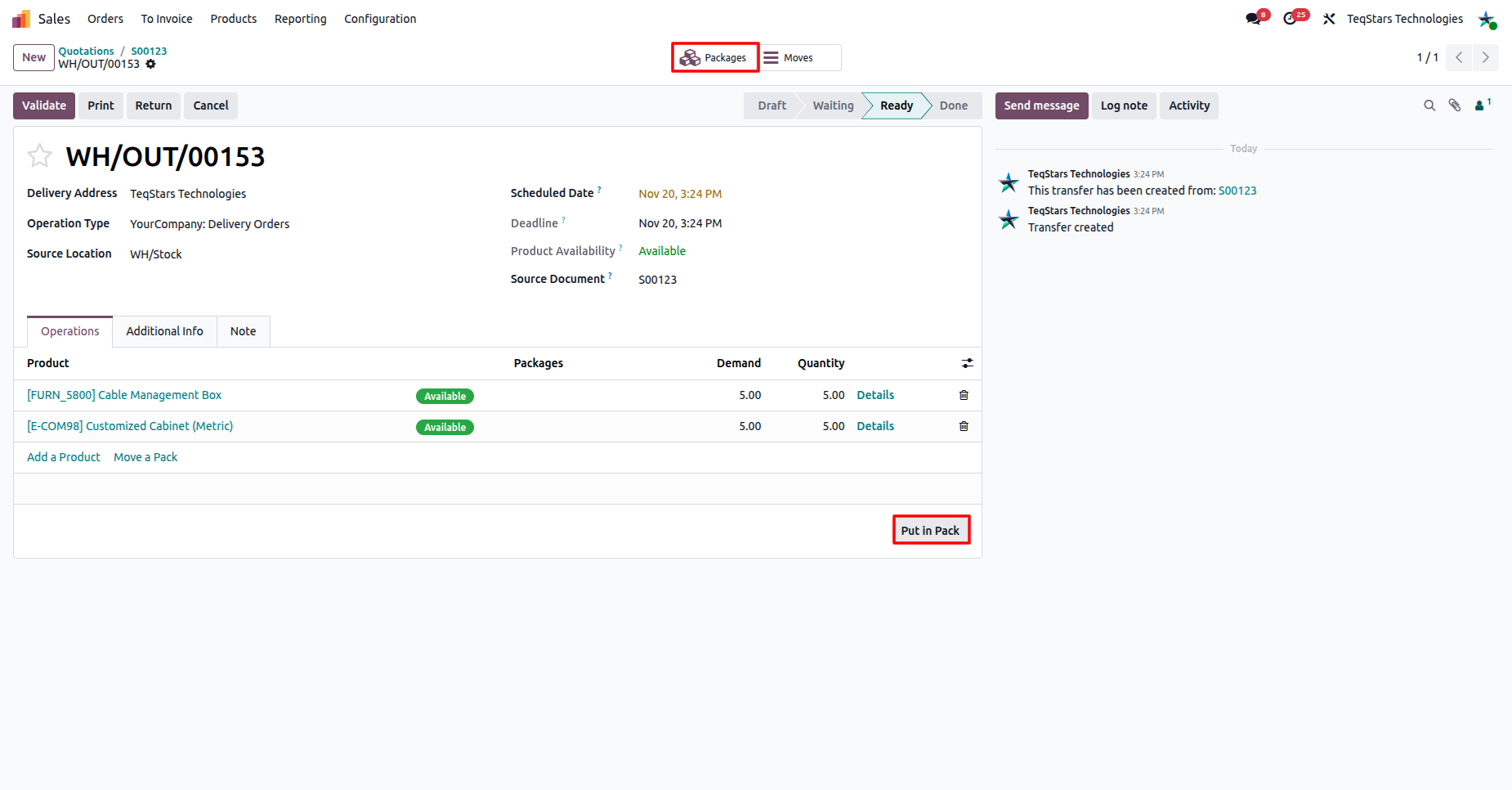
In the Additional Info tab, next to the Carrier field, click Get Rates.
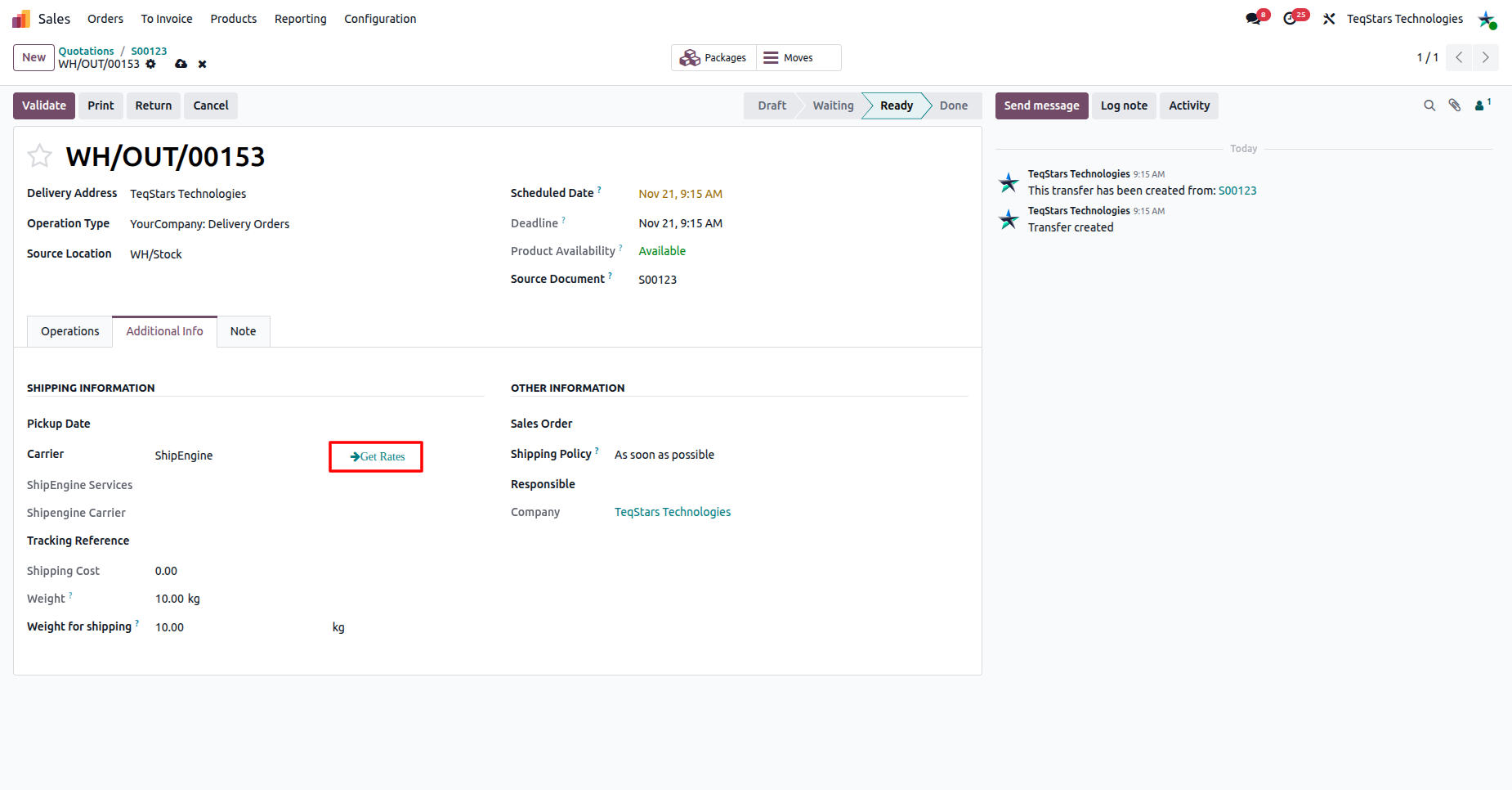
Click Add to order on the service you want.
The delivery order then shows the selected service in the ShipEngine Services field and the carrier in the Shipengine Carrier field.
Note
Odoo does not block a multi-package shipment by itself. Confirm with ShipEngine that the carrier and service accept several packages, using Multi-Package Support? on the carrier and Multi package supported ? on the service.
Validate the Delivery Order
Click Validate. Odoo then:
Creates the shipment in ShipEngine.
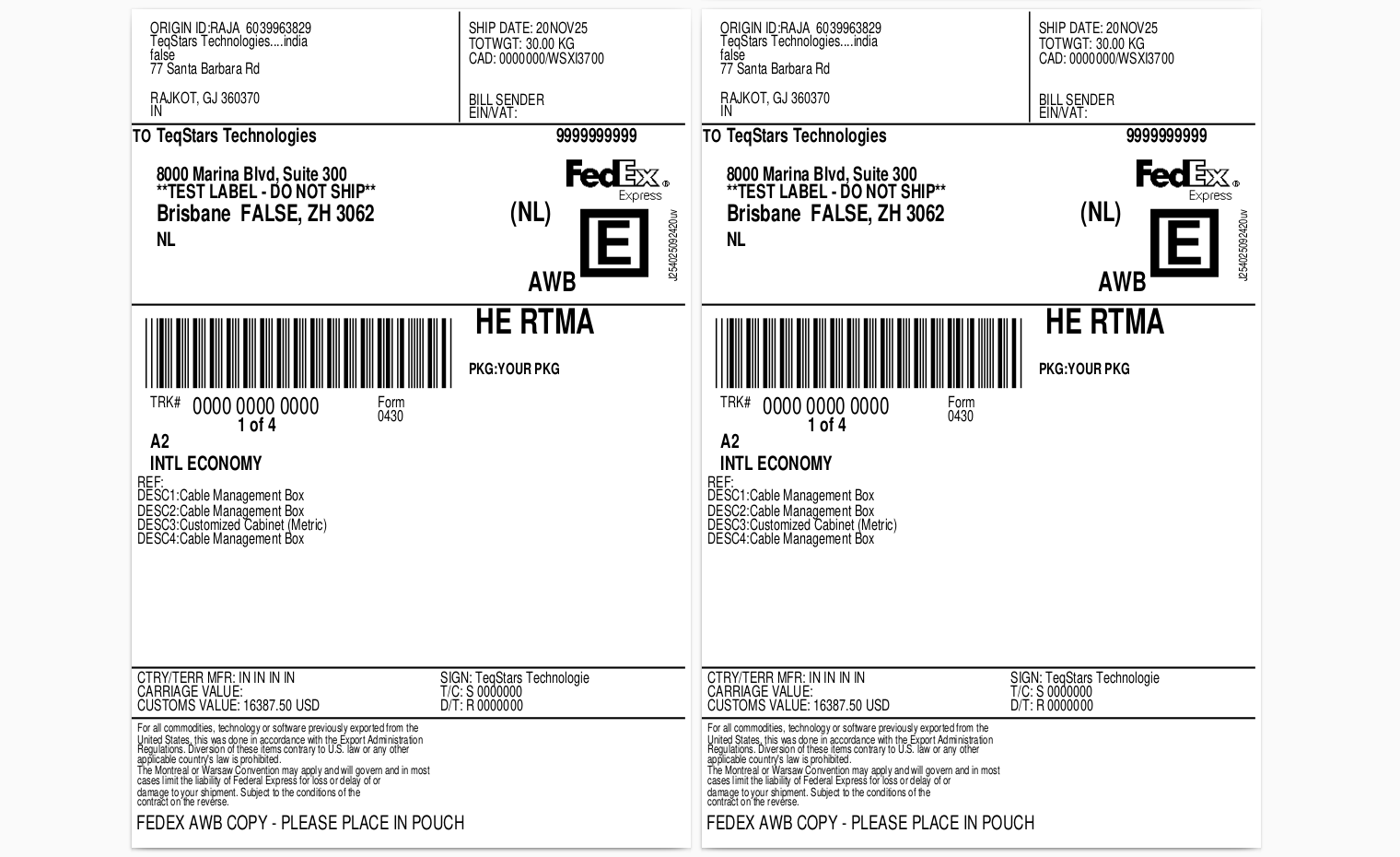
Attaches the label PDF to the delivery order chatter. Each package gets its own label and tracking number.
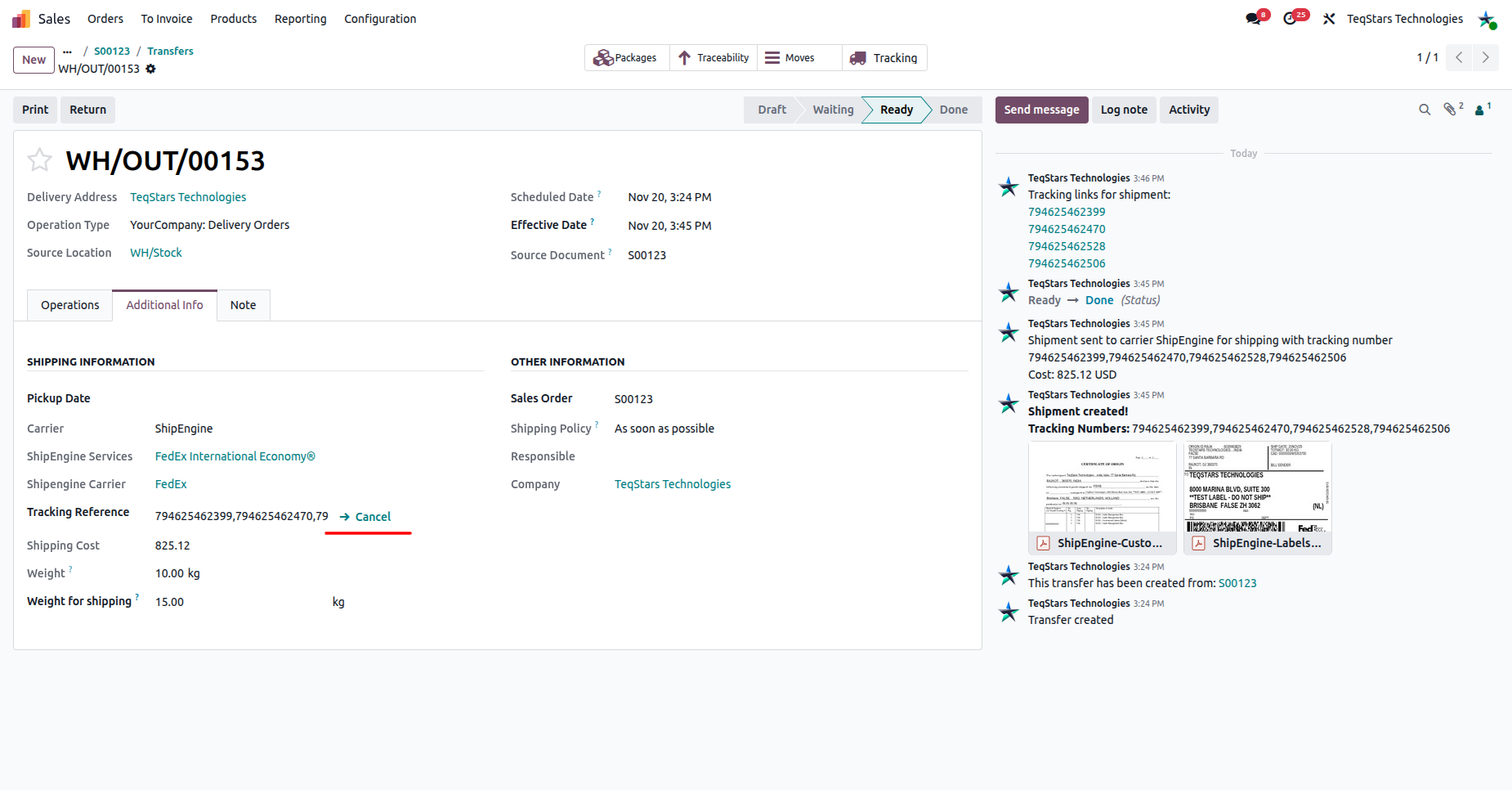
Posts a Shipment created! message with the tracking numbers.
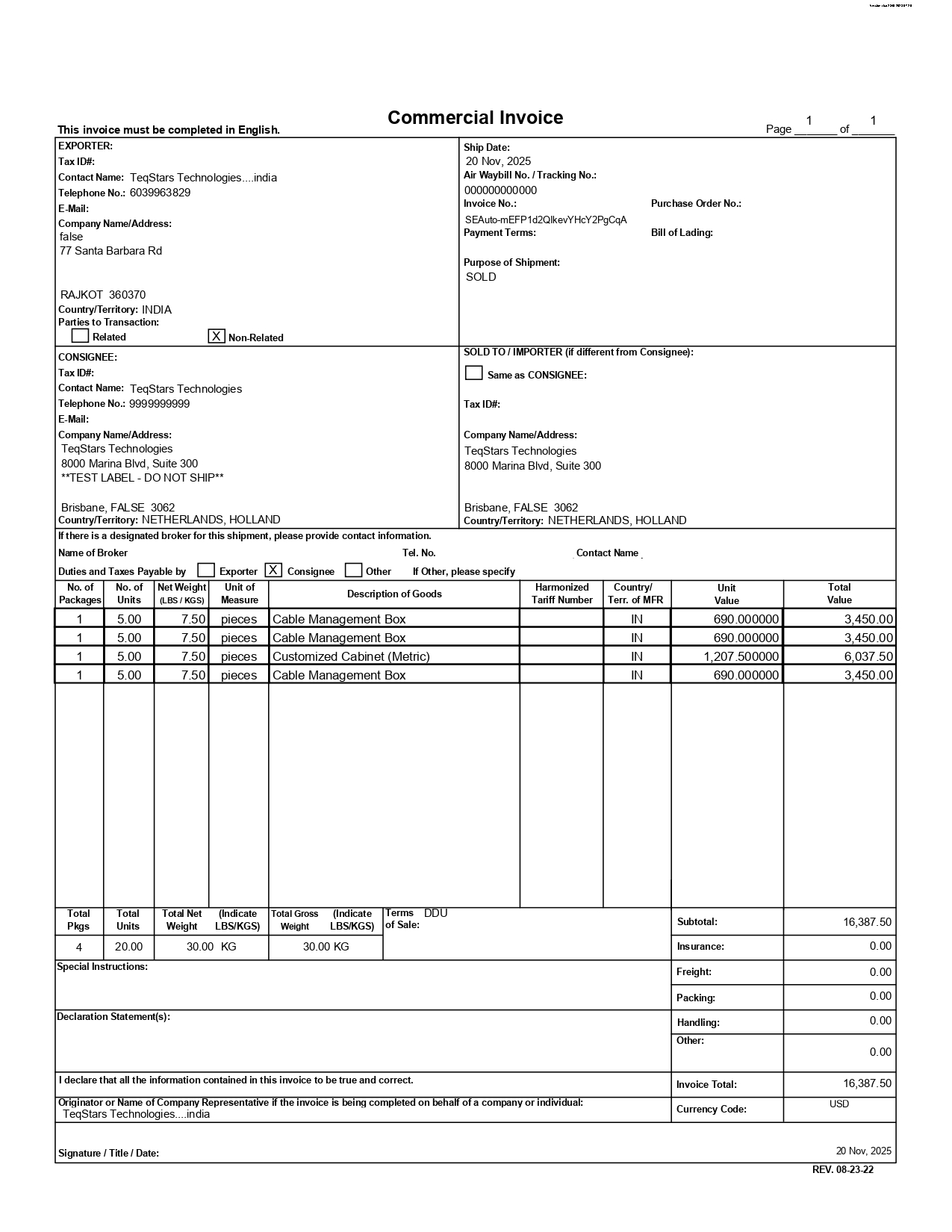
Attaches the ShipEngine custom form when Is a Commercial Invoice Required? is turned on.
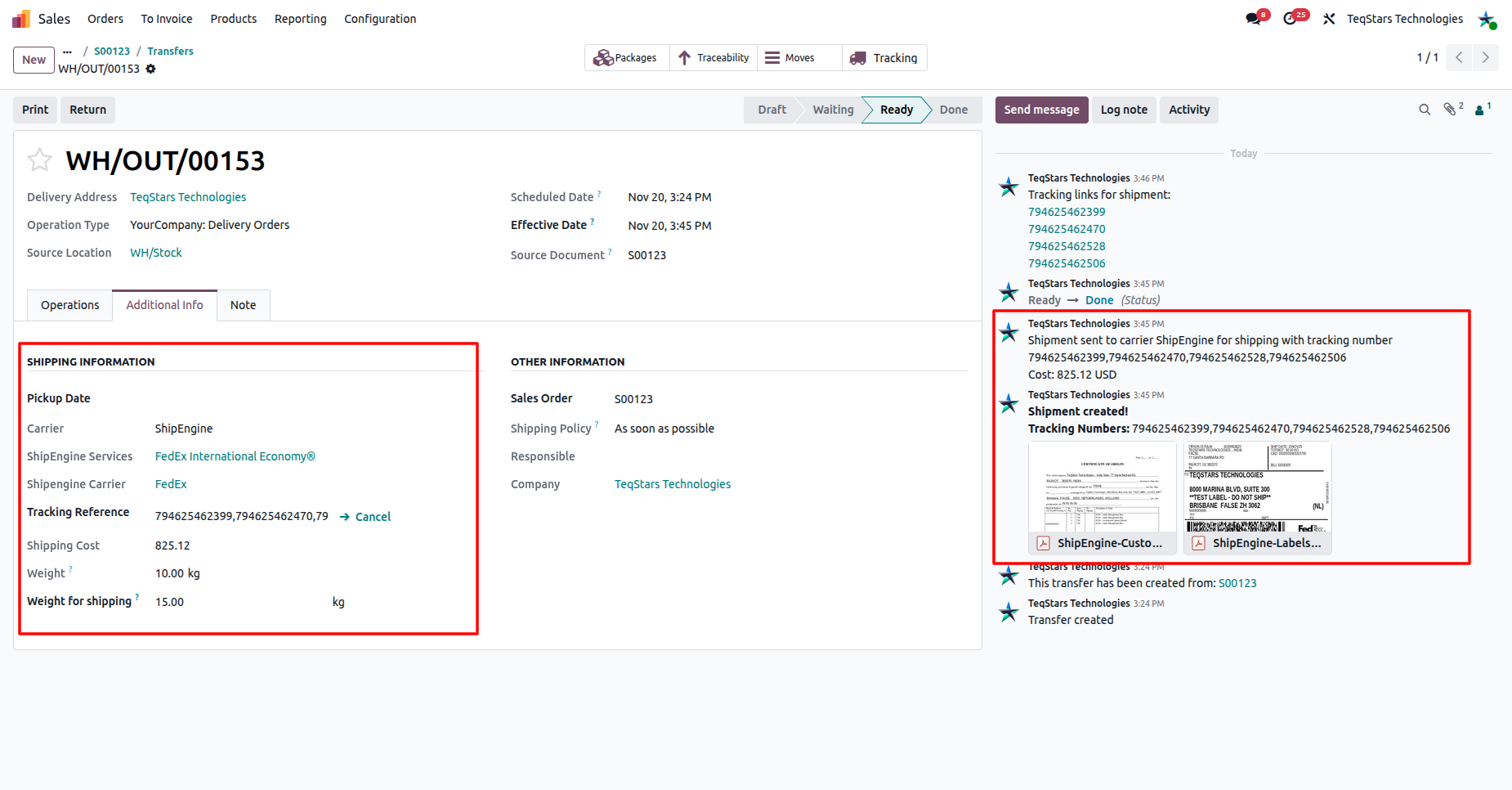
Track the Shipment
Open the validated delivery order and click the Tracking button. It opens the tracking page for each package. The tracking numbers are also listed in the chatter.
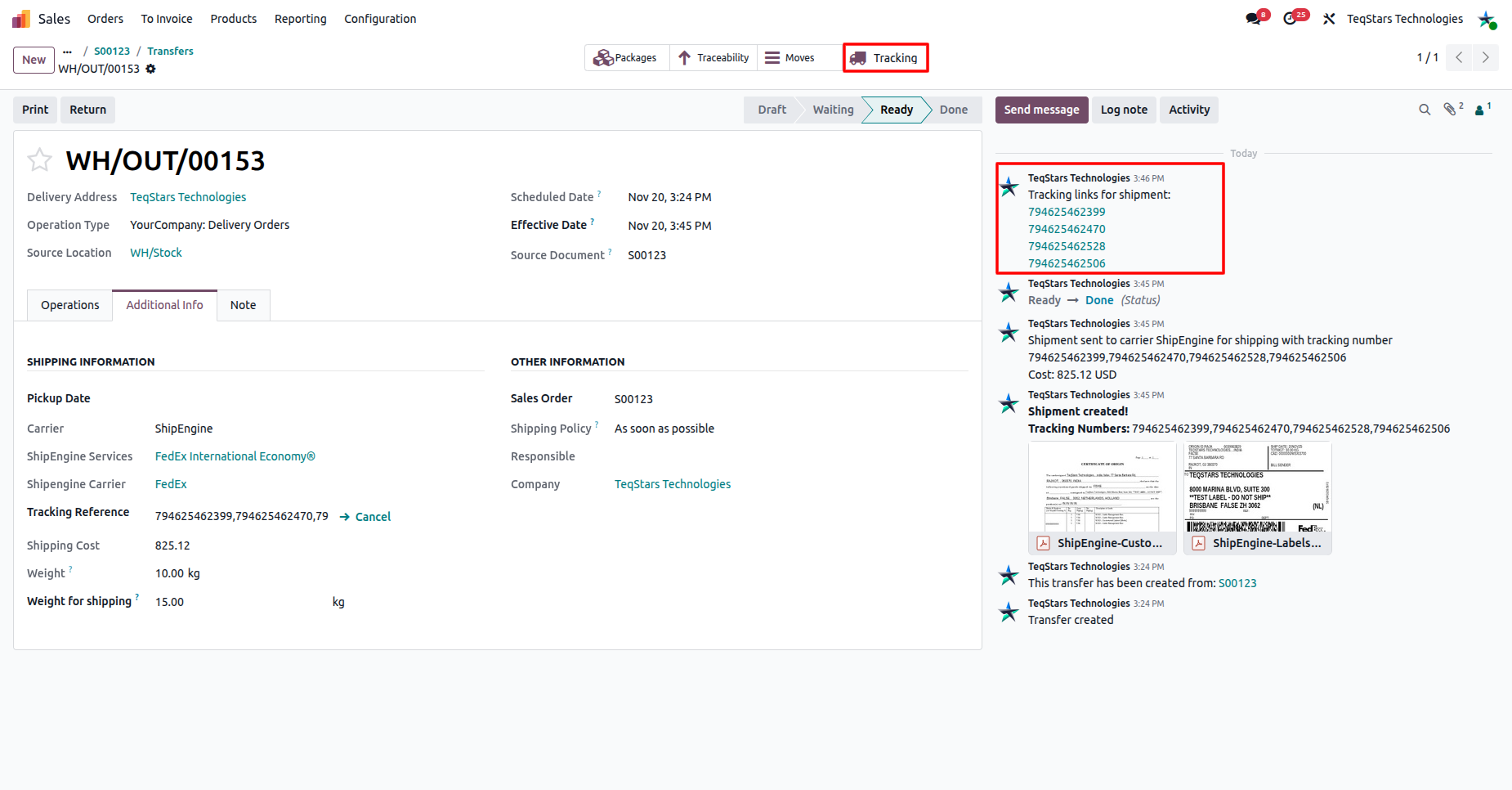
View Generated Label and Commercial invoice
Cancel the Shipment
Click Cancel next to the Tracking Reference field on the delivery order. Odoo asks ShipEngine to void the label. The Shipment has been cancelled message is posted only if ShipEngine approves the void.
Note
Carriers decide whether a label can still be voided. Once the carrier has scanned the parcel, the void may be refused.
See also