
Import Products In Odoo
Before importing products, it’s necessary to configure certain product configuration in the Instance.
You can import products from Shopify into Odoo in two different ways:
Method - 1: From The Operation Popup
Go to the menu in Odoo.
Click on the
Operationsbutton from the instance record.Select Import Operation and then select Import Listings option.
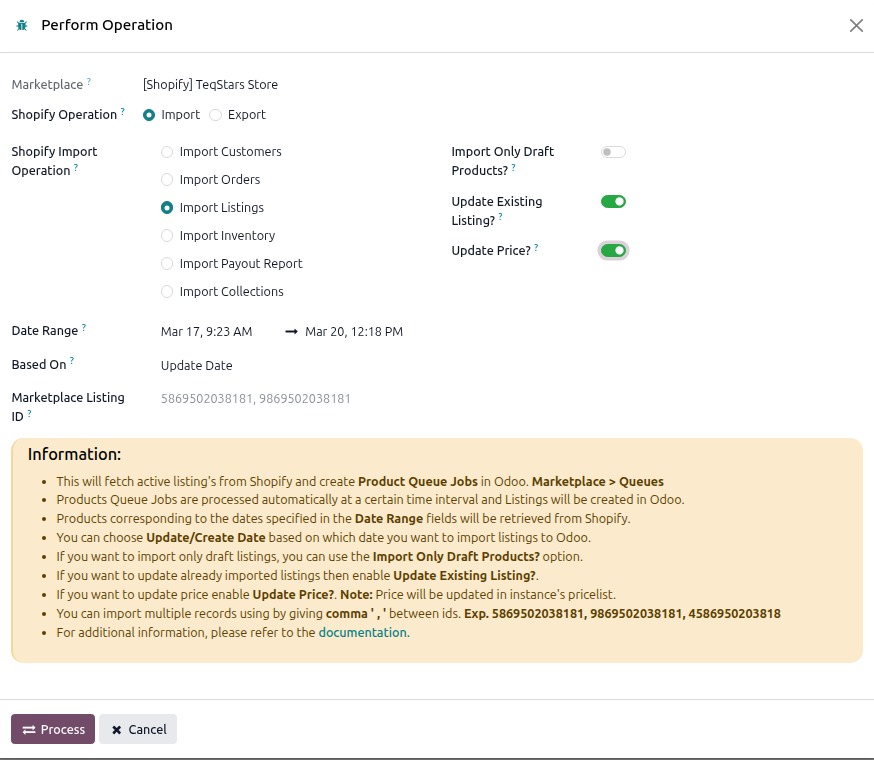
Within the product import operation, you’ll encounter below options.
Create Date: By selecting this option, you can import all products created within the specified date range.
Update Date: By choosing this option, you can import all products that were updated within the specified date range.
Date Range: Products corresponding to the dates specified in the Date Range fields will be retrieved from Shopify.
Update Existing Listing?: If you wish to update existing products in Odoo while importing from Shopify, you can check the option labeled Update Existing Listing?
Update Price?: If you wish to update existing product’s price in the pricelist related to instance, you can check the option labeled Update Price?
Import Draft Product Only: If you want to import only draft listings, you can check the option labeled Import Only Draft Products?
You can import specific Shopify products by entering their IDs in the Marketplace Listing ID field. Separate the IDs with a comma (’,’) like this: 5869502038181, 9869502038181, 4586950203818.
Press
PROCESSbutton.
This will start fetching product data from Shopify stores and add it to the Product Queue for processing. A scheduled/cron job will then start processing the queues one by one. The job will only process products that have been updated after the Last Listing Imported On. If the last execution date is not found, the job will fetch all the products. You can find the details of the last execution of the import operation under a particular instance’s Last Processed On configuration.
Important
The connector will search for existing products in Odoo based on the Sync Listings Based On configuration.
- When you import a Shopify Collection.
If any of those products are missing in Odoo, based on the Sync Listings Based On configuration, they are created automatically as new product listings during the collection import.
- When you import a Shopify Order.
If any of those products are missing in Odoo, based on the Sync Listings Based On configuration, the connector fetches their details from Shopify and creates the products and listings automatically.
Method - 2: From The Listing Form (Sync a Single Listing)
Use this method to update one specific Shopify listing in Odoo.
Go to the menu in odoo and open the listing you want to sync.
Click the
Sync to Odoobutton on the listing form view.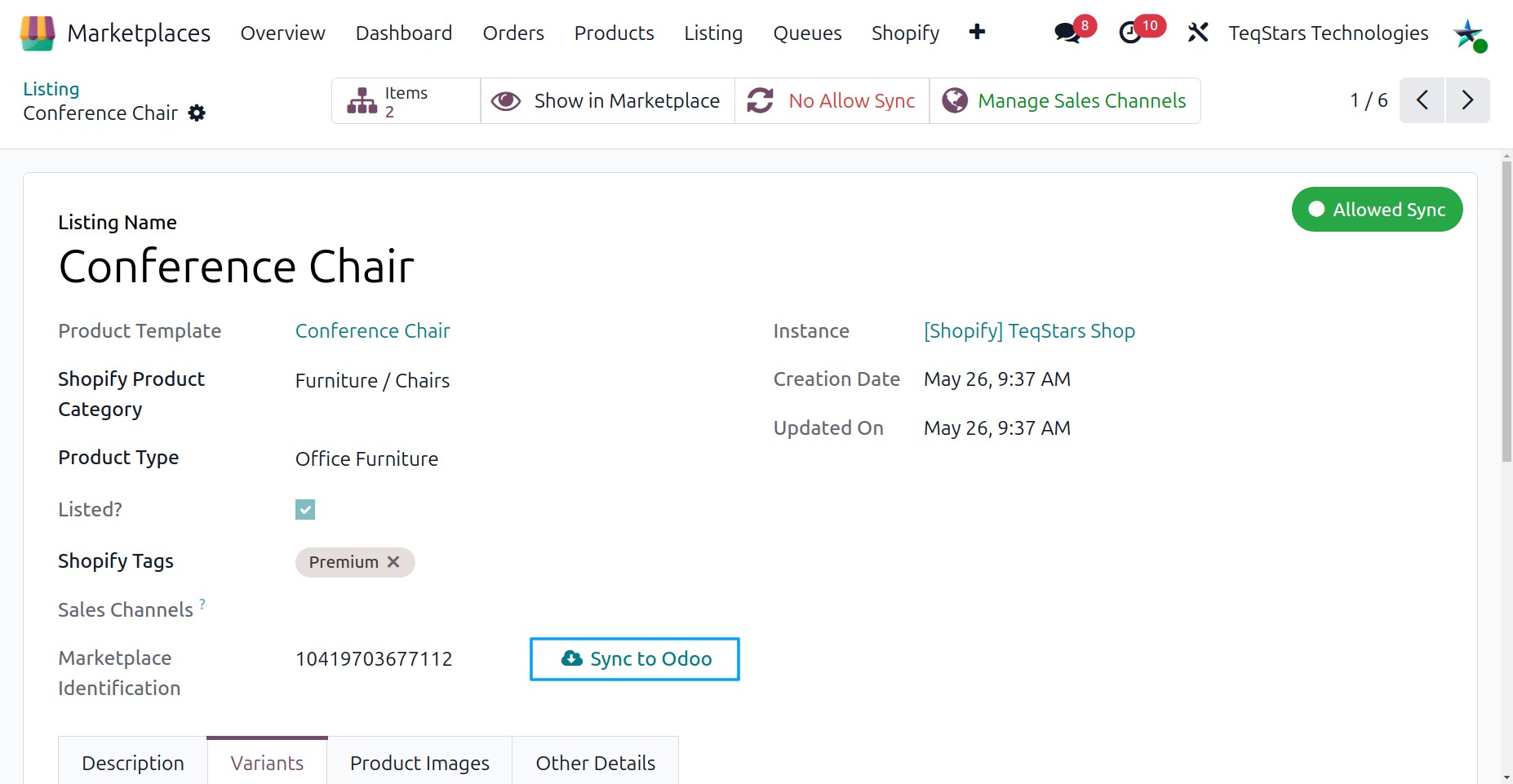
The connector fetches the latest data for this listing from Shopify and updates the Odoo record. An Update Completed notification appears when finished.
Note
The
Sync to Odoobutton is not available when the listing is not yet exported on Shopify or when sync is skipped for the listing (the Not Allowed Sync badge appears at the top of the form).This single-listing sync updates the existing listing details and price by default (Update Existing Listing? and Update Price? are enabled).
What changes in Odoo Product while Import Product.
- Update Product
For Odoo Product, the ImportListing updates the Product Name and Description, Internal Reference (SKU) and Barcode, Weight ,Sales Price , Product Category and the Product Image (as per Product configuration).
HS Code & Country of Origin
When the Update Existing Listing? option is enabled during product import, the connector also syncs the HS Code and Country of Origin from Shopify to Odoo.
In Shopify, these values are stored separately for each product variant, while in Odoo the same values are shared across all variants of the product. Because of this difference, the connector follows the rule below before updating the Odoo product:
If all variants in Shopify have the same Country of Origin, the Country of Origin will updated in odoo Product template.
If all variants in Shopify have the same HS Code, the HS Code was updated in odoo Product template.
If variants contain different values for a field, that specific field is not updated in Odoo.
Note
A specific listing can’t be updated when the Not Allowed Sync status badge is shown on the Form View. For more details, see Skip Sync for a Specific Listing.