
Generate QuickBooks Credentials
To connect Odoo to QuickBooks Online you need three values: a Client ID, a Client Secret, and a Redirect URI. The first two come from an app you create in the Intuit Developer Portal, the third is generated for you by Odoo and must be registered back in that app.
Prerequisites
A QuickBooks Online company (a Sandbox company is enough to test).
An Intuit Developer account — free at developer.intuit.com.
The intuit-oauth Python library installed on the Odoo server:
pip install intuit-oauthAn Odoo user with the Billing Administrator access right (the OAuth credentials are only visible and editable to that group).
A correct web.base.url in Odoo, reachable from the internet over HTTPS — Intuit redirects the browser back to that address after authorization.
Warning
Odoo builds the Redirect URI from web.base.url. If that system parameter still
points at localhost or an old domain, the URI you register with Intuit will not
match the one Odoo sends and authorization will fail. Fix it at
before you start.
Create an app in the Intuit Developer Portal
Sign in at developer.intuit.com and open .
Create a new app and select the com.intuit.quickbooks.accounting scope — the connector requests the Accounting scope only.
Open for the app and copy the Client ID and Client Secret.
Intuit keeps two separate sets of keys, Development and Production. Use the Development keys with a Sandbox company, and the Production keys with your live company.
Register the Redirect URI
The Redirect URI is the address Intuit sends the browser back to once the user approves
the connection. Odoo exposes it on the QuickBooks connection form as a read-only,
copy-to-clipboard field in the form https://<your-odoo-domain>/qbo/callback.
In Odoo, open (or create) the QuickBooks connection — see Connect a QuickBooks Account in Odoo — and copy the Redirect URI value.
Back in the Intuit Developer Portal, go to for your app.
Pick the Development or Production tab to match the keys you are using, paste the URI, and save.
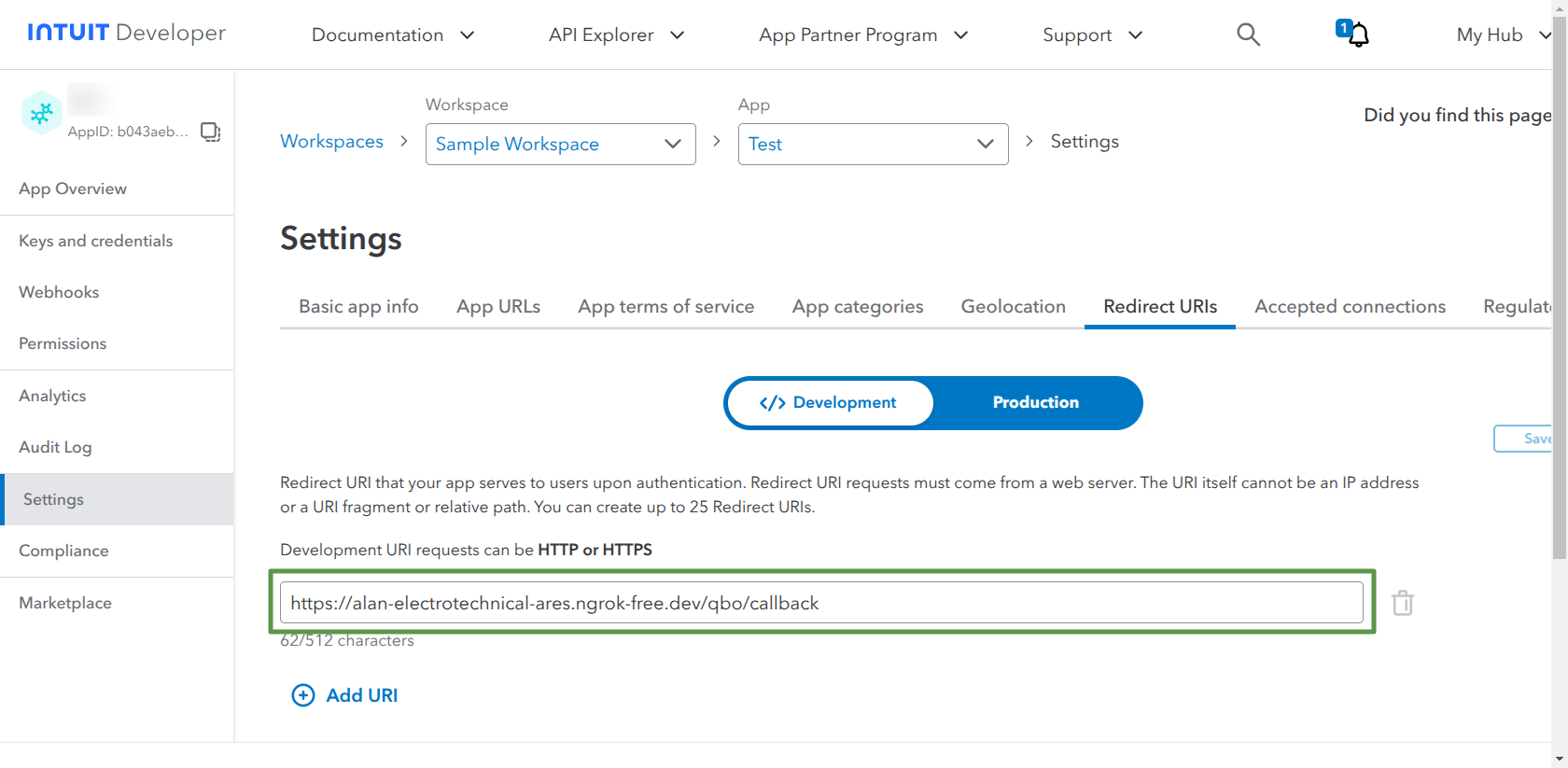
Important
The Redirect URI must match exactly — scheme, domain, and the /qbo/callback
path. Intuit rejects the authorization request on any mismatch. Production Redirect
URIs must use HTTPS.
Tip
If your Odoo domain changes (a new host, or a fresh tunnel URL while testing), the Redirect URI changes with it. Update the value in the Intuit app and authorize again.