Import Mirakl Master Data In Odoo
Before you can successfully import product listings and orders from Mirakl into Odoo, it is essential to import your Mirakl Master Data.
Executing a Master Data import automatically creates or updates essential records in Odoo by fetching foundational configurations directly from your Mirakl portal. This centralized, one-click operation ensures that all key logistical, shipping, and catalog elements are perfectly aligned between both platforms, guaranteeing accurate order processing, stock management, and product listings.
Key Data Components
The import process synchronizes several critical dimensions:
Channels: Maps products to specific marketplaces for accurate multi-channel reporting.
Product Categories: Helps seamlessly organize and map your local Odoo product catalog to Mirakl’s exact classification standards.
Shipping Zones: Necessary to calculate accurate shipping costs and ensure that incoming orders are processed and routed correctly based on the customer’s exact destination.
Logistic classes: Syncs codes (e.g., SMALL, MED, LARGE) to determine carrier methods and fulfillment fees.
Offer States: Keeps your Odoo product listings up-to-date with Mirakl’s condition requirements (e.g., New, Used, Refurbished), ensuring customers always receive accurately described items.
Carriers: Populates approved shipping providers and tracking URL formats in Odoo.
Master Data Import
It is recommended to run this operation during your initial instance setup, or whenever foundational configuration changes are made directly within your Mirakl Seller Portal.
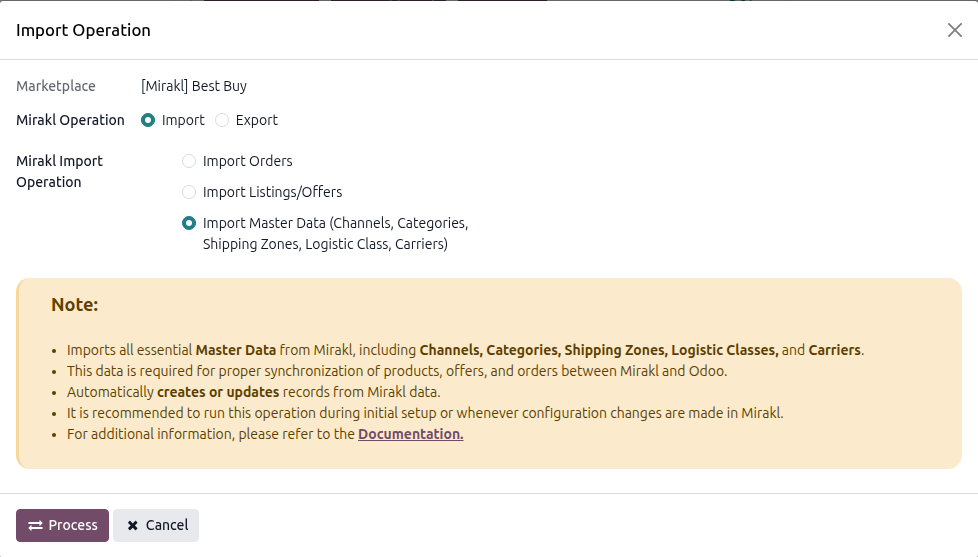
To perform a Master Data import, follow these steps:
Go to the menu in Odoo.
Click the Operations button on your Mirakl instance record.
Set the operation type to Import.
Select the Import Master Data option from the dropdown menu.
Click the Process button to initiate the fetch.
Tip
When to re-import?
If you add a new shipping zone or change your logistic classes in Mirakl, Odoo will not know until you re-run this process. Make it a habit to Sync Master Data after any structural changes in your Seller Portal.
Viewing Imported Master Data
Once the import process is complete, you can review the synchronized Master Data directly within Odoo. The connector provides dedicated menus for five of the six entities; Offer States are imported internally and used on listings but do not have a separate menu view.
Navigate to the menu in the top navigation bar to access the following data:
Channels: Go to to view your imported sales channels and storefronts.
Product Categories: Go to to explore the complete, mapped Mirakl hierarchy tree.
Shipping Zones: Go to to verify the geographical delivery regions.
Logistic Classes: Go to to review the fulfillment classes assigned to your listings.
Carriers: Go to to see the synchronized list of approved shipping providers and their corresponding tracking URLs.
Master Data on Product Listings
Once your Master Data is successfully imported, Odoo uses these configurations to structure your product listings.
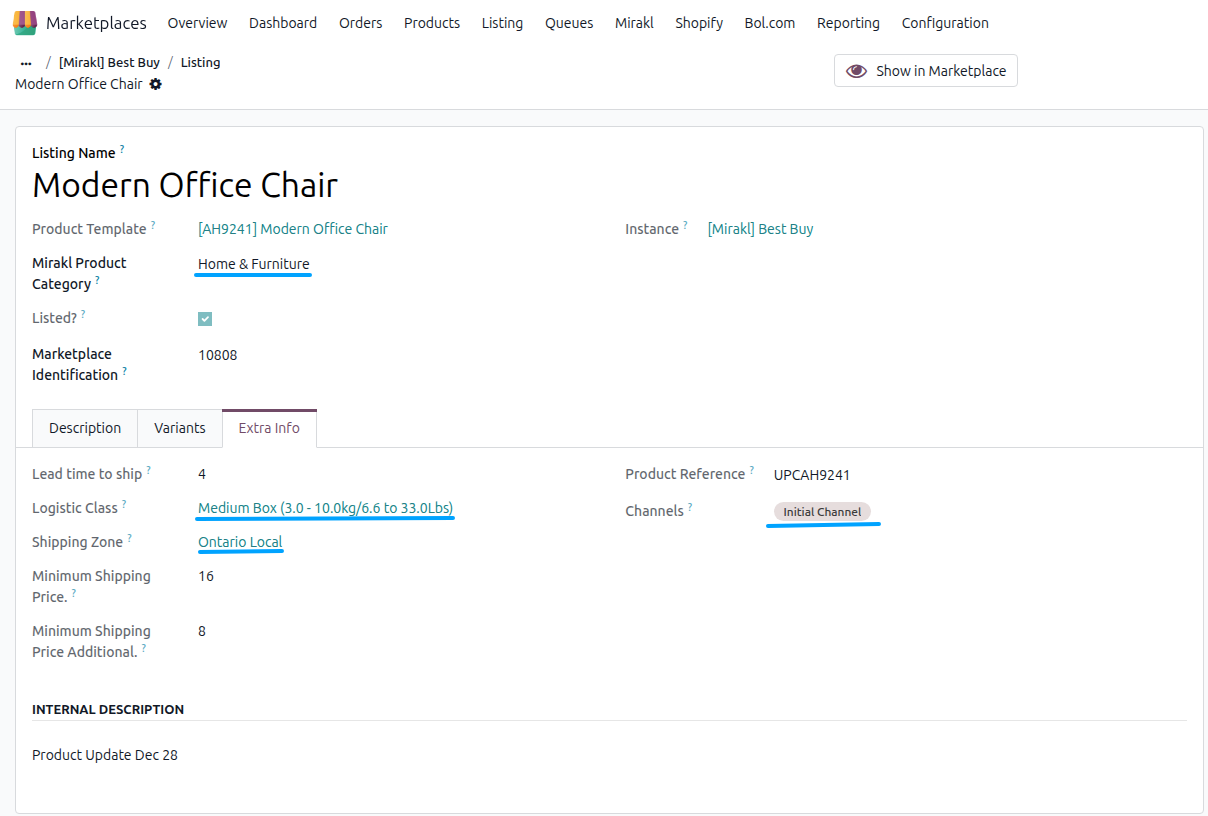
When you view a synchronized Mirakl Listing in Odoo (by navigating to the Extra Info tab), you will see your imported Logistic Class, Shipping Zone, Product Category, Channels, and Offer State applied to the listing configuration.