Import Products In Odoo
The ManoMano Connector lets you import a CSV file exported from ManoMano into Odoo to create or update your products.
Each row of the file is matched to an existing Odoo product by its SKU or its EAN. A match is updated. When no matching product is found, a new product and a new listing are created.
Use it to bring your existing ManoMano catalogue into Odoo, for example when you start with the connector or move from another connector. Matching by SKU or EAN means no duplicates are created.
Prerequisites
A ManoMano instance is created and confirmed. See Create a ManoMano instance in Odoo.
The file exported from ManoMano is saved as CSV UTF-8, and its header has the SKU and EAN columns.
To create new Odoo products from rows that match nothing, turn on Create Odoo Products? on the instance. Open , open your ManoMano instance and turn the option on. When it is off, rows that match no Odoo product are skipped.
Method - 1: Import Listings (CSV)
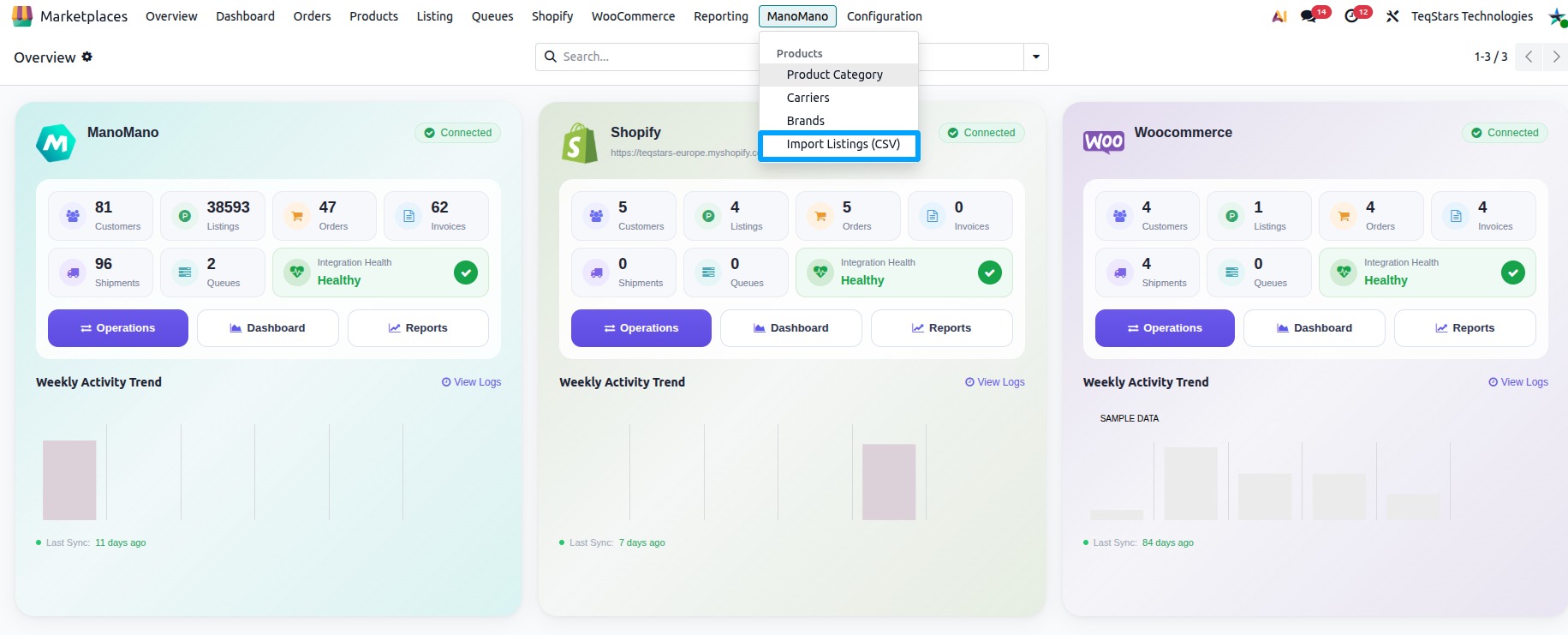
Go to .
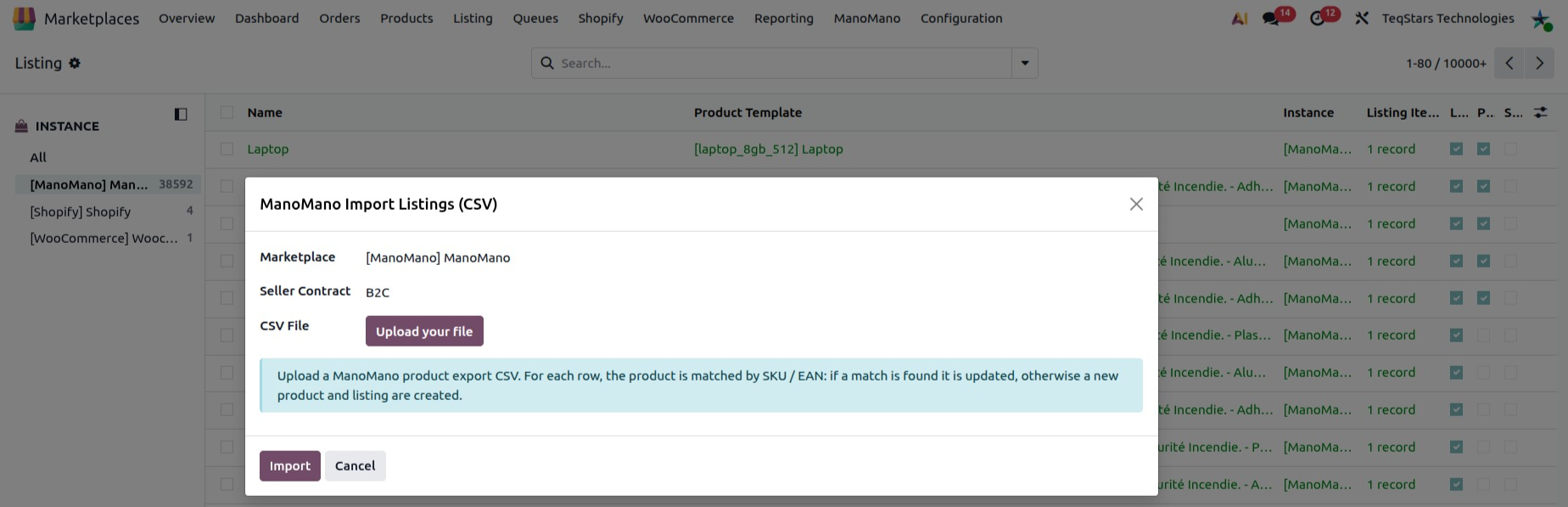
In CSV File, upload the CSV file exported from ManoMano.
Click Import. Click Cancel to close the popup without importing.
If the file cannot be used, the app shows one of these messages:
Please upload a CSV file to import.: no file was added. Upload the file in CSV File and click Import again.
The uploaded CSV file is empty or could not be read.: open the file, check that it has rows, save it again as CSV UTF-8 and upload it again.
This does not look like a ManoMano offer CSV file.: the header has no SKU or EAN column. Upload the CSV file exported from ManoMano, saved as CSV UTF-8.
How Rows Are Matched
For each row of the file, the connector:
Looks for an existing Odoo product by the row’s SKU (Internal Reference) first, then by its EAN (barcode).
Updates the product and its listing when a match is found.
Creates a new Odoo product and listing when no matching product is found and Create Odoo Products? is on (see Prerequisites).
Important
A row with no SKU and no EAN is skipped, and the log says so.
A row that matches no Odoo product is skipped when Create Odoo Products? is off. The log shows its SKU and EAN, so you can create the product or turn the option on and import the file again.
What Is Imported
Product: the Odoo product of the row, created or updated.
Listing and Listing Item: the ManoMano listing of the product, created or updated, with the SKU on its item.
The log line of each row says whether the product was created or updated, with its name and SKU.
The imported listings are shown under .

What Happens Next
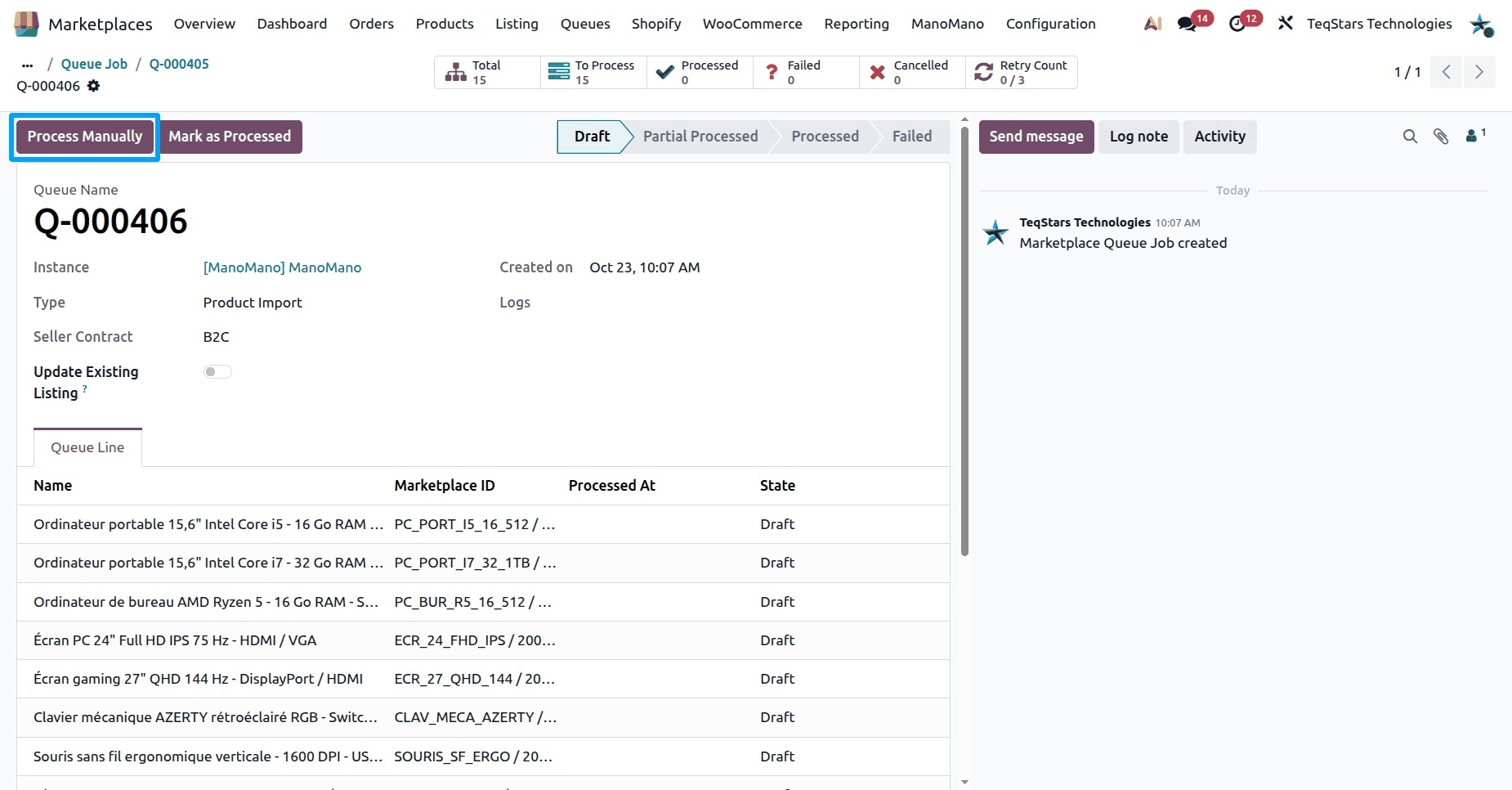
The rows of the file are added to a queue job under . The scheduled job Marketplace : Process Queue Job processes the queue lines in the background. It runs on a schedule you can change in . To process them now, open the queue job and click Process Manually.
See what each row reported under .
When a row fails, its queue line shows the SKU and the error. Fix the cause, then click Retry on the queue line, or Retry Failed Lines on the queue job.
Once your listings are in Odoo, read back their current price, stock and offer status from ManoMano with Import Offers From ManoMano.
Check the ManoMano category, brand and offer details of each listing, as described in Offer Details On A Listing.