
Import Mirakl Orders In Odoo
The Mirakl Odoo Connector allows you to import Mirakl orders into Odoo. This can be a useful way to streamline your order management processes and keep your inventory and accounting data up-to-date.
Before importing Orders, it’s necessary to configure certain order configuration in the Instance.
You have the flexibility to import orders from Mirakl to Odoo, either through manual imports or automated processes.
Method - 1: Manual Order Import
Go to the menu in Odoo.
Click on the
Operationsbutton from the instance record.Select Import Operation and then select Import Orders option.
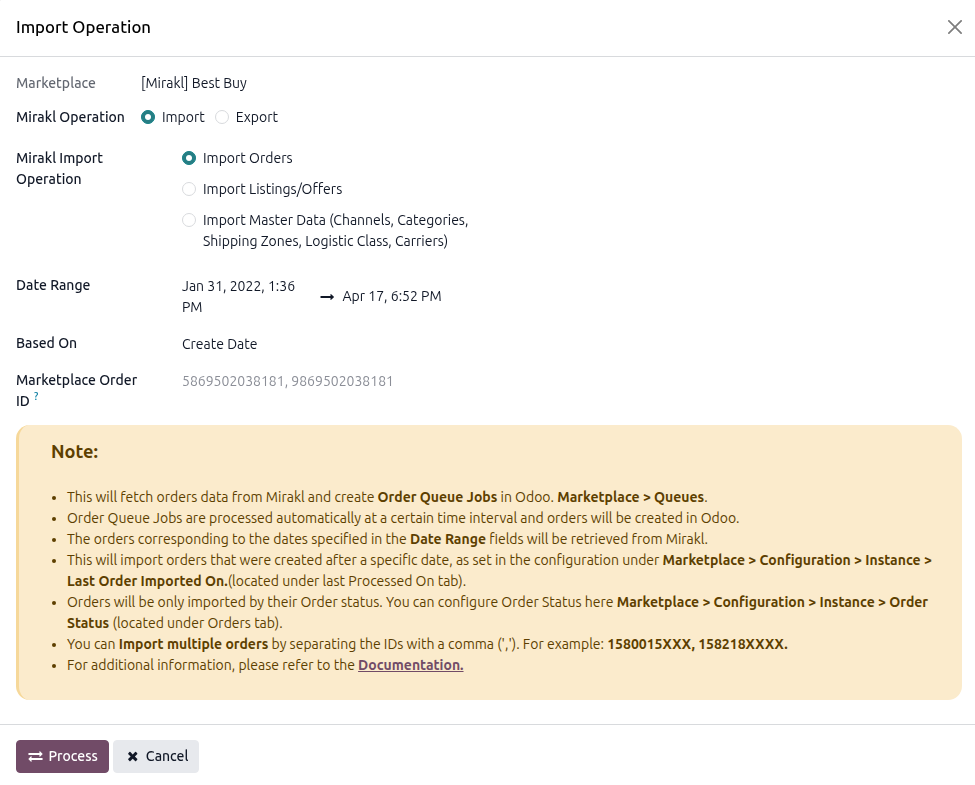
Within the order import operation, you’ll encounter below options.
Date Range: Orders corresponding to the dates specified in the Date Range field will be retrieved from Mirakl.
Based On: Choose whether the Date Range filters orders by their Create Date (when the order was placed) or Update Date (when the order was last modified). Use Update Date to catch status changes on existing orders.
Marketplace Order ID: You can import specific Mirakl Orders by entering their IDs in the Marketplace Order ID field. Separate the IDs with a comma (‘,’) like this: 5869502038181, 9869502038181, 4586950203818.
Press
PROCESSbutton.Bulk Order Import:
When no Marketplace ID is provided, the system fetches all available orders from Mirakl based on the selected date range and configured order status in the Mirakl instance.
The queue is processed automatically at defined intervals, and sales orders are created in Odoo based on the configured Order Workflow and Order Status.
If a queued order fails to import, click on the Queue button directly from your Mirakl instance card on the dashboard (or navigate to ) to view the specific error message and resolve the issue.
For Order Imports (By IDs):
When importing specific orders using Marketplace IDs, the system bypasses the queue and does not apply date range filtering.
It attempts to create the corresponding sales orders in real time.
Since the queue is bypassed, failed imports are not retried automatically.
In such cases, click the Logs button on the marketplace instance to review error details and identify the issue.
If some orders fail to import due to not having a configured order workflow in the Mirakl Instance, check the error messages provided. Based on the error message, configure the order workflow accordingly in Mirakl Instance to resolve the issue.
Method - 2: Automatic Order Import
Order import from Mirakl to Odoo can be automated using the Automatic Schedule action, which enables you to define a specific time interval for executing the import process. This automation ensures that the latest orders from your Mirakl store is consistently and seamlessly created/updated in Odoo without requiring manual intervention. Here’s a breakdown of the process
Go to your Mirakl instance setting by navigate to .
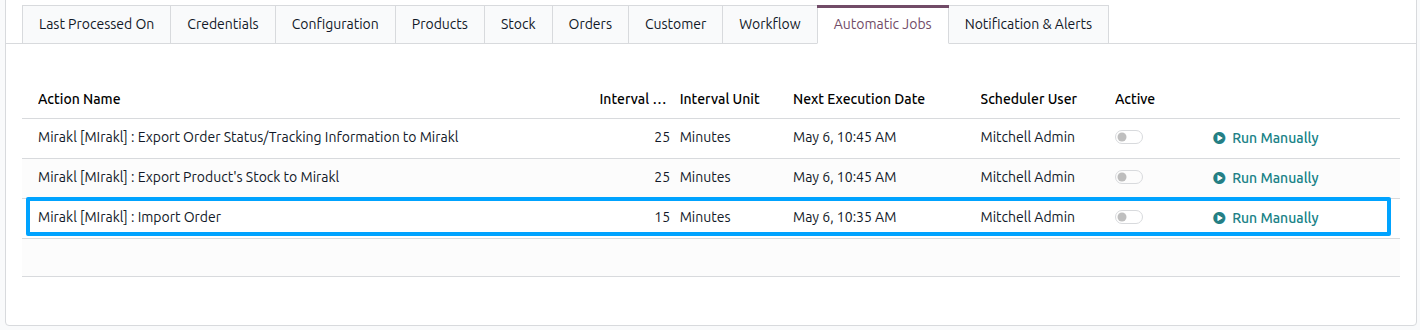
Here you will see Automatic Jobs tab. In that tab you can configure Import Order automatic action by setting Interval Number, Interval Unit and then you can Active.
Important
Orders will be only imported by their Order Status. You can configure Order Status here (located under Orders tab)
If an order is fulfilled (
SHIPPED,RECEIVED, orCLOSED) in Mirakl at the time of import, the corresponding Odoo delivery order is automatically validated with the tracking reference and carrier from Mirakl.If an existing order is re-imported and has been fulfilled in Mirakl since the last sync, the matching Odoo delivery is validated and the tracking reference updated.
If an order is canceled in Mirakl, the connector cancels the corresponding Odoo Sale Order and its delivery pickings, and posts the Mirakl cancellation reason code and label in the order chatter.
A separate billing and shipping partner is created for each imported order. If Create Company Contact? is enabled on the instance and the customer provided a company name, a parent company contact is created and linked.
The delivery carrier is matched on the Mirakl carrier name; if not found, a new carrier is auto-created. A dedicated shipping line is added to the Sale Order when Mirakl provides a non-zero shipping price.