
Import Etsy Master Data In Odoo
Before you can successfully import product listings and orders from Etsy into Odoo, or export products back to Etsy, it is essential to import your Etsy Master Data.
Running a Master Data import creates or updates the Etsy reference records in Odoo, pulling them directly from your Etsy shop. This keeps your categories, shipping profiles, return policies, and processing times in sync with Etsy, so listing creation and order processing stay accurate. Category attributes and their values are fetched for the categories you select in the wizard that follows the import.
Key Data Components
The import process synchronizes several critical dimensions:
Product Categories: The Etsy categories used to classify your listings; the selected category determines which attributes (item specifics) are available for a listing.
Product Attributes and Values: Etsy attributes such as Color, Material, and Size and their allowed values are fetched per category you select (not for the whole taxonomy). Attributes and values are auto-mapped when an Odoo attribute or value with the same name (case-insensitive, exact) already exists; otherwise the entry is created so you can map it manually. Mappings are supported at both category-specific level, which applies only to listings in that Etsy category, and global level, which applies across all categories on the instance.
Shipping Profiles: For each profile, Odoo imports the title, origin country and postal code, profile type, domestic and international handling fees, all destinations with their shipping cost, and any shipping upgrades. A profile that Etsy no longer returns is archived in Odoo (marked Deleted on Etsy); nothing is archived when the response looks incomplete.
Return Policies: For each policy, Odoo imports whether returns are accepted, whether exchanges are accepted, and the number of days the buyer has to return an item. Policies that Etsy no longer returns are archived.
Readiness States: Processing-time definitions - the label shown to buyers (e.g., Ready to Ship in 1-3 days), the state type (Ready to Ship or Made to Order), and the minimum and maximum processing days. States that Etsy no longer returns are archived.
Tags: Etsy listing tags are not part of this import; they are created when listings are imported and you can add more on a listing.
Master Data Import
It is recommended to run this operation during your initial instance setup, or whenever foundational configuration changes are made directly within your Etsy shop. The connector also imports this data automatically the first time you confirm the instance.
To perform a Master Data import, follow these steps:
Go to the menu in Odoo.
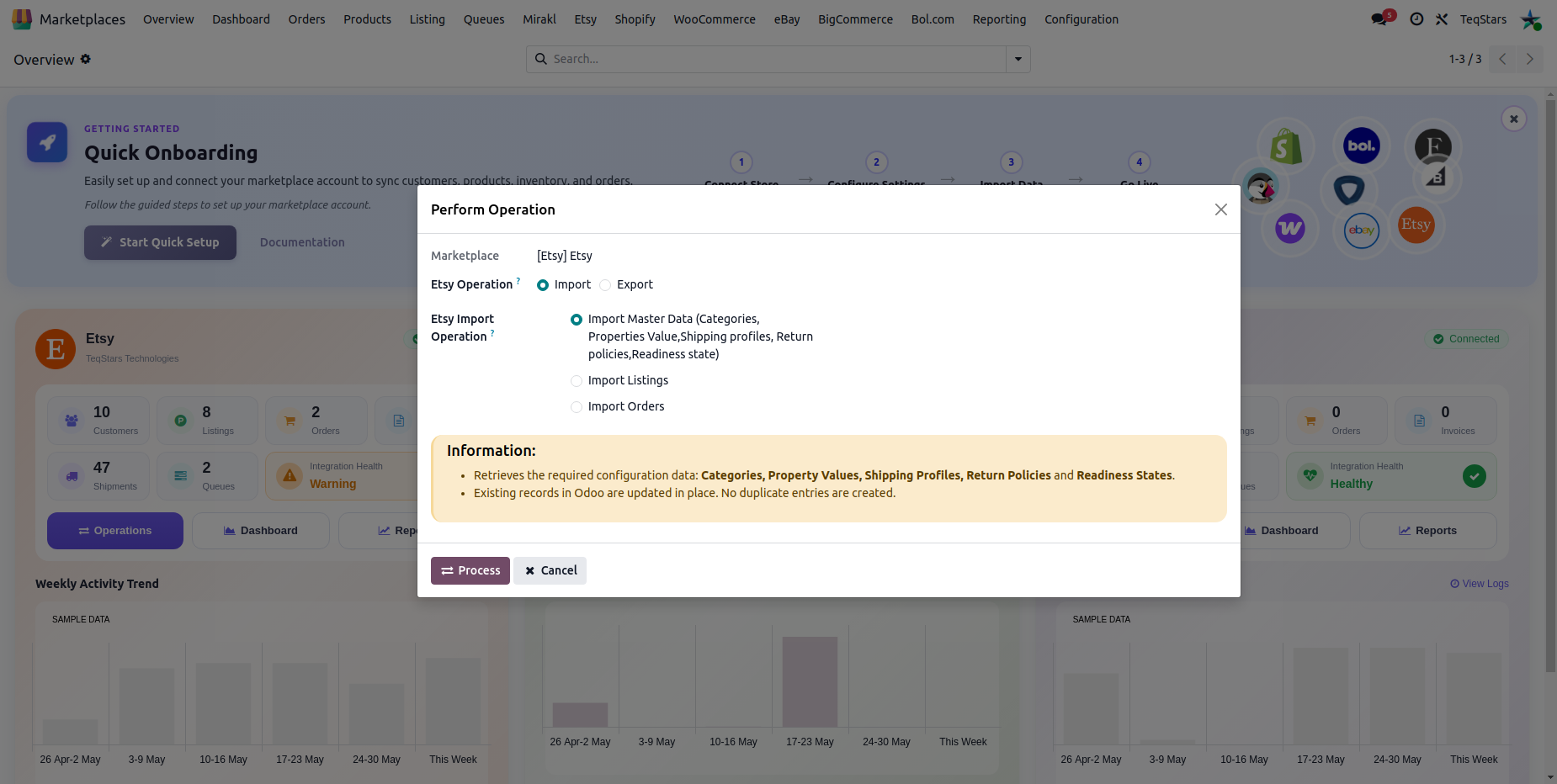
Click the Operations button on your Etsy instance record.
Set the operation type to Import.
Select Import Master Data (Categories, Properties Value, Shipping profiles, Return policies, Readiness state) from the dropdown menu.
Click the Process button to initiate the fetch. The shop details, shipping profiles, return policies, readiness states and category tree are imported immediately, and a Fetch Etsy Category Metadata popup opens so you can select the categories whose attributes and values should be fetched (close the popup to skip).
Tip
When to re-import?
If you add a new shipping profile, return policy, readiness state, or category in Etsy, Odoo will not know until you re-run this process. Make it a habit to Sync Master Data after any structural changes in your Etsy shop.
Viewing Imported Master Data
Once the import process is complete, you can review the synchronized Master Data directly within Odoo from the Etsy menu in the top navigation bar:
Product Categories: Go to to explore the imported Etsy categories.
Product Attribute Mapping:
Global level: Go to to review the attribute mappings that apply across all Etsy categories on the instance.
Category level: Go to , open a category, and review the category-specific attribute mappings on the category form.
Product Attribute Value Mapping:
Global level: Go to to review the attribute value mappings that apply across all Etsy categories on the instance.
Category level: Go to , open a category, and review the category-specific attribute value mappings on the category form.
Shipping Profiles: Go to to see your imported Etsy shipping profiles.
Return Policy: Go to to see your imported Etsy return policies.
Readiness State: Go to to see your imported processing-time definitions.
The pages below describe each component in more detail: