
Update Existing Offers In Octopia
After an offer is live on Octopia, Update Existing Offers pushes selected fields back to it without recreating it. The change is submitted as an Update package.
What Can Be Updated
Only the following can change on an existing offer:
Price
VAT
Quantity
Delivery options (delivery modes and their costs)
Preparation time
A product, its barcode and its condition cannot be changed. That needs the offer to be removed and sent again. Anything descriptive, such as title, description, category or attributes, belongs to the shared product details and not to your offer.
Method - 1: From The Operations Wizard
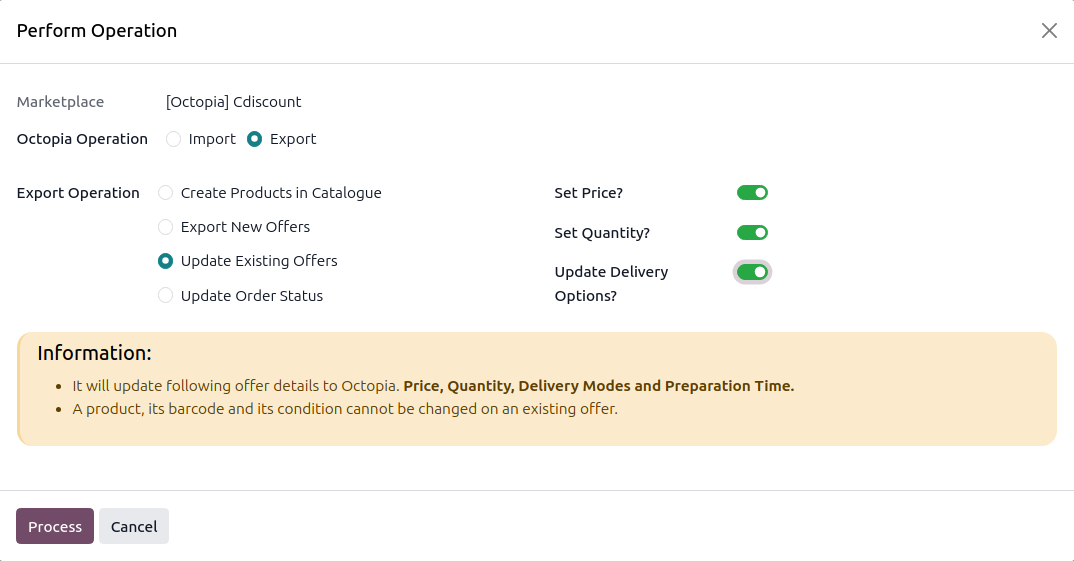
Click the Operations button on the instance card in .
Choose Export, select Update Existing Offers.
Choose what to send and click Process:
Set Price: Push prices from the instance pricelist.
Set Quantity: Push stock for offers with Manage Stock enabled.
Update Delivery Options?: Push the delivery modes and the preparation time.
Method - 2: From The Listing View
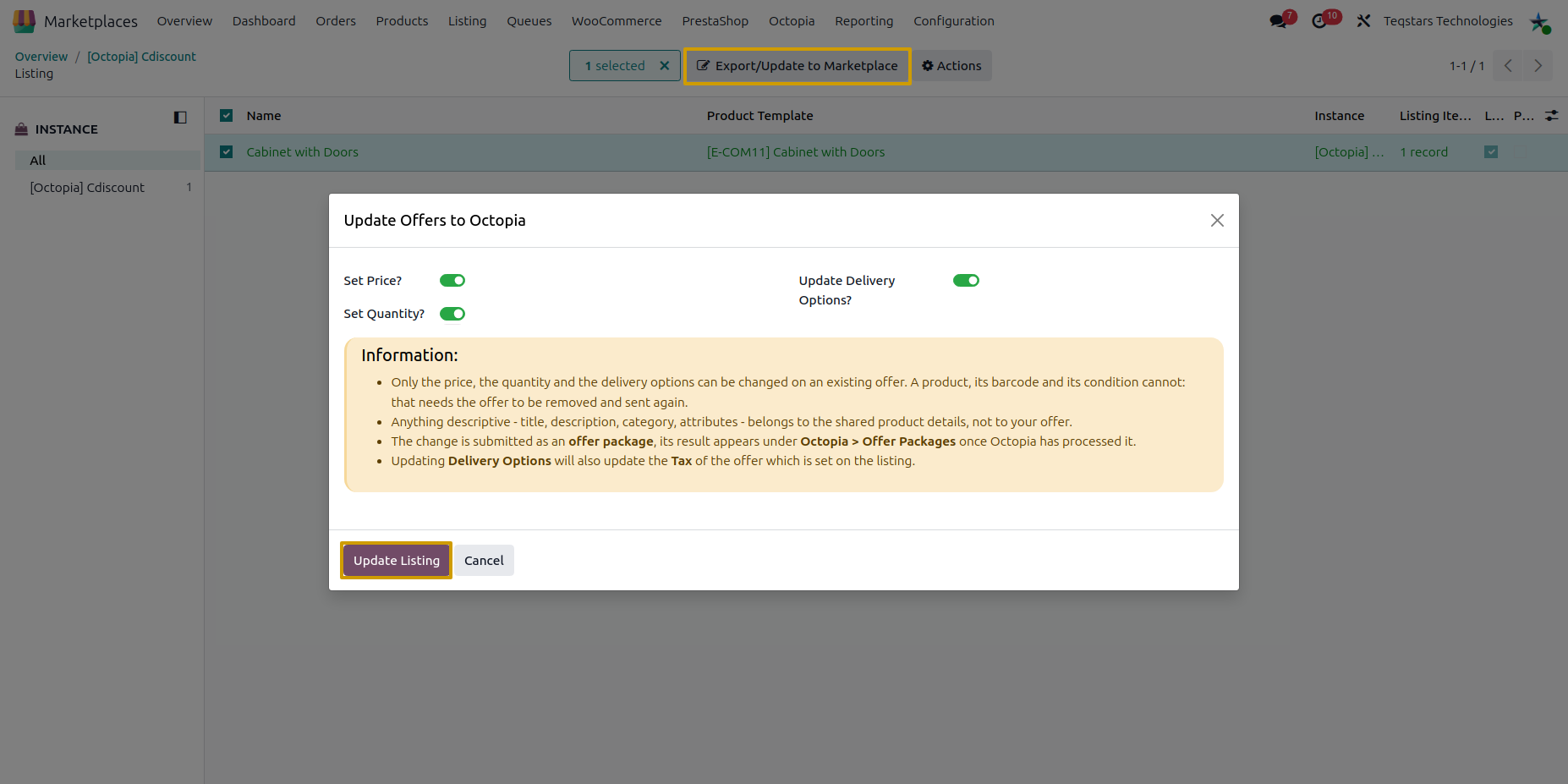
Open and select listings that already have an offer (Listed + Offer (Octopia)).
Open the Actions menu and choose Export/Update Listing in Marketplace.
In the Update Offers to Octopia wizard, pick what to push and click Update Listing.
Important
A selection must be either all listings with an offer or all listings without one. A mixed selection is refused with Operation not allowed!. Use the Listed + No Offer (Octopia) and Listed + Offer (Octopia) filters.
Rules
Whenever the price is sent, the complete tax list goes with it, built from the listing’s Octopia Tax.
Whenever delivery modes are sent, the preparation time goes with them, it is mandatory.
An offer with Manage Stock switched off is skipped when the quantity is sent.
A fulfilment managed offer can only have its price updated. Its quantity and delivery options are dropped rather than refused, so a mixed selection still sends what it legitimately can.
An offer that has no offer on Octopia yet is refused, send it with Export New Offers To Octopia first.
The price is skipped, and logged, when the instance pricelist gives the product no price.
Check The Update Package Result
Changes are sent in an offer package of type Update, which changes only the fields sent. It is recorded at , next to the Upsert packages of new offers, and its result is read the same way as described in Check The Upsert Package Result.
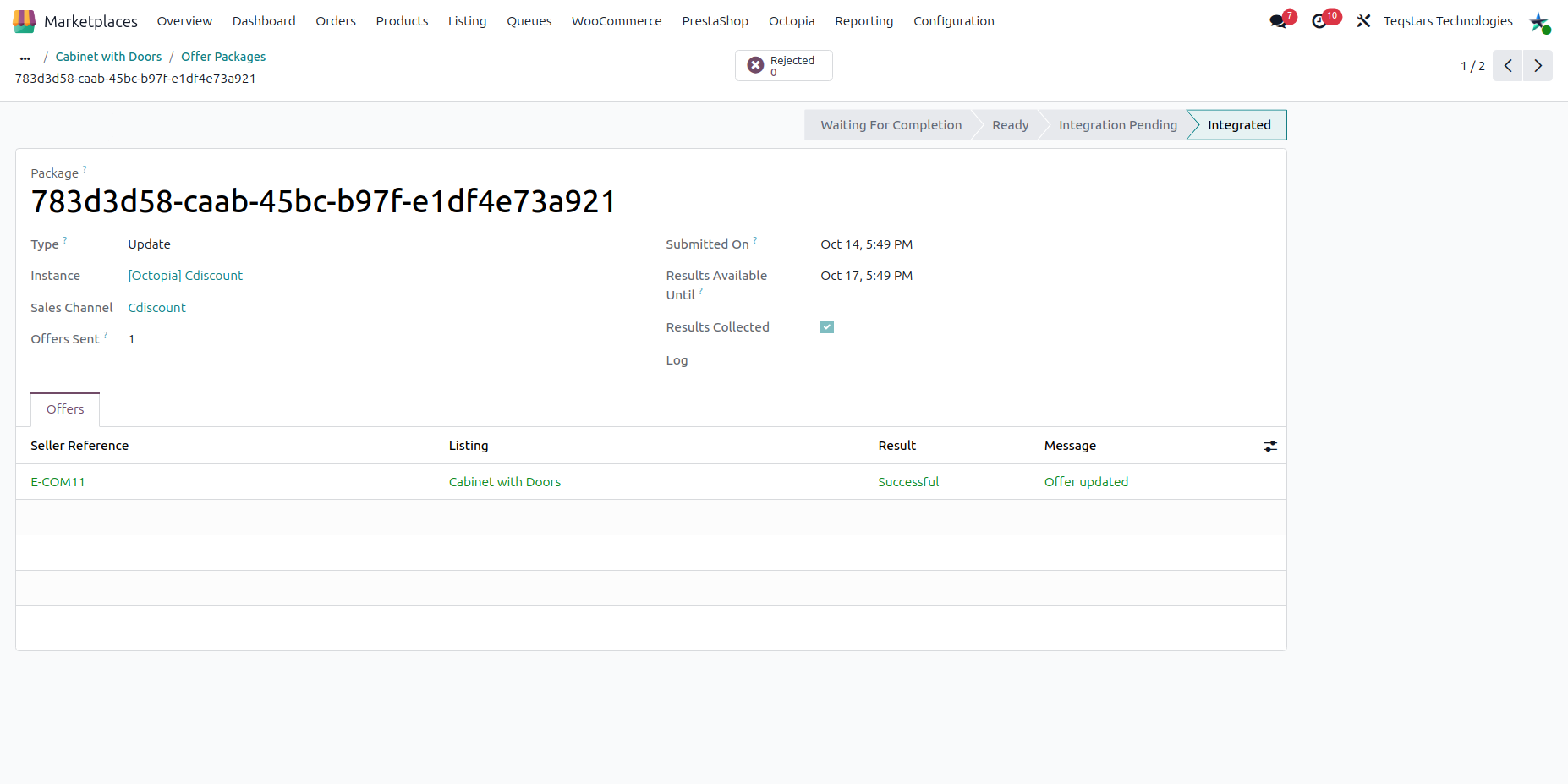
In the Offers tab of an Update package, each offer shows its seller reference, the
result and the exact fields that were sent, for example only price or only
quantity. Price and stock exports from the scheduled actions use the same type of
package, see Export Prices From Odoo and Export Inventory From Odoo.