
Import Bol.com Orders In Odoo
The Bol.com Odoo Connector imports your Bol.com orders (FBR and FBB) into Odoo as Sale Orders, automatically applying the workflow you defined per fulfillment type. You can run imports manually for a specific fulfillment type or set of order IDs, or rely on the scheduled action for hands-off automation.
Before importing, configure Order configuration and Workflow configuration on the instance.
For FBB imports, the instance must have a configured FBB Warehouse and FBB Workflow.
Bol.com always sends prices including tax. The taxes on the Odoo products of the ordered offers must be set to Included in Price, otherwise the order is not imported and an error is written to the log. Alternatively, enable Managing Excluded Taxes on Odoo Product? on the instance (Products tab); the connector then reduces the unit price by the tax amount.
Method - 1: Manual Order Import
Go to the menu in Odoo.
Click on the
Operationsbutton from the instance record.In the wizard, choose one of the three flows depending on what you need to import:
Option A: Import Open FBR Orders
Operation For:
FBR.FBR Operations:
Import Orders.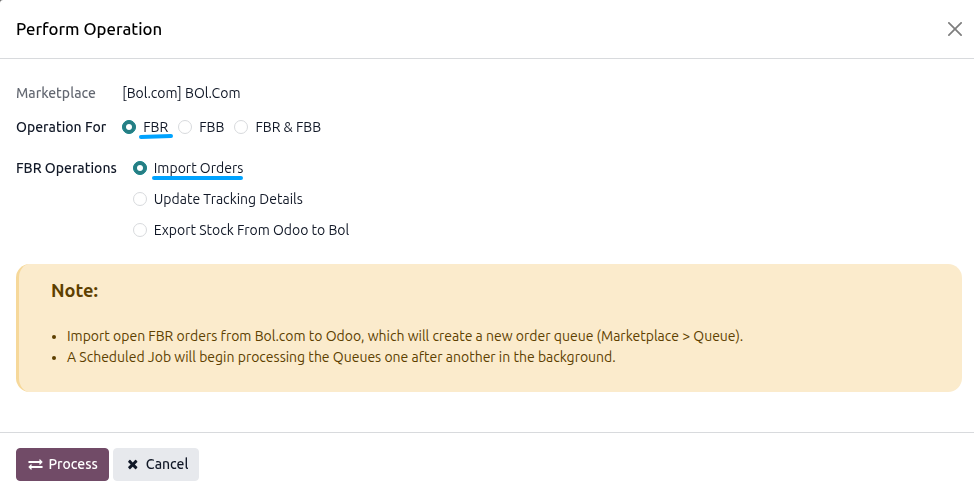
Option B: Import Open FBB Orders
Operation For:
FBB.FBB Operations:
Import Orders.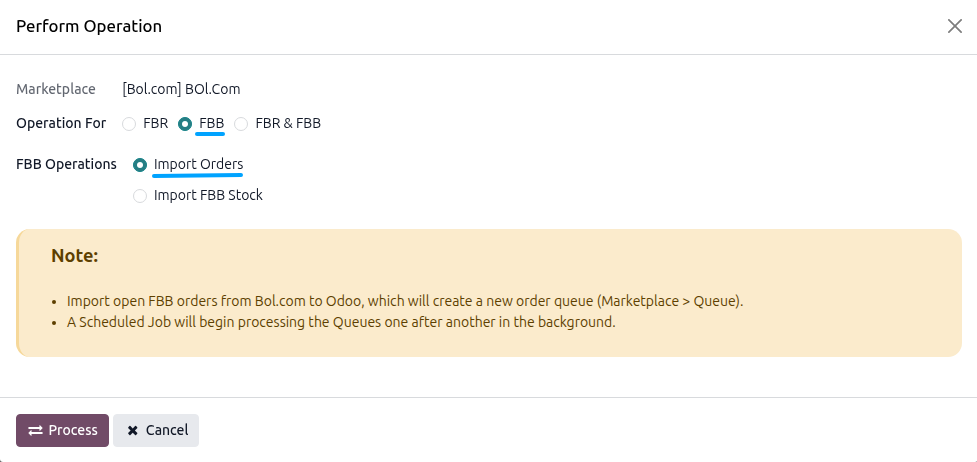
Option C: Import Specific Orders By ID
Operation For:
FBR & FBB.Operation:
Import Order By ids.Marketplace ID(s): enter the Bol.com order numbers separated by commas (e.g.
1580015XXX, 158218XXXX).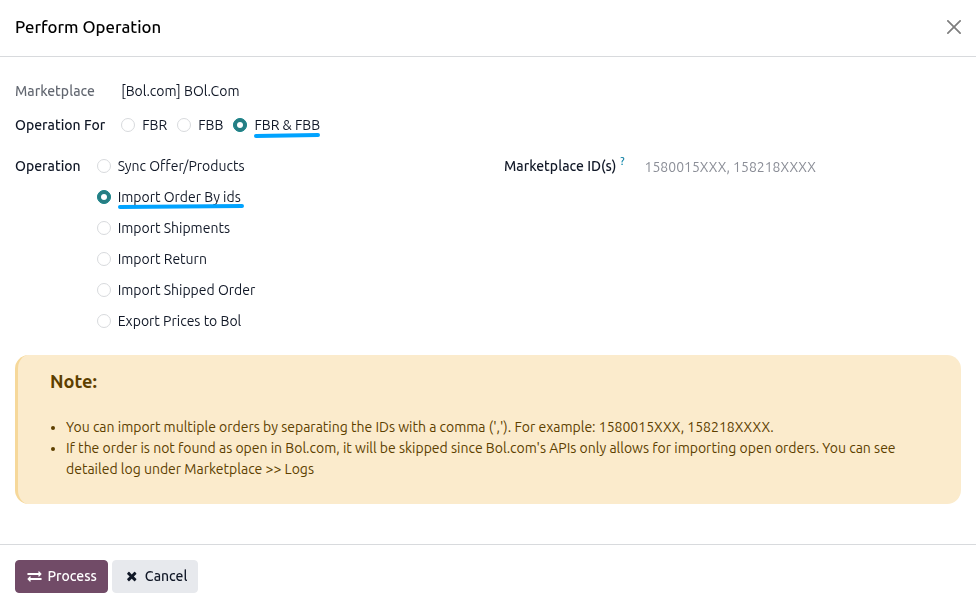
Note
By default, the connector imports only OPEN orders. To import ALL or SHIPPED orders, enable Developer Mode, open the instance, click Reset (the field is read-only while the instance is confirmed), go to the Orders tab, change Order Status, and confirm the instance again. This filter applies to the bulk import and the scheduled action only, not to Import Order By ids.
Click PROCESS.
What Happens Next
The processing flow depends on the import method you chose.
Standard FBR / FBB imports (bulk)
The connector fetches the orders from Bol.com (page by page), skips orders that already exist in Odoo, downloads the full details of the remaining ones and queues them in an Order Queue Job.
A scheduled background job processes the queue line by line, creates the Sale Orders in Odoo, and applies the matching Workflow Configuration.
Failed lines are visible from the Queue smart button on the instance card or under .
Import by IDs (immediate)
The connector fetches the specified orders and processes them immediately, bypassing the queue. Only items whose fulfilment type matches the instance Use Operation For setting are imported.
Failures are not retried automatically. Click the Logs smart button on the instance to inspect the error.
Method - 2: Automatic Order Import
Use the scheduled action to import new orders from Bol.com without manual intervention.
Go to .
Open the Automatic Jobs tab.
Find Import FBR & FBB Order and configure Interval Number, Interval Unit, and Active.
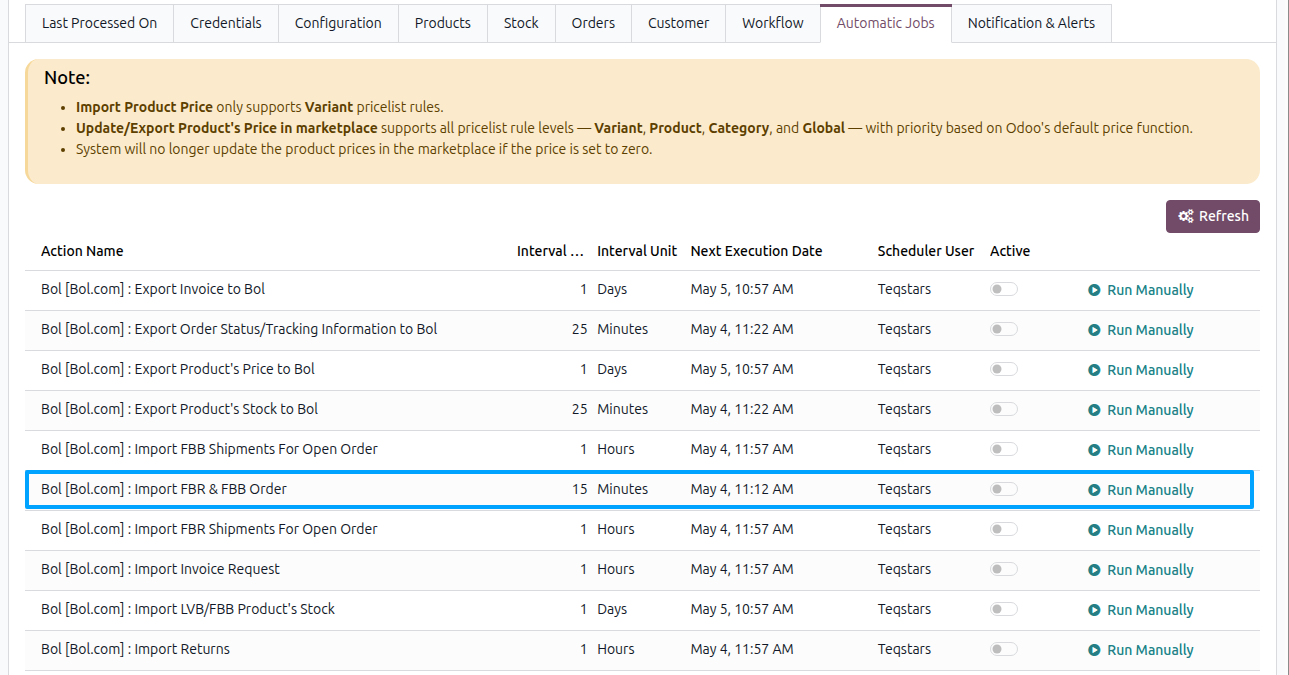
The scheduled action follows the same logic as the manual bulk import. It is created per instance as Bol [instance name] : Import FBR & FBB Order (default every 15 minutes), runs only while the instance is confirmed, and imports the fulfilment types selected in Use Operation For. The Automatic Jobs tab is visible to Administration/Settings users only.
Important
Order Status filter: only orders matching the Order Status configured on the instance (default
OPEN) are imported.Already fulfilled orders: if every item of an order is already shipped on Bol.com at import time (for example when Order Status is
SHIPPEDorALL), the connector skips the delivery process and creates the stock move directly as done in Odoo (this happens when the workflow confirms the order). No open delivery order is left, and the quantity is taken from stock without an availability check.