
Connect Google Drive
Google Drive uses OAuth2 sign-in. You first create an OAuth client in the Google Cloud Console, then connect from Odoo with one click.
Step 1: Create an OAuth client in the Google Cloud Console
Go to the Google Cloud Console and create (or select) a project.
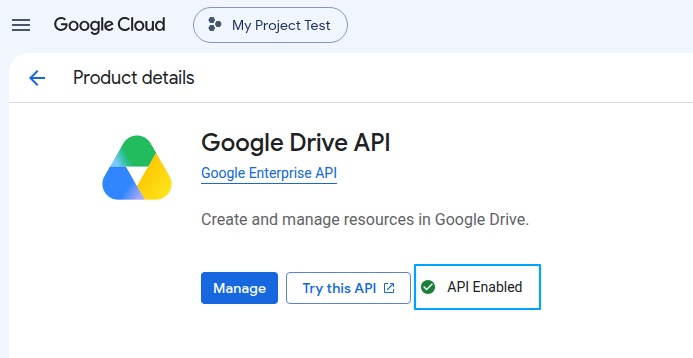
Open , search for Google Drive API and click Enable.
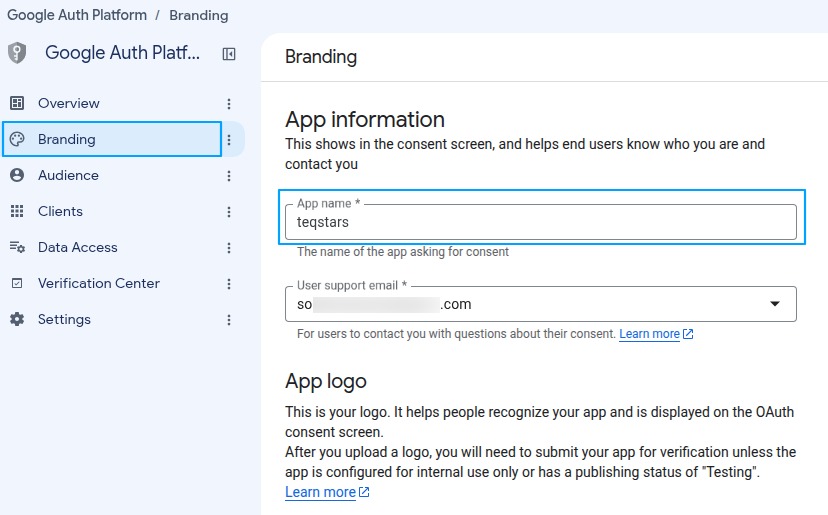
Open and fill in the app name, the user support email, and the developer contact email.
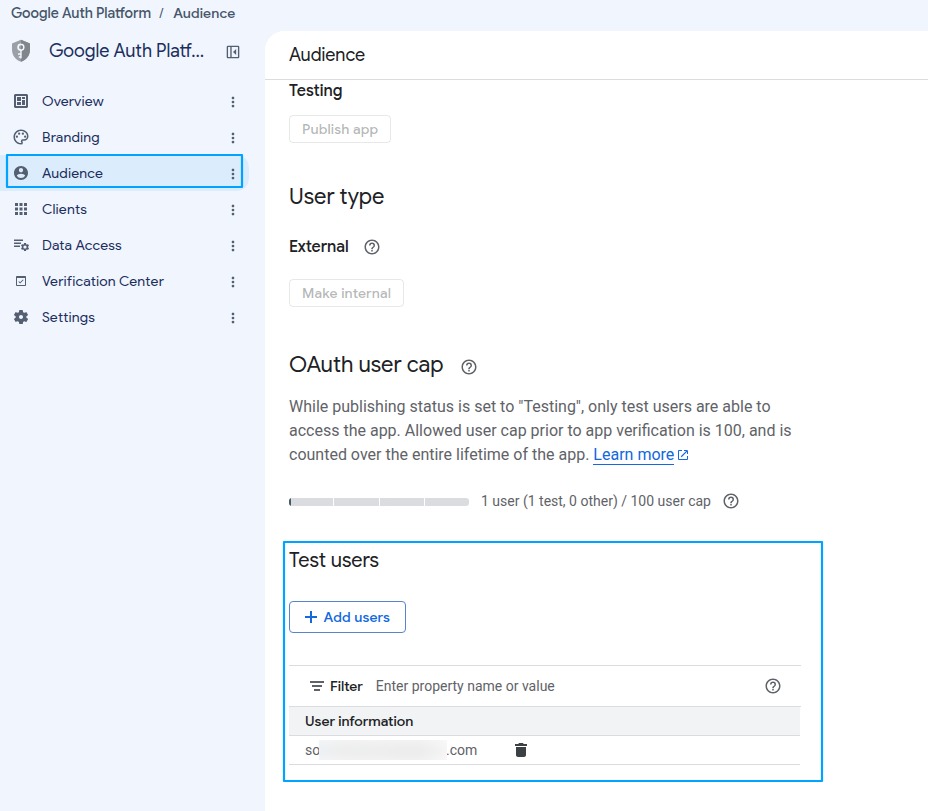
Open and add the Google account you will connect from Odoo under Test users, otherwise Google blocks the sign-in in Step 4.
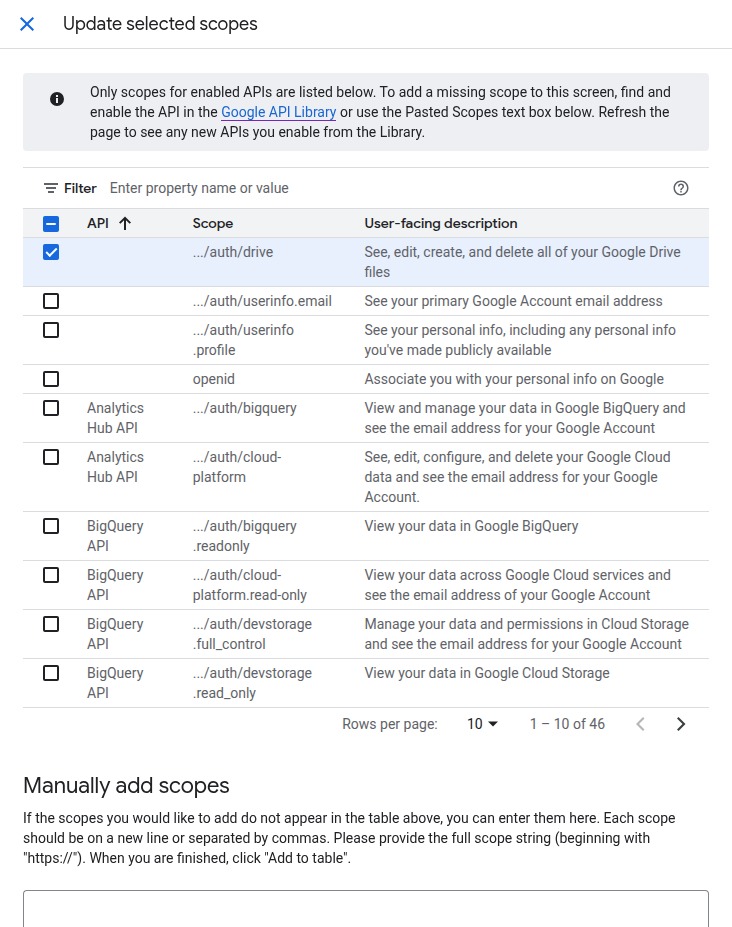
Open , click Add or remove scopes and add the following scope:
https://www.googleapis.com/auth/drive
Warning
Enable all the scopes above. If you add one later, click Generate Access Token again to re-approve the app.
Open , click Create client and choose
Web application:Leave the Authorised redirect URIs field for now. You fill it in in Step 3.
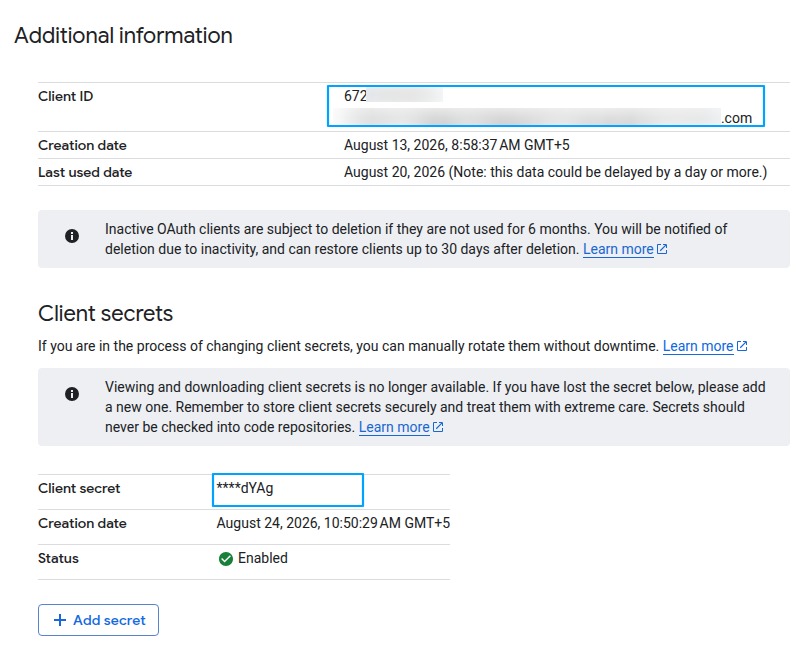
Click Create, then copy the Client ID and Client Secret.
Tip
The Required Permissions field shows the permissions needed. If any permission is missing after sign-in, the provider will not connect.
Step 2: Create the provider in Odoo
Navigate to and click New.
Set a friendly Name (e.g.
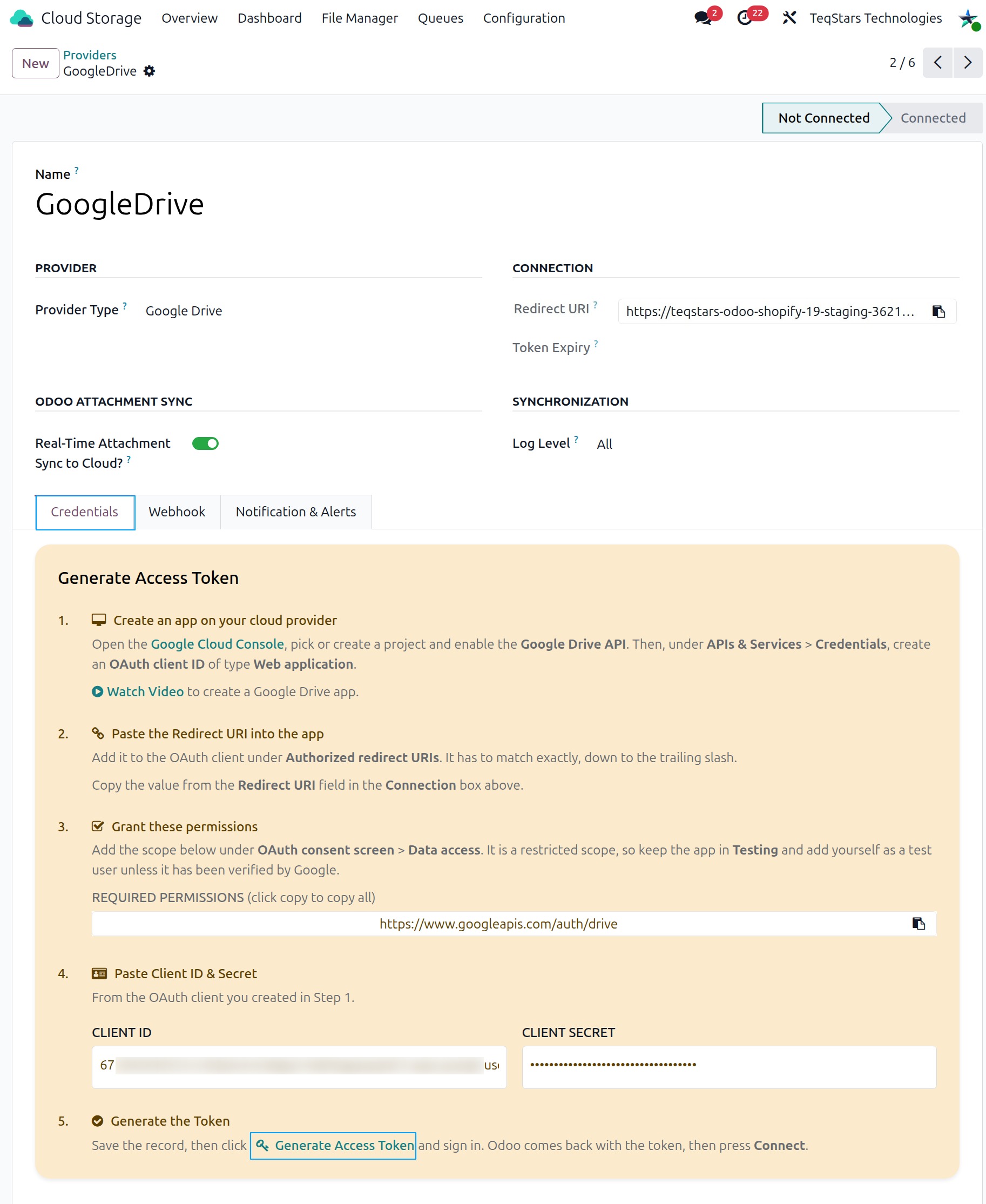
Company Drive) and chooseGoogle Driveas the Provider Type.Open the Credentials tab and fill in the Client ID and Client Secret from Step 1.
Save the record. The status bar stays on Not Connected until you finish Step 4.
Step 3: Redirect URI
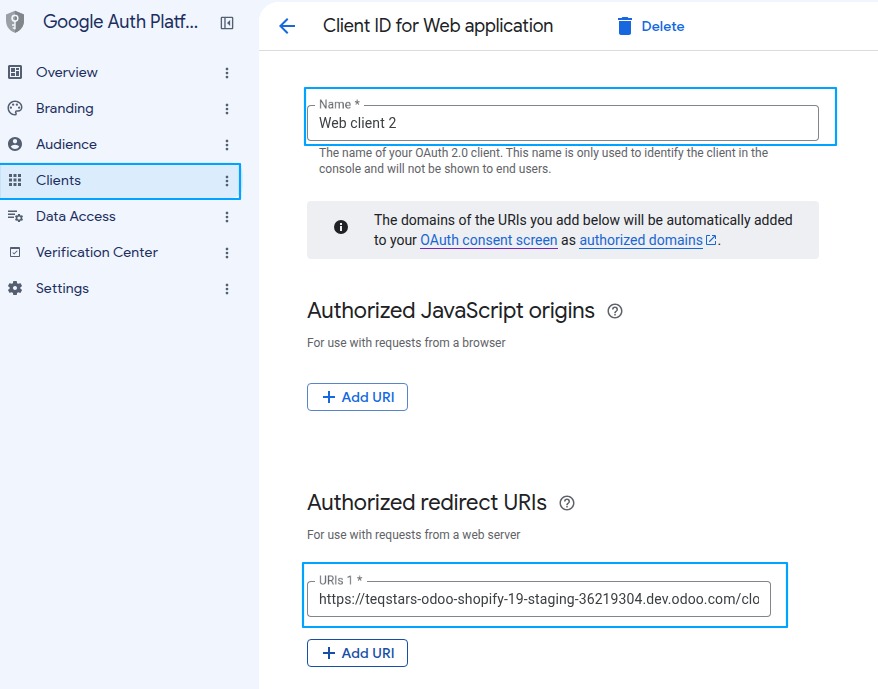
Copy the Redirect URI from the provider form with the clipboard icon.
In your OAuth client under , paste it into Authorised redirect URIs and click Save.
Warning
Paste the exact value, with no trailing slash, before Step 4. A mismatch is the most common cause of a failed sign-in.
Step 4: Connect and test
On the Credentials tab, click Generate Access Token. Odoo saves the Client ID and Client Secret, then sends you to the Google sign-in page.
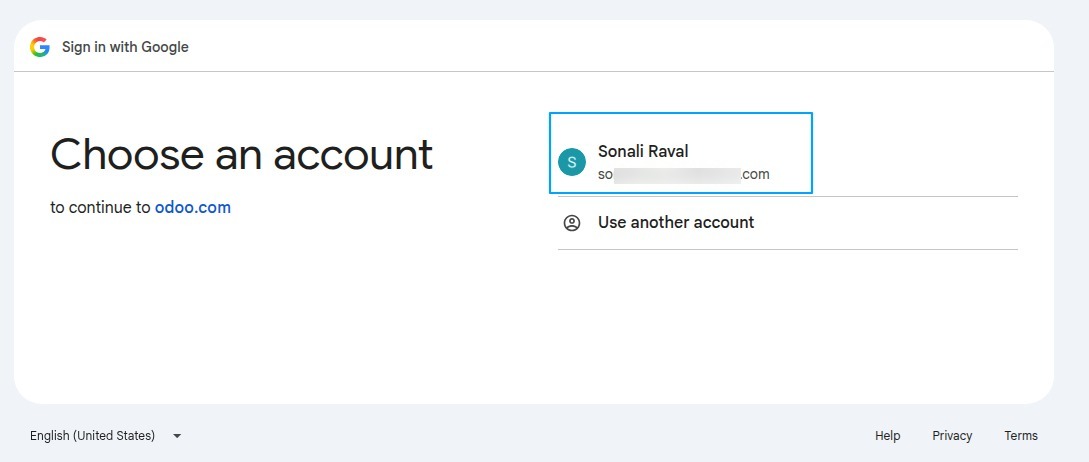
Sign in with the Google account whose Drive you want to connect.
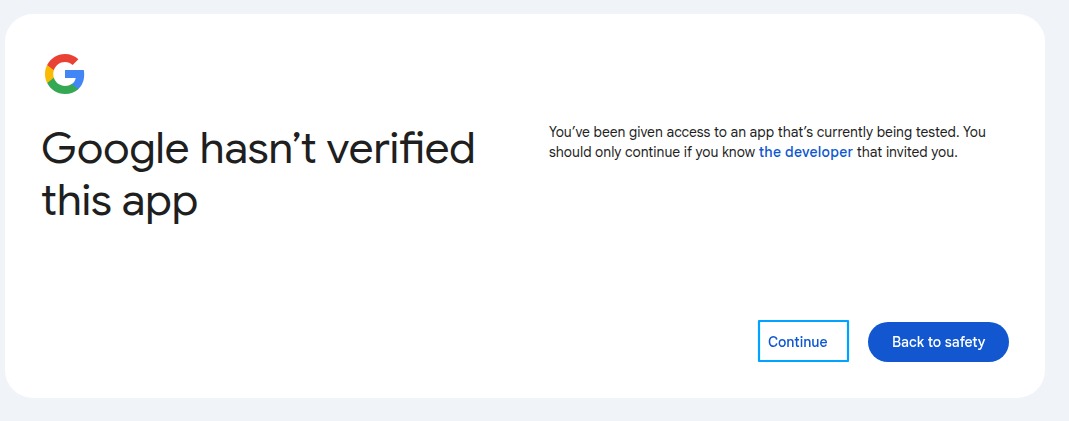
If Google shows a Google hasn’t verified this app screen, click Advanced, then Go to <your app name> (unsafe).
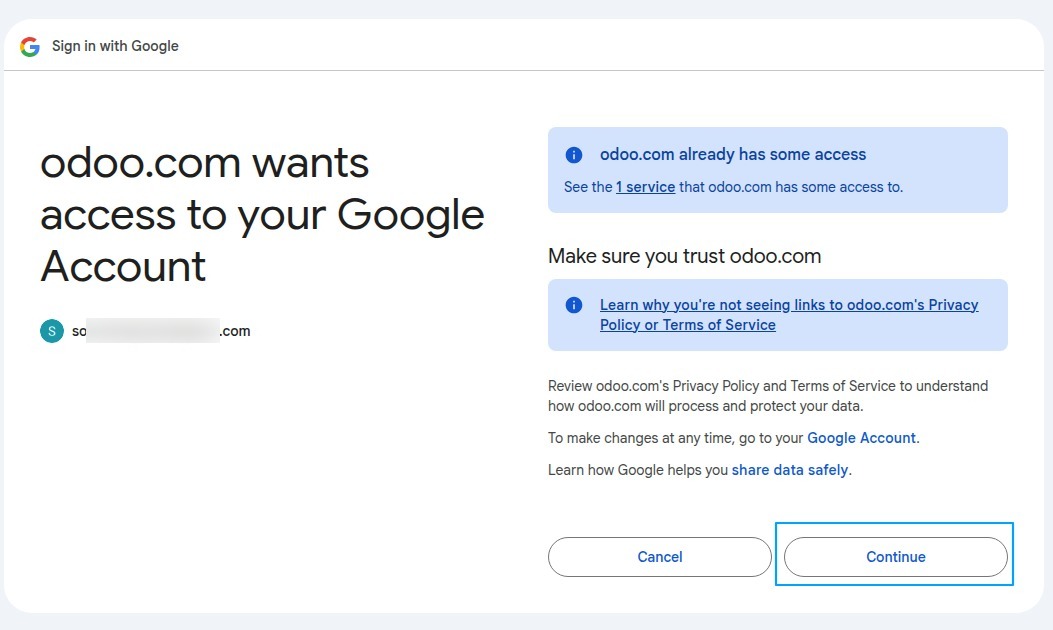
Review the permissions and click Continue.
Google sends you back to the provider form and Odoo stores the access token. The Connect and Test Connection buttons now appear in the header.
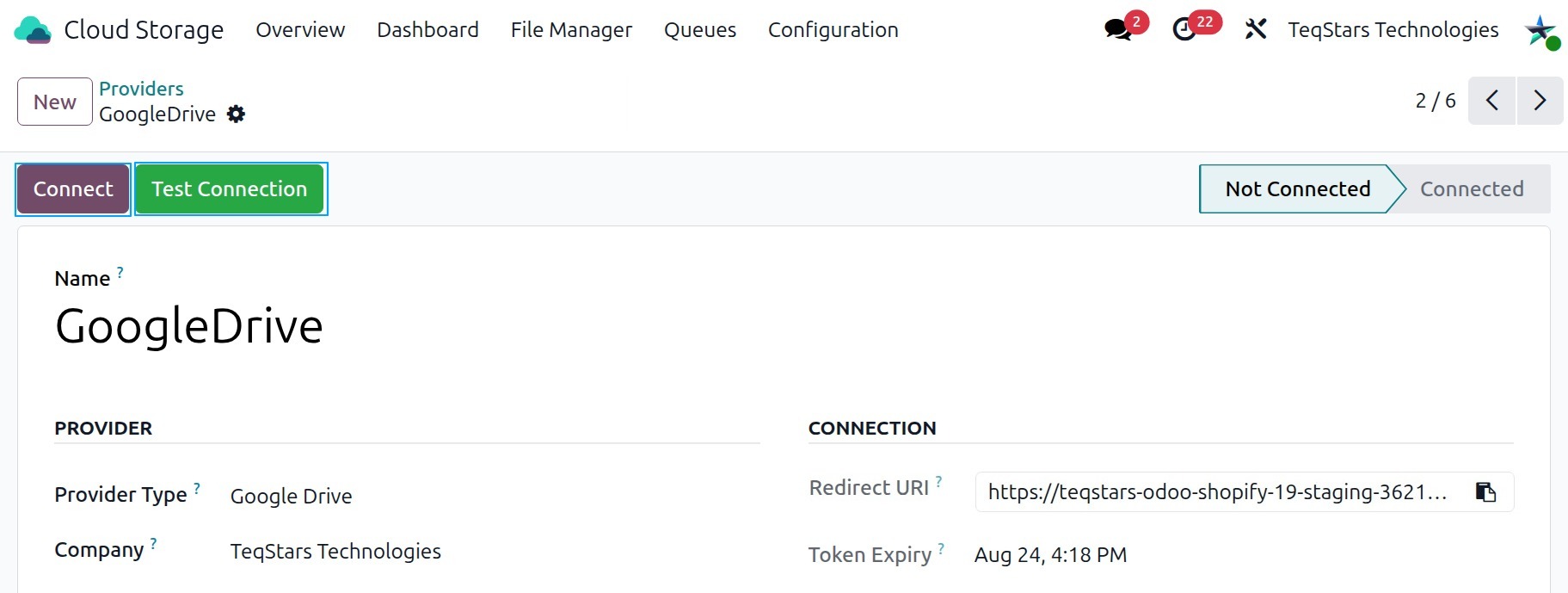
Click Test Connection and verify that the success message appears.
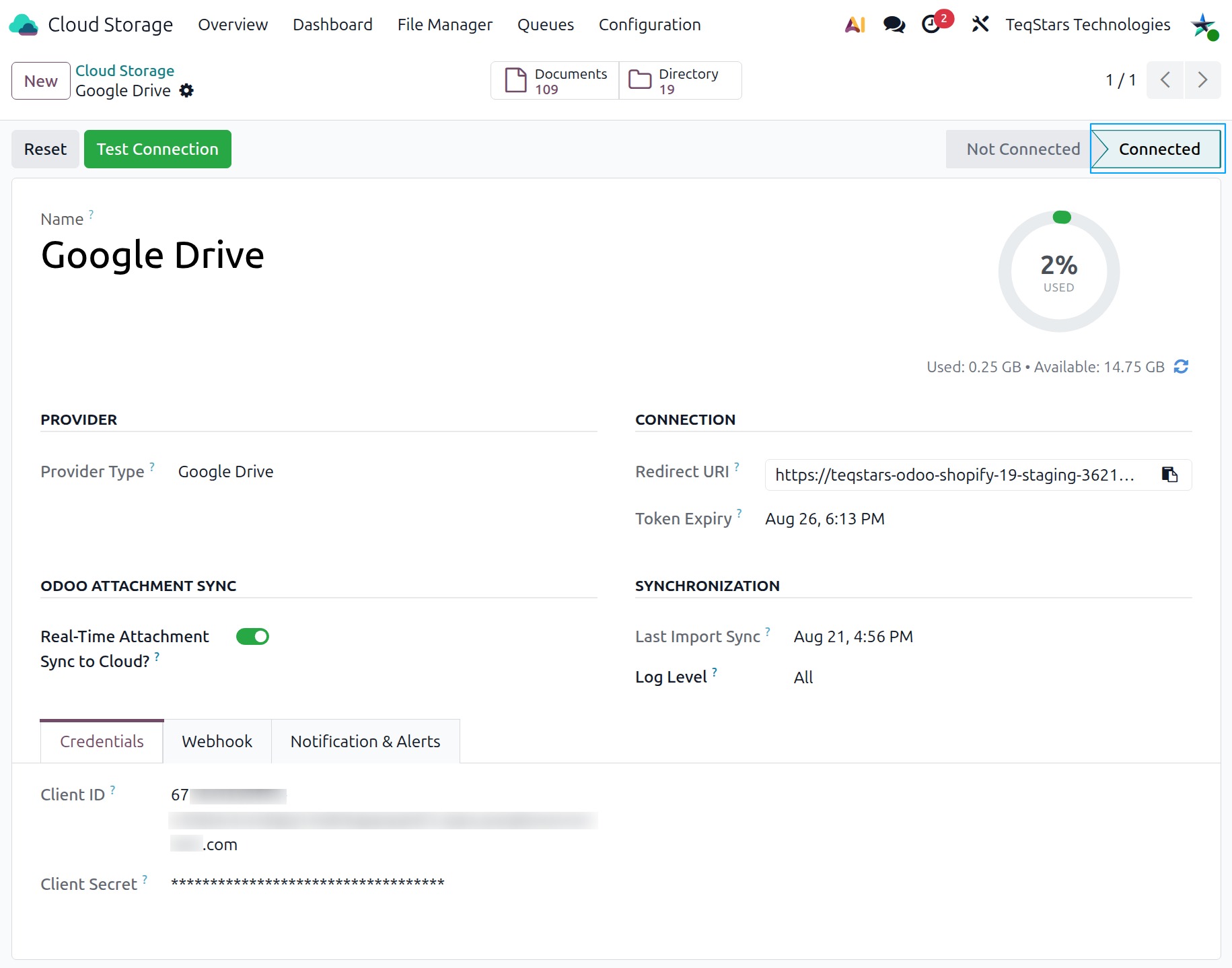
Click Connect to activate the provider. The status moves from Not Connected to Connected.
Note
Access tokens are renewed automatically. You only need to reconnect if you revoke the app access in Google or change the Client ID or Client Secret in Odoo.
Step 5: Webhook Configurations
What webhooks do
Webhooks allow Google Drive to instantly inform Odoo when something happens in your drive (a file or folder added, renamed, moved, or deleted).
This means Odoo updates automatically without waiting for the scheduled actions.
It helps keep your documents in sync in real time.
How to enable or disable
Open your Google Drive provider.
Open the Webhook tab.
Enable Active on the event lines you want, and save.
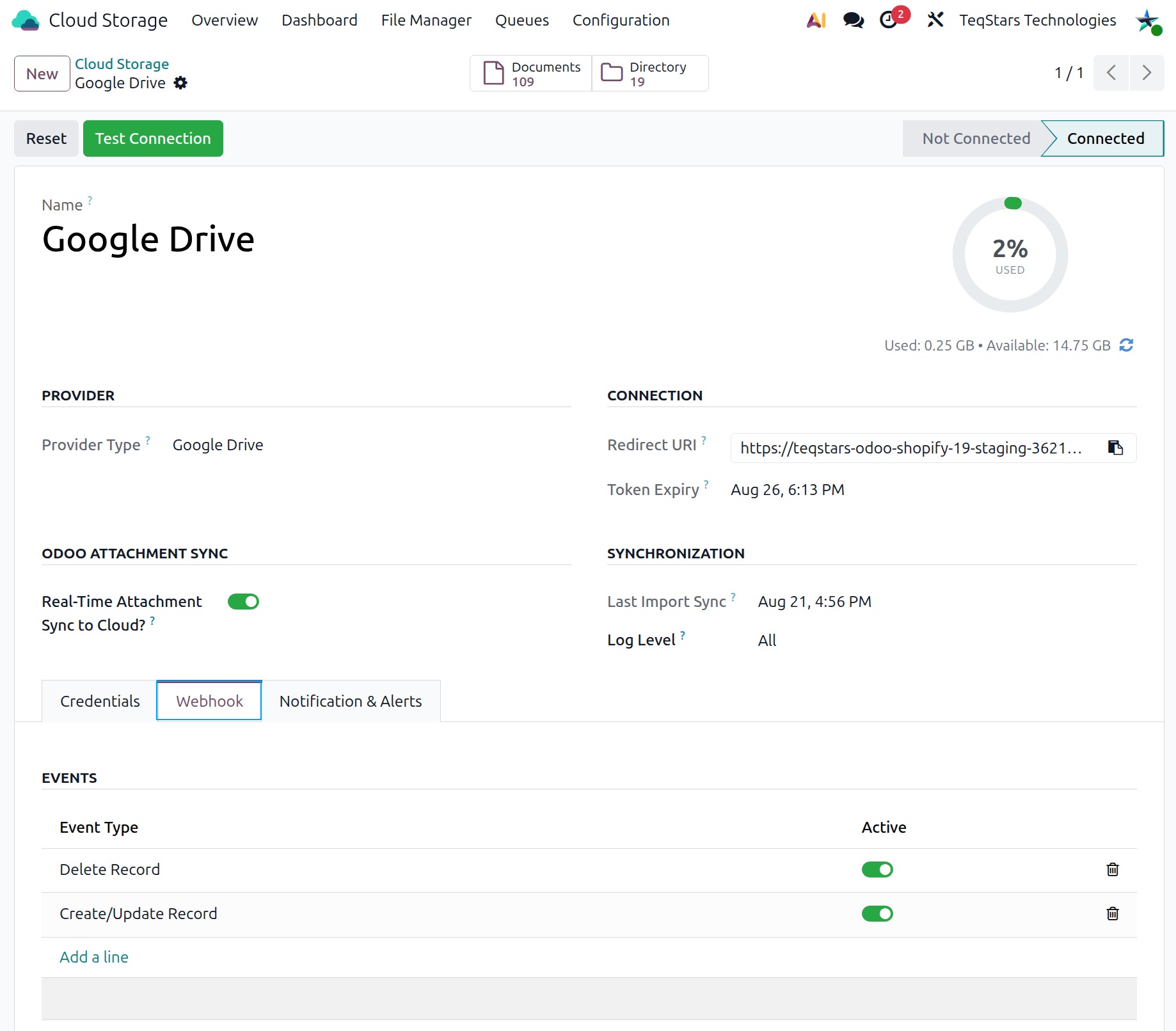
Webhook Event Types
Create/Update Record
Triggered when a file or folder is added or modified in Google Drive.
Odoo automatically creates or updates the matching document or directory.
Delete Record
Triggered when a file or folder is deleted in Google Drive.
Odoo removes the matching document or directory.
Note
Your Odoo URL must use https://. Webhooks will not work on localhost or an intranet.
The provider must be in Connected state.
See also