
Import Products In Odoo
Before importing listings, configure the relevant Product Configuration on the instance — particularly Pricelist, Sync Listing Images?, and Create Odoo Products?. BigCommerce listings are always matched to Odoo products by SKU.
The connector imports BigCommerce products and their variants into Odoo as Listings and Listing Items, preserving SKU, name, description, weight, attributes, categories, brand, tax class, sales-channel publications, and images.
To import listings:
Go to the menu in Odoo.
Click on the Operations button from the instance record.
Choose Import as the operation type, then from Import Operation, select Import Listings.
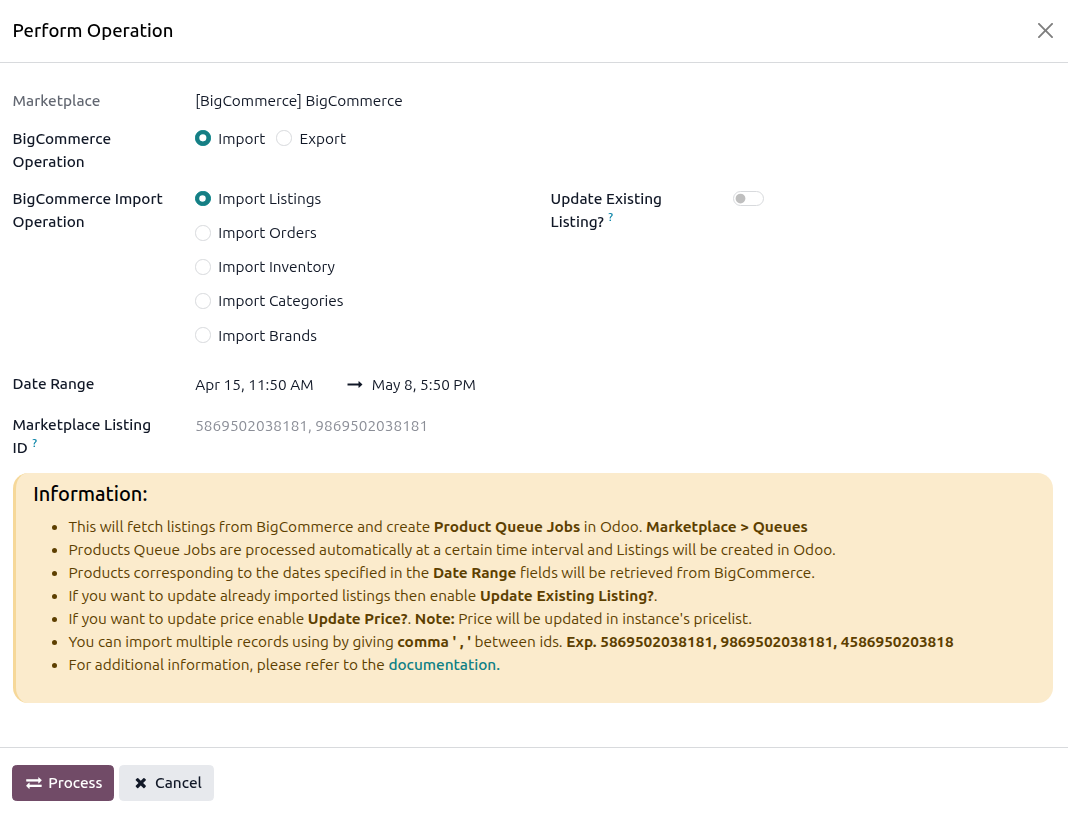
The wizard exposes the following options:
Date Range — Listings corresponding to the dates specified in the Date Range field will be retrieved from BigCommerce. The connector pre-fills the start of the range from the instance’s last listing import date, falling back to 30 days ago when no previous import has run.
Marketplace Listing ID — Import specific BigCommerce products by ID. Separate multiple IDs with a comma — for example
5869502038181, 9869502038181, 4586950203818.Update Existing Listing? — When enabled, the connector overwrites the matching Listing in Odoo with the latest BigCommerce data. When disabled, existing Listings are skipped silently.
Update Price? — When enabled, the connector also writes the imported listing prices into the instance pricelist. Disable this if you manage prices independently in Odoo.
Click PROCESS.
The connector fetches listing data from BigCommerce and adds it to a Product Queue Job at . The queue is processed automatically, creating or updating Listings, Listing Items, and (if Create Odoo Products? is enabled) the underlying Odoo products.
Important
The connector matches BigCommerce listings to Odoo products by SKU. If no SKU match is found and Create Odoo Products? is enabled, a new Odoo product is created. If disabled, the listing is created in Odoo but kept unlinked.
BigCommerce allows only one image per variant. If a BigCommerce variant has more than one image attached, the connector raises a validation error during import. Clean up the variant’s images in BigCommerce before retrying.
Note
The Last Listing Imported On on the instance is updated after each successful import so that the next manual or scheduled import only fetches recently changed listings.
BigCommerce categories and brands referenced by imported listings must already exist in Odoo. If your instance is freshly confirmed, both metadata sets are imported automatically; otherwise, run Import Categories From BigCommerce and Import Brands From BigCommerce first.