
Monitor Provider Health and Activity Logs
The app keeps an eye on each cloud connection for you. On the provider form you see how the connection is doing, how much storage it uses, which permissions it still misses and who gets its notifications. The activity logs tell you what happened and what went wrong.
To open a provider, go to and click the provider.
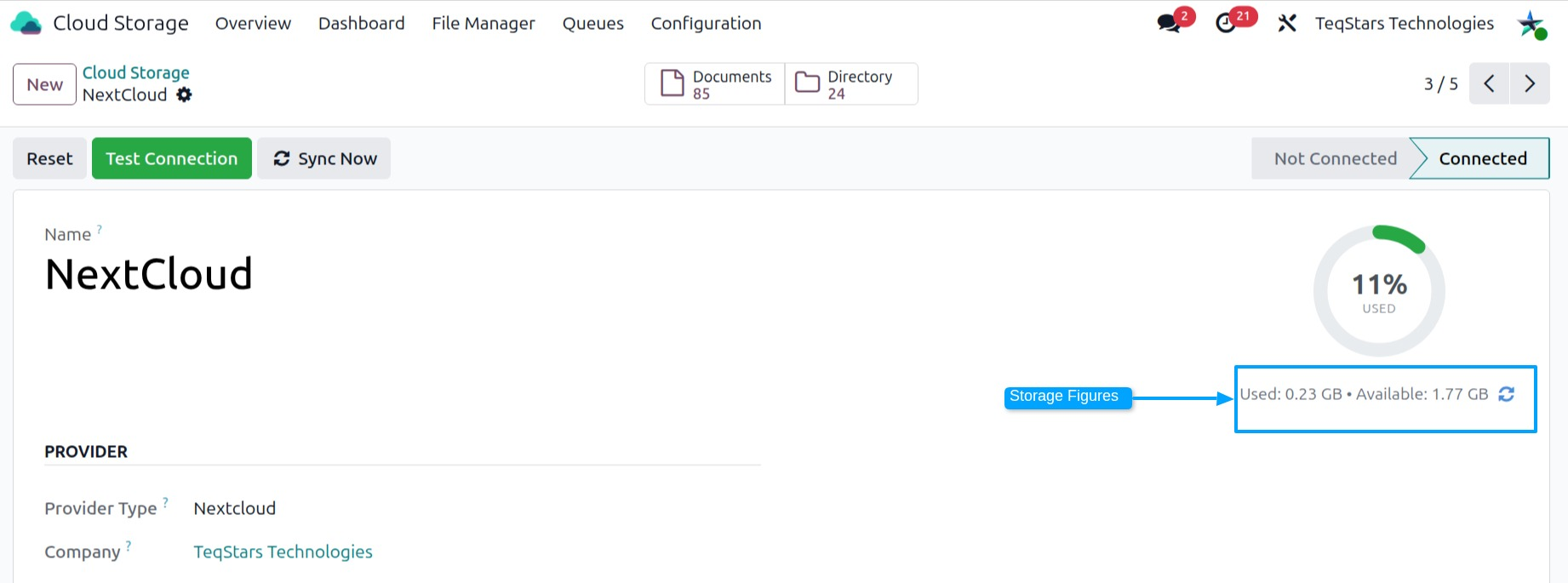
Provider health
The top of the provider form shows how the connection is doing:
Status: the state of the connection.
Integration Health: the overall health of the integration.
Attention Needed: shows when the provider needs a look from you.
Last Error: the last error the provider reported.
Failed Documents: the documents that failed to sync.
Given Up Attachments: the attachments the app stopped trying to upload.
Documents and Directories: the documents and directories on this provider.
When Attention Needed shows, read Last Error first, then check the activity logs for details.
Storage summary
The provider form shows how much space the cloud account uses:
Storage Summary: a short summary of the storage use.
Total Storage, Used Storage and Free Storage: the space on the account.
Storage Used %: the share of the space already in use.
Unlimited Storage: shows when the account has no storage limit.
Storage Checked On: when the app last checked the storage.
Missing scopes
The app needs some permissions on your cloud account to do its work. The provider form shows them:
Required Permissions: the permissions the app needs on the cloud account.
Missing Scopes: the permissions the app still misses.
When Missing Scopes lists a permission, grant it on your cloud account.
Cloud notifications
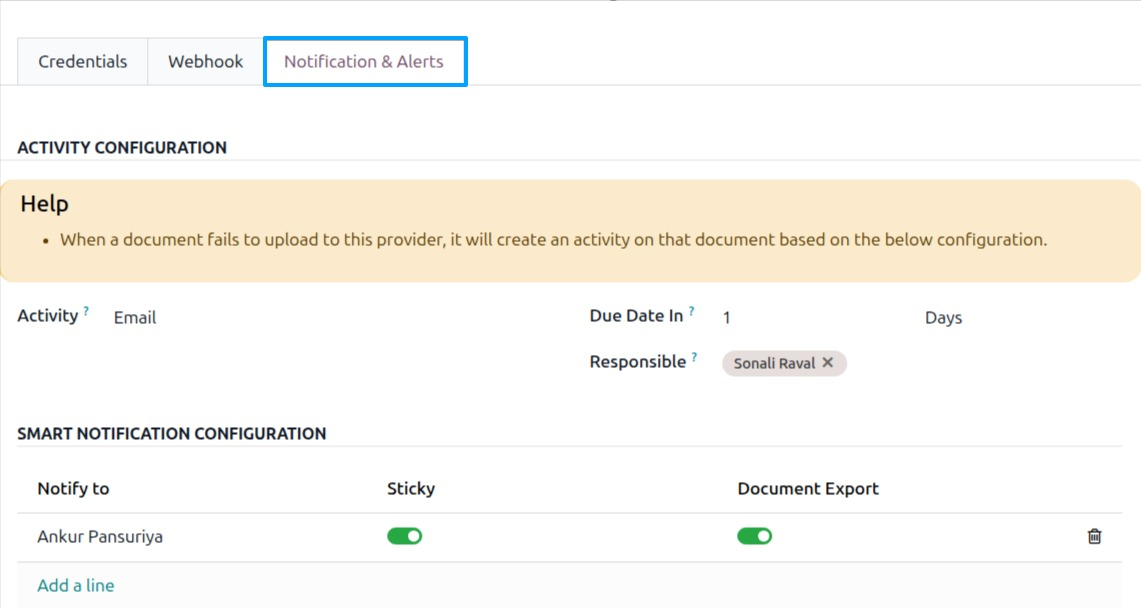
Use Cloud Notification on the provider form to choose who hears about this provider.
Open the provider.
In Cloud Notification, add a line.
In Notify to, pick the users to notify.
Tick Sticky to keep the notification on screen until the user closes it.
Tick Document Export to notify these users about document exports.
Save the provider.
Activity logs
Every cloud action leaves a log line. To see them, go to .
The list shows the Log Reference, Provider, Status, Created on and Last Updated on of each log.
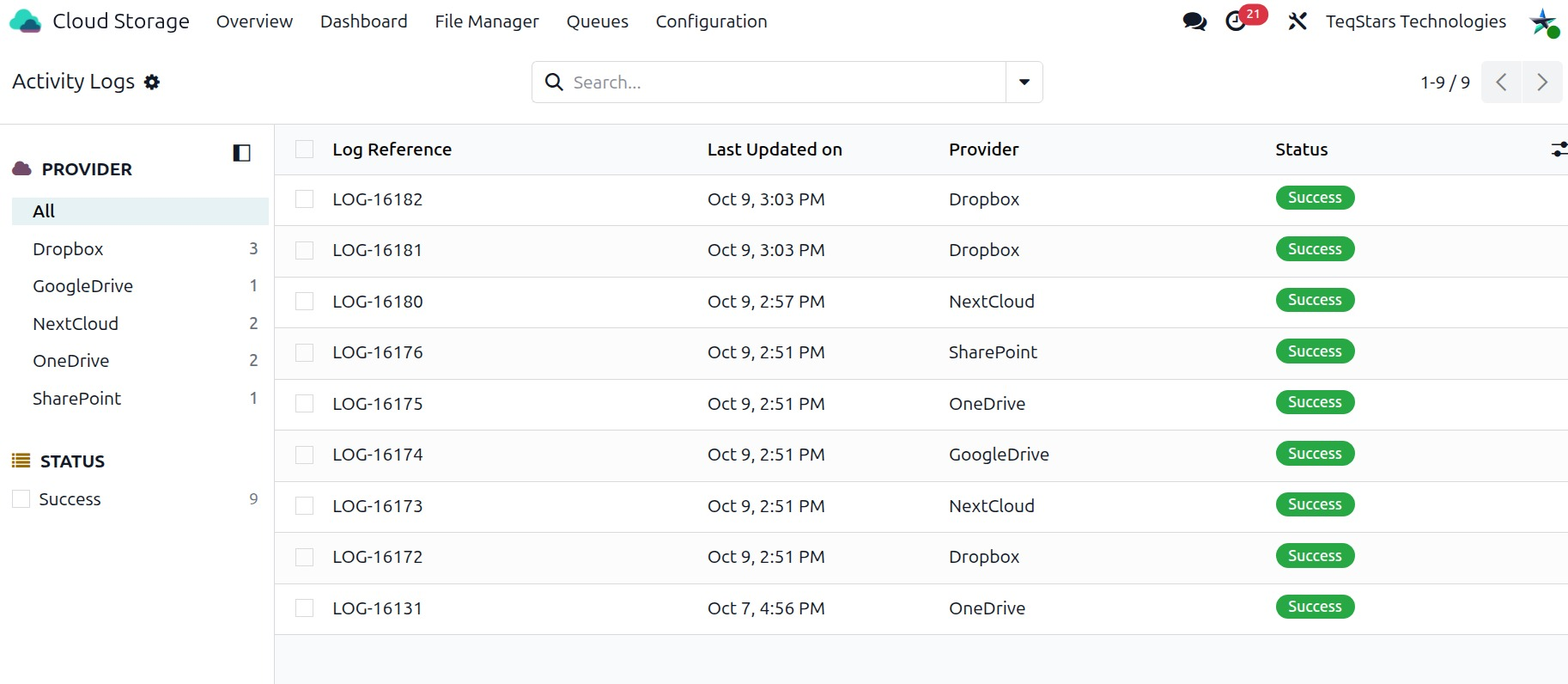
Open a log to see its details:
Log Number: the number of the log.
Action: what the app did.
Status: whether the action worked.
Message: what happened, or what went wrong.
User: who started the action.
Provider, Directory and Document: what the action was about.
Company: the company of the log.
A document also shows its own logs under Activity Logs.
When a file shows an error, open the activity logs and filter on Error. The Message tells you what went wrong. Fix it, then press Upload to Cloud on the file, or leave it: the next scheduled run tries again on its own.