
Import ManoMano Orders In Odoo
The ManoMano Connector imports your ManoMano orders into Odoo as sale orders. Your orders, stock and accounting stay in one place.
Orders come from both seller contracts. Each imported order shows if it is a B2B or a B2C order.
Before you import, set the B2B or B2C seller contract ID in the Credentials tab and confirm the instance. See Create a ManoMano instance in Odoo.
Add an order workflow for each ManoMano order status you import. See ManoMano Order Workflow Configuration.
You can import orders manually with the Import Orders operation, or automatically with the Import B2B Orders and Import B2C Orders scheduled jobs.
Method - 1: Manual Order Import
Go to and open the operations of your ManoMano instance.
Set Operation to Import, then set Import Operation to Import Orders.
Choose what to import:
Only a date range, with Marketplace Order ID empty: all orders whose status changed on ManoMano within that range are imported, across all seller contracts.
One order ID in Marketplace Order ID: only that order is imported. The date range is ignored.
Several order IDs, separated by commas: exactly those orders are imported.
When you import by order ID, pick the Seller Contract (B2B or B2C) the orders belong to. The order is looked up on that contract only.
Click Process.
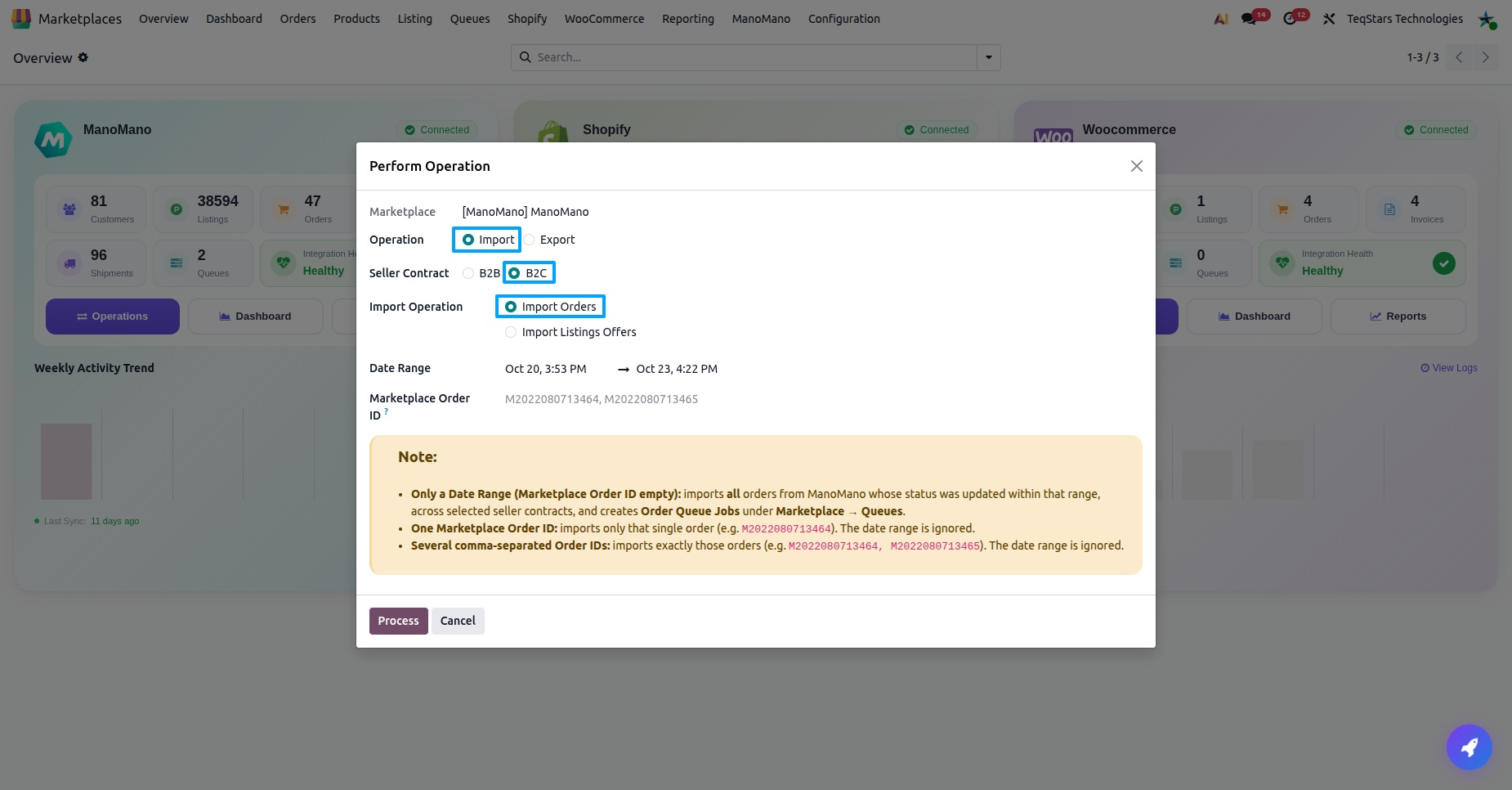
With a date range, the orders are added to Order Queue Jobs under . Each queue line creates one order in Odoo. The order then follows the order workflow set for its ManoMano order status.
Method - 2: Automatic Order Import
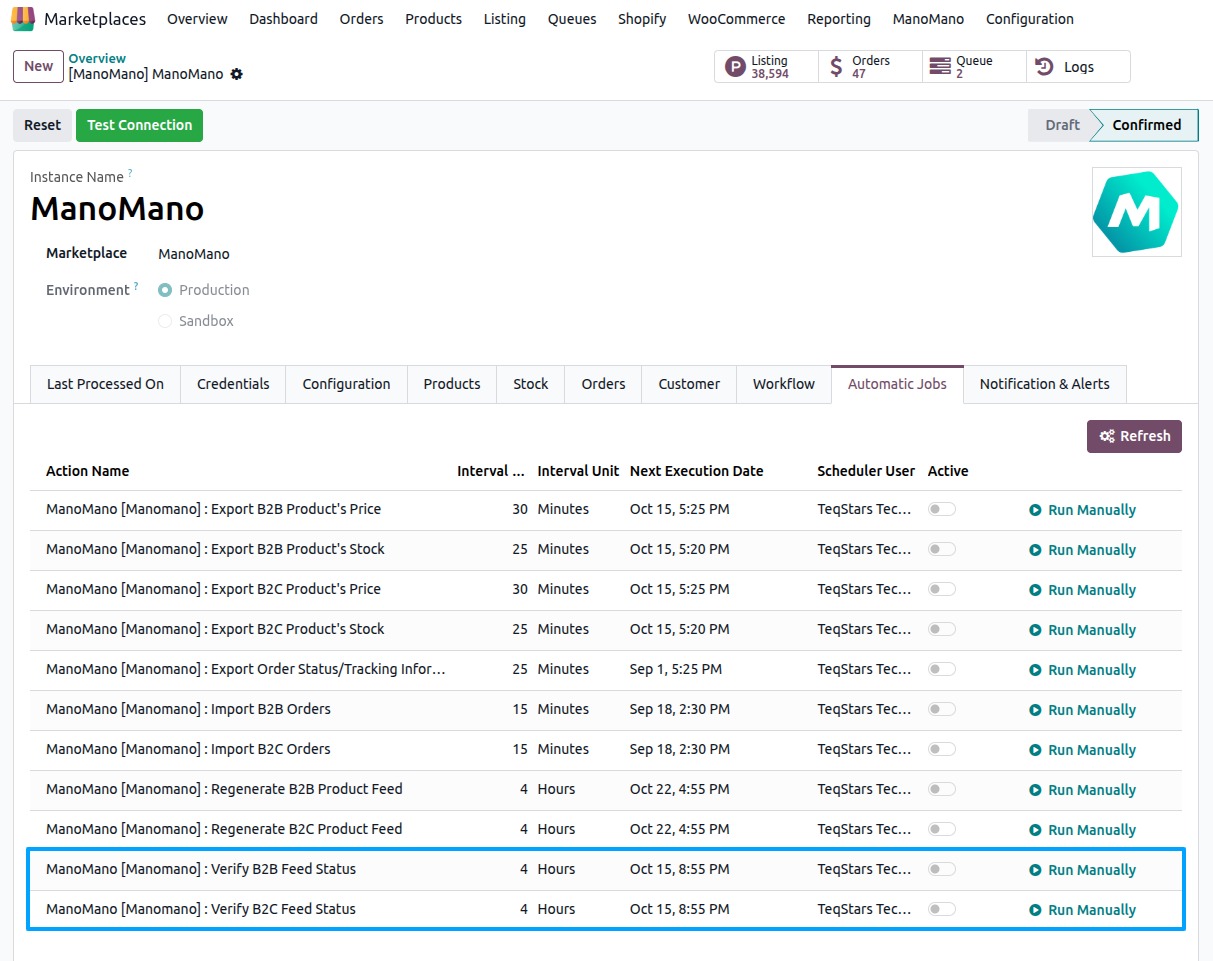
Two scheduled jobs import new orders for you, one per seller contract:
Import B2B Orders: imports the orders of your B2B seller contract.
Import B2C Orders: imports the orders of your B2C seller contract.
Go to and open your ManoMano instance.
Open the Automatic Jobs tab.
Activate Import B2B Orders, Import B2C Orders or both, for the contracts you sell on.
To start a job right away, click Run Manually.
The Last Processed On tab shows when orders were last imported, in Last Order Imported On and Last Order Imported On (B2C).
Which Orders Are Imported
Only orders whose ManoMano status is in Import Order Status on the instance. Add Any to import every status.
Orders placed before the Import Order After date on the instance are skipped.
An order that is already in Odoo is not imported again.
The ManoMano order statuses are Waiting Payment, Pending, Refused, Preparation, Shipped, Refunding and Refunded.
What Is Created
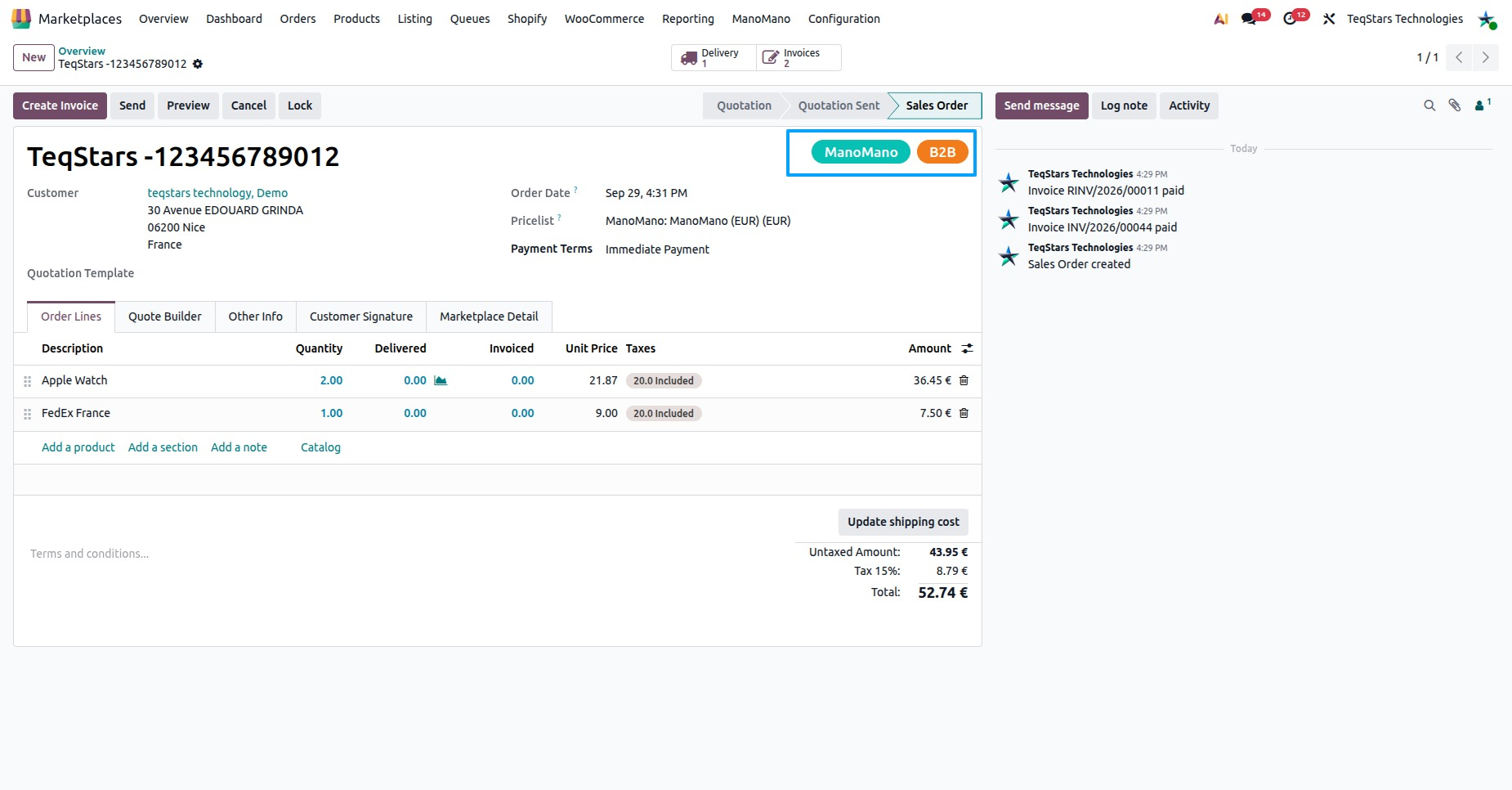
Sale order: one per ManoMano order, listed under . The Marketplace Detail tab shows the ManoMano Order Status, the ManoMano Seller Contract and the ManoMano Contract Type (B2B or B2C).
Order lines: each product is matched by its SKU (Internal Reference) or its barcode.
Delivery: the delivery order also shows the ManoMano Contract Type.
Customers: the customer and its billing and shipping addresses. See Customer Creation During Order Import.
Workflow: the order workflow of its ManoMano order status decides if the order stays a quotation, or is confirmed, invoiced and paid. When Create Credit Note (ManoMano) is on in the workflow, a credit note is created in Odoo for refunded ManoMano orders.
Some orders must be accepted on ManoMano before you ship them. See Accept ManoMano Orders From Odoo.
Why An Order Is Not Imported
Every import writes a log. Open it from , or from the queue line of the order. After you fix the cause, click Retry on the failed queue line.
No order workflow: no workflow matches the order’s ManoMano status. Click Configure Workflow on the log line, or add a row under the Workflow tab of the instance, then retry.
Product not found: no product in Odoo has the order’s SKU or barcode. Create a product with this Internal Reference or Barcode, then import the order again.
Customer or address missing: the order has no customer or address details on ManoMano.
Order not found: no order with this reference exists on the chosen seller contract. Check the order ID and the Seller Contract (B2B or B2C).
Already in Odoo: the order was imported before, so it is not imported again.
Placed before Import Order After: the order is older than the date set on the instance.
Status not selected: the order’s status is not in Import Order Status.
Seller contract ID missing: set the B2B or B2C value in the Credentials tab and confirm the instance.
ManoMano unavailable: ManoMano did not answer or is temporarily down. Try again in a few minutes.