
Manage Product Status
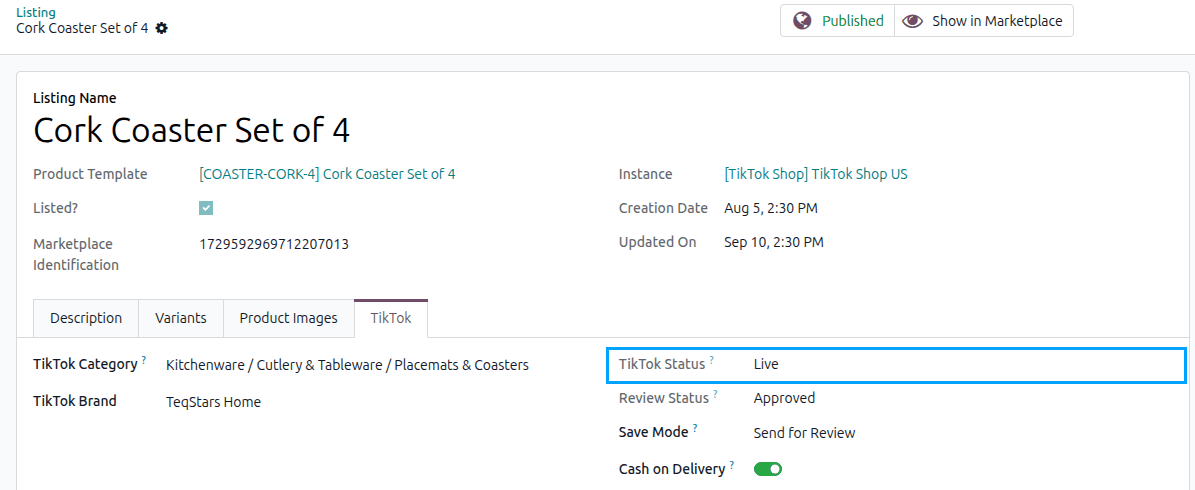
A product on TikTok Shop is in a status, and while it is being reviewed it also carries a review status. Both are shown on the listing’s TikTok tab and are read back from TikTok Shop.
From Odoo you can take a product off sale and put it back, delete it and recover it.
Product Status And Review
TikTok Status is where the product stands in TikTok Shop’s own catalogue:
Status |
What it means |
|---|---|
Draft |
Saved on TikTok Shop but not submitted. |
Pending |
Submitted and waiting on TikTok Shop’s review. |
Failed |
The review refused it. |
Live |
On sale. |
Deactivated by Seller |
You took it off sale. |
Deactivated by TikTok Shop |
TikTok Shop took it off sale. |
Frozen |
TikTok Shop has frozen it; no change to it is accepted. |
Deleted |
Deleted on TikTok Shop, and recoverable. |
Review Status is how far TikTok Shop’s review has got: Not Submitted, Under Review, Rejected,
Pre-approved or Approved. When a review objects, Review Result carries what it objected to and what
TikTok Shop suggests doing about it, shown in a red banner on the listing.
Automatic Review Status Sync
A product is reviewed after it is exported and again after it is changed. The review result is read back by a scheduled action.
Go to your TikTok Shop instance setting by navigating to .
On the Automatic Jobs tab, configure the Sync Listing Review Status job by setting Interval Number, Interval Unit, and then Active.
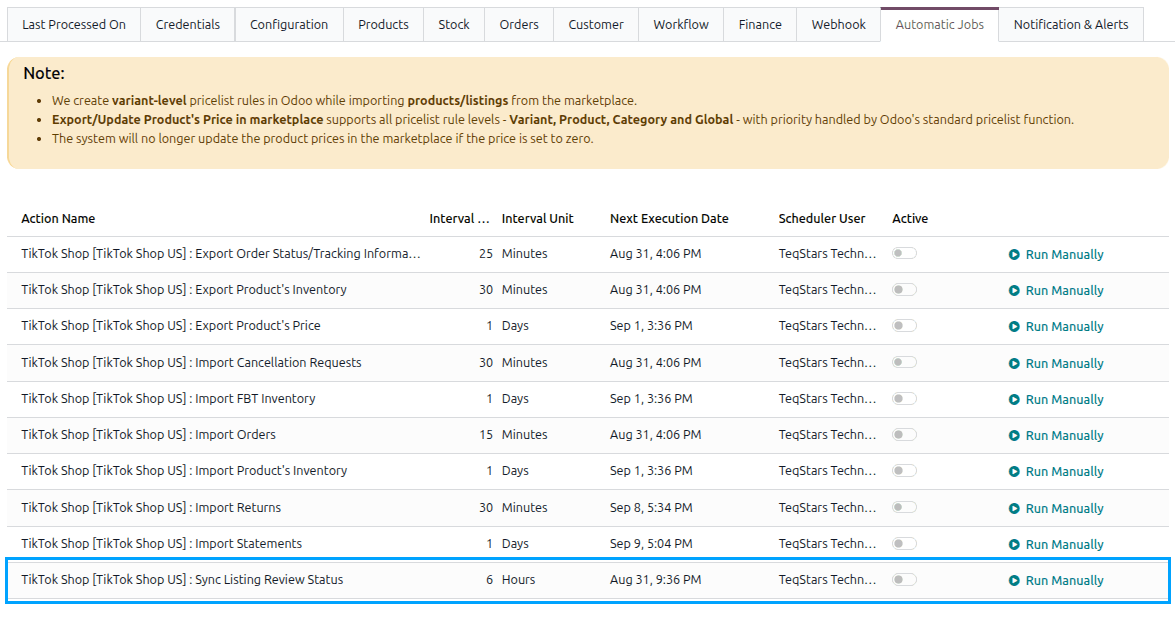
The job asks only about the products still waiting (Pending or Under Review) and writes back their status, their review status and the review result. It is created inactive and runs every 6 hours by default. See Automatic Jobs.
Publish And Unpublish Products
Taking a product off sale leaves it in the shop’s catalogue as Deactivated by Seller. Putting it back on sale sends it for review again, so it returns to Pending until TikTok Shop has looked at it.
Method - 1: From The Listing Form
Go to and open the listing.
Click the Published button at the top of the listing to take it off sale. On a product that is off sale the same button reads Unpublished; click it to put the product back on sale.
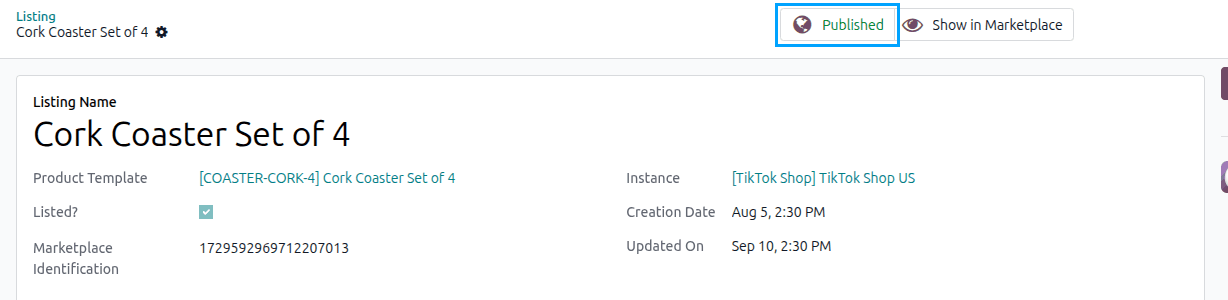
Confirm the message. The change is sent to TikTok Shop straight away.
Method - 2: From The Listing View
Go to and select the listings.
Click Export/Update to Marketplace.

In the popup, set Publish/Unpublish to
PublishorUnpublishand press Update Listing.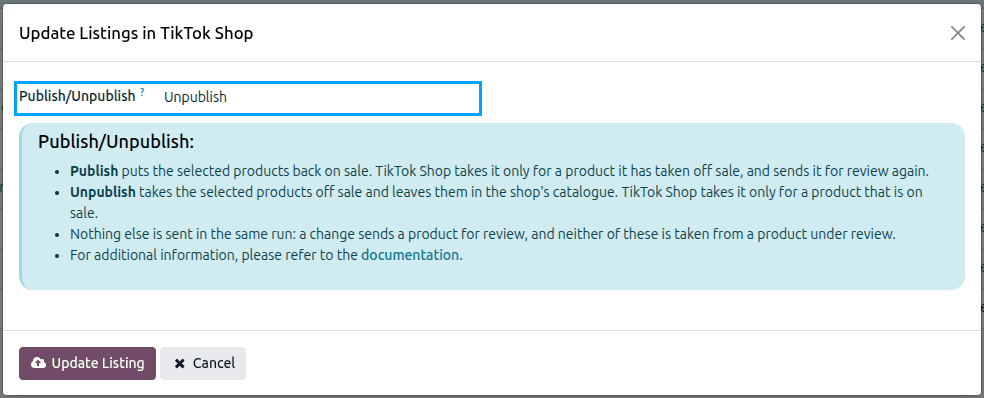
Note
Publish is accepted only for a product that is off sale, and Unpublish only for one that is on sale.
Nothing else is sent in the same run, and neither is accepted for a product under review.
Delete And Recover Products
Go to and select the listings.
Click Delete on TikTok Shop to delete them, or Recover on TikTok Shop to bring deleted ones back.

Confirm with Ok.
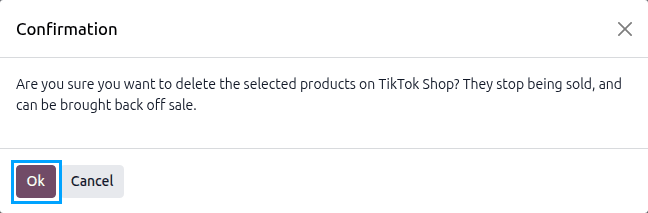
A deleted product stops being sold. A recovered product returns off sale, so publish it again when you want it selling.
Important
These buttons are for TikTok Shop listings only, and a selection must belong to a single instance.
A Frozen product is left out, because TikTok Shop refuses every change to one.