Mirakl Update Order Status from Odoo
This feature allows you to update order status with shipment information from Odoo to Mirakl. This can be done manually or automatically using the scheduler.
Method - 1: Manual Update Order Status
One way to update the order status in Mirakl is through a manual process. After a Delivery Order is validated in Odoo (indicating that the order is ready for fulfillment).
Bulk Update (Multiple Orders)
Go to the menu in Odoo.
Click on the
Operationsbutton from the instance record.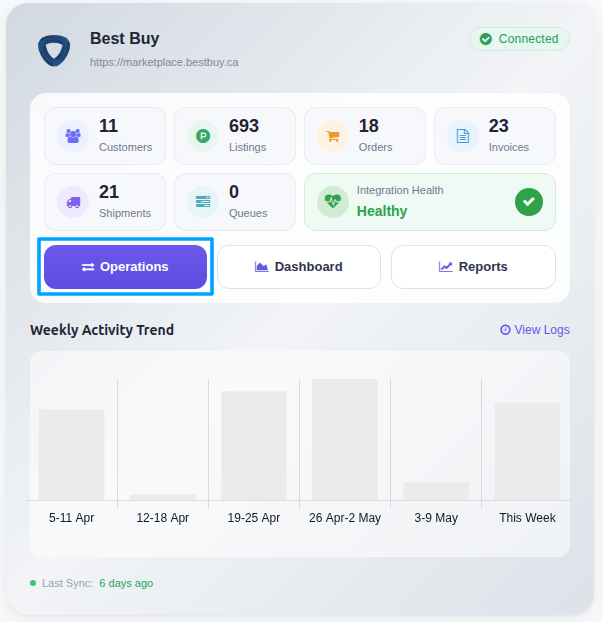
Select Export Operation and then select Export Tracking Details option.
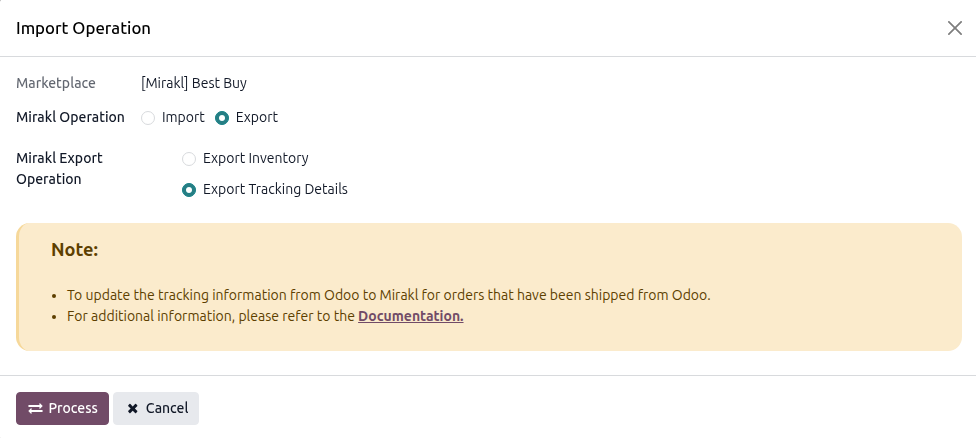
Press
PROCESSbutton to update Order status and tracking reference from Odoo to Mirakl.
Direct Update (Single Order)
If you need to push tracking information instantly for a specific shipment (whether it is a standard delivery or a Mirakl pickup point order), you can do so directly from the delivery record.
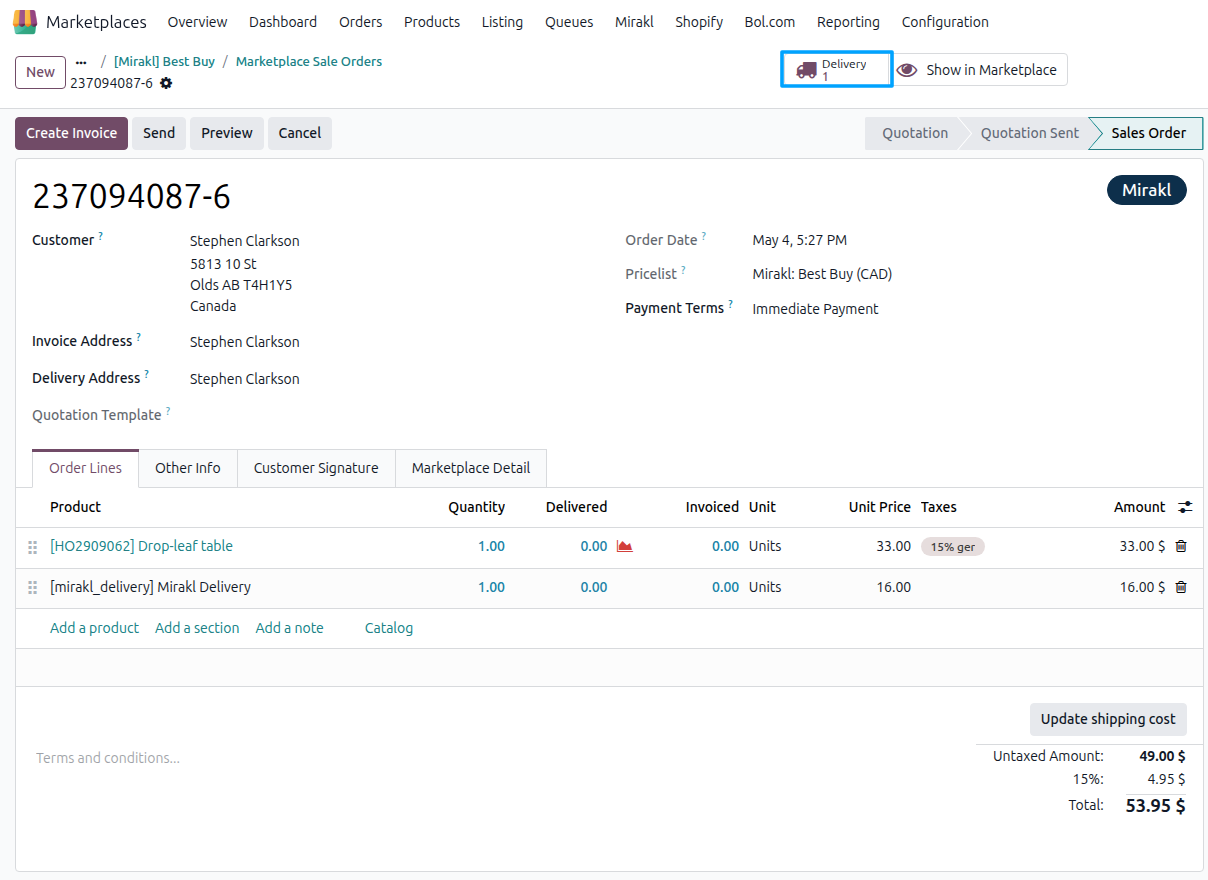
Open the specific Mirakl Sales Order you wish to update, and click the Delivery smart button at the top right to open the transfer record.
Ensure you have entered the correct Carrier and Tracking Reference (usually found under the Additional Info tab), and then click Validate to finish the delivery in Odoo.
Once the delivery reaches the
Donestate, a button Update in Marketplace will appear at the top.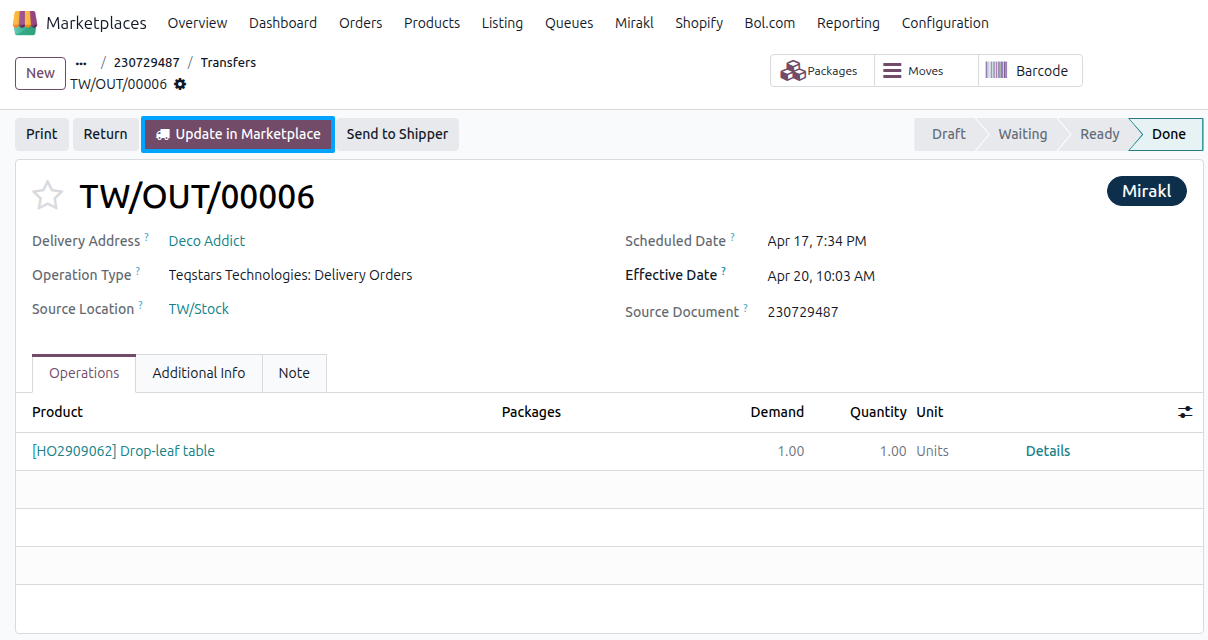
Press Update in Marketplace button to update order status with tracking information in Mirakl.
Note
For the tracking update to succeed, your delivery method must be linked to a Mirakl Carrier (configured under ). If the delivery method is not linked to a Mirakl carrier, a Tracking URL is required on the delivery order — the update will fail without it.
Important
Only delivery orders in the
Donestate are eligible for tracking push (both manual and bulk).The connector skips orders whose Mirakl status is already
CANCELED,SHIPPED,RECEIVED, orCLOSEDto avoid duplicate updates.If a push fails (e.g., missing tracking URL, invalid carrier), the picking is flagged with a marketplace exception and the exact error is stored on the delivery order for review.
Method - 2: Automatic Update Order Status
You can automate the process of updating the order status from Odoo to Mirakl using the Automatic Schedule action. This allows you to define a specific time interval for executing the Update Order process, ensuring that order status updates are seamlessly synchronized between Odoo and Mirakl without requiring manual intervention. Here’s how it works:
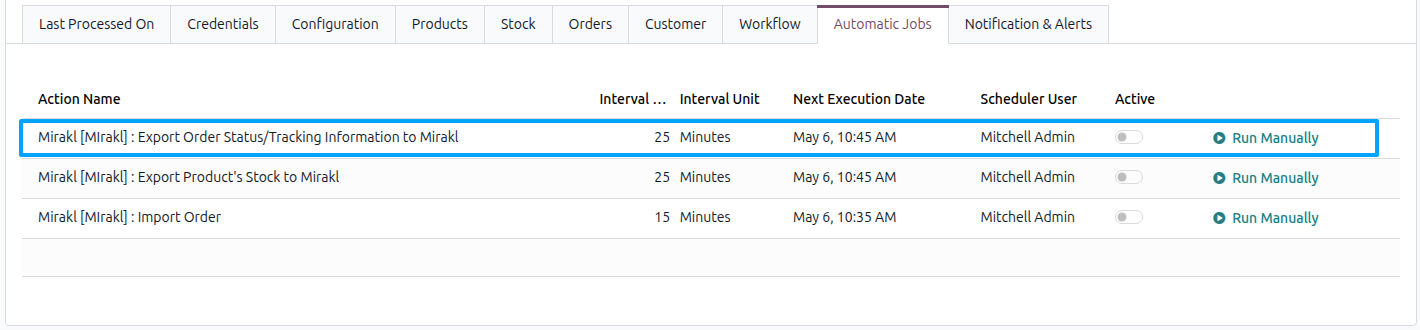
Go to your Mirakl instance setting by navigate to .
Here you will see Automatic Jobs tab. In that tab you can configure Export Order Status/Tracking Information to Mirakl automatic action by setting Interval Number, Interval Unit and then you can Active this scheduler.