
ManoMano Order Workflow Configuration
Every ManoMano order has a status, such as Preparation or Shipped. On the instance, you link each status to an Odoo order workflow and payment terms. When an order is imported, the connector runs the workflow of its status: for example, it confirms the order, creates and validates the invoice and registers the payment.
To open the setup, go to , open your ManoMano instance and click the Workflow tab. If you have not created the instance yet, see Create a ManoMano instance in Odoo.
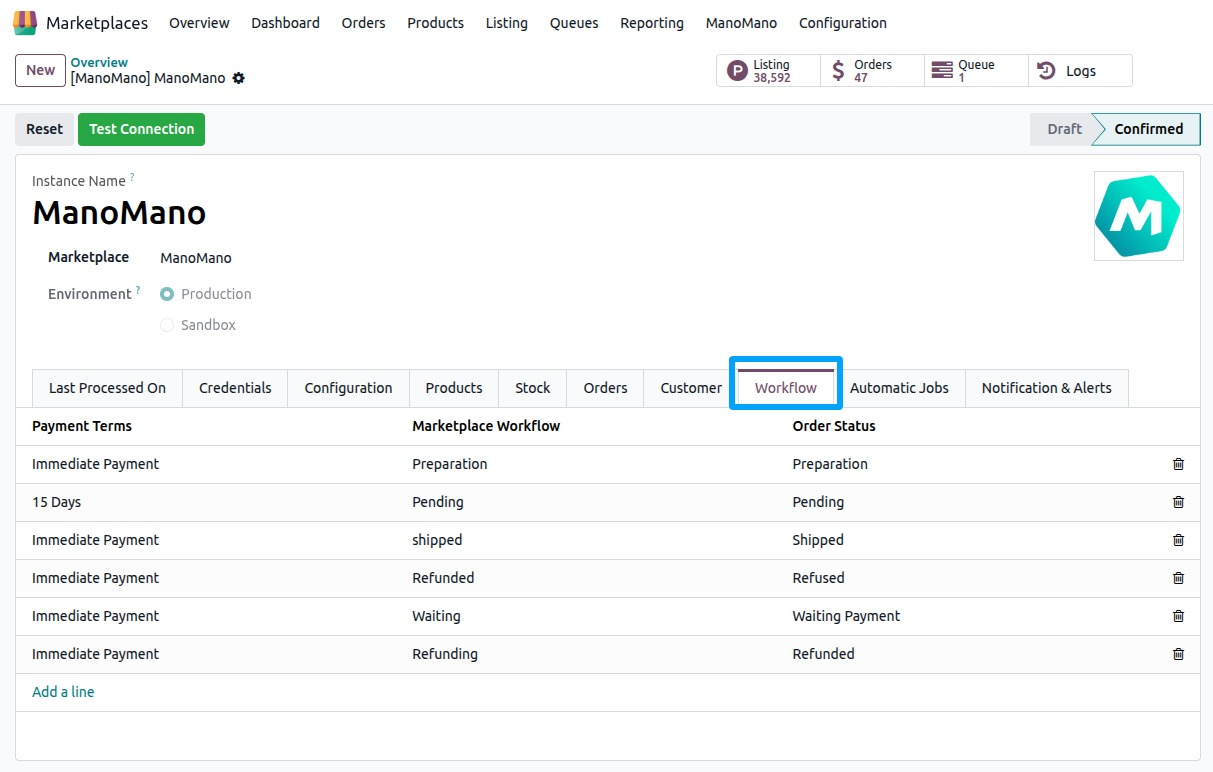
ManoMano Order Statuses
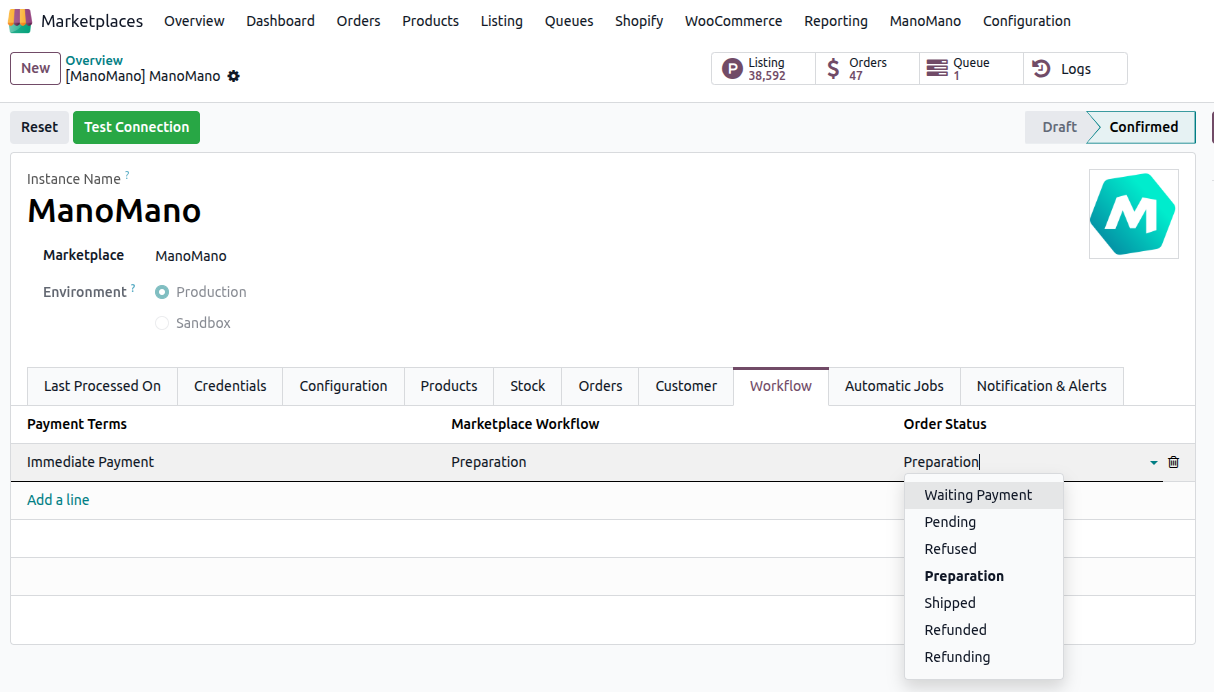
A workflow row applies to one of these ManoMano order statuses:
Waiting Payment
Pending
Refused
Preparation
Shipped
Refunded
Refunding
The statuses the connector imports are set in Import Order Status on the instance. Add a workflow row for each of them, otherwise those orders are not imported.
Add A Workflow Row
Open your ManoMano instance and click the Workflow tab.
In ManoMano Financial Workflow Configuration, add a line.
In Order Status, select the ManoMano order status this workflow applies to.
In Marketplace Workflow, select the Odoo workflow to run for these orders, or create a new one from the field.
In Payment Terms, select the payment terms for these orders.
Save the instance.
Workflow Options
The Marketplace Workflow decides what Odoo does with an imported order, such as confirming it, creating the invoice and registering the payment. To set up its options, see Configure Marketplace Order Workflow.
Create Credit Note (ManoMano)
The workflow also has Create Credit Note (ManoMano). When it is enabled, a credit note is created in Odoo for refunded ManoMano orders.
To send a refund from Odoo to ManoMano, see Refund ManoMano Orders From Odoo.
Configure A Missing Workflow From The Log
When an imported order has a status with no workflow row, the order is not imported. The log shows this message:
IMPORT ORDER: No order workflow is configured for ManoMano order ... (status '...').
Please add a matching row under the Workflow tab in the instance configuration.
You can add the missing row straight from that log line:
Go to and open the log of the import.
On the Log Line tab, open the line with the message above. Its ManoMano order status is the one the missing workflow relates to.
Click Configure Workflow. The Order Workflow Configuration window opens for that order status.
Select the Marketplace Workflow and the Payment Terms, then save.
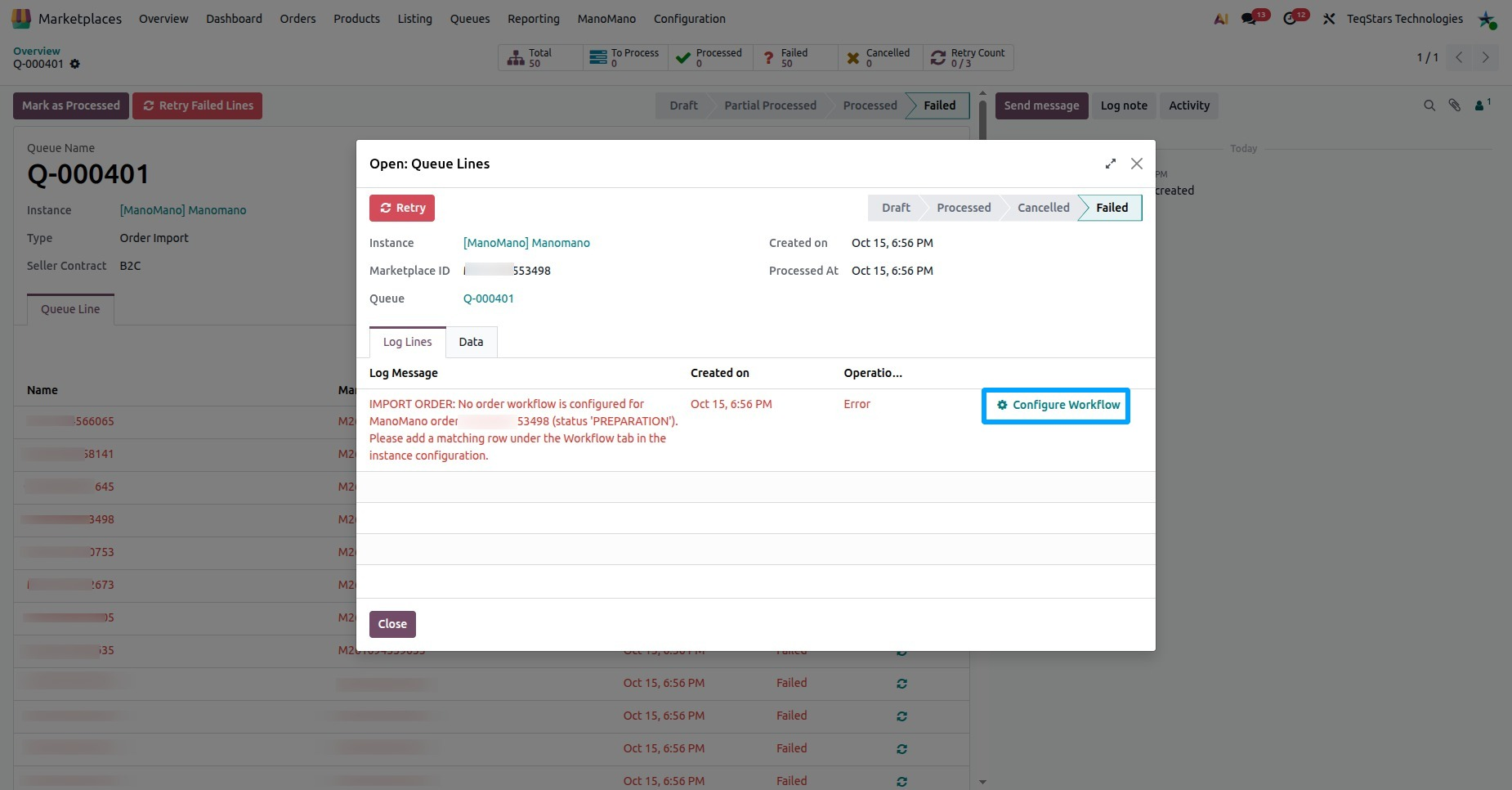
Then import the order again: click Retry on the failed queue line at , or run the import again as described in Import ManoMano Orders In Odoo.
Rules
Each instance has its own workflow rows, so two instances can process the same status in different ways.
One row per order status on an instance. A second row for the same status is refused with the message
A workflow for order status '...' already exists on this
instance.
On an imported order, the Marketplace Detail tab shows the Marketplace Workflow that was used and the ManoMano Order Status.