
Export Products From Odoo
With Export Listings, you can publish a new product to BigCommerce in one operation, including pricing, inventory, images, categories, brand, and channel publication. To export listings from Odoo to BigCommerce, follow these steps.
Step 1: Add Products To Listings
Go to . Select the products you want to publish to BigCommerce.
From the action dropdown, choose Add to Listing.
In the popup, select the BigCommerce instance(s) and click Add to Listing.
The selected products now appear in . From there, complete each Listing’s BigCommerce-specific fields — categories, brand, tax class, weight, attributes, and (optionally) sales channels.
Step 2: Choose An Export Method
You can export listings in two ways:
Method - 1: From The Operations Wizard
Go to the menu in Odoo.
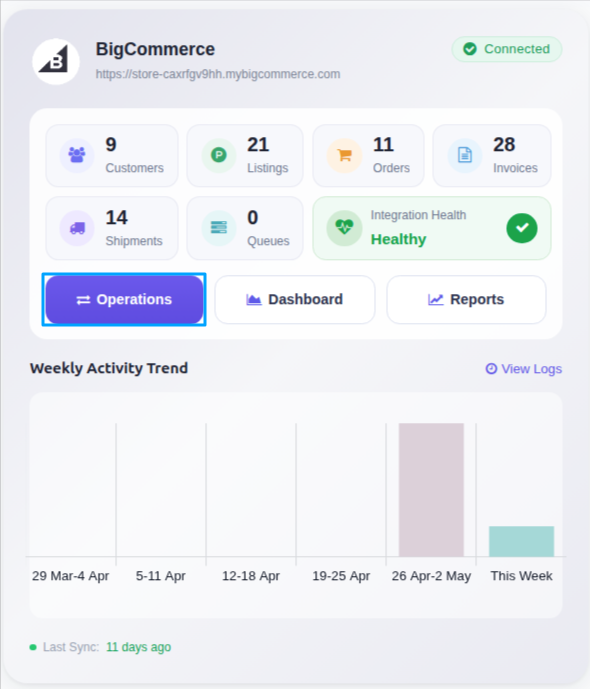
Click on the Operations button from the instance record.
Choose Export as the operation type, then from Export Operation, select Export Listings.
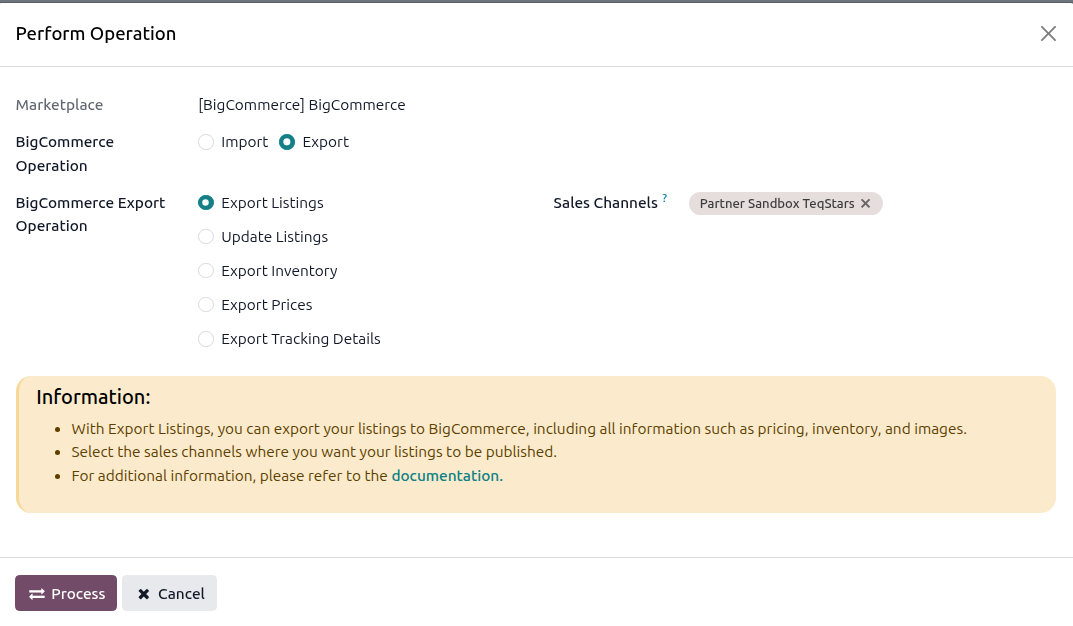
Sales Channels — Select the BigCommerce sales channels (publications) where you want the listings to be visible. The connector uses the Publish/Unpublish toggle (enabled by default) to publish to those channels in the same call. Leave Sales Channels empty to push the listing to BigCommerce as a Draft (not published anywhere).
Click PROCESS.
Method - 2: From The Listing View
Go to the menu in Odoo.
Click on the Listing button from the instance record to navigate where all your product listings are managed.
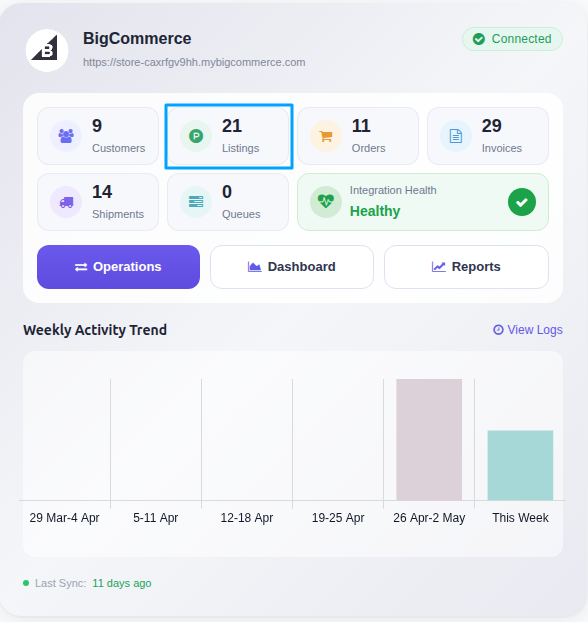
Select one or more Listings that have not yet been exported (Listed? is false).
Open the Actions menu (gear icon) and choose Export/Update Listing in Marketplace.
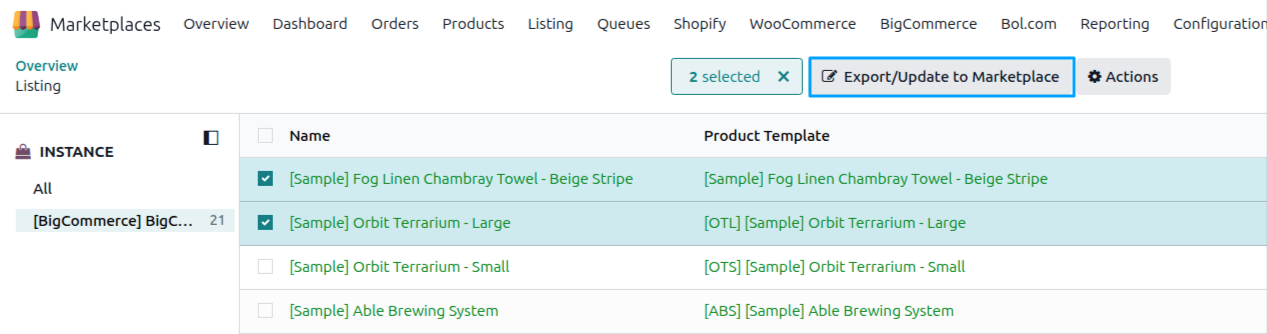
The connector detects that the listings are not yet exported and opens the Export Product to BigCommerce wizard. Choose what to include (price, images, inventory, sales channels) and click Export Listing.
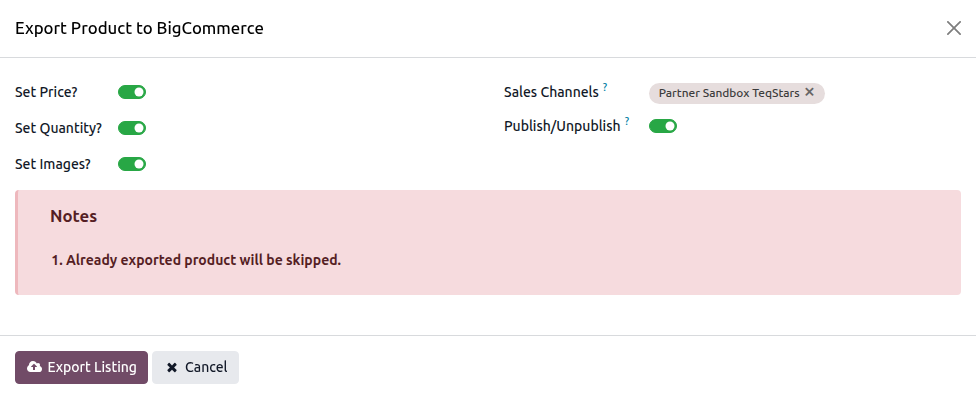
What Gets Exported
A successful Export Listings call sends the following information to BigCommerce:
Listing Name and Description
SKU (for products without variants — variant SKUs travel with each variant)
Weight as a numeric value, automatically converted from Odoo’s weight to the BigCommerce store’s weight unit (the unit itself is not sent — see note below)
Price (from the instance pricelist; or the product sale price if Export Odoo Product’s Sale Price? is enabled)
Inventory Tracking mode (none / product / variant)
Initial inventory for each enabled location
Images (one per variant — see note below)
Categories (BigCommerce category tree), from the listing’s BigCommerce Product Category
Brand, from the listing’s BigCommerce Product Brand
Tax Class, from the listing’s BigCommerce Tax Class
Visibility flag (published / unpublished)
Variants with option values (attributes and attribute values), per-variant SKU, price, and weight
Sales channel assignments (when channels are selected; controls where the product is published)
Note
Weight Unit is not sent. BigCommerce uses a single store-wide weight unit (configured in the BigCommerce control panel and mirrored on the instance as Weight Unit). The connector converts each weight into that unit before sending the numeric value — there is no per-product weight unit in BigCommerce’s product API.
BigCommerce supports only one image per variant. The connector exports the first image attached to the Odoo variant; additional variant images are ignored.
Sales channels are imported during instance confirmation. If a channel created after confirmation is missing from the dropdown, run Import Categories From BigCommerce and Import Brands From BigCommerce first, then re-confirm the instance to refresh channel data.