
Export Products From Odoo
With Export Listings, you can create a new product in BigCommerce in one operation, including pricing, inventory, images, categories, brand, and channel publication. To export listings from Odoo to BigCommerce, follow these steps.
Step 1: Add Products To Listings
Go to . Select the products you want to publish to BigCommerce.
From the Actions menu, choose Add to Listing.
In the popup, select the BigCommerce instance(s) in Marketplaces and click Add to Listing.
The selected products now appear in . From there, set the BigCommerce Product Category and BigCommerce Product Brand on the Basic Information tab, the BigCommerce Tax Class on the Pricing tab, and the Inventory Tracking on the Inventory tab. Weight and attributes come from the Odoo product. You choose the sales channels when you export.
Step 2: Choose An Export Method
You can export listings in two ways:
Method - 1: From The Operations Wizard
Go to the menu in Odoo.
Click on the Operations button from the instance record.
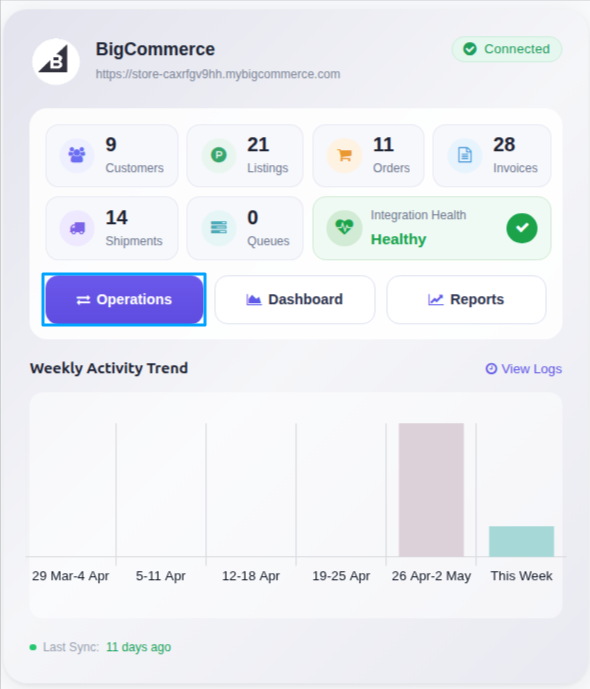
In BigCommerce Operation, choose Export. Then in BigCommerce Export Operation, select Export Listings. Every listing of the instance that is not yet exported is created in BigCommerce.
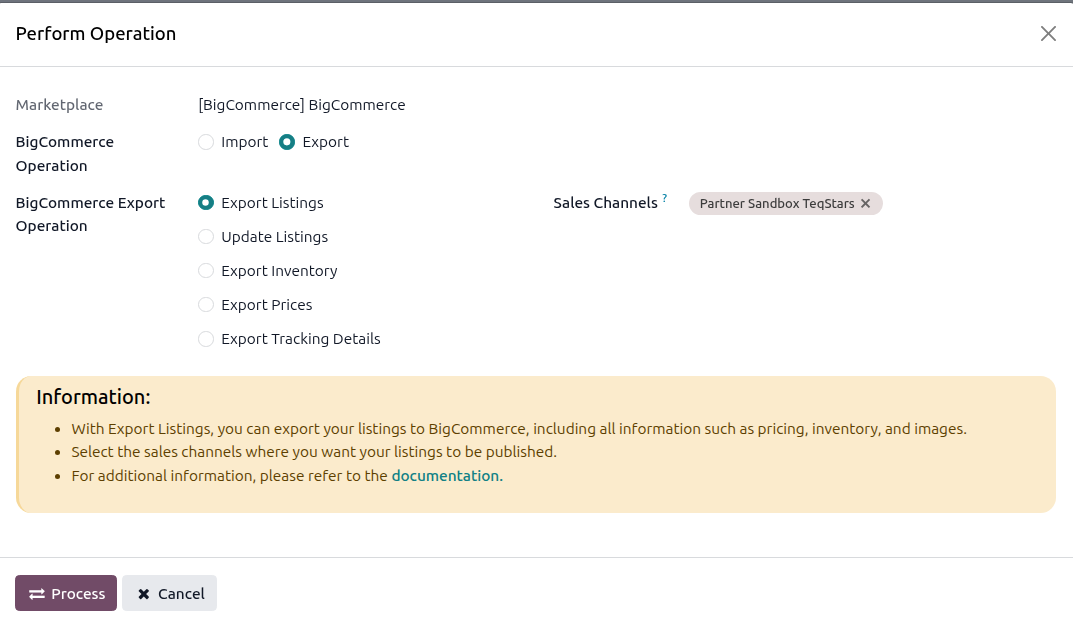
Sales Channels: Select the BigCommerce sales channels where you want the listings to be published. Publishing is applied automatically after the product is created. If you select no sales channel, the connector makes no channel assignment and BigCommerce decides where the product appears.
Click PROCESS.
Method - 2: From The Listing View
Go to the menu in Odoo.
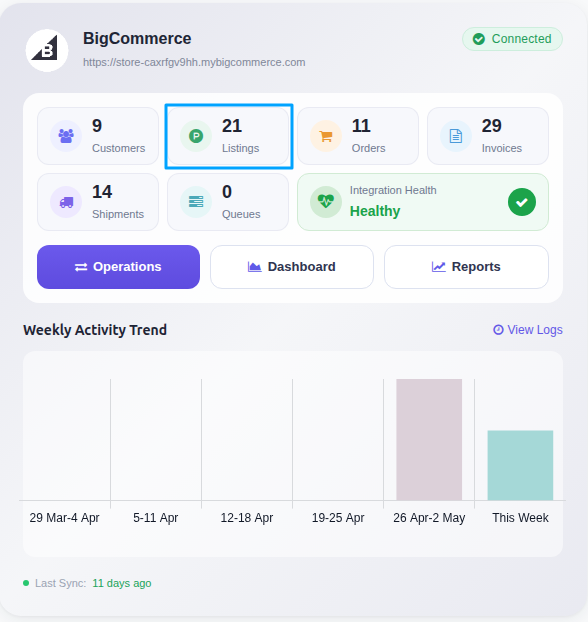
Click on the Listing button from the instance record to navigate where all your product listings are managed.
Select one or more Listings that have not yet been exported (Listed? is not ticked). Do not mix exported and not exported listings in one selection. Odoo shows an error.
Click Export/Update to Marketplace above the list. On a single listing form you can use instead.
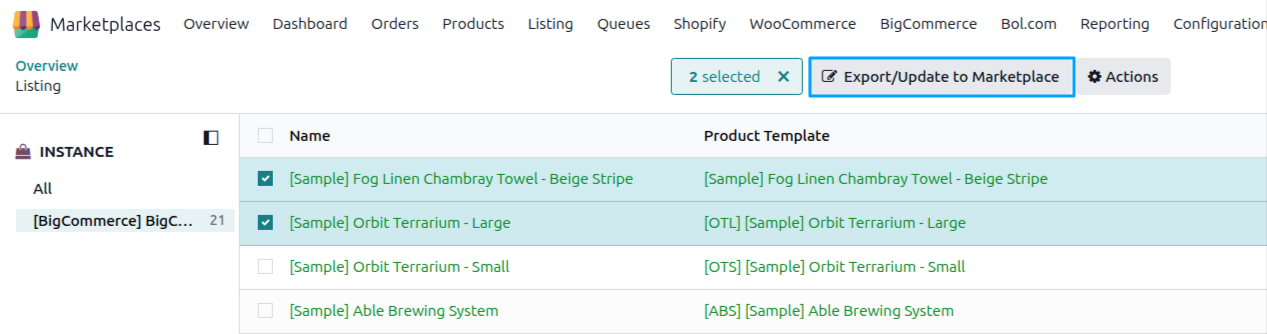
The connector detects that the listings are not yet exported and opens the Export Product to BigCommerce wizard. Choose what to include (price, images, inventory, sales channels) and click Export Listing.
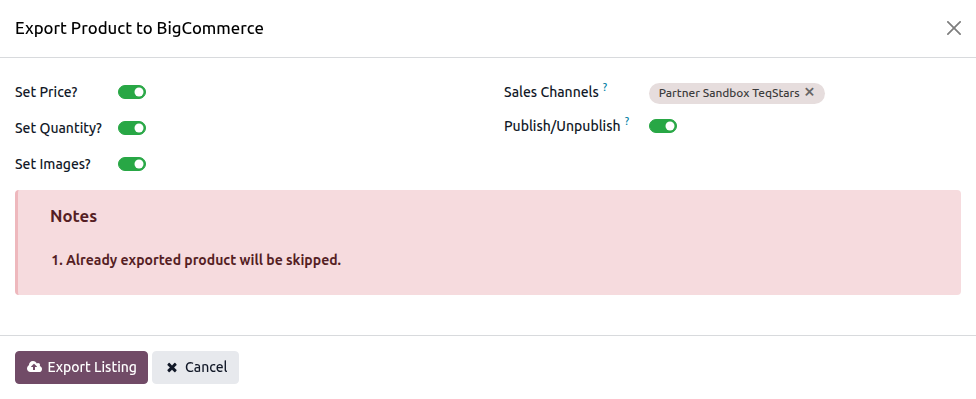
What Gets Exported
A successful Export Listings call sends the following information to BigCommerce:
Listing Name and Description
SKU (for products without variants, variant SKUs travel with each variant)
Weight as a numeric value, automatically converted from Odoo’s weight to the BigCommerce store’s weight unit (the unit itself is not sent, see note below)
Price: the product’s sale price for products without variants, and the instance pricelist price for each variant of a product with variants. A price of 0 is not sent.
Inventory Tracking mode (none / product / variant)
Initial inventory for storable products whose Inventory Tracking is not none, for each enabled location with a mapped location
Images: the listing images plus one image per variant. BigCommerce downloads them from your Odoo URL, so Odoo must be reachable from the internet.
Categories (BigCommerce category tree)
Brand
Tax Class
Visibility flag (published / unpublished)
Variants with option values (attributes and attribute values), per-variant SKU, price, and weight
Sales channel assignments (when channels are selected; controls where the product is published)
Note
At least one BigCommerce location must have Enable Import/Export Stock? enabled, and every enabled location needs a Warehouse. Otherwise the export stops with an error before anything is sent.
Weight Unit is not sent. BigCommerce uses a single store-wide weight unit (configured in the BigCommerce control panel and mirrored on the instance as Weight Unit). The connector converts each weight into that unit before sending the numeric value. There is no per-product weight unit in BigCommerce’s product API.
BigCommerce supports only one image per variant. In Odoo you cannot attach more than one image to a listing item of a BigCommerce listing.
Sales channels are imported the first time you confirm the instance. A channel created later in BigCommerce is added to Odoo when you import a listing that is assigned to that channel. See Manage Sales Channels.