
Import Inventory Into Odoo
Importing inventory from BigCommerce into Odoo sets, for each matched product, the counted quantity at the Odoo stock location mapped to each enabled BigCommerce location. The quantity is the BigCommerce available to sell value.
Note
The Validate Inventory Adjustment? setting on the instance controls what happens next. When it is enabled, the quantity is applied right away. When it is disabled (default), the quantity stays as a counted quantity that you apply from .
Prerequisites
At least one BigCommerce location must have Enable Import/Export Stock? enabled, see Configure BigCommerce Locations.
Each enabled location must have both a Warehouse and a Stock Location configured. If one is missing, the import stops and writes an error to the log until you set them.
Products must track inventory in Odoo and be tracked by quantity only. Lot- and serial-tracked products are skipped because BigCommerce does not provide the necessary lot/serial detail.
The listing item must be listed and linked to a BigCommerce variant.
There are two ways to import inventory.
Method - 1: Manual Inventory Import
Go to the menu in Odoo.
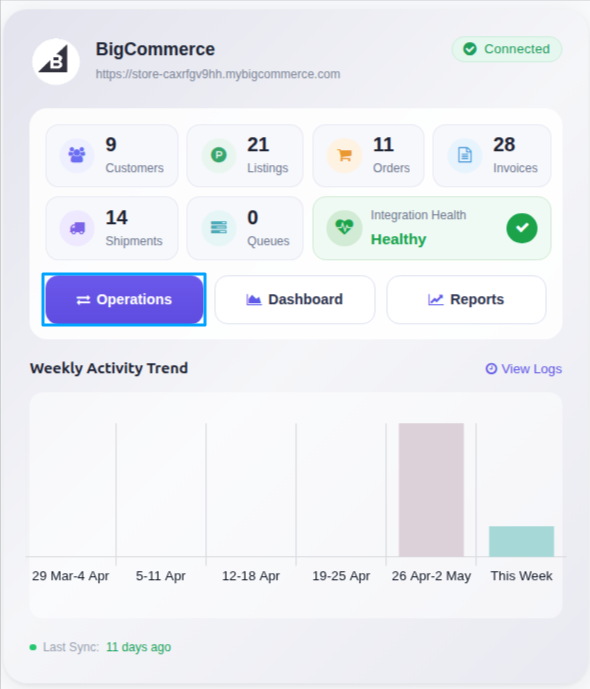
Click on the Operations button from the instance record.
In BigCommerce Operation, choose Import. Then in BigCommerce Import Operation, select Import Inventory.
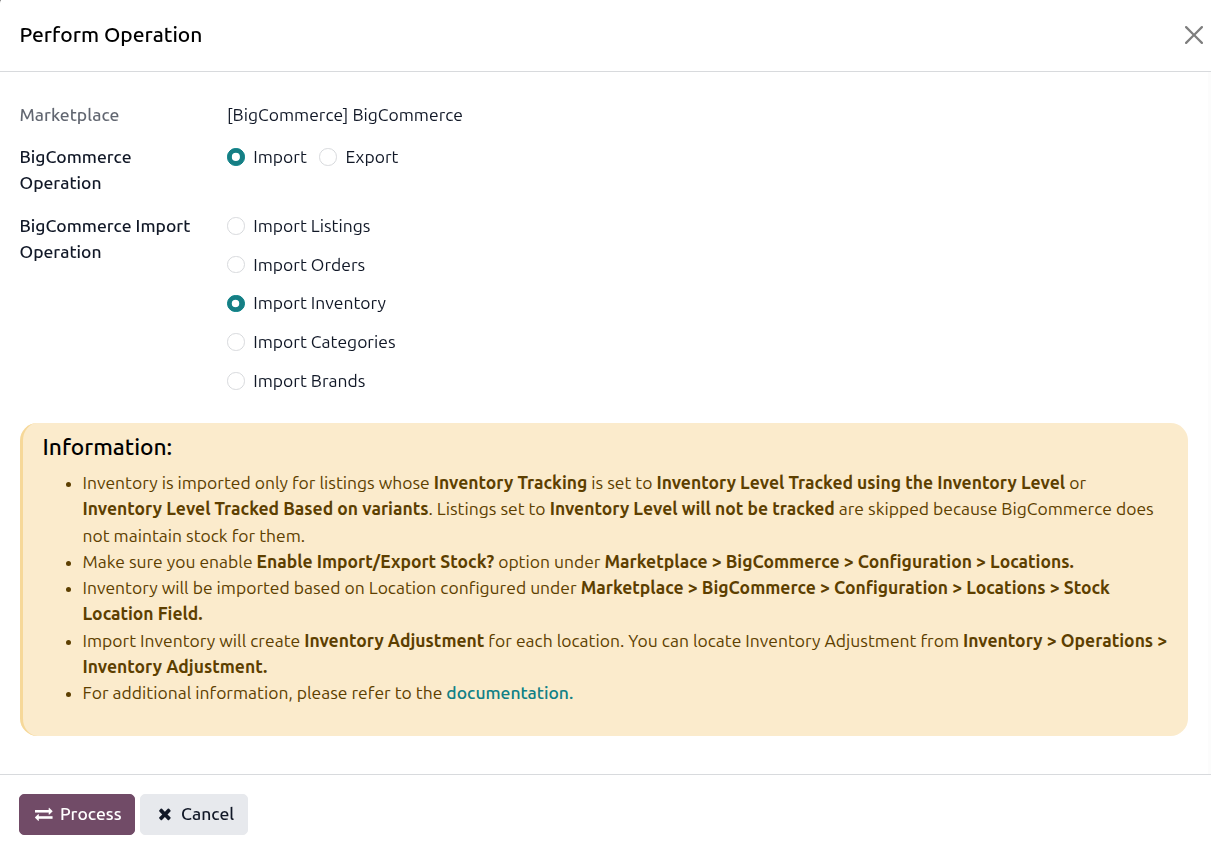
Click PROCESS. The connector fetches the current quantity per location from BigCommerce and writes it for each matched product at the mapped stock location.
You can locate the quantities that are waiting to be applied at .
Method - 2: Automatic Inventory Import
BigCommerce inventory import in Odoo can be automated using the Automatic Schedule action, which allows you to set up a predefined time interval for the execution of the import process. This automation ensures that the inventory data from your BigCommerce store is regularly and systematically updated in Odoo without the need for manual intervention. Here’s how the process works:
Go to your BigCommerce instance setting by navigating to .
Open the Automatic Jobs tab. In that tab you can configure the BigCommerce [your instance] : Import Product’s Inventory automatic action by setting Interval Number, Interval Unit, and then enable Active.
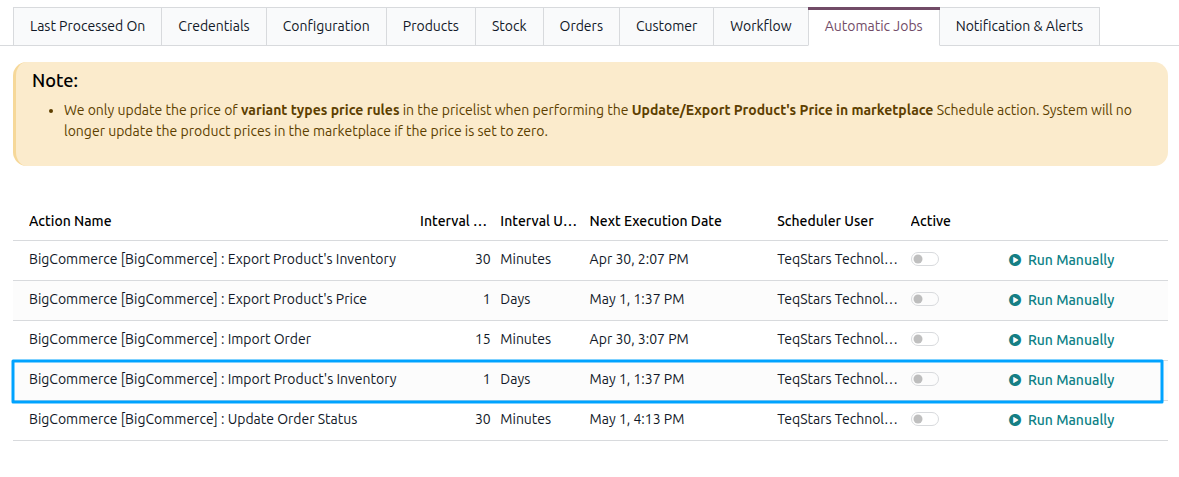
Once the schedule action is active, Odoo triggers the BigCommerce inventory import at the specified time intervals, fetching the latest inventory data from your store and updating the corresponding inventory in Odoo based on the Validate Inventory Adjustment? configuration.