
Configure Bol.com Webhooks In Odoo
Webhooks let Bol.com push events to Odoo in real time. Orders, shipments and process status updates arrive the moment they happen. You do not wait for the next scheduled run.
Overview
Webhooks are optional. Scheduled and manual sync still work without them. They are recommended if you want the fastest possible sync.
You set up webhooks on each Bol.com instance. Go to , open your instance and go to the Webhook tab. Only a Marketplace Manager sees this tab. It has these fields:
Webhook URL: the address where Bol.com sends events to Odoo.
Webhook: the list of webhook subscriptions for the instance.
Important
Bol.com only delivers webhooks to a public, secure address. Your Odoo URL must be reachable from the internet over HTTPS.
Webhook URL
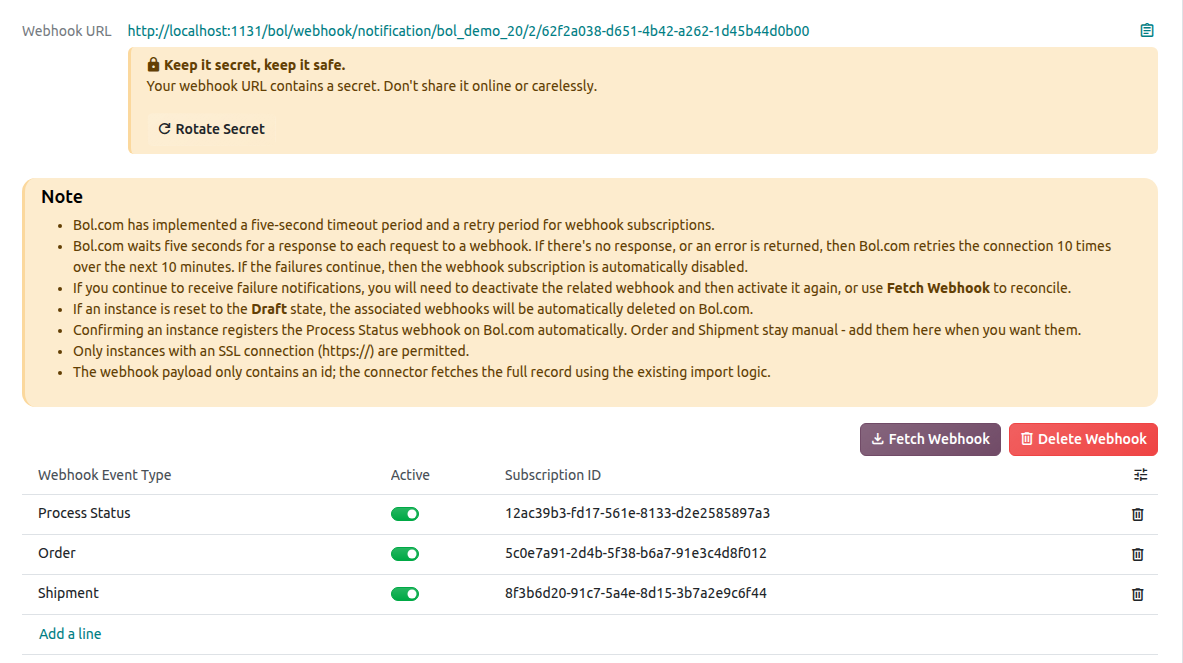
The Webhook URL field shows the address in your Odoo that receives events from Bol.com. Bol.com sends every webhook for this instance to this address. Odoo creates this address when you confirm the instance.
Warning
The Webhook URL contains a secret. Do not share it. Click Rotate Secret to change the secret. Odoo then registers the active webhooks again with the new address.

Create Webhook Subscriptions
A webhook subscription tells Bol.com which events to send to Odoo. Add one subscription for each event type you need.
When you confirm the instance, Odoo registers the process status webhook for you, as long as the Webhook URL starts with https://. You only need to add order and shipment subscriptions yourself.
Confirm the instance first. Odoo creates the Webhook URL on confirm.
Go to , open your instance and go to the Webhook tab.
In the Webhook list, add a line.
In Webhook Event Type, choose the event you want to receive: order or shipment.
Switch the Active toggle on.
Save the instance.
Webhook Event Types and Subscription ID
Each line in the Webhook list has these fields:
Webhook Event Type: the kind of event Bol.com sends for this subscription. You can subscribe to order (ORDER), shipment (SHIPMENT) and process status (PROCESS_STATUS) events.
Subscription ID: the ID of the subscription at Bol.com. It helps you match the line in Odoo with the subscription at Bol.com. This column is hidden by default. Show it from the optional columns menu of the list.
Active: whether the subscription is switched on.
Click Fetch Webhook to read the subscriptions from Bol.com and update the list in Odoo.
Activate or Deactivate Webhooks
Use the Active toggle to switch a subscription on or off.
Switch it on to receive that event type from Bol.com.
Switch it off to stop receiving that event type. Odoo then relies on the scheduled and manual sync for it.
Troubleshoot Webhooks
If Odoo does not receive events from Bol.com, check that:
The Webhook URL is public and uses HTTPS.
The instance is Confirmed.
The subscription for that event type is in the Webhook list and Active is on.
The webhook was not disabled by Bol.com after repeated failures. Switch Active off and on, or click Fetch Webhook.