
Import Etsy Orders In Odoo
The Etsy Odoo Connector allows you to import Etsy orders into Odoo. This can be a useful way to streamline your order management processes and keep your inventory and accounting data up-to-date.
Before importing orders, make sure to configure the order configuration and workflow configuration on the Instance.
You can import orders from Etsy to Odoo either manually or automatically.
Method - 1: Manual Order Import
Go to the menu in Odoo.
Click on the Operations button from the instance record.
Select Import as the operation type and then choose Import Orders.
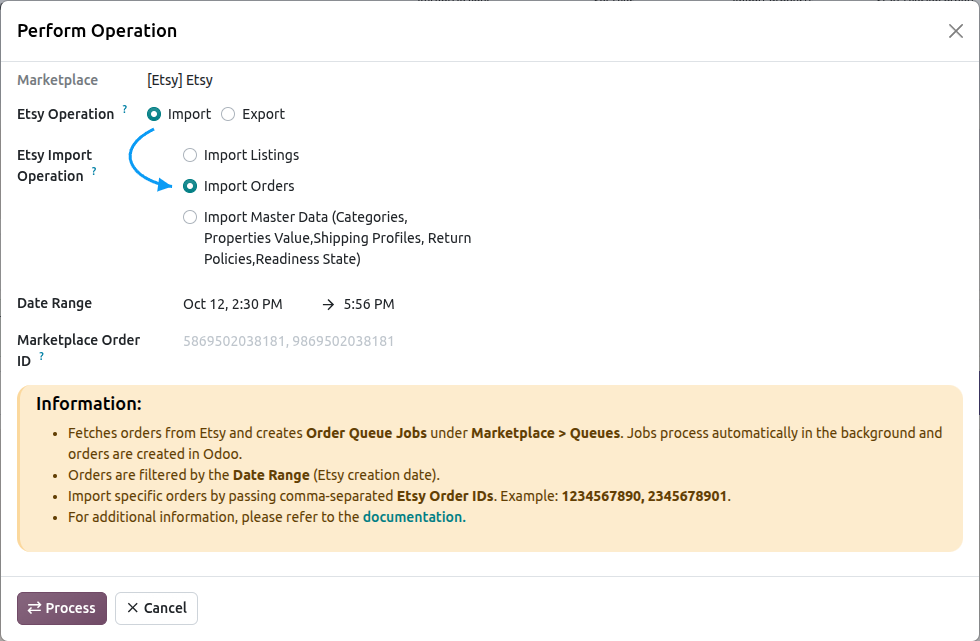
Within the order import operation, you’ll encounter the following options:
Date Range: Etsy receipts created within the From Date and To Date are fetched (default: the last 3 days). The scheduled action instead fetches receipts last modified since the previous run, so status changes on older receipts are picked up.
Marketplace Order ID: You can import specific Etsy receipts by entering their Receipt IDs in the Marketplace Order ID field. Separate the IDs with a comma (‘,’) like this: 1234567890, 9876543210. Receipts imported by ID are fetched one by one and processed immediately, without a queue job, and the matching orders open when it finishes.
Press the Process button.
A date-range import fetches the receipts from Etsy (100 per page, following pages until the last one) and adds them to an Order Queue Job, split into batches of Queue Batch Limit receipts. The queue is processed by the Marketplace : Process Queue Job scheduled action (every 15 minutes by default) or manually with the Process Manually button on the queue job; failed lines can be retried with Retry Failed Lines. The orders are created in Odoo based on the order workflow configured for the receipt’s payment type and order payment status.
If Etsy rejects the request with HTTP 429 (rate limit), the connector waits for the time given in the Retry-After header (at most 60 seconds) and retries up to 3 times. If fetching still fails, the sync window is not advanced, so the same period is requested again on the next run.
If some orders fail to import because a matching Etsy Financial Workflow is missing for the payment type, the error log shows a Configure Workflow shortcut that opens the right configuration form so you can add the missing workflow in one click.
Method - 2: Automatic Order Import
Order import from Etsy to Odoo can be automated using the Automatic Schedule action, which enables you to define a specific time interval for executing the import process. This automation ensures that the latest orders from your Etsy store is consistently and seamlessly created/updated in Odoo without requiring manual intervention. Here’s a breakdown of the process
Go to your Etsy instance by navigating to .
Open the Automatic Jobs tab. Configure the Import Order scheduled action by setting Interval Number, Interval Unit, and Active (default interval: every 15 minutes).
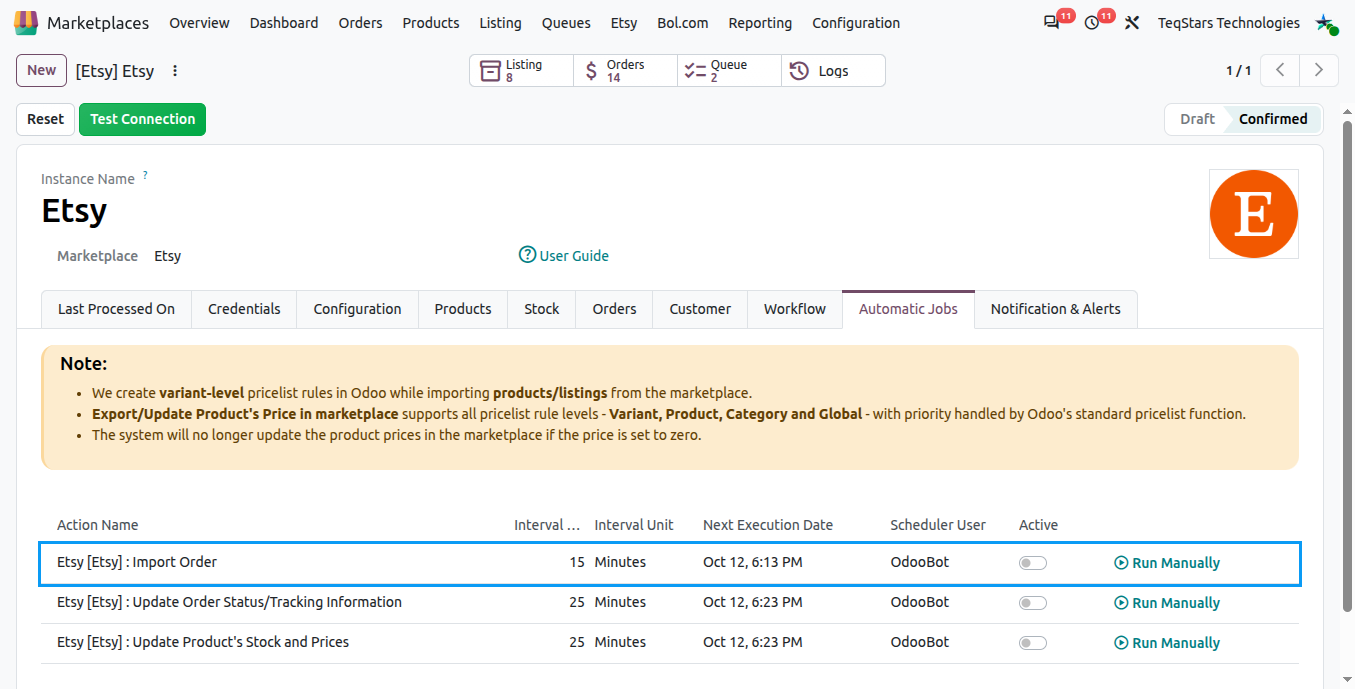
Once the scheduled action is active, Odoo automatically fetches new and updated receipts from Etsy and creates the matching Sale Orders.
Important
Receipts will only be imported based on their Receipt Status filter configured on the instance. You can configure the Receipt Status filter under tab.
If a new receipt is already shipped on Etsy (
is_shipped) at the time of import, the order is created as already fulfilled using the standard Marketplace fulfilled-order handling (stock is moved out and the order is invoiced according to the workflow) instead of leaving a pending delivery.If an existing order is found whose delivery order is still pending and the receipt is shipped on Etsy, the connector validates the delivery order and copies the Etsy carrier and tracking number onto it.
Receipts without a buyer email (Etsy returns it only when access has been granted) are still imported; the partner is created without an email.
Canceled Orders
If a receipt has been canceled on Etsy (receipt status is canceled), the connector automatically detects this and cancels the corresponding order in Odoo. A canceled receipt that was never imported is created as an already canceled order. Canceled receipts are only fetched when the instance Receipt Status filter is Any or includes Canceled.
Order Workflow
When a receipt is imported, the connector picks the matching Etsy Financial Workflow line using the receipt’s Payment Type and Order Payment Status (Open / Payment Processing / Paid / Completed / Canceled, or Any as a wildcard). The payment type is the receipt’s payment_method value as Etsy reports it (for example cc, paypal, ideal, klarna); it is created automatically the first time it is seen, and you then add a workflow line for it. Receipts Etsy reports as fully or partially refunded are matched like Paid (or Open when unpaid), so a Paid or Any line applies. The matched workflow can:
Confirm the Sale Order.
Create and validate the customer invoice.
Register the payment using the configured payment journal.
This behavior is controlled by the Workflow configuration on the instance.
Note
Existing orders are updated when re-imported (for example, payment status change, fulfillment update, or cancellation); the order is never created twice.
A receipt without a matching product (by listing item or SKU) is not imported; the queue line fails with Product not found and can be retried after the product is created.
You can also mark a fully paid Odoo invoice as paid back on Etsy when Mark Order as Paid? is enabled on the instance.