
TikTok Shop Update Order Status From Odoo
This feature allows you to export order fulfillment status with shipment information from Odoo to TikTok Shop. This can be done manually or automatically using the scheduler.
TikTok Shop ships packages, not Odoo deliveries. Once a delivery is validated, the connector reports each of its packages to TikTok Shop the way the package and the market require.
Note
Orders fulfilled by TikTok Shop are never reported from Odoo, because TikTok Shop ships them itself. A digital order is delivered to the buyer directly, so there is nothing to report either.
Before You Start
A parcel you ship yourself is reported with its tracking reference and its carrier’s TikTok Shipping Provider Code. Set the code once on each Odoo delivery method you use, under , because nothing else in the setup asks for it.
Method - 1: Manual Update Order Status
For Multiple Orders
Go to the menu in Odoo.
Click on the
Operationsbutton from the instance record.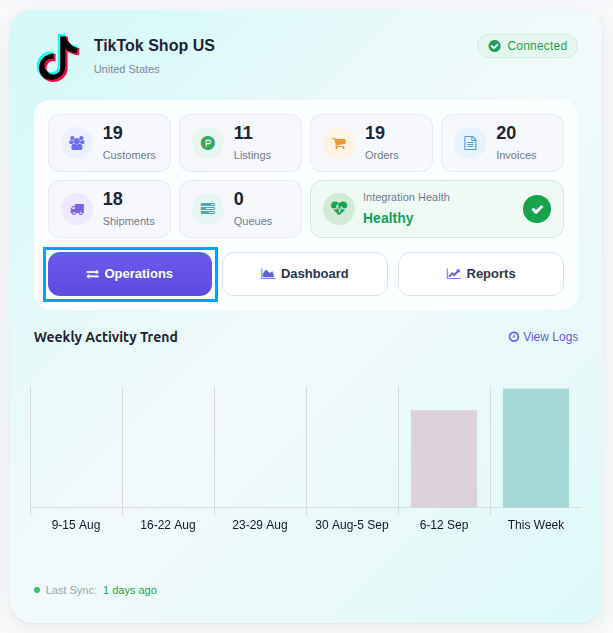
Select Export Operation and then select Export Tracking Details option.
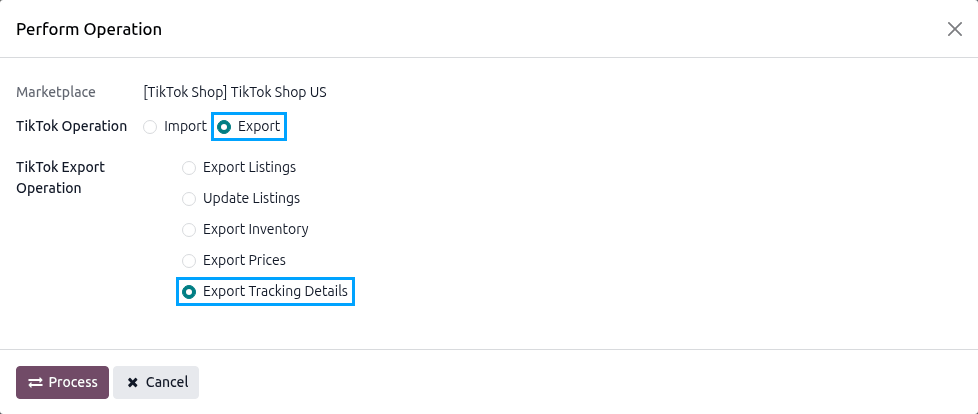
Press
PROCESSbutton.
Every validated TikTok Shop delivery with something left to report is sent, except one flagged with an error. Fix the cause, then click Retry on that delivery.
For Single Orders
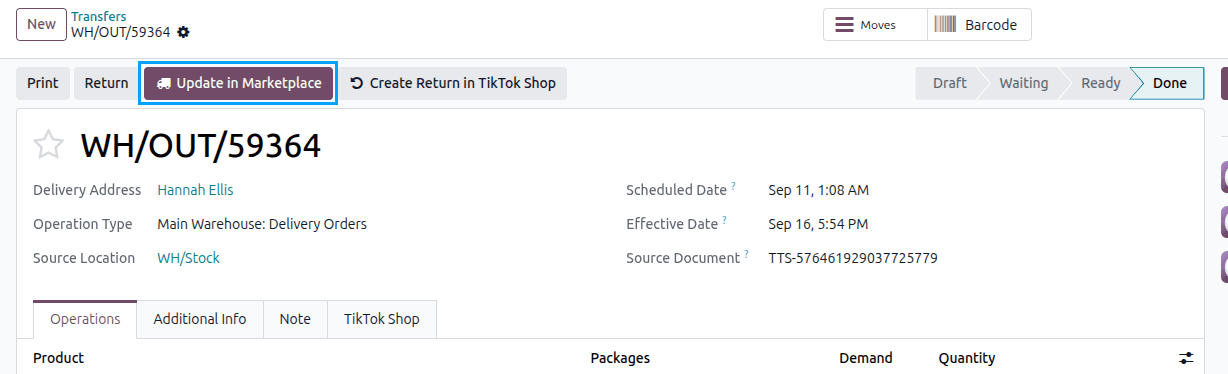
Open the delivery order of the TikTok Shop order. When you ship the parcel yourself, set the Carrier and the Tracking Reference first: the Carrier cannot be changed once the delivery is validated.
Validate the delivery.
Click the Update in Marketplace button.
Method - 2: Automatic Update Order Status
Go to your TikTok Shop instance setting by navigating to .
On the Automatic Jobs tab, configure the Export Order Status/Tracking Information job by setting Interval Number, Interval Unit, and then Active.
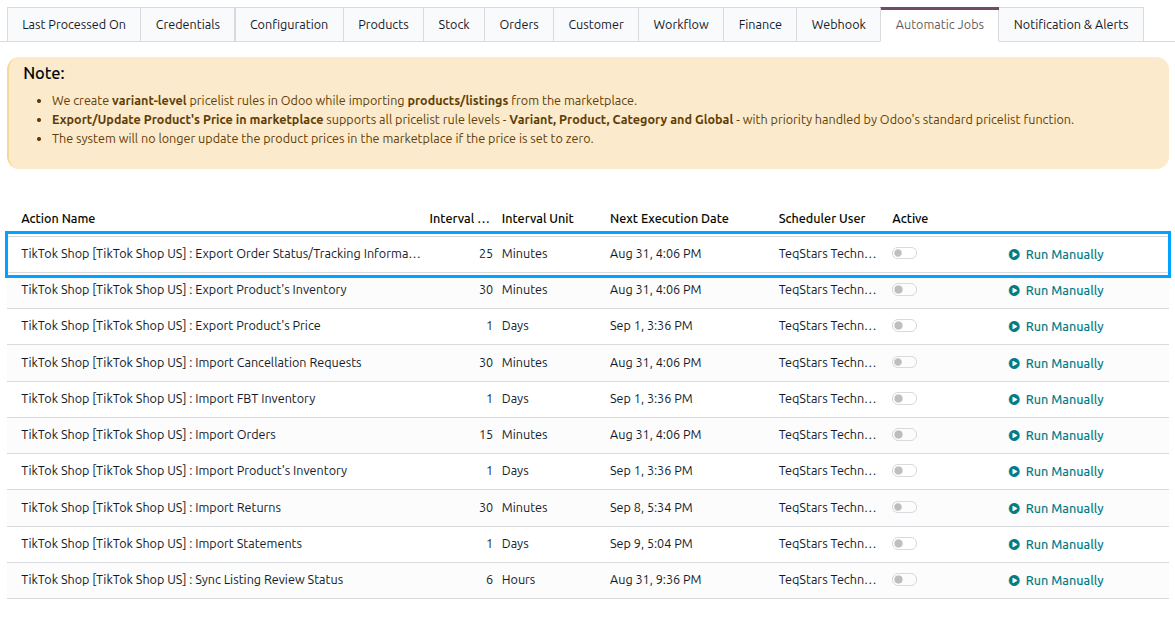
This scheduled action is created inactive and runs every 25 minutes by default. See Automatic Jobs.
TikTok Packages
The packages of a delivery are shown on its TikTok Shop tab, with their Package ID, Package Status, Shipping Type, Tracking Number and the date they were Shipped On.
Open a package to see its Package Sub Status, any Ship Exception, its Handover Method and Delivery Option Name, the Pickup From and Pickup Until times, the Last Mile Tracking Number and its Split/Combine Tag.
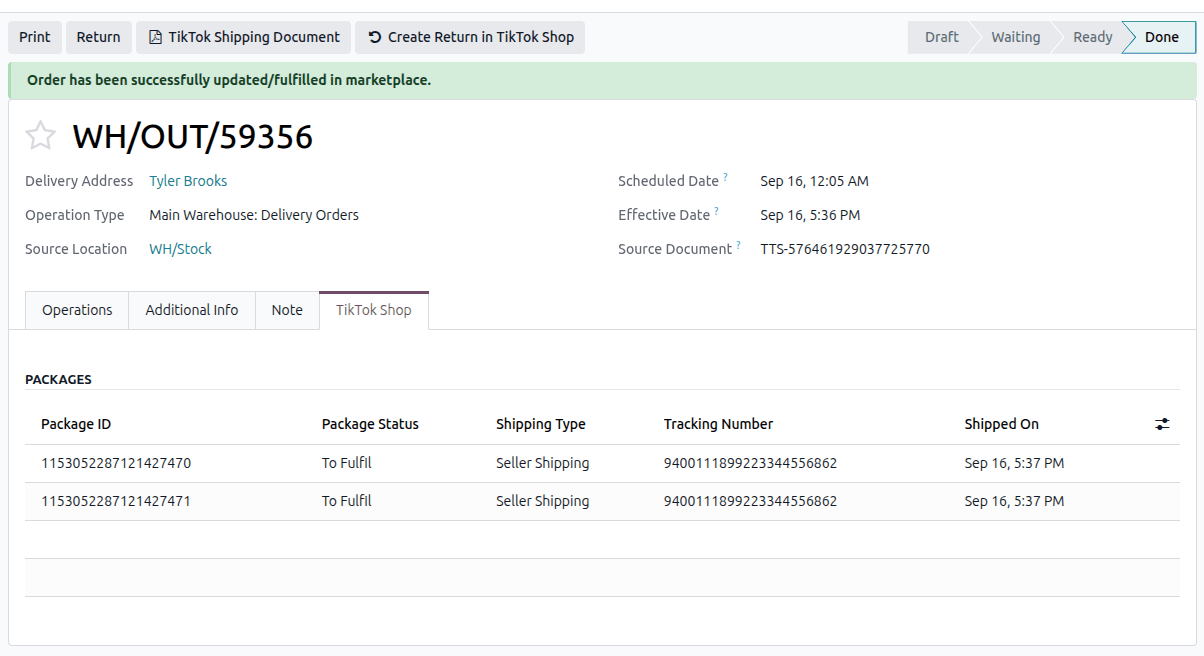
One package can hold several orders, and one order can be spread over several packages. A delivery whose package also holds another order that is not yet validated shows a blue banner naming that order. The scheduled export and the operation pass it over until that delivery is validated too; Update in Marketplace flags it instead.
A package that a later split or combine replaced is left out of everything that is sent.
How A Parcel Is Shipped
How a parcel is reported follows what TikTok Shop says for the parcel and the market:
Route |
When it applies |
|---|---|
You ship it yourself |
The parcel ships on your own carrier. The tracking number and the carrier’s provider code are reported to TikTok Shop. |
Label from TikTok Shop |
Markets where the label is bought from TikTok Shop. The label is created with the parcel’s weight and size, and can then be downloaded. |
TikTok Shop ships it |
The parcel is handed over the way TikTok Shop says: dropped off or collected. For a collection, a collection window is booked: the one you set on the delivery, otherwise the one already on the parcel, otherwise the first one TikTok Shop offers. |
Where the parcel’s shipping type and the delivery option it ships under disagree about who ships it, the parcel is read once more; if they still disagree the delivery is flagged, naming the order and the parcel, rather than shipped the wrong way.
Collection Window
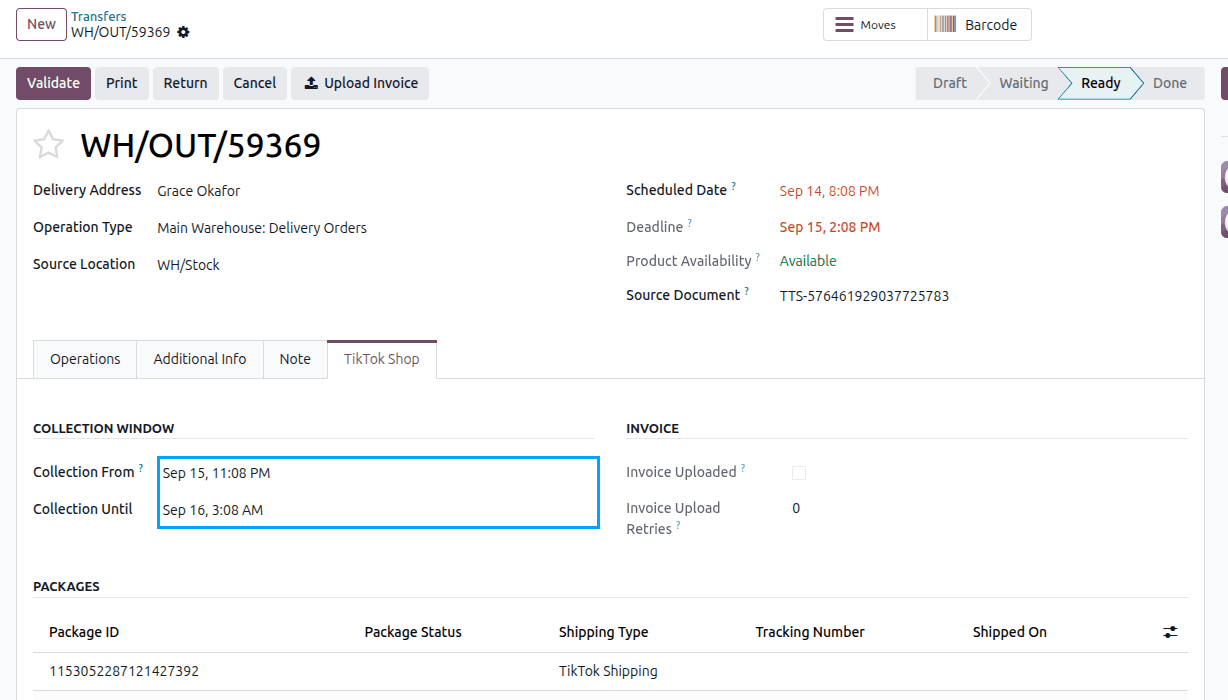
Where the parcel is collected, the delivery’s TikTok Shop tab offers Collection From and Collection Until. Leave them empty to take the window already set on the parcel or, failing that, the first window TikTok Shop offers. You can also set your own before reporting the shipment. The two fields are shown only when a parcel of that delivery is actually collected.
Shipping Part Of An Order
When a delivery carries only part of what TikTok Shop grouped together, the parcels leaving whole are shipped whole, and where TikTok Shop allows it the order is split so the rest can follow later.
Warning
Some markets ship every unit of a product together. Validating a delivery that would leave part of such a product behind asks you to confirm first, because TikTok Shop could not be told about it afterwards.
Download A Shipping Label
Once the shipment has been reported to TikTok Shop, open the delivery order of the TikTok Shop order.
Click TikTok Shipping Document.
Choose the Document and, where it is offered, the Paper Size and Format. Press Download.
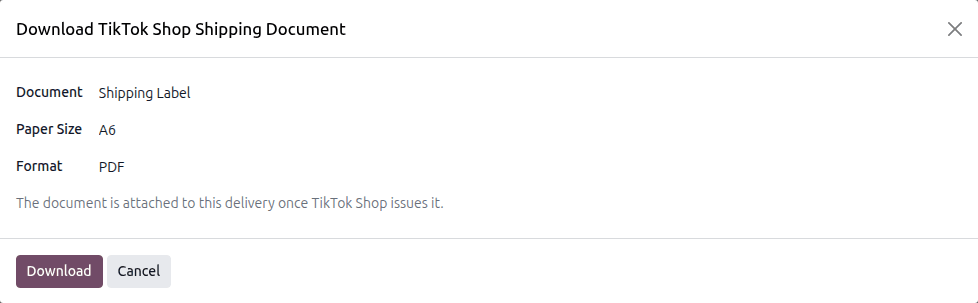
The document is attached to the delivery, and the tracking number that comes with it is written onto the delivery when it has none.
Important
Only a shipment TikTok Shop arranged has a label to fetch. A parcel you ship yourself is yours to print. The document exists only between the shipment being arranged and the carrier collecting it.