
Update Etsy Listings From Odoo
With Update Listings, you can update your existing Etsy listings from Odoo, including listing details (title, description, category, tags, Who Made, When Made, Is Supply, shipping profile, product type), inventory (SKU, variant properties, price, quantity and readiness state for every variant), images, and the published state. Only listings that already have an Etsy listing ID are updated. You can update listings from Odoo to Etsy in two different ways:
Method - 1: From The Operation Popup
Go to the menu in Odoo.
Click on the Operations button from the instance record.
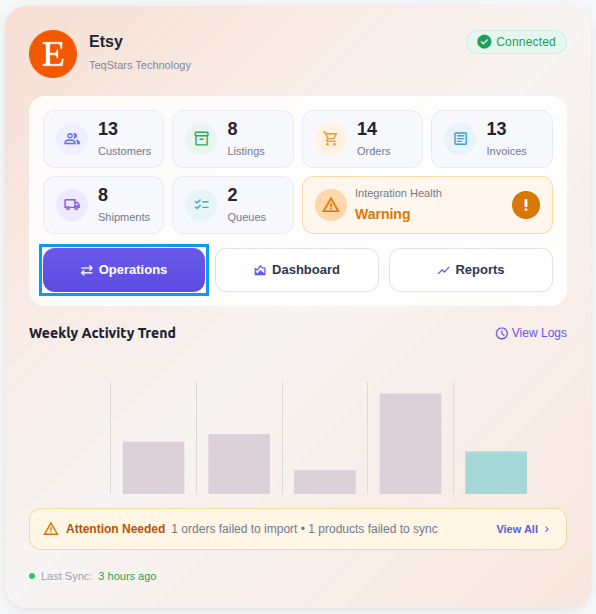
Select Export as the operation type and then choose Update Listings.
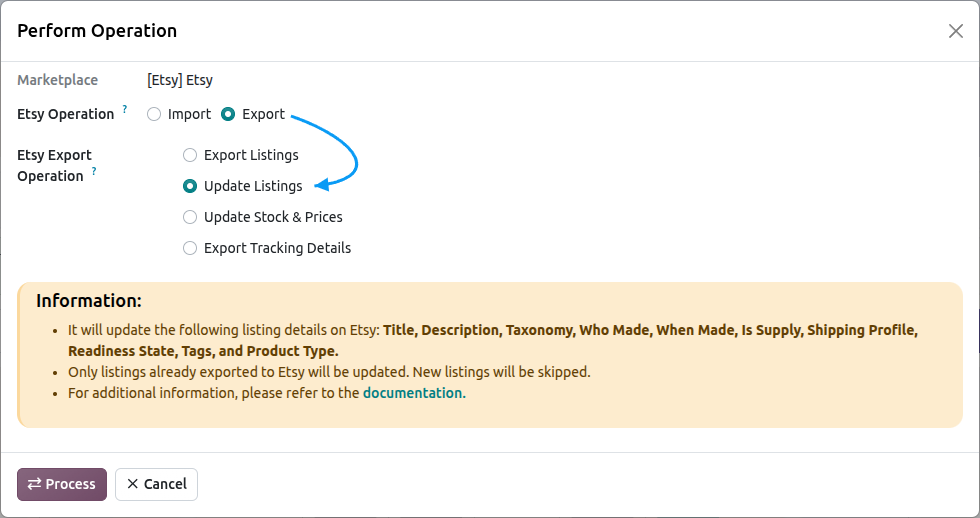
In the update wizard, configure what to push to Etsy:
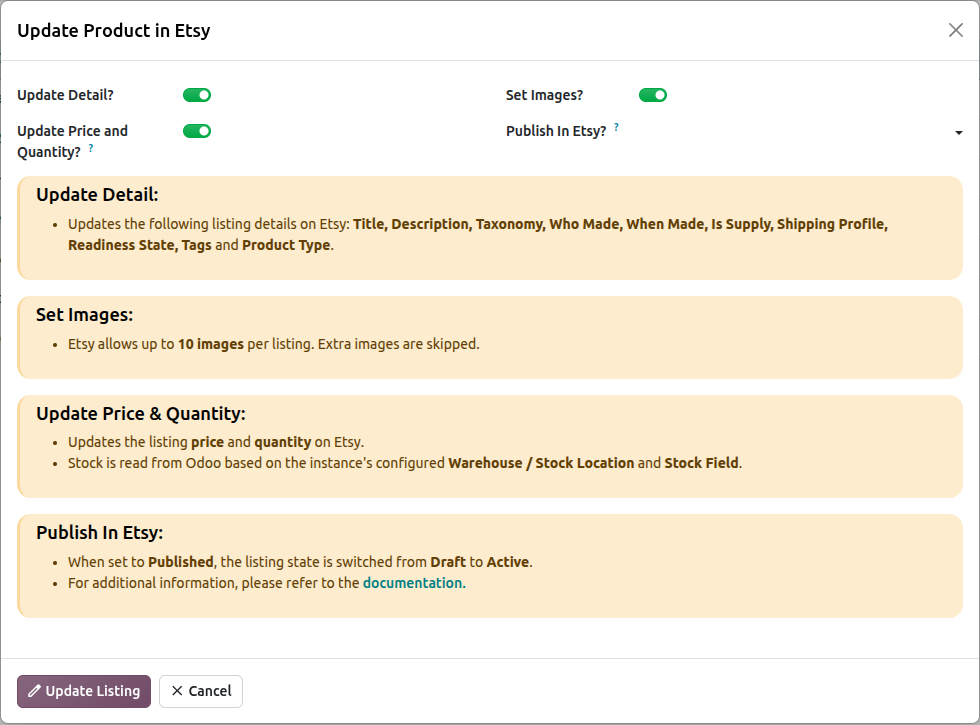
Update Product?: Updates listing details: title (first 140 characters), description, category, tags (up to 13), Who Made, When Made, Is Supply, shipping profile and product type. Price, quantity and readiness state are not part of this call; they are sent with Update Price and Quantity?.
Update Price and Quantity?: Replaces the listing inventory: SKU, variant properties (from the attribute mappings), price, quantity and the listing’s readiness state for every variant.
Set Images: Uploads the listing images again (up to 10); an image with the same position is overwritten.
Publish In Etsy?: Set to Published to make the listing live on Etsy, or Unpublished to move it back to draft. Set Images must be enabled when publishing. Leave it empty to keep the current state.
Press the Process button to update the listings on Etsy. This updates every exported listing of the instance; use Method 2 to update only selected listings.
Method - 2: From The Listing View
Go to the menu in Odoo.
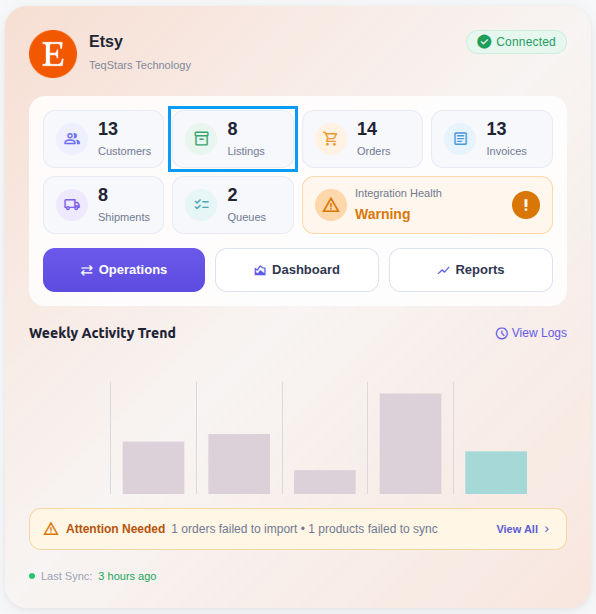
Click on the Listing button from the instance record to navigate to the marketplace listings view.
In the Listing menu, select the listings you want to update and click the Update Listing button.
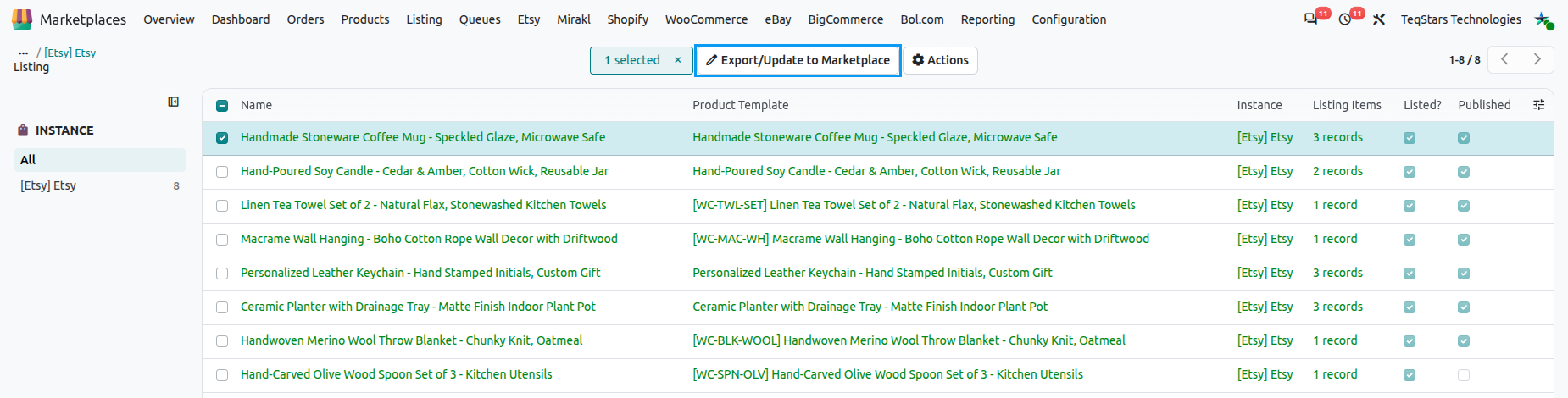
A pop-up window appears with various update options. Select the data you want to push to Etsy and press the Update Listing button.
Tip
The update popup shows the fields that will be sent based on your selections. Review them before processing.
After Update
If the update fails, check the error logs at .
Important
When Publish In Etsy is set to Published, the connector enforces that Set Images is enabled and that the product has at least one image - Etsy rejects publishing without an image.
See also