
Import Inventory In Odoo
Pull FBB / LVB (Logistiek via bol.com) warehouse stock from Bol.com into Odoo so the FBB Warehouse reflects what Bol.com has on hand.
Note
This operation is FBB-only. FBR stock is managed in Odoo and pushed to Bol.com via Export Inventory from Odoo to Bol.
For a manual import, the Auto Validate Inventory Adjustment? toggle in the Operations popup decides whether the resulting inventory adjustments are validated automatically. For the automatic import, the Validate Inventory Adjustment? instance setting is used.
Only listing items of listings with Fulfilment Method FBB are updated. Bol.com stock is matched to them by EAN (barcode); an EAN without a matching FBB listing item is written to the log and skipped.
The warehouse selected as FBB Warehouse on the instance must have a BOL Unsaleable Location. Without it the import stops and logs an error. The field is shown on the warehouse form () once the warehouse is used as FBB Warehouse of a confirmed instance.
Bol.com reports two quantities per EAN: the regular stock is set in the stock location of the FBB Warehouse, and the graded (unsaleable) stock is set in the BOL Unsaleable Location.
Only quantities greater than zero are written. A product whose stock dropped to zero on Bol.com is not set to zero in Odoo by this import.
Method - 1: Manual Inventory Import
Go to .
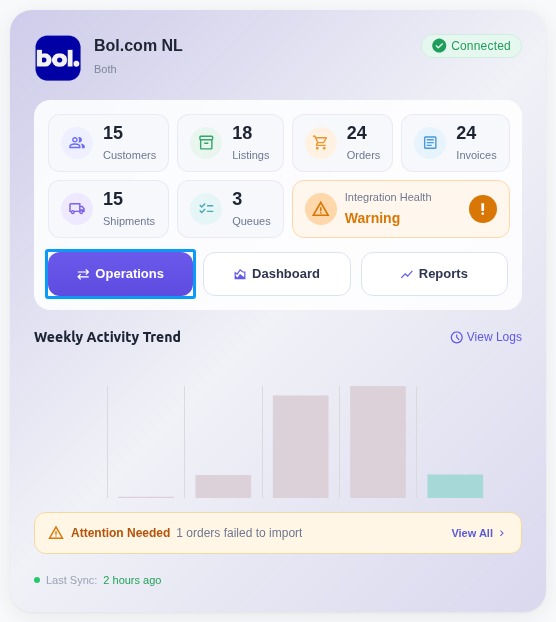
Click the Operations button on the instance card.
Set Operation For to FBB.
Under FBB Operations, select the Import FBB Stock option.
Enable Auto Validate Inventory Adjustment? if the imported stock should be applied automatically. If it is not enabled, the import creates inventory adjustments (counted quantities) under that you have to apply manually. Products tracked by lot or serial number are never validated automatically.
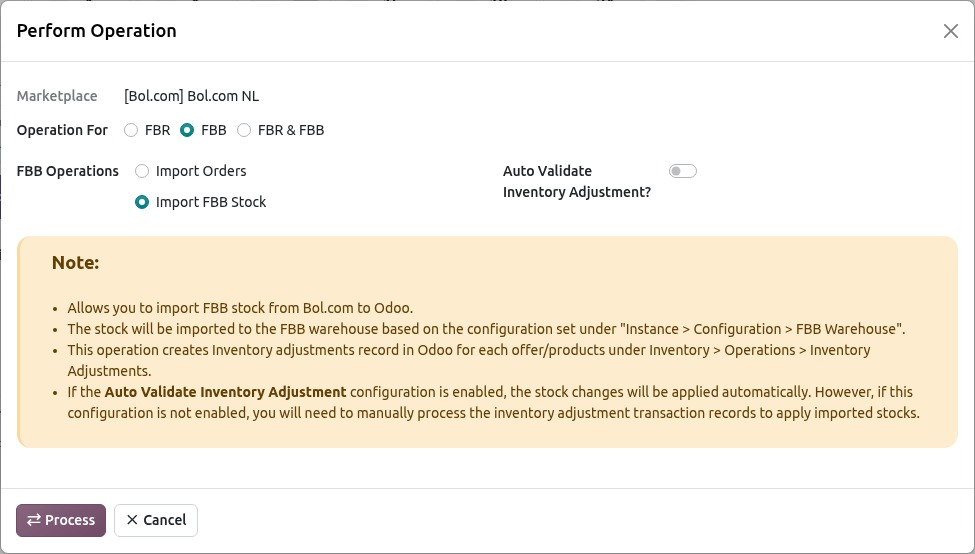
Click PROCESS.
You should now see the stock imported from Bol reflected in Odoo, distributed across different locations. By following these steps, you can successfully import stock levels from Bol to Odoo and keep your inventory data up-to-date in Odoo. Remember to review the imported data for accuracy and ensure that the stock levels match between both platforms.
Method - 2: Automatic Inventory Import
Use the scheduled action to keep FBB stock in Odoo automatically up to date.
Go to your Bol instance setting by navigate to .
Here you will see Automatic Jobs tab. In that tab you can configure Import LVB/FBB Product’s Stock automatic action by setting Interval Number, Interval Unit and Active.
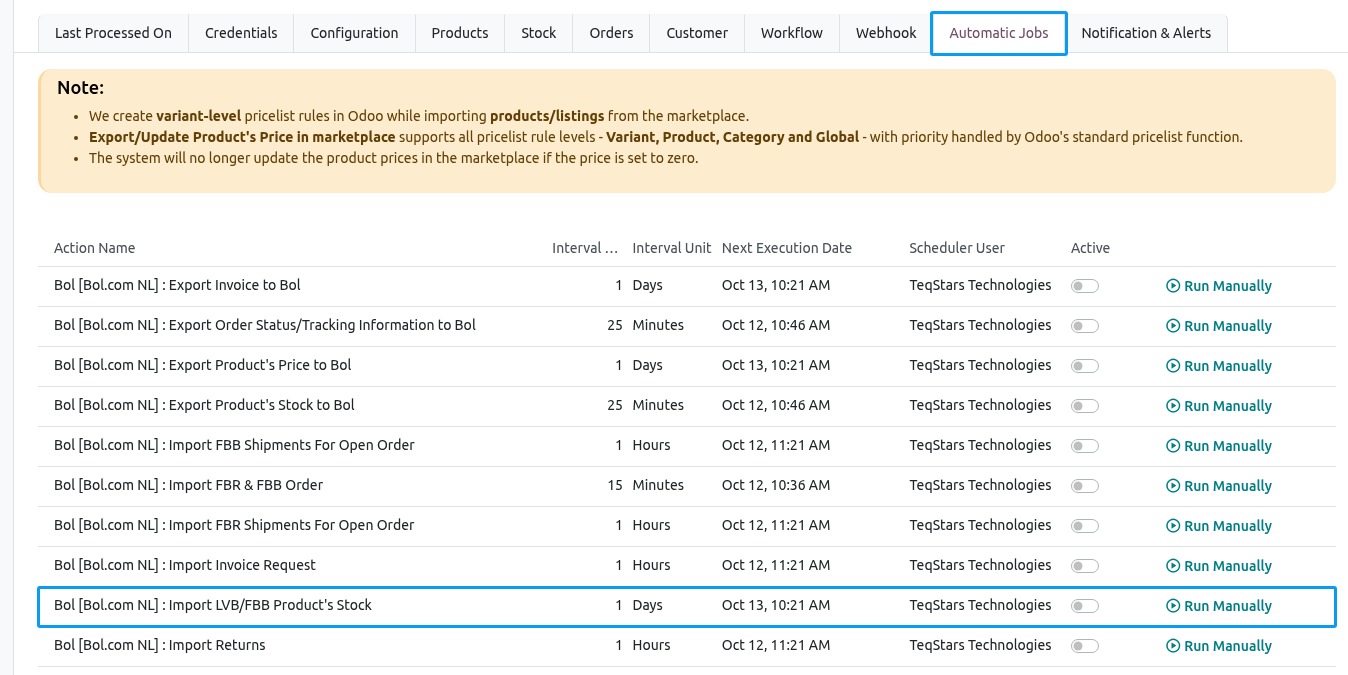
Once the schedule action is active, Odoo will automatically trigger the Bol inventory import at the specified time intervals. At the defined intervals, Odoo will fetch the latest inventory data from your Bol store and update the corresponding inventory in the system based on Validate Inventory Adjustment. The job is created inactive and runs once a day by default, and it only runs for confirmed instances.
See also