
Import WFS Inventory From Walmart
Note
WFS inventory can be imported for all four marketplaces: United States, Canada, Mexico, and Chile. See Walmart Supported Marketplaces.
With Walmart Fulfillment Services (WFS), Walmart holds your stock in its own fulfillment centers. Walmart is therefore the source of truth for those quantities, and the connector imports them into Odoo rather than exporting anything.
This operation appears when the Fulfillment Type of the instance is WFS or Both. See
Fulfillment Types.
Before You Start
Set the WFS Warehouse on the Configuration tab of the instance. WFS stock is recorded there.
Note
Use a warehouse dedicated to WFS, separate from the warehouse used for your own shipments. WFS stock is held by Walmart and cannot be used for other fulfillment. Keeping the stock separate prevents incorrect inventory levels and reduces the risk of overselling on other channels.
Note
Running the import without a WFS warehouse stops with “Please set the WFS Warehouse on the Walmart instance ‘…’ before importing WFS stock.”
Method - 1: Manual WFS Inventory Import
Go to the menu in Odoo.
Click on the
Operationsbutton from the instance record.Select Import Operation and then select Import WFS Inventory option.
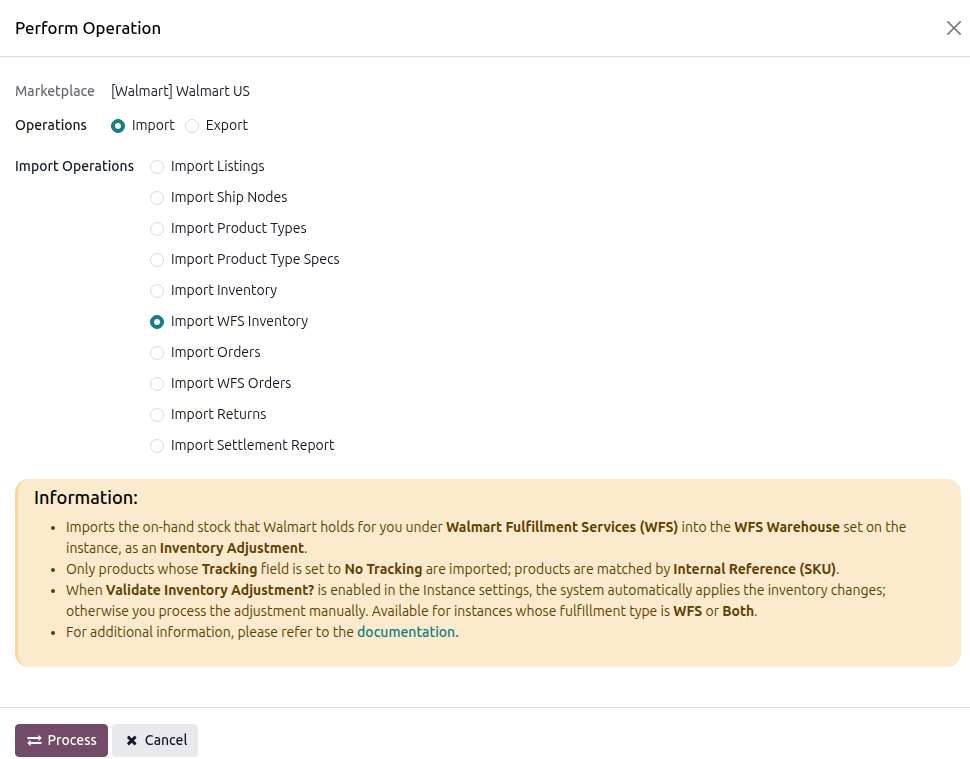
Press
PROCESSbutton.
Note
Only products whose Tracking is No Tracking are imported. Products tracked by lot or serial number are skipped.
Method - 2: Automatic WFS Inventory Import
Go to your Walmart instance setting by navigating to .
On the Automatic Jobs tab, configure the Import WFS Inventory job by setting Interval Number, Interval Unit, and then Active.
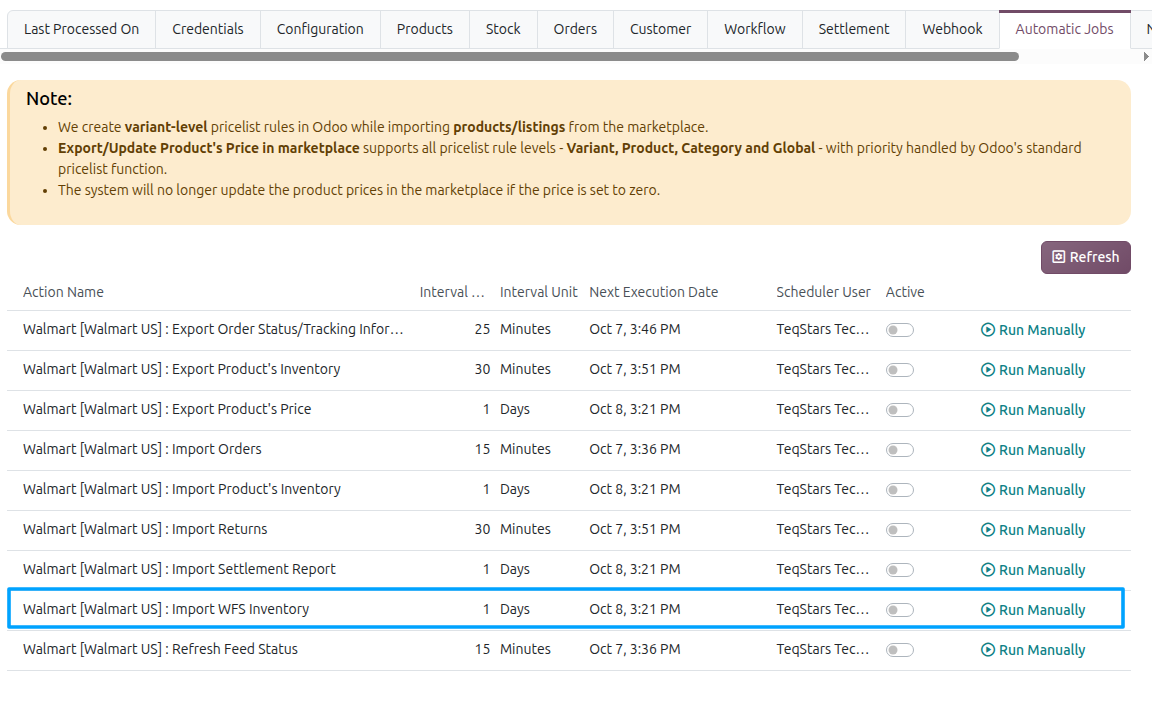
See Automatic Jobs.
Where The Stock Is Recorded
The whole WFS quantity is recorded in the stock location of the WFS Warehouse, as an inventory adjustment named WFS Inventory (<instance>).
Note
Ship nodes are not used for WFS. Ship nodes describe locations you ship from yourself, whereas WFS stock is held in Walmart’s own fulfillment network.
Important
The adjustment is applied automatically only if Validate Inventory Adjustment? is enabled on the Stock tab of the instance.
When WFS Stock Was Last Imported
The instance records when WFS stock was last imported separately from your own stock, in Last WFS Stock Imported On on the Last Processed On tab, so importing one never resets the other’s timestamp.