
Update Products From Odoo
After a listing has been pushed to BigCommerce (either via Export Products From Odoo or imported from BigCommerce in the first place), you can keep it up to date with Update Listings. This operation pushes selected fields from the Odoo Listing back to BigCommerce without re-creating the product.
You can update listings in two ways.
Method - 1: From The Operations Wizard
Use this when you want to push the latest product details to BigCommerce for all listings of an instance that are already in BigCommerce. This method pushes the product details only. The options of Method 2 are not offered here.
Go to the menu in Odoo.
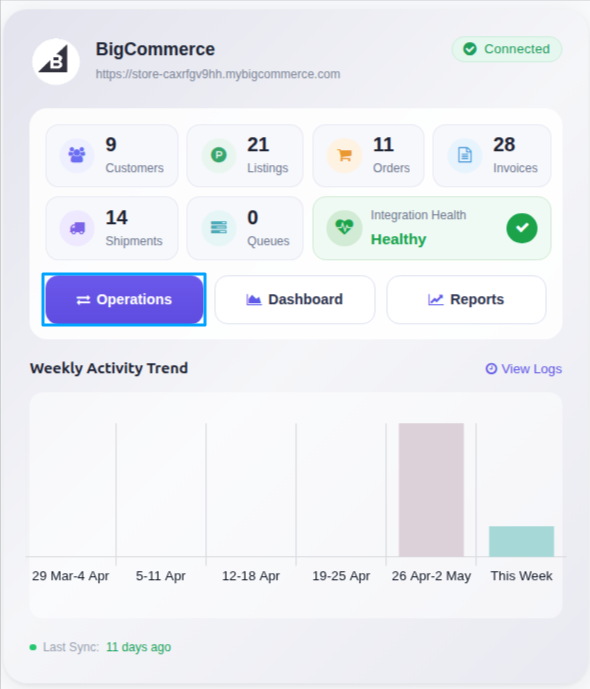
Click on the Operations button from the instance record.
In BigCommerce Operation, choose Export. Then in BigCommerce Export Operation, select Update Listings.
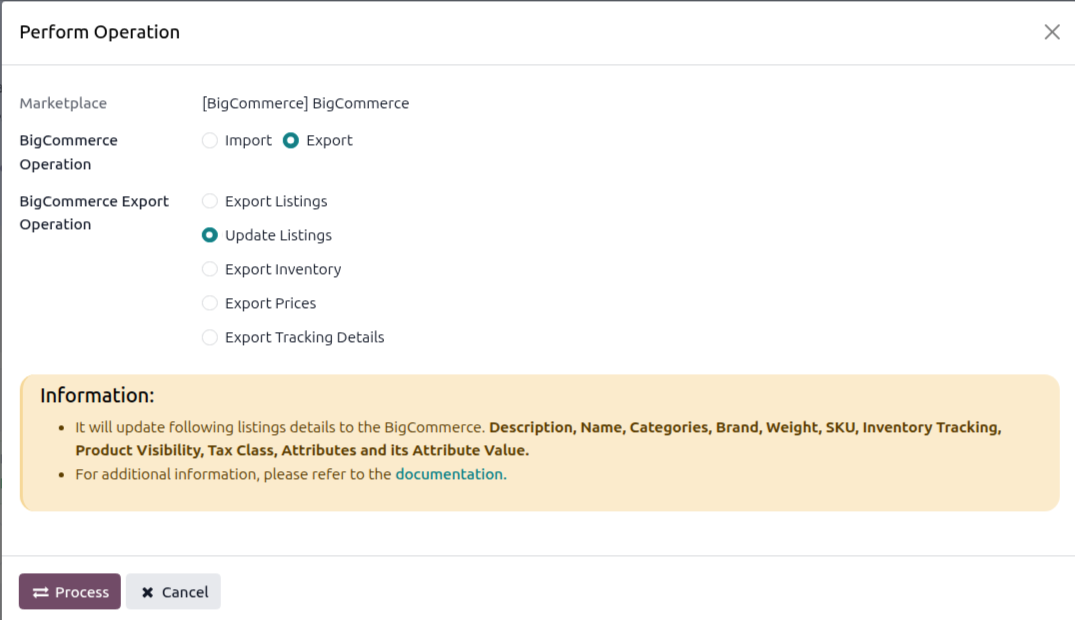
Click PROCESS. The connector updates all listings of the instance that are already in BigCommerce.
Note
To change a listing’s sales channels after it is already on BigCommerce, use the Manage Sales Channels button described below, or Method 2.
Method - 2: From The Listing View
Use this when you want control over what is pushed for one (or a small set of) listings, including channel publication.
Go to the menu in Odoo.
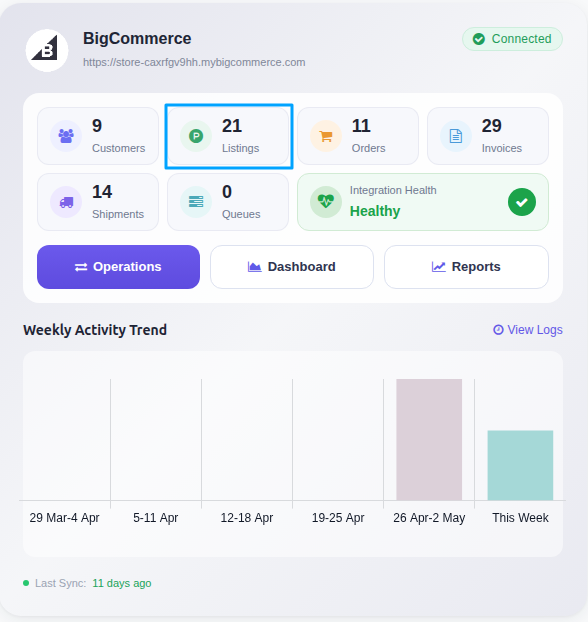
Click on the Listing button from the instance record to navigate where all your product listings are managed.
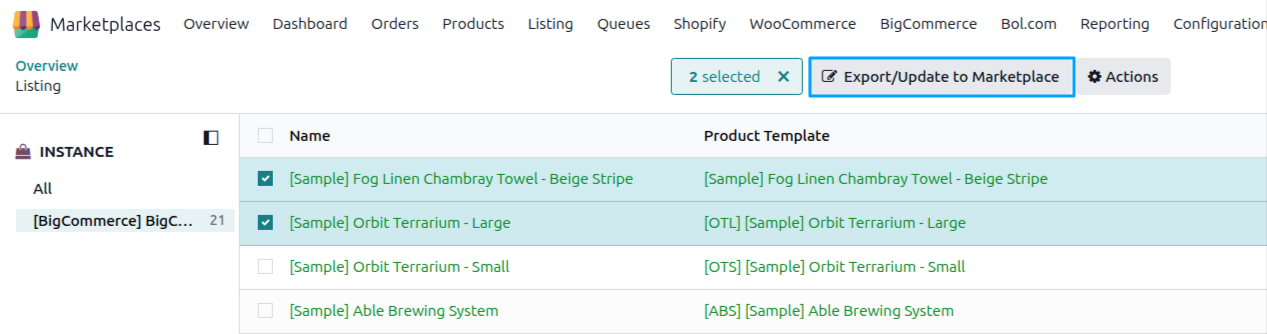
Select one or more already-exported Listings (Listed? is true). Do not mix exported and not exported listings in one selection. Odoo shows an error.
Click Export/Update to Marketplace above the list. On a single listing form you can use instead.
The connector detects that the listings are already exported and opens the Update Listings in BigCommerce wizard. Pick what to push and click Update Listing.
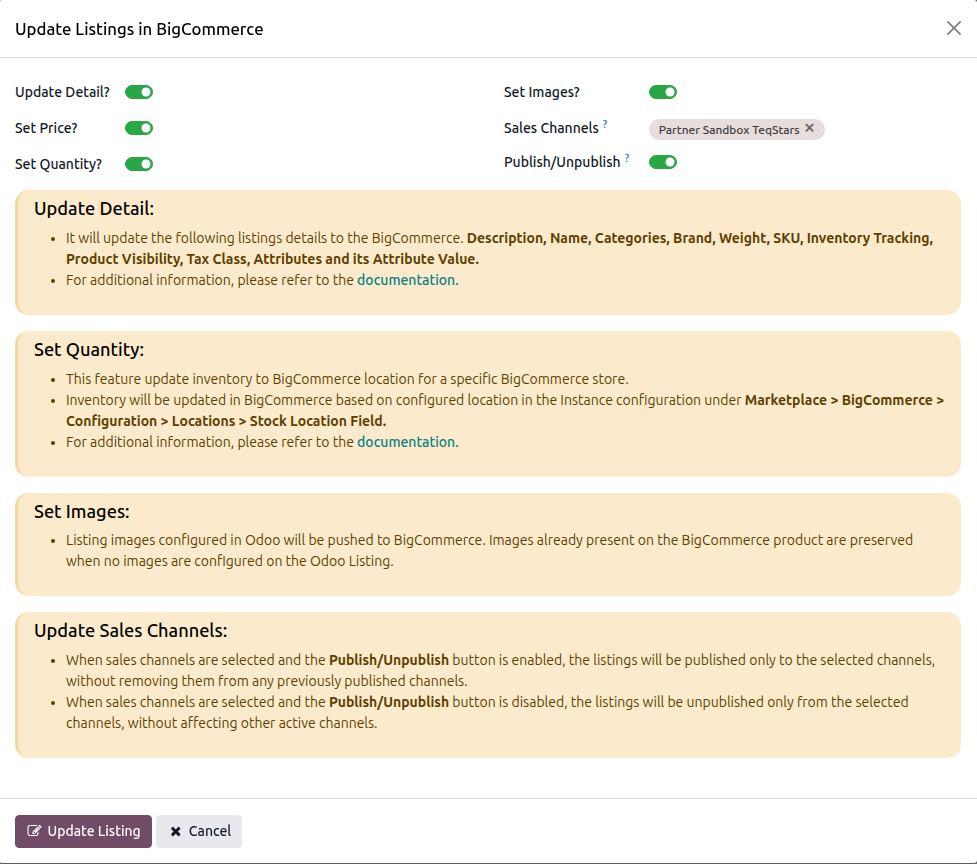
Available toggles and fields:
Update Detail?: Push product-level fields (Name, Description, Categories, Brand, Tax Class, Weight, SKU, Inventory Tracking, Visibility).
Set Price?: Push the product’s sale price, and the instance pricelist price of each variant for products with variants. A price of 0 is not sent.
Set Quantity?: Push the quantity defined by Stock Based On and the listing’s export quantity rule to the enabled BigCommerce locations.
Set Images?: Push listing images. Images already in BigCommerce keep their place and only their description and thumbnail flag are updated. New images are uploaded from their Odoo URL.
Sales Channels: Select one or more BigCommerce sales channels to act on. The field is pre-filled with the sales channels the listing is on.
Publish/Unpublish: When enabled, the selected listings are published only to the selected channels (existing channels are left untouched). When disabled, the selected listings are unpublished only from the selected channels.
Warning
The Publish/Unpublish toggle is off when the wizard opens, and Sales Channels is pre-filled with the channels of the listing. If you click Update Listing as it is, the product is removed from those channels. Clear Sales Channels, or enable Publish/Unpublish, before you click Update Listing.
What Gets Updated
With Update Detail? enabled, at the product level the operation pushes:
Name
Description
Categories
Brand
Tax Class
Weight: sent as a numeric value, automatically converted from the Odoo product’s weight to the BigCommerce store’s weight unit (see note below).
SKU: only for products without variants (variant SKUs travel with the variants).
Inventory Tracking mode (none / product / variant).
Visibility: whether the listing is published in the BigCommerce storefront.
For listings with variants, the operation pushes the SKU and weight of each variant when Update Detail? is on, and the price when Set Price? is on. Variants that do not exist in BigCommerce yet are created with their option values (attributes and attribute values).
To push prices or inventory for all listings, use Export Prices From Odoo and Export Inventory From Odoo. For selected listings you can also use Set Price? and Set Quantity? in Method 2.
Note
Weight Unit is not sent. BigCommerce stores a single, store-wide weight unit (configured in the BigCommerce control panel and read into the instance as Weight Unit during confirmation). The connector converts the Odoo product weight into that unit before sending the numeric weight value. BigCommerce does not accept a per-product weight unit. To change the weight unit on the BigCommerce side, change it in the BigCommerce store settings, then click Reset and Confirm on the instance in Odoo so the weight unit is read again.
Manage Sales Channels
A sales channel is a place where you sell your products in BigCommerce, such as a storefront. The connector brings your BigCommerce sales channels into Odoo, so you can choose from Odoo where each listing is published.
When Sales Channels Are Imported
The connector imports your sales channels the first time you confirm a BigCommerce instance. A sales channel that you create later in BigCommerce is added to Odoo when you import a listing that is assigned to that channel. Confirming the instance again does not import the sales channels a second time.
Sales Channels List
To see the imported sales channels, go to .
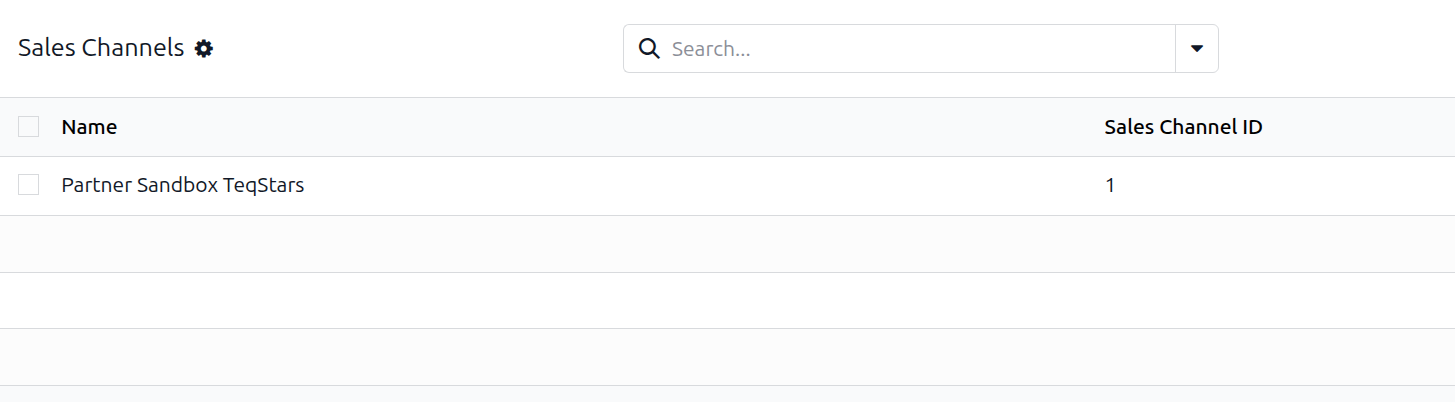
Each sales channel shows its Name and its Sales Channel ID in BigCommerce. The list is read-only. You cannot create or change sales channels in Odoo.
Sales Channels On A Listing
Open a BigCommerce listing and go to the Basic Information tab. The Sales Channels field shows the sales channels where the product is published. The field is read-only. You change it with the Manage Sales Channels button.
Publish Or Unpublish An Exported Listing
Open a listing that is already in BigCommerce. The Manage Sales Channels button appears once the listing is listed in BigCommerce.
Click Manage Sales Channels.
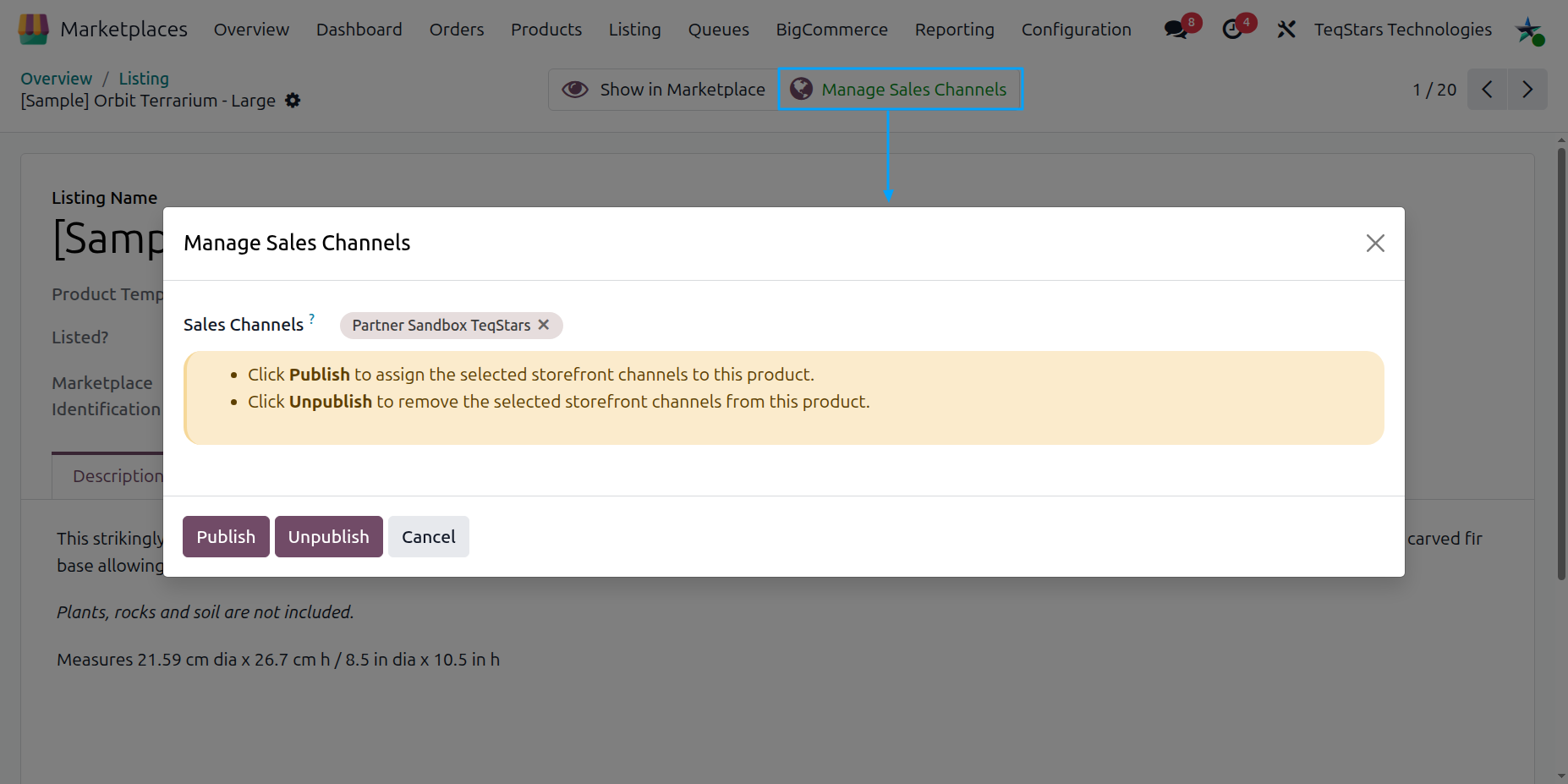
In Sales Channels (required), select the BigCommerce sales channels where the product should be added or removed.
Click Publish to add the product to the selected sales channels. Or click Unpublish to remove the product from the selected sales channels. To close the window without changes, click Cancel.
What happens to the other sales channels:
Publish only adds the product to the selected sales channels. The sales channels the product is already on stay as they are.
Unpublish only removes the product from the selected sales channels. The other sales channels stay as they are.
If no sales channel is left after you unpublish, the product is no longer visible in BigCommerce.
When the action finishes, the Sales Channels field on the listing shows the sales channels the product is now assigned to in BigCommerce.