
Chart Any Data
The Any data tab of Add card charts any business data you can already read: sales orders, invoices, opportunities, transfers, contacts, tasks, employees and more. There is no list to ask an administrator for.
Choose the Data
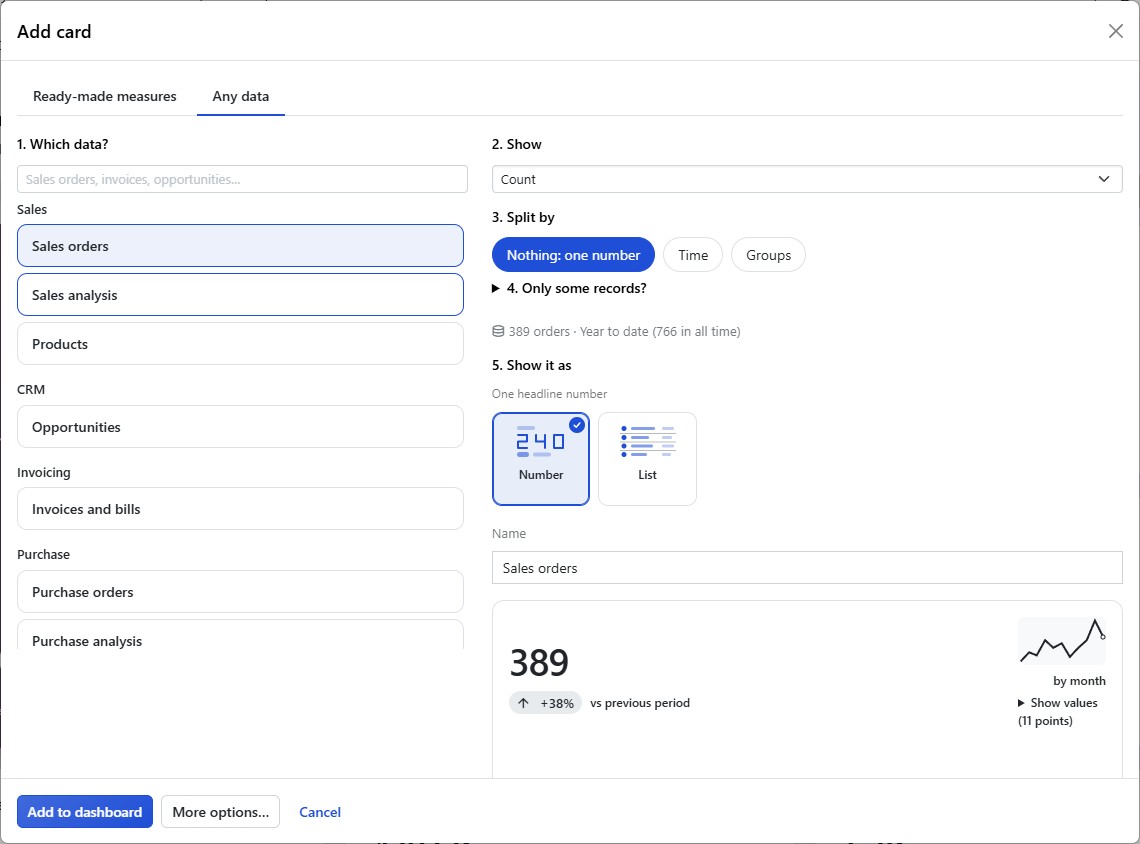
In Add card, open the Any data tab.
Pick the data. Business data comes first, under its app: Sales orders, Sales analysis, Products, Opportunities, Invoices and bills, Purchase orders, Purchase analysis, Transfers, Contacts and, when installed, Tasks, Employees and Helpdesk tickets. Show all data lists everything else you can open, and the search looks through all of it.
Build the Card
Show: Count, or the Total, Average, Lowest or Highest of a number or money field. A total lists money first.
Split by: Nothing: one number, Time (a date by day, week, month, quarter or year) or Groups. The fields managers split by most, such as salesperson, sales team, customer, status, product and country, come first; More fields… opens the rest.
Only some records?: Add conditions as in an Odoo filter, such as “Stage is Won”. Pick the field, then the value. Until both are set, the row says Pick a value.
Show it as: Pick the chart. The suggestion follows your choices. List shows the matching records as a list, for the things that need attention.
Check the Name and click Add to dashboard.
The editor says how many records your choices match, such as 1,405 orders match or No contacts match, counting only the records you can see. If the preview is empty for this period, click Preview all time to check the data exists.
A Personal Scorecard With Use Me
On a person field, such as Salesperson, Responsible or Employee, choose Use me in a condition. The card then shows each viewer their own records, whoever opens the dashboard. This is how one shared dashboard becomes a personal scorecard.
Me is worked out for each viewer when the numbers are calculated, with that viewer’s own access. Ordinary employees can use a shared scorecard without being allowed to read the employee list.
Money in Several Currencies
A total of money needs one currency, so a card never adds euros to dollars:
On a total of sales order amounts in several currencies, the first choice is Use Sales analysis (company currency): the card moves to Sales analysis, which Odoo keeps in the company currency. Conditions that mean something else there are left out and named.
The other choices keep one currency each and say how many records they keep, such as Only EUR · 5 orders.
A number compares with an earlier period only when that period’s records are in the same currency. Otherwise the card says The earlier records are in another currency, so there is nothing to compare with.
Access and Limits
Numbers are calculated with each viewer’s own access rights, exactly like the records they can open in Odoo.
Quick charts are turned off means an administrator switched off charting any data for your company. See Company Appearance and Any Data.
System and technical data, and sensitive fields, are never offered.