
Themes
Dashboard Imperium has thirteen themes, each in light and dark: Imperial Plum (the default), Pearl, Graphite, Midnight, Emerald, Sapphire, Sandstone, Odoo Classic, Volt, Iris, Cobalt, Sunrise and Glacier. You can also make a brand theme with your own colors.
Where a Theme Applies
A theme can be set at three levels. Each level follows the one above it unless you choose otherwise:
The company: Company theme in . See Company Appearance and Any Data.
The dashboard: Theme and Display mode in Dashboard settings. See Dashboard Settings.
The card: Card color in the card editor. See Card Settings.
A theme changes only the dashboards. It never changes Odoo’s own theme or menus.
Make a Brand Theme
Go to .
Click Create brand theme. The Library on the left lists the included presets and your own themes under All, Published and Drafts.
Enter a Theme name and choose the theme to Start from.
Set the Primary color, Secondary color and Highlight color, and the Backgrounds of each mode. Colors are six hex digits after #, such as
#714B67.Under Advanced appearance, adjust the Text size, Spacing, Corner style and Card depth if needed.
Check the Live preview and click Save draft.
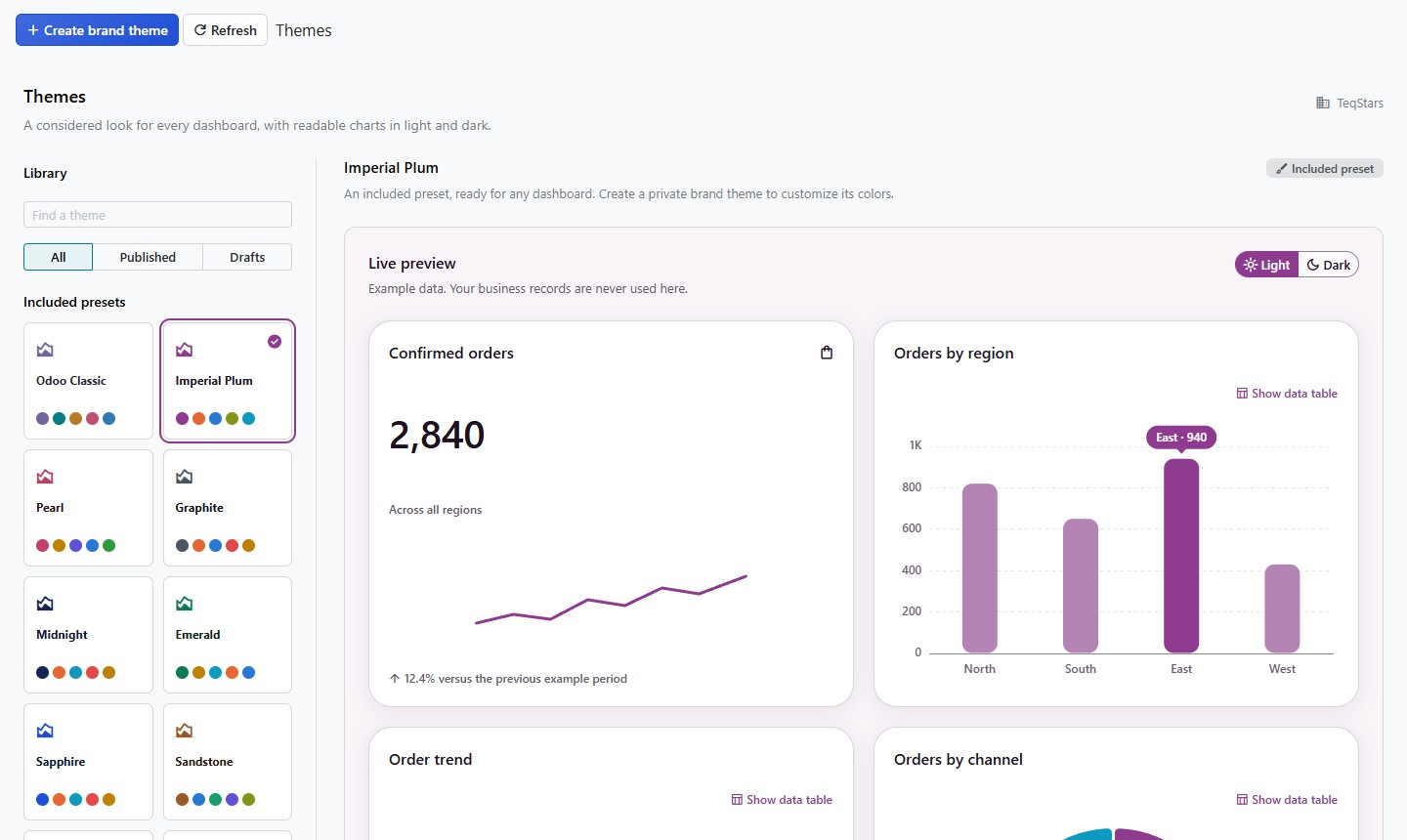
The live preview uses example data; your business records are never used there. Chart and text colors adjust to stay readable in both modes.
Publish a Brand Theme
A draft is visible to its owner and to administrators. An Administrator opens it and clicks Publish version. Each publication is a new version: dashboards and cards keep the version they use until someone selects another.
To use the published theme for the whole company, choose it in Brand theme in .