
Dashboard Settings
In the editor, Dashboard settings sets what applies to the whole dashboard: its name and look, its filters, its periods and how its cards are grouped.
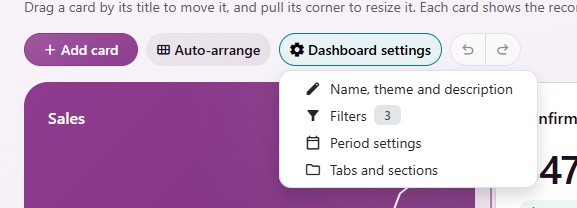
Name, Theme and Description
A small dialog with:
Dashboard name.
Theme: One of the thirteen themes, or the company theme. Each card can keep this theme or use its own. See Themes.
Display mode: Follow device, Light or Dark.
Description: What the dashboard should help your team understand.
Click Done to close the dialog.
Filters
Dashboard filters let viewers narrow every card at once, such as by salesperson or customer. See Filters and Only Mine.
Add a filter and choose, card by card, the field it follows.
The section header counts the cards it changes, such as Applies to 14 of 20 cards, and each card reads Changes this card, Keeps its own filter or Doesn’t change this card.
When a card has a field that points to the same kind of record, the editor shows a suggestion, such as Suggested: Invoice customer · Use this field. Nothing changes until you use it.
A filter on people drives Only mine for viewers.
The dashboards made from the template gallery come with their filters already set.
Period Settings
Choose the calendar and the default period of the dashboard:
Dashboard default: The period the dashboard opens on.
Week starts on.
Fiscal calendar, with Fiscal year ends in and On day, for the fiscal periods of the period menu.
Click Apply to draft. Reset period settings returns to the standard calendar.
Tabs and Sections
Group the cards of a large dashboard:
Sections let viewers scan one page. Tabs show one group at a time.
Overview is always first. Add a group with Add group, name it and give it a Description. Start collapsed closes a section when the dashboard opens.
Set as default chooses the tab the dashboard opens on.
Remove group; keep charts removes a group and keeps its cards.
Use one dashboard grid goes back to a single grid.
Each group keeps its own desktop, tablet and phone layout. Click Apply organization, then save the dashboard with Done.