
Company Appearance and Any Data
Each company has its own dashboard theme and its own switch for charting any business data. Users with Odoo’s Settings access set both on one form.
Open the Appearance Form
Go to . The form opens on the company you are working in.
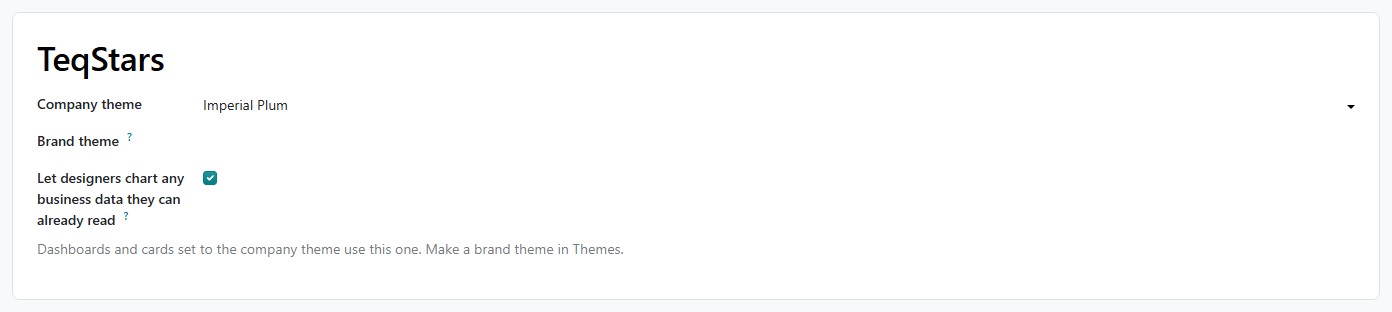
Company theme: The theme used by every dashboard and card set to follow the company. It does not change Odoo’s own theme or menus.
Brand theme: A theme with your own colors, made in . See Themes.
Let designers chart any business data they can already read: Designers can build a card from any data they may read, without anyone listing it first. Results always use each viewer’s own access rights.
The same settings are on the Dashboard Imperium tab of the company form, in .
Charting Any Data
Let designers chart any business data they can already read is on for every company. Turn it off only to stop Designers choosing data for that company. Dashboards that already exist keep working.
What designers are never offered:
Odoo’s system and technical data, the user list itself, user groups, payments and Dashboard Imperium’s own records.
Fields restricted to a user group, files, rich text, and fields named like a password, token, key, IBAN or social security number.
A field that points at a user (Salesperson, Responsible, Created by) can still split and filter a card, and it offers Me, so each viewer sees their own records. See Chart Any Data.
Tip
To block more data, add the technical names to the system parameter
dashboard_imperium.quick_source_blocklist (comma-separated) in
. A name ending with a dot blocks the
whole family, for example hr.contract.. You need
developer mode to open that menu.
See also