
Start From a Template
The fastest way to a dashboard is a template: one click builds a full dashboard on your own records. You need the Designer role. See Install and Grant Roles.
Open the Template Gallery
Open the gallery from any of these places:
Start from a template at the bottom of the dashboard switcher (click the dashboard’s name at the top left).
Start from a template on an empty dashboard.
My Home, when you may build dashboards but have none yet.
(Administrators).
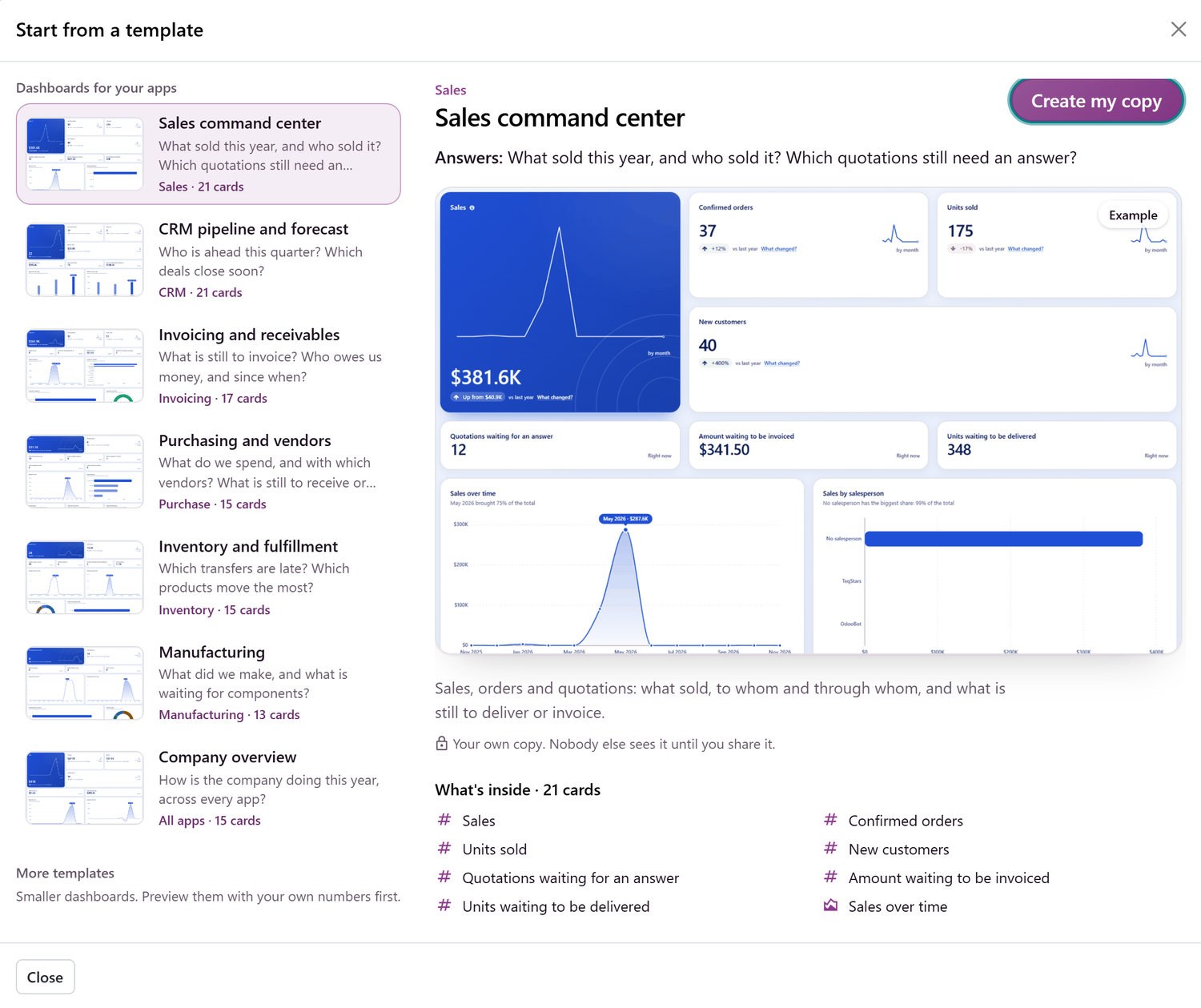
Create a Dashboard From a Template
Under Dashboards for your apps, select a template. The gallery shows one template per app you have installed: Sales command center, CRM pipeline and forecast, Invoicing and receivables, Purchasing and vendors, Inventory and fulfillment, Manufacturing, Point of sale, and a Company overview across them.
Read the right side: a large example picture, the questions the dashboard answers, a short description and What’s inside, every card with an icon for its chart type.
Click Create my copy.
Nothing is created until you click Create my copy. Your copy is a private draft that only you see until an administrator publishes it. See Publish and Share.
What a Ready Dashboard Holds
Your copy opens on the year so far, compared with the same dates last year:
Number cards with a line by month, charts over time, top customers, products and salespeople, and a world map.
What is waiting to be delivered, invoiced or received, and lists of the records that need a follow-up.
Two or three dashboard filters, such as salesperson, customer and sales team on Sales, or buyer and vendor on Purchasing. See Filters and Only Mine.
A card whose app or field you cannot use is left out, and the gallery says how many. Money is added up in the company currency only, so a dashboard never mixes currencies.
Note
Templates are starting points copied when you create a dashboard. A dashboard created earlier keeps its cards when a template improves: create a new copy to get the new cards.
More Templates
More templates are smaller dashboards built from ready-made measures, four to eight cards each.
Select one to see its cards with your own numbers before anything is created.
Create my copy creates it. Create all creates the newest version of each at once.
They open on the current month, compared with the same days of last month.
Team and People Starters
When the attendance, time off, timesheet or project apps are installed and charting any data is on for your company, the gallery lists Team and people:
My scorecard: hours worked, check-ins, hours logged, time off taken, hours by week and by project, your latest check-ins and the check-ins you forgot to close. Every card is limited to Me, so when you share the dashboard each person sees their own numbers.
Team performance: hours worked, hours logged and time off by employee, tasks by stage, and check-ins without a check-out.
To create them you must be allowed to read employees (an Employees officer). People who only read the dashboard do not need it.