
Export Odoo Products To Walmart
Note
Creating listings from Odoo is available only for the United States marketplace. For instances configured for Canada, Mexico, or Chile, create your listings in Seller Center. Price and inventory can still be exported from Odoo for all marketplaces. See Walmart Supported Marketplaces.
Exporting creates new listings on Walmart from your Odoo products. To change listings that already exist on Walmart, see Update Walmart Listings From Odoo.
Before You Export
Walmart will not create a listing unless the item is fully described. Each listing needs:
A Walmart Product Type, with its specification fetched. See Import Walmart Product Types In Odoo.
All required attributes filled in. See Walmart Listing Attributes.
At least one variant, each with an internal reference (SKU).
A barcode on each variant. Walmart identifies items by GTIN, UPC, EAN or ISBN, and the barcode is how the connector supplies one.
A price, taken from the Pricelist on the instance. A listing with no price is still sent, but Walmart is likely to reject it.
Tip
Work through the amber Required attributes not set banner on the listing until it disappears. It lists exactly the attributes the export requires.
Export A Listing
There are two routes: select the listings you want, which is the usual approach, or run the operation for the whole instance.
From The Listing List
Go to and tick the listings to export.
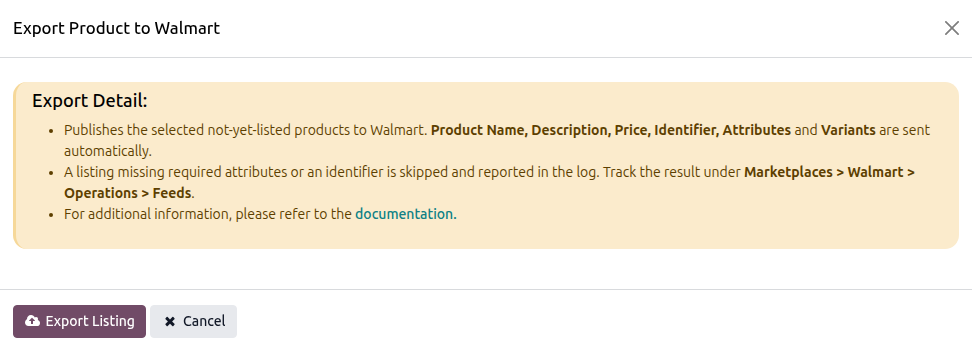
Click Export/Update to Marketplace.
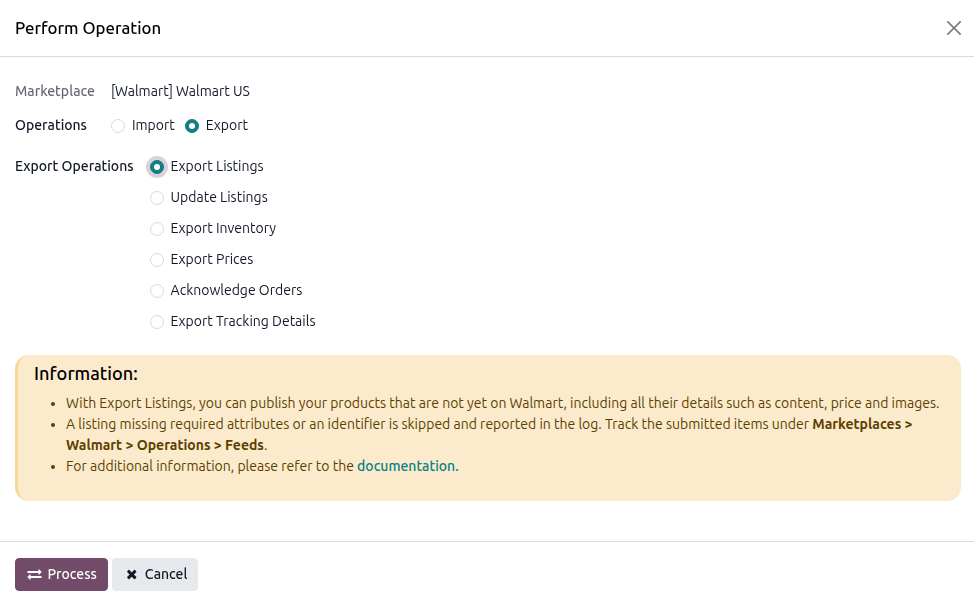
In the dialog, click Export Listing.
Note
The button is available on the listing list, not on an individual listing. Select the listings from the list without opening them. Only select listings that are not yet on Walmart; if you select a mix of new and already-listed products, the already-listed ones are ignored, since they require a different operation.
Note
The export dialog has no options. Creating a listing on Walmart always sends the complete item, including its details, price, and images.
From The Operations Popup
To export everything on the instance that is ready, open the Operations button from the instance
record, select Export Operation, then Export Listings, and press PROCESS. See
Operations.
What Is Sent
For each variant the connector sends its SKU, its product identifier taken from the barcode, its price, and every Walmart attribute you filled in, plus:
the listing name and description, where the product type’s specification allows them,
the images attached to the listing, where the product type’s specification allows them and the image has a URL,
the variant grouping, so Walmart shows your variants together as one product rather than as unrelated items.
The export is submitted to Walmart as a feed. Large exports are split into several feeds automatically, and a listing is never split across two of them.
Important
Walmart processes feeds in its own time, so a successful submission is not yet a successful listing. Track the outcome under , where the result is recorded for each individual SKU. See Walmart Feed Management.
After The Export
Once Walmart has accepted the feed, the connector records the Walmart item identifier on each variant and marks the listing as listed. From that point on, use Update Walmart Listings From Odoo to change it.