
Human-in-the-Loop Approvals
Approvals are the safety net for risky AI actions. With approvals configured, the AI cannot just call a sensitive tool. It has to file a request that a human reviews in Odoo, approves or rejects in plain English, and then watches Odoo execute under the original requester’s permissions.
When to use approvals
Typical candidates for approvals on a write-capable connection:
delete_record,batch_delete: irreversible deletion.execute_method: full power to call any public method.send_test_email_template,stage_mass_mailing_from_template: anything customer-facing.transition_state: moving an order to “confirmed” or an invoice to “posted”.
Configure approvals per connection
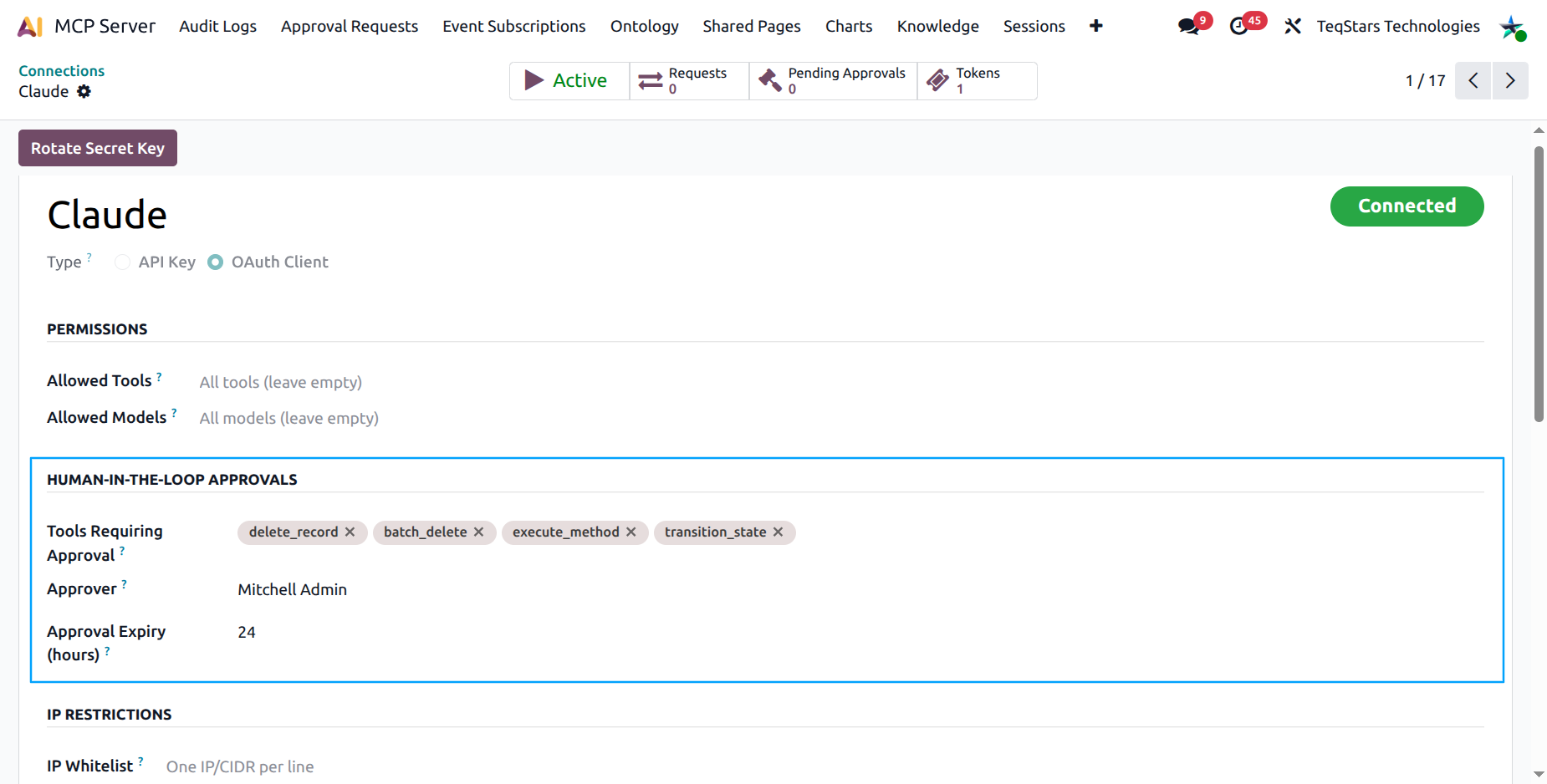
Open the Connection form ().
Scroll to the Human-in-the-loop Approvals group.
Add tools to the Tools that need approval field.
Pick an Approver: the Odoo user who reviews requests for this connection. Defaults to nobody, in which case any MCP Administrator can act.
Set Approval Expiry (hours): pending requests older than this are automatically expired by the cron.
The approval workflow
Step 1: The AI tries a risky action
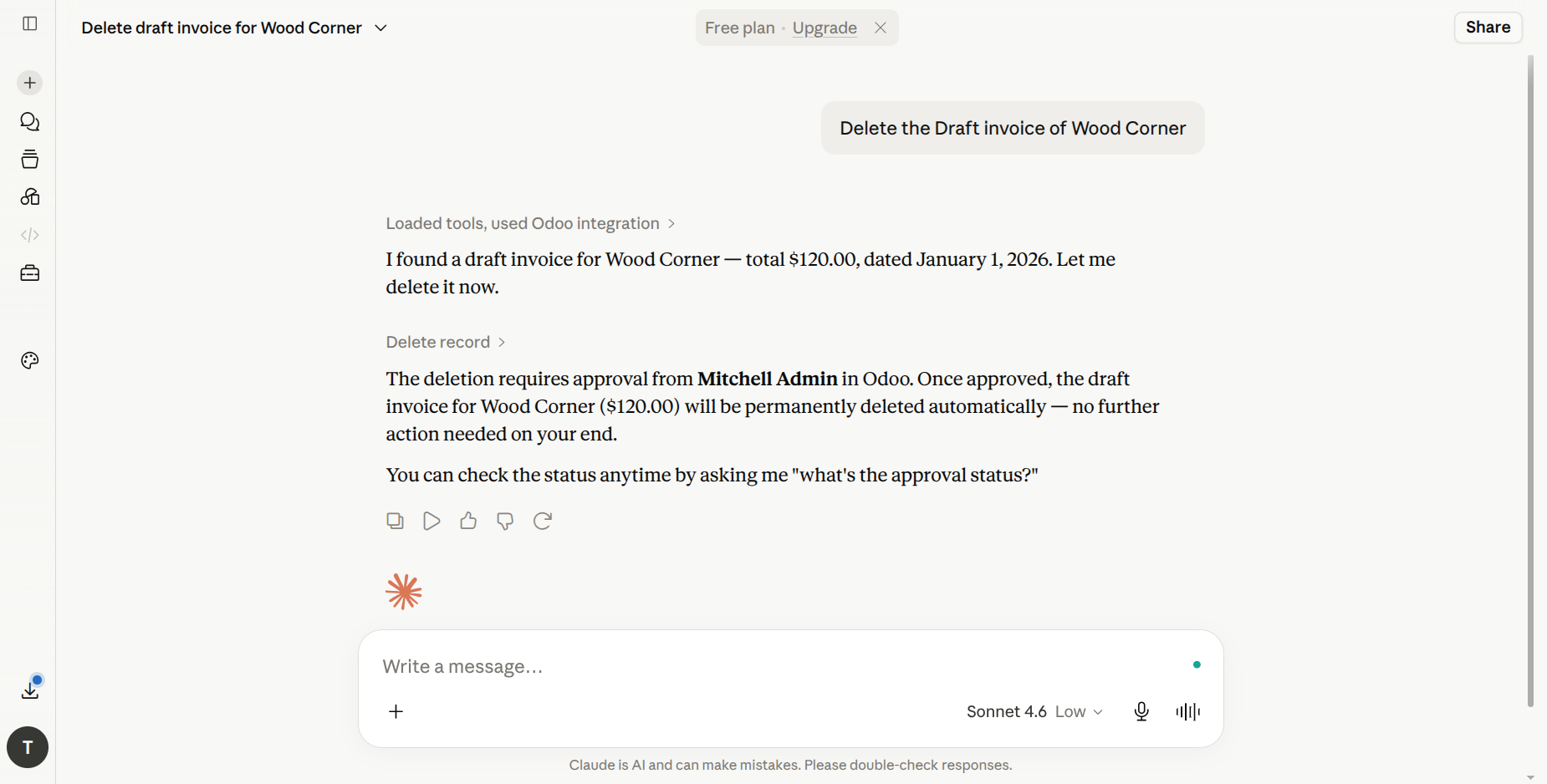
A user asks the AI to do something the connection has gated behind approval. The AI calls the tool as usual, but instead of executing, the MCP Server:
Creates an
mcp.approval.request.tsrecord.Computes a plain-English summary (e.g. “Permanently delete 12 quotations on sale.order.”).
Stores the tool name, arguments, requester, assigned approver, and expiry.
Sends an Odoo activity to the approver.
Returns a
pending_approvalresponse to the AI with the newrequest_id.
The AI tells the user that the action is awaiting approval.
Step 2: The approver reviews the request
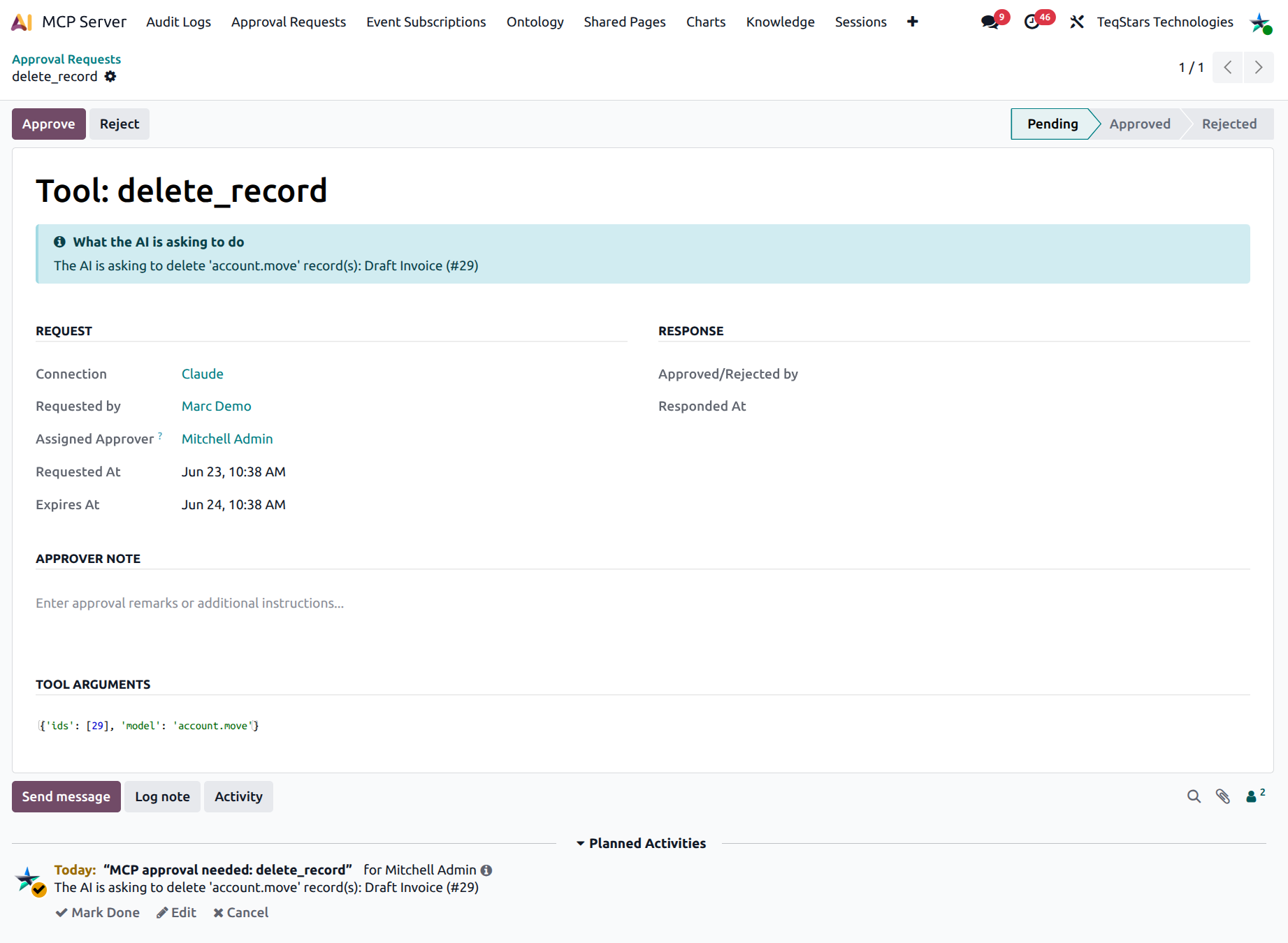
The approver navigates to . Pending requests are highlighted yellow and pre-filtered to show.
Opening the request shows:
What the AI is asking to do: the plain-English summary.
The Request group: connection, requester, assigned approver, requested-at, expiry.
The Tool Arguments group: the raw arguments as JSON, for technical auditing.
Buttons Approve and Reject in the header.
An Approver Note field for any free-text remarks.
Note
The requester never sees Approve / Reject. Those buttons are visible only to the assigned approver or an MCP Administrator. This is enforced both in the UI and server-side, so the requester cannot self-approve their own AI’s request.
Step 3: Approve or reject
Click Approve:
The request status flips to Approved.
Odoo auto-executes the deferred tool call server-side under the original requester’s ACL (not the approver’s).
The result is cached on the approval request row.
Click Reject:
The request status flips to Rejected.
The deferred tool call is dropped.
The AI later sees an explanatory message.
Step 4: The AI surfaces the result
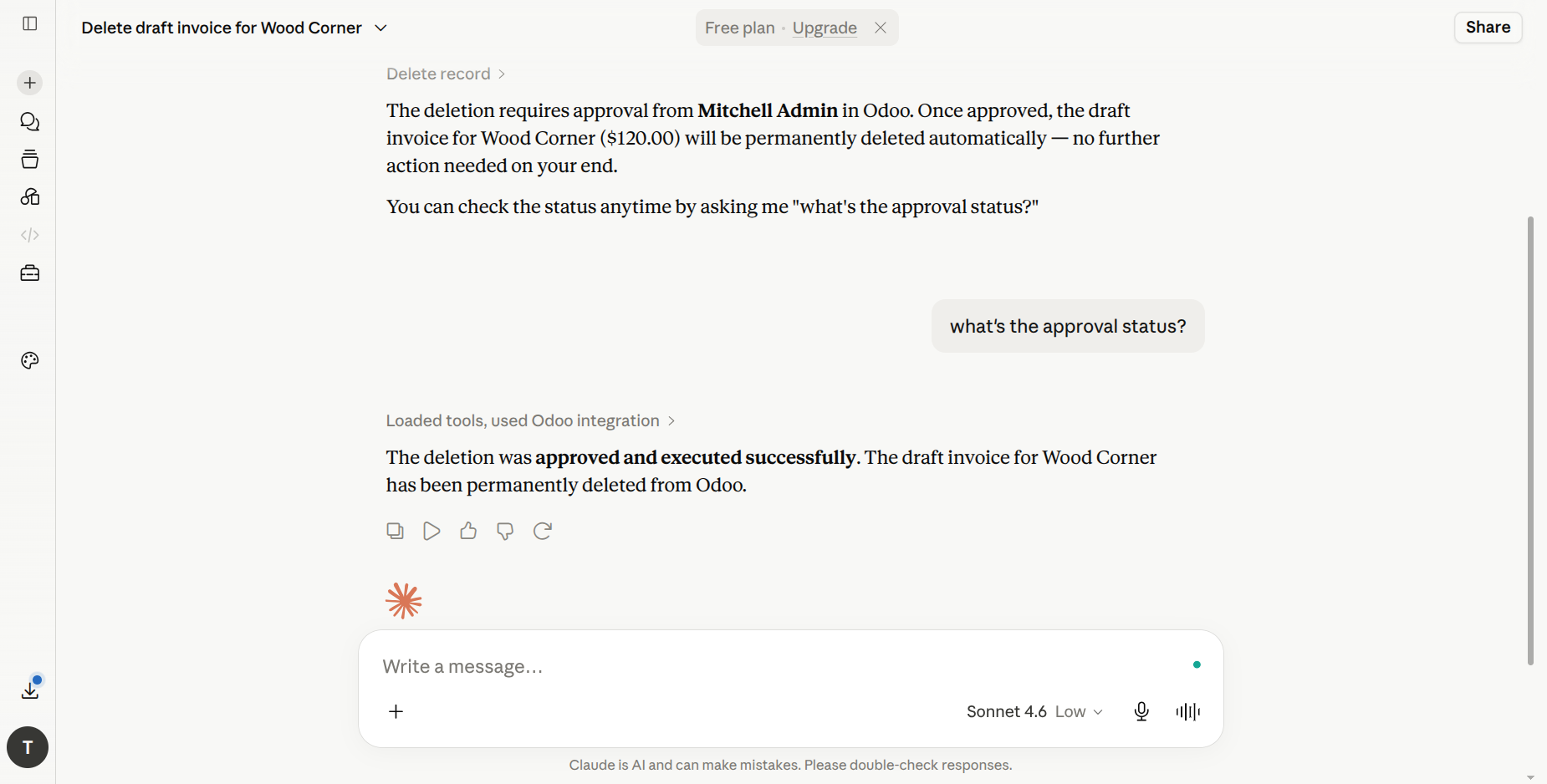
The AI calls check_approval_status (typically when the
user asks “what happened?” or “approved”). The server returns:
status: pending / approved / rejected / expired.execution_status: pending / success / error.result: the cached tool output when approved + executed.error: the failure reason if auto-execution failed.
If the request was approved and executed successfully, the AI surfaces the cached result to the user and does not retry the original tool, which would create a duplicate action.
Approval lifecycle
Status |
When |
Visible to |
|---|---|---|
Pending |
The AI just filed the request |
Requester + Approver + Admin |
Approved |
Approver clicked Approve |
All of the above |
Rejected |
Approver clicked Reject |
All of the above |
Expired |
No response before Approval Expiry hours; cron expired it |
All of the above |
Cron behaviour
The MCP: Expire Pending Approval Requests cron runs every
30 minutes and flips any pending request past its
expires_at to Expired. Expired requests cannot be
acted on anymore. The AI can re-file a fresh request if the
user still wants to proceed.
Best practices
Pair high-risk tools (
delete_record,execute_method,send_test_email_template) with a real human approver.Use a shared mailbox or team as the approver if a single person becomes a bottleneck, since any MCP Administrator can also approve.
Keep the Approval Expiry hours short (1–4 hours) so the request list never grows stale.
Use the Approver Note field to record context (e.g. “Approved after confirming with finance”) for the audit trail.