
Export Inventory From Odoo
Exporting inventory pushes Odoo quantities to BigCommerce locations. For each enabled location, the connector sends the quantity of the Odoo stock location mapped to it. The updates are sent in batches.
Note
The Stock Based On setting on the instance controls which quantity formula is exported (Free To Use, Quantity On Hand, or Forecasted Quantity).
Prerequisites
At least one BigCommerce location must have Enable Import/Export Stock? enabled and a mapped Stock Location (Odoo stock location). Locations without a stock location are skipped and an error is written to the log.
The listing’s Inventory Tracking must not be set to Inventory Level will not be tracked. Listings with that setting are skipped.
Listing items that were never exported before also need an Odoo product that tracks inventory.
Only the listing items whose stock changed since the last inventory export are exported. The first run exports all listed items.
There are two ways to export inventory.
Method - 1: Manual Export
Go to the menu in Odoo.
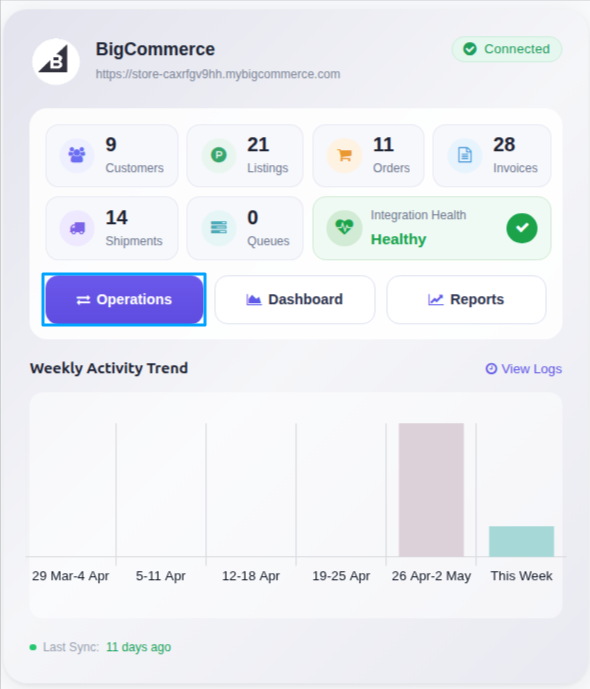
Click on the Operations button from the instance record.
In BigCommerce Operation, choose Export. Then in BigCommerce Export Operation, select Export Inventory.
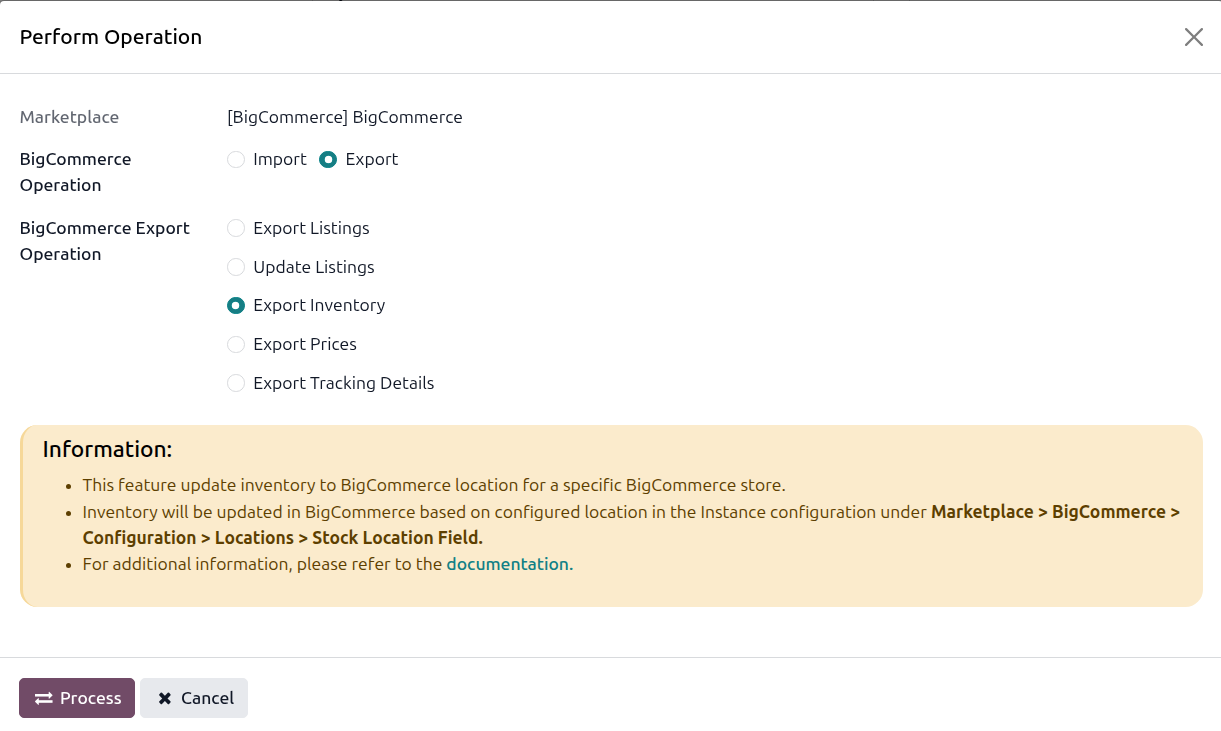
Click PROCESS. The connector sends the latest quantities of the changed listing items to BigCommerce in batches.
Tip
Use the Export Qty Type and Export Qty Value fields on the Inventory tab of the listing (or on the listing item when the listing tracks inventory by variant) to change what is sent. Percentage sends that percentage of your stock. Fix sends the value you set, never more than the stock you have.
Method - 2: Automatic Inventory Export
Inventory export from Odoo to BigCommerce can be automated using the Automatic Schedule action, which allows you to set up a predefined time interval for the execution of the export inventory process. This automation ensures that the inventory data from your Odoo ERP is regularly and systematically updated in BigCommerce without the need for manual intervention. Here’s how the process works:
Go to your BigCommerce instance setting by navigating to .
Open the Automatic Jobs tab. In that tab you can configure the BigCommerce [your instance] : Export Product’s Inventory automatic action by setting Interval Number, Interval Unit, and then enable Active.
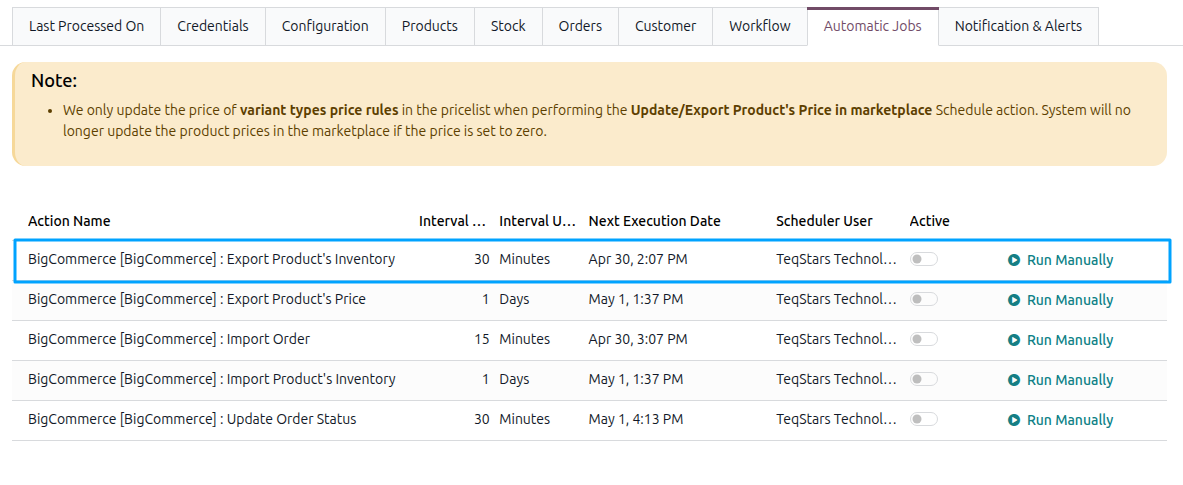
Once the schedule action is active, Odoo triggers the inventory export from Odoo to BigCommerce at the specified time intervals, updating the corresponding inventory in BigCommerce based on the Stock Based On configuration.