
eBay Payout Report
Payout reports bring your eBay payouts into Odoo so you can match them to bank statements and reconcile them with invoices. The connector reads each payout and its transactions (sales, refunds, shipping labels, fees and others) from eBay’s Finances API and creates eBay Payout records and Bank Statement lines in Odoo.
Where To Find Payout Report
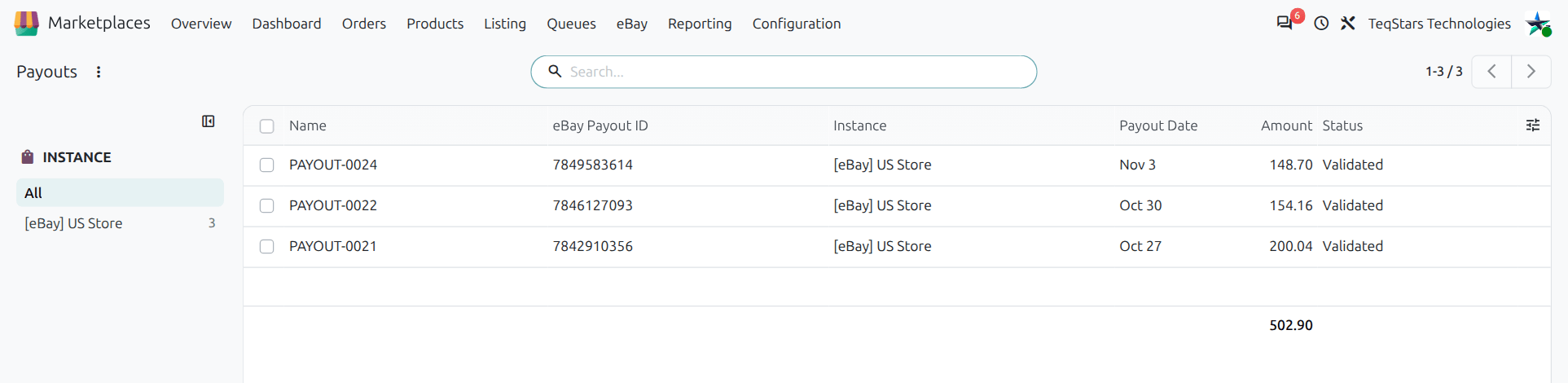
Go to to see the list of imported payouts.
Before You Start
Configure the eBay payout instance settings on the Payout tab. The Payout Journal and the account lines can be changed while the instance is in Draft:
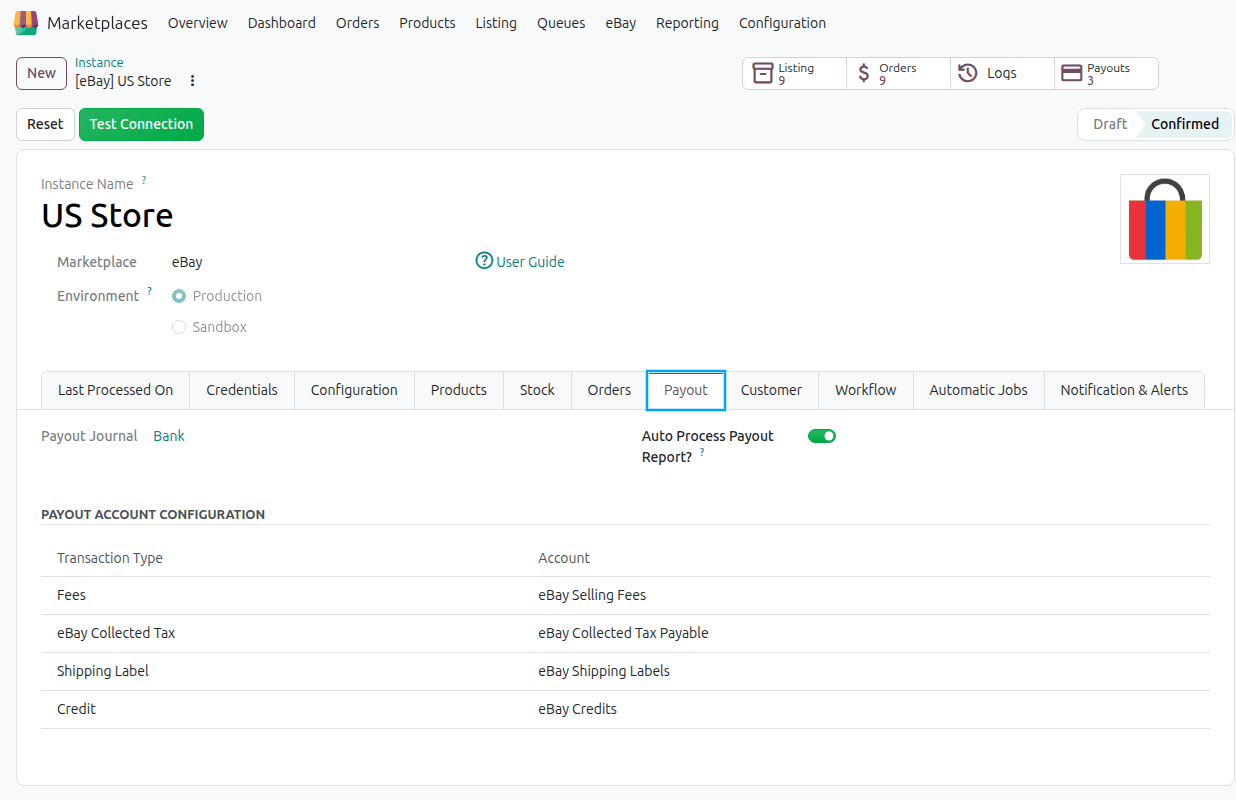
Payout Journal: The journal used for payout bank statements in Odoo. The other payout options appear after you set it.
Auto Process Payout Report?: If enabled, the connector tries to reconcile payout lines when payouts are imported. This option needs Odoo Enterprise.
Payout Account Configuration: Map each Transaction Type to an Odoo Account. This is used for every line that is not a sale, for example Fees, eBay Collected Tax, eBay Collected Charges, Shipping Label, Refund, Credit and Dispute. A Sale line is matched with the order’s invoice or payment, so it does not use an account from this list.
These options are described under Payout configurations in the Create instance documentation.
Note
eBay requires signed requests on Finances calls for sellers based in the EU or the UK. The connector creates the signing key and signs these calls for you, so there is nothing to set up.
Importing Payout Reports
Method - 1: Manual Import
Go to the menu in Odoo.
Click on the
Operationsbutton from the instance record.Select Import Operation and then select Import Payout Report option.
Set the Date Range for which you want to fetch payouts. The range is filled in for you and starts a few days before Last Payout Imported On, so a payout that eBay confirmed late is not missed.
To import specific payouts instead, enter the eBay Payout ID. You can find it in eBay Seller Hub. Separate multiple IDs with a comma. The Date Range is not used in this case.
Click on the
PROCESSbutton.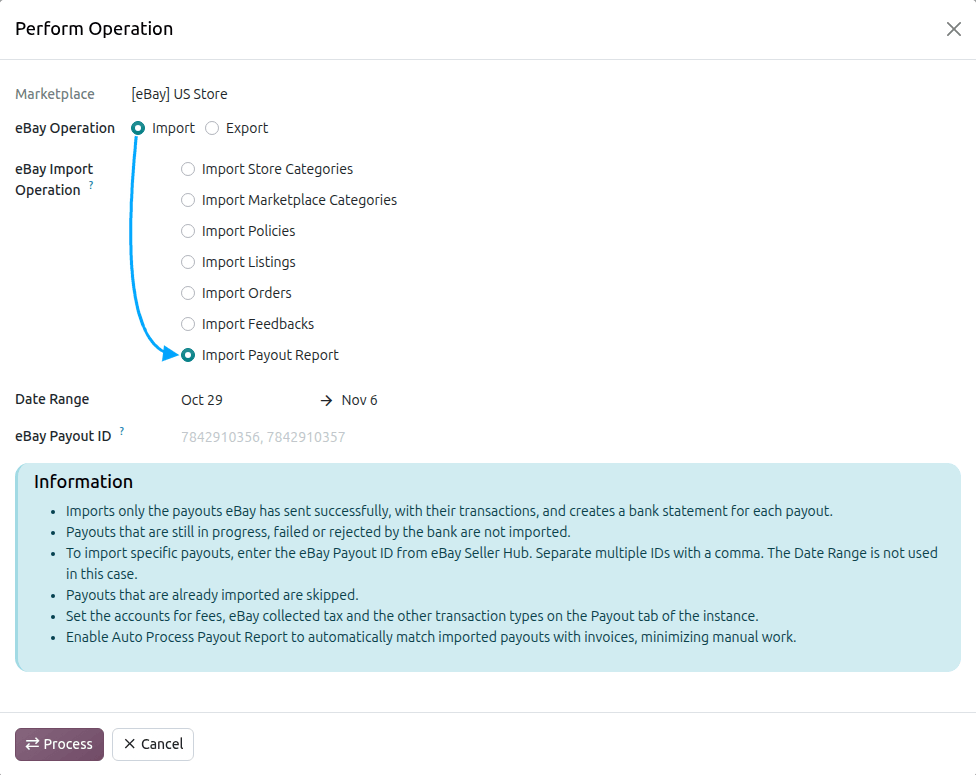
The connector imports only the payouts eBay has sent successfully, creates an eBay Payout record with its Payout Lines, and creates a Bank Statement in the Payout Journal for each one. Payouts that are still in progress, failed or rejected by the bank are not imported, and payouts that are already imported are skipped. Odoo then opens the imported payout, or the list when several are imported.
If an eBay Payout ID cannot be imported, the reason is written in the log. For example, eBay did not find the payout, the payout has not been sent successfully, or it is already imported.
If the Payout Journal or the Finances permission is missing, the import stops and shows what to do, with a button that opens the instance.
Method - 2: Automatic Import (Scheduled Action)
Go to and open your eBay instance.
Open the Automatic Jobs tab.
Find Import Payout Reports and set Interval Number, Interval Unit, and Active as needed.
When the job runs, it imports new payouts in the same way as a manual import.
The job cannot be turned on, and Run Manually does not start, while the Payout Journal or the Finances permission is missing. If the permission goes missing later, the running job skips the import and writes the reason in the log once a day.
After Import Payout Reports
Payout list: Each record shows Payout Name, eBay Payout ID, Instance, Currency, Payout Date, Amount, and Status (Draft / Processing / Validated).
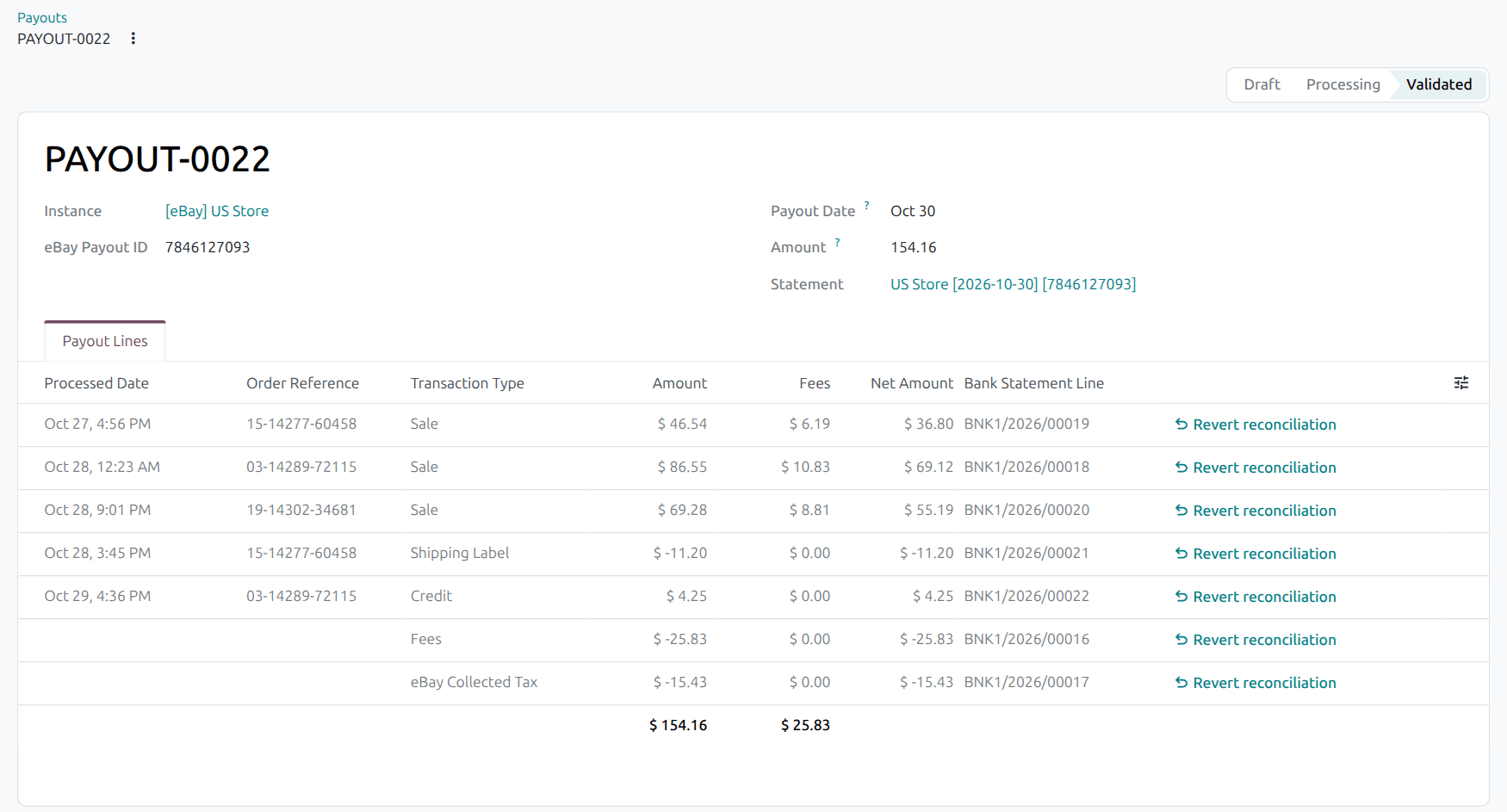
Payout form: Open a payout to see:
Header actions: Post (to create the bank statement lines and move to Processing), Auto Reconcile, Reconcile, Reset to New (when applicable).
Payout Lines: One line for each eBay transaction, with its order, transaction type, amount, fees and net amount.
Fees, eBay Collected Tax and eBay Collected Charges: eBay pays each sale after taking these out. The connector shows each sale at the amount that matches its invoice, then adds one line per payout for each of these that has an amount, so the lines add up to what eBay paid you.
Bank Statement: The bank statement in the instance’s Payout Journal. Each payout line has its own statement line.
Payout Reconciliation
Auto Reconcile: Matches Sale lines to the order’s invoice or payment, and every other line to the account set in Payout Account Configuration. This button needs Odoo Enterprise.
Reconcile: Opens the Odoo bank reconciliation screen so you can match statement lines yourself. This button needs Odoo Enterprise.
Revert reconciliation: Available on a payout line that is already reconciled.
If Auto Process Payout Report? is enabled on the instance, reconciliation also runs during import.
Note
Refunds on a payout are booked to the account you set for Refund. The connector does not create credit notes from payouts.