
Import BigCommerce Orders In Odoo
The BigCommerce Odoo Connector lets you import BigCommerce orders into Odoo as Sale Orders. This keeps inventory, accounting, and fulfillment data centralized in Odoo and eliminates manual re-entry.
Before importing, configure the relevant Order Configuration and Workflow Configuration on the instance.
You can import orders manually from the operations wizard or on schedule through the Import Order automatic job.
Method - 1: Manual Order Import
Go to the menu in Odoo.
Click on the Operations button from the instance record.
In BigCommerce Operation, choose Import. Then in BigCommerce Import Operation, select Import Orders.
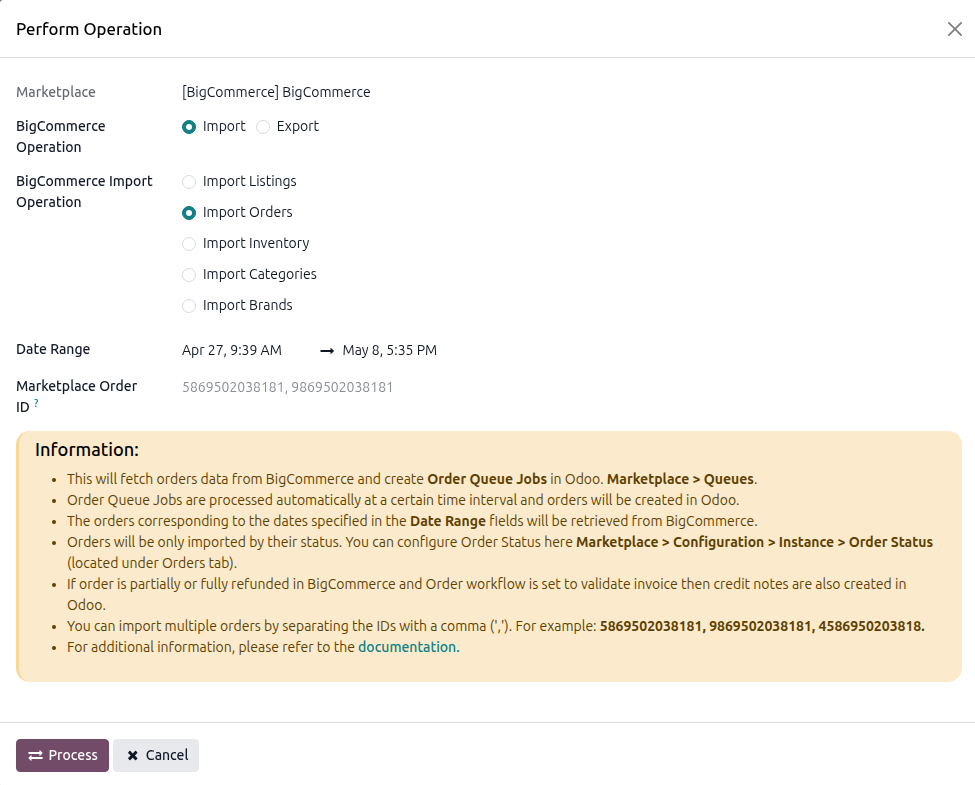
The wizard exposes the following options:
Date Range: Orders created in BigCommerce within the dates specified in the Date Range field will be retrieved from BigCommerce.
Marketplace Order ID: Import specific BigCommerce orders by entering their numeric IDs. Separate multiple IDs with a comma, for example
5869502038181, 9869502038181, 4586950203818. When you enter order IDs, the Date Range and the Order Status filter of the instance are not applied.
Click PROCESS.
When you use the Date Range, the connector fetches the orders from BigCommerce and adds them to an Order Queue Job visible at . The scheduled action Marketplace : Process Queue Job processes the queue job, or you can process it manually from the queue. Each order is created in Odoo following the Marketplace Workflow matched to the order’s Payment Gateway and Payment Status.
When you enter Marketplace Order ID values, the orders are imported at once, no queue job is created, and the imported Sale Orders open on screen.
If some orders fail because no matching financial workflow is configured, the import writes an error log line with a Configure Workflow button. Open the log at , click the button to open the financial workflow form pre-filled with the missing payment gateway and payment status combination, complete the line, then retry the failed queue line. See BigCommerce Financial Workflow Configuration.
Method - 2: Automatic Order Import
Order import from BigCommerce to Odoo can be automated using the Automatic Schedule action, which allows you to set up a predefined time interval for the execution of the import process. This automation ensures that the latest orders from your BigCommerce store are created or updated in Odoo without requiring manual intervention. Here’s how the process works:
Go to your BigCommerce instance setting by navigating to .
Open the Automatic Jobs tab. In that tab you can configure the BigCommerce [your instance] : Import Order automatic action by setting Interval Number, Interval Unit, and then enable Active.
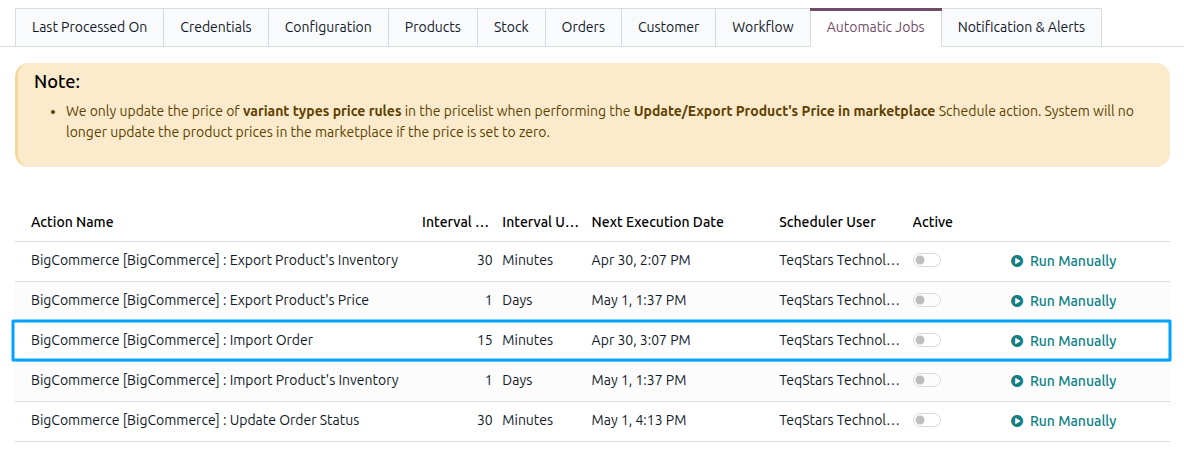
Once the schedule action is active, Odoo automatically triggers the BigCommerce order import at the specified time intervals, fetching the latest orders from your store and processing them according to the configured order workflow. The job runs only while the instance is confirmed.
Important
A date range import and the scheduled import bring in only the orders whose BigCommerce status is selected in the Order Status field of the instance. Configure it at , on the Orders tab. The default is Awaiting Fulfillment. If the field is empty, orders of every status are imported.
If a BigCommerce order is partially or fully refunded and the matched Marketplace Workflow has BigCommerce: Create Credit Note enabled, the connector creates and posts a credit note against the posted invoice of the order. No credit note is created when the order has several invoices, when a credit note was already created by hand, or when the credit note total does not match the BigCommerce refund total. The reason is written to the log. See BigCommerce Financial Workflow Configuration for all conditions.
If an order already exists in Odoo, the connector updates it. BigCommerce shipments are applied to the delivery orders with their tracking reference, a cancellation in BigCommerce cancels the Odoo order, and the BigCommerce order status and payment status are refreshed. Orders that are already cancelled in Odoo are not updated.