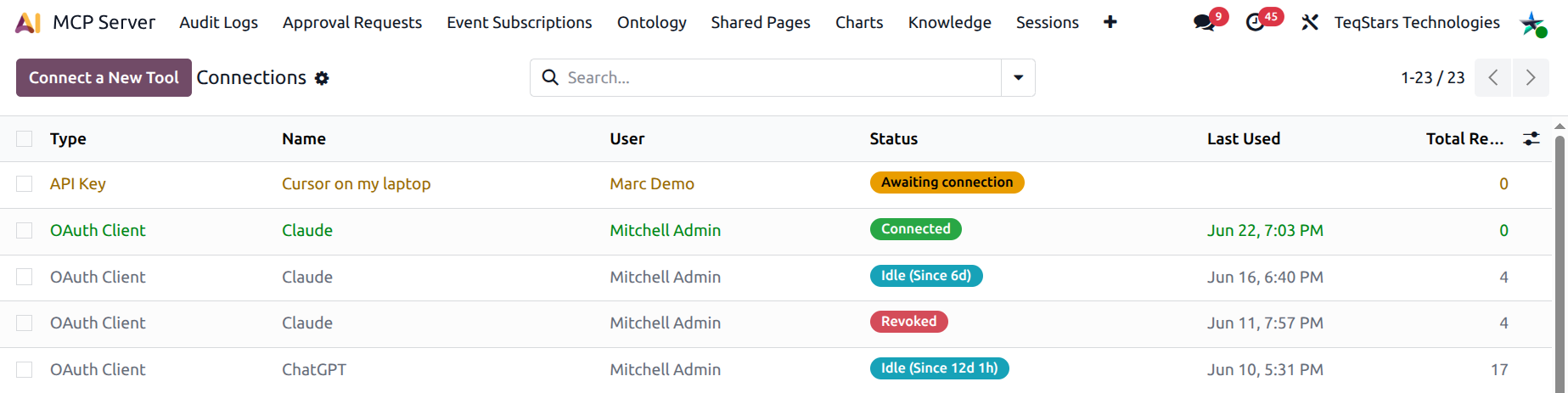
API Key (Bearer) Connections
Use an API key when your AI tool authenticates with a static
Bearer token sent in the HTTP Authorization header.
Examples include Cursor, Claude Code CLI, Gemini CLI,
Continue.dev, curl, and any custom script.
Create an API key connection
Step 1: Open the wizard
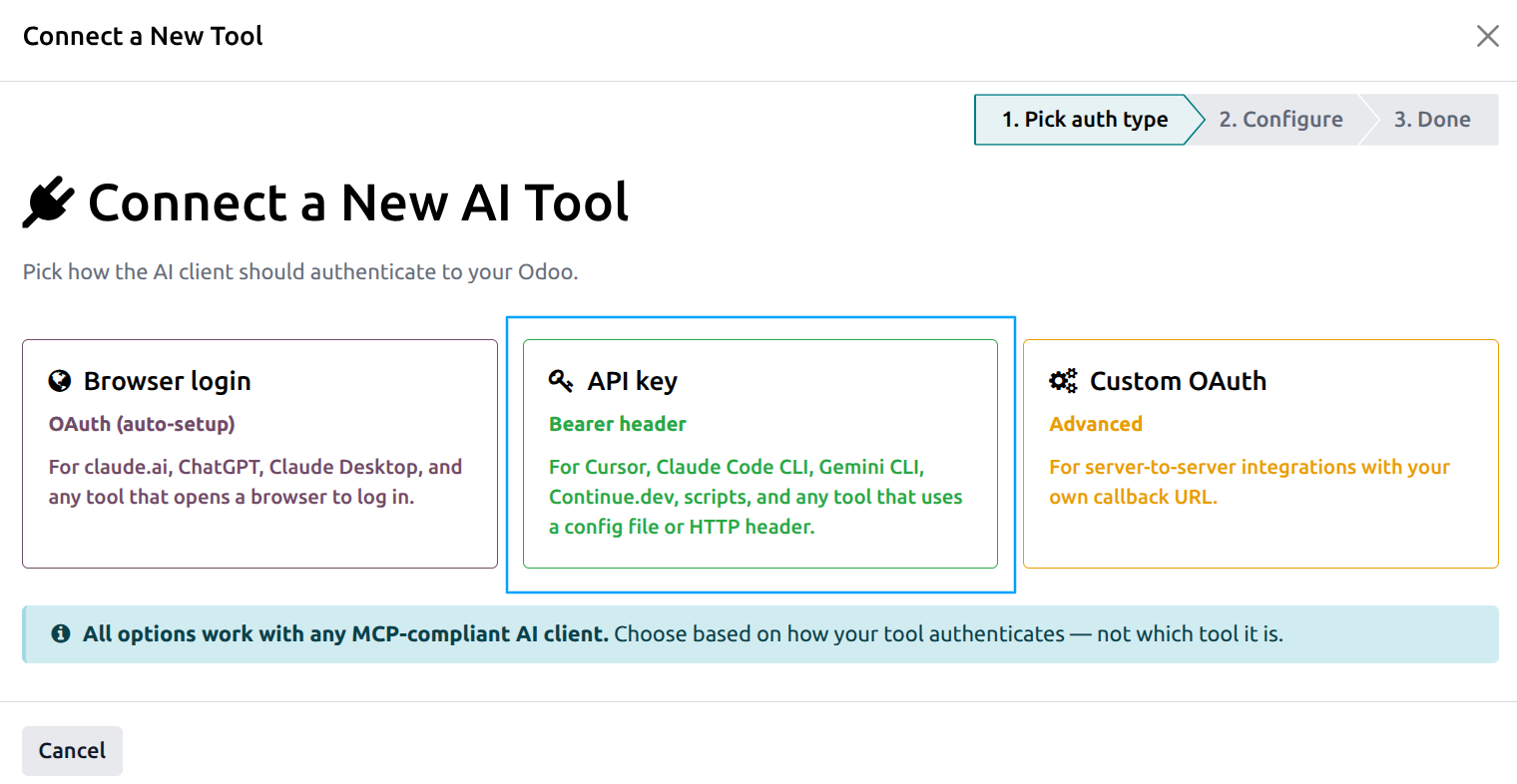
Go to and click Connect a New Tool.
On Step 1, click the API key (Bearer header) card.
Step 2: Configure
Fill in the form:
Connection Name: a friendly label, e.g. Cursor on my laptop. This is what shows up in the Connections list and in audit logs.
Odoo User: the user the AI client will act as. All actions follow this user’s permissions and record rules. By default, the wizard pre-selects the current admin.
Scope: a hint to the underlying API key (mostly cosmetic):
Full Access: the AI can call any tool the connection is not otherwise restricted from.
Read Only: meant for safe, read-only sessions. Still enforces Odoo’s record-level read permissions.
Custom: placeholder for a future custom scope per tenant.
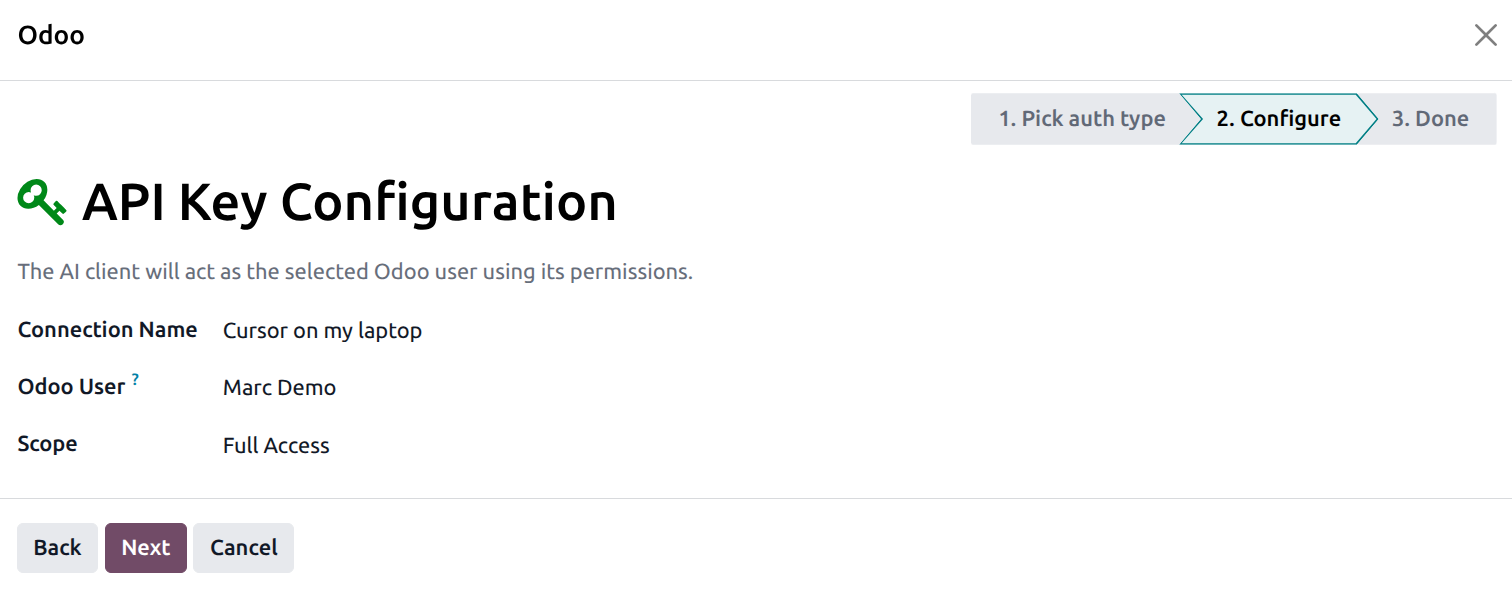
Click Next.
Step 3: Review and copy the key
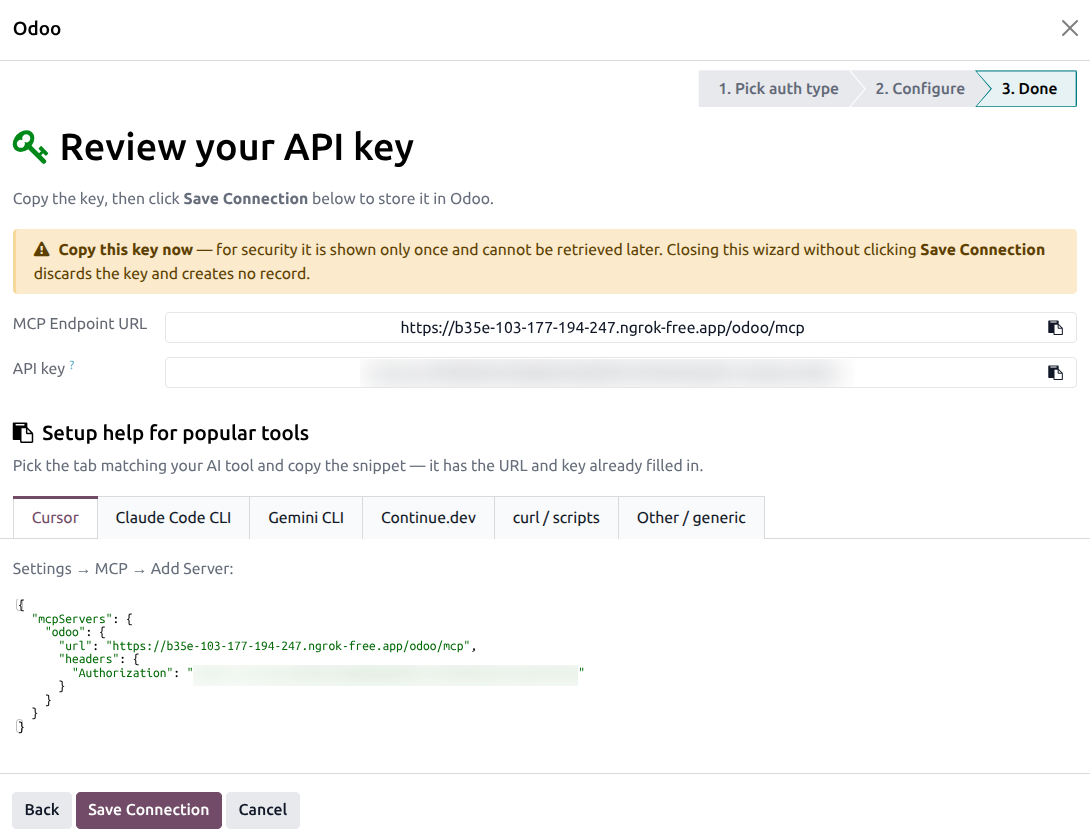
The Done screen shows:
The MCP Endpoint URL with a copy-to-clipboard widget.
The API key with a copy-to-clipboard widget. This is the only time it will ever be visible.
A notebook with per-client setup snippets that already have the URL and key filled in.
Warning
The plaintext key is shown once. If you click somewhere else without copying, the key is gone. You would have to click Rotate Key later, or revoke and create a new connection.
Click Save Connection. The wizard creates the permanent connection record and returns to the Connections list.
Per-client setup snippets
The Done step generates pre-filled snippets for the most popular clients. Pick the tab matching your tool and paste the snippet exactly as shown:
Cursor
Add to ~/.cursor/mcp.json:
{
  "mcpServers": {
    "odoo": {
      "url": "https://your-company.odoo.com/odoo/mcp",
      "headers": {
        "Authorization": "Bearer mcp_ak_xxxxxxxxxxxxxxxxxxxxxxxxxxxxxxxx"
      }
    }
  }
}
Restart Cursor. The Odoo MCP server appears under .
Claude Code CLI
Run once in your terminal:
claude mcp add --transport http odoo https://your-company.odoo.com/odoo/mcp \
  --header "Authorization: Bearer mcp_ak_xxxxxxxxxxxxxxxxxxxxxxxxxxxxxxxx"
Verify the registration:
claude mcp list
The Odoo entry should appear with status Ready.
Gemini CLI
Add to ~/.gemini/settings.json:
{
  "mcpServers": {
    "odoo": {
      "httpUrl": "https://your-company.odoo.com/odoo/mcp",
      "headers": {
        "Authorization": "Bearer mcp_ak_xxxxxxxxxxxxxxxxxxxxxxxxxxxxxxxx"
      }
    }
  }
}
Note
Gemini CLI requires httpUrl (not url) for remote MCP
servers. The wizard already generates the correct key; just
paste the snippet as is.
Continue.dev
Add to ~/.continue/config.json:
{
  "mcpServers": [
    {
      "name": "odoo",
      "url": "https://your-company.odoo.com/odoo/mcp",
      "requestOptions": {
        "headers": {
          "Authorization": "Bearer mcp_ak_xxxxxxxxxxxxxxxxxxxxxxxxxxxxxxxx"
        }
      }
    }
  ]
}
curl
Sanity-check the connection at any time:
curl -X POST https://your-company.odoo.com/odoo/mcp \
  -H 'Authorization: Bearer mcp_ak_xxxxxxxxxxxxxxxxxxxxxxxxxxxxxxxx' \
  -H 'Content-Type: application/json' \
  -d '{"jsonrpc":"2.0","id":1,"method":"tools/list"}'
You should get a JSON-RPC response listing the available tools.
Generic Bearer header
For any other tool, set this single HTTP header on every request to the MCP endpoint:
Authorization: Bearer mcp_ak_xxxxxxxxxxxxxxxxxxxxxxxxxxxxxxxx
Connection statuses
After creation, the connection’s status moves through:
Awaiting connection: the key exists but no AI client has used it yet.
Connected: the AI client has called Odoo recently.
Idle: the client has been silent for a while (the form shows the idle duration).
Revoked: the key has been revoked (red badge).