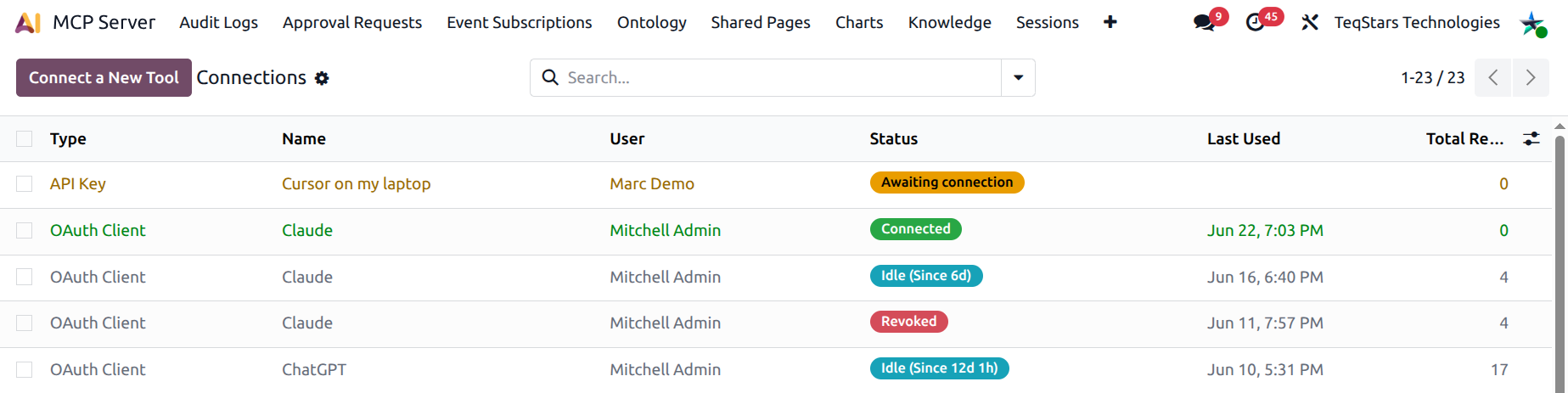
API Key (Bearer) Connections
Use an API key when your AI tool authenticates with a static
Bearer token sent in the HTTP Authorization header.
Examples include Cursor, Claude Code CLI, Gemini CLI,
Continue.dev, curl, and any custom script.
Create an API key connection
Step 1 — Open the wizard
Go to and click Connect a New Tool.
On Step 1, click the API key (Bearer header) card.
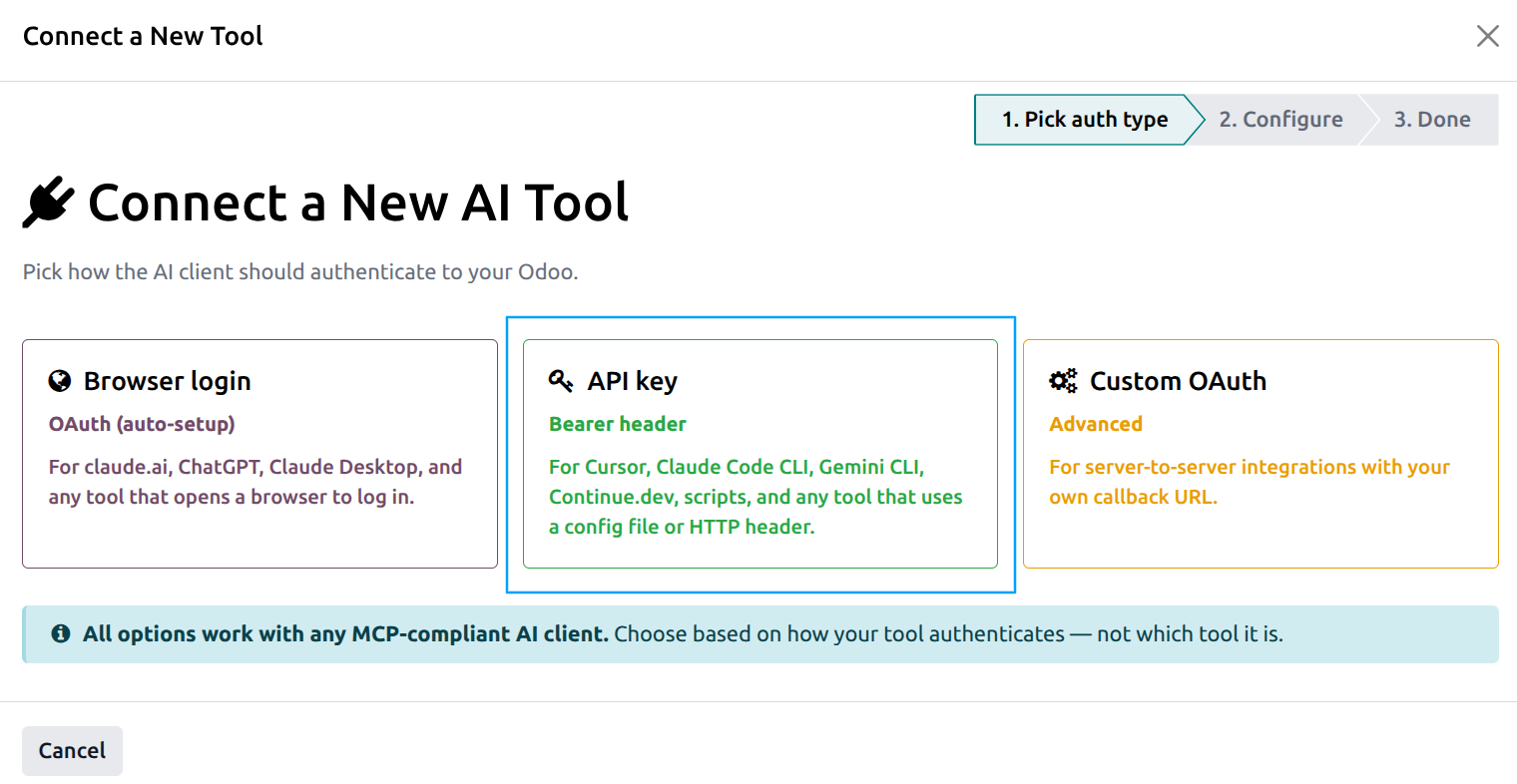
Step 2 — Configure
Fill in the form:
Connection Name — a friendly label, e.g. Cursor on my laptop. This is what shows up in the Connections list and in audit logs.
Odoo User — the user the AI client will act as. All actions follow this user’s permissions and record rules. By default, the wizard pre-selects the current admin.
Scope — a hint to the underlying API key (mostly cosmetic):
Full Access — the AI can call any tool the connection is not otherwise restricted from.
Read Only — meant for safe, read-only sessions. Still enforces Odoo’s record-level read permissions.
Custom — placeholder for a future custom scope per tenant.
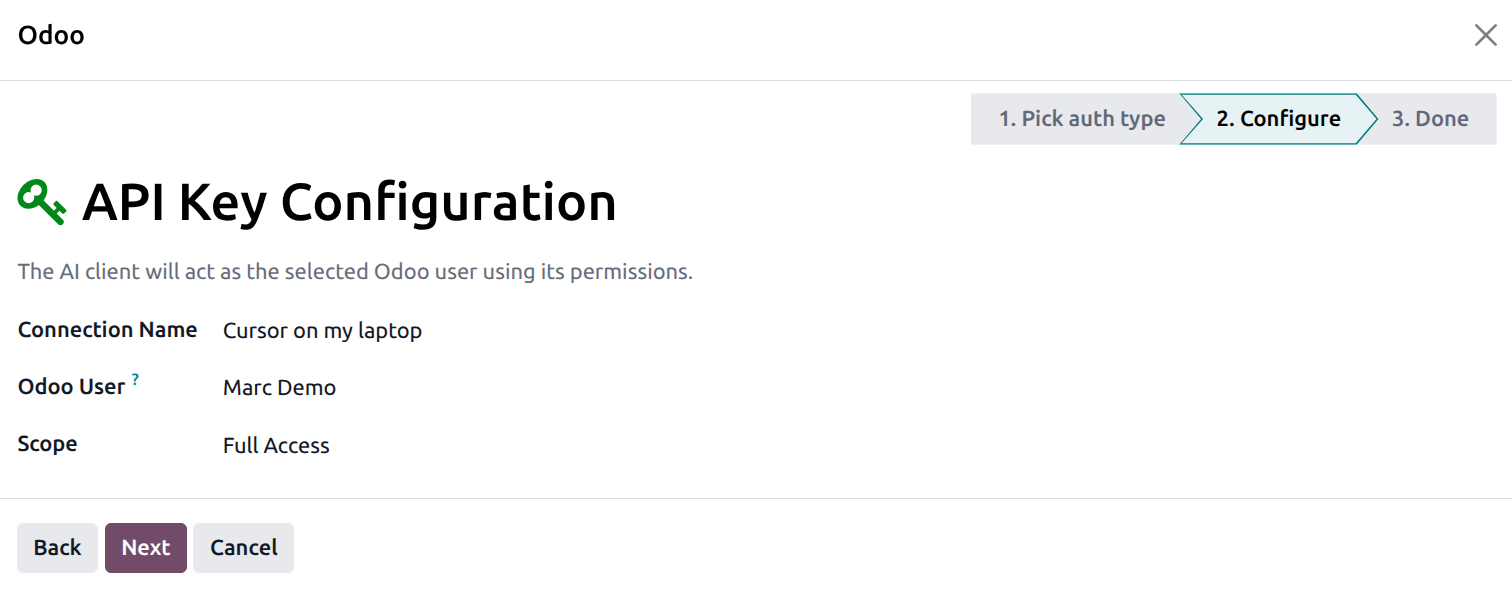
Click Next.
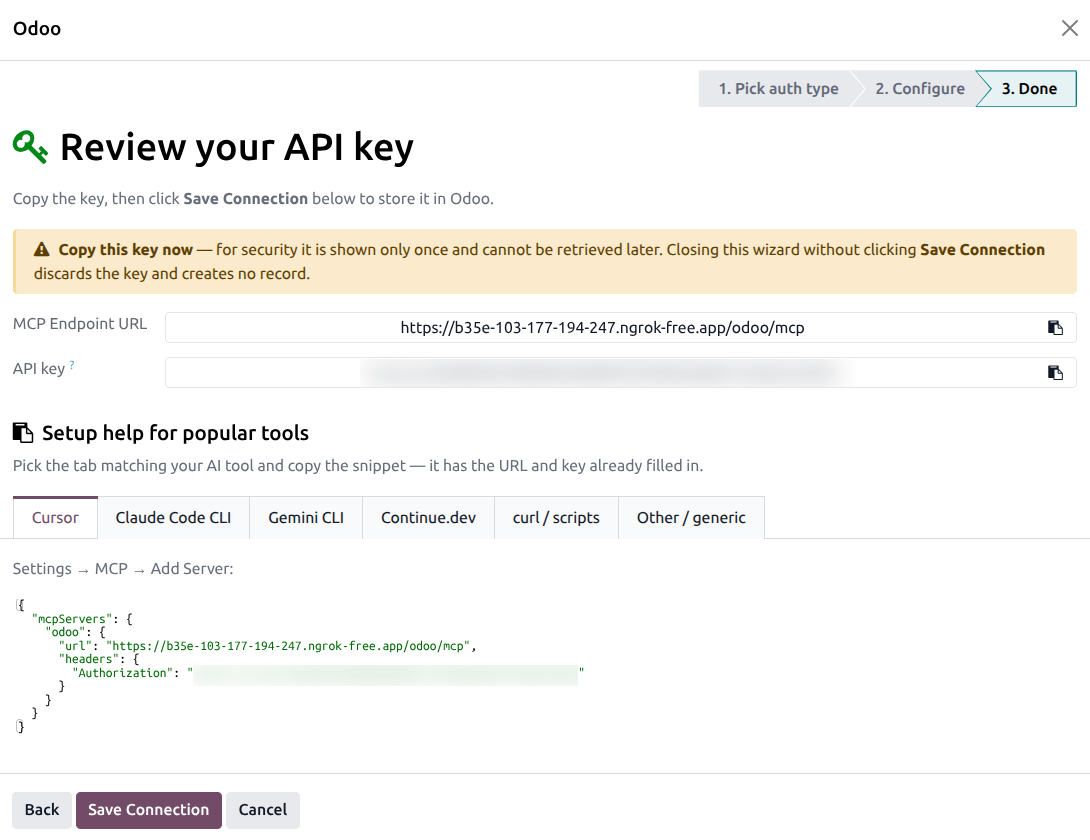
Step 3 — Review and copy the key
The Done screen shows:
The MCP Endpoint URL with a copy-to-clipboard widget.
The API key with a copy-to-clipboard widget — this is the only time it will ever be visible.
A notebook with per-client setup snippets that already have the URL and key filled in.
Warning
The plaintext key is shown once. If you click somewhere else without copying, the key is gone — you would have to click Rotate Key later, or revoke and create a new connection.
Click Save Connection. The wizard creates the permanent connection record and returns to the Connections list.
Per-client setup snippets
The Done step generates pre-filled snippets for the most popular clients. Pick the tab matching your tool and paste the snippet exactly as shown:
Cursor
Add to ~/.cursor/mcp.json:
{
  "mcpServers": {
    "odoo": {
      "url": "https://your-company.odoo.com/odoo/mcp",
      "headers": {
        "Authorization": "Bearer mcp_ak_xxxxxxxxxxxxxxxxxxxxxxxxxxxxxxxx"
      }
    }
  }
}
Restart Cursor. The Odoo MCP server appears under .
Claude Code CLI
Run once in your terminal:
claude mcp add --transport http odoo https://your-company.odoo.com/odoo/mcp \
  --header "Authorization: Bearer mcp_ak_xxxxxxxxxxxxxxxxxxxxxxxxxxxxxxxx"
Verify the registration:
claude mcp list
The Odoo entry should appear with status Ready.
Gemini CLI
Add to ~/.gemini/settings.json:
{
  "mcpServers": {
    "odoo": {
      "httpUrl": "https://your-company.odoo.com/odoo/mcp",
      "headers": {
        "Authorization": "Bearer mcp_ak_xxxxxxxxxxxxxxxxxxxxxxxxxxxxxxxx"
      }
    }
  }
}
Note
Gemini CLI requires httpUrl (not url) for remote MCP
servers. The wizard already generates the correct key — just
paste the snippet as is.
Continue.dev
Add to ~/.continue/config.json:
{
  "mcpServers": [
    {
      "name": "odoo",
      "url": "https://your-company.odoo.com/odoo/mcp",
      "requestOptions": {
        "headers": {
          "Authorization": "Bearer mcp_ak_xxxxxxxxxxxxxxxxxxxxxxxxxxxxxxxx"
        }
      }
    }
  ]
}
curl
Sanity-check the connection at any time:
curl -X POST https://your-company.odoo.com/odoo/mcp \
  -H 'Authorization: Bearer mcp_ak_xxxxxxxxxxxxxxxxxxxxxxxxxxxxxxxx' \
  -H 'Content-Type: application/json' \
  -d '{"jsonrpc":"2.0","id":1,"method":"tools/list"}'
You should get a JSON-RPC response listing the available tools.
Generic Bearer header
For any other tool, set this single HTTP header on every request to the MCP endpoint:
Authorization: Bearer mcp_ak_xxxxxxxxxxxxxxxxxxxxxxxxxxxxxxxx
Connection statuses
After creation, the connection’s status moves through:
Awaiting connection — the key exists but no AI client has used it yet.
Connected — the AI client has called Odoo recently.
Idle — the client has been silent for a while (the form shows the idle duration).
Revoked — the key has been revoked (red badge).